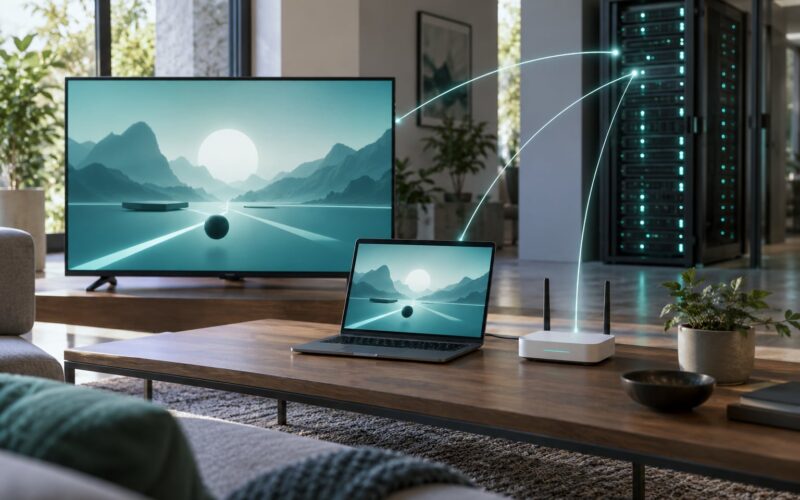
Cloud gaming feels laggy because your inputs have to travel to a server somewhere else, get processed there, and come back as a video stream before anything appears on your screen. That round trip adds network delay, video encoding time and display delay that local play simply does not have. A fast download speed does not change any of that.
Below is a troubleshooting guide for Xbox Cloud Gaming, GeForce NOW, PlayStation Portal and Remote Play players. It covers how to measure what you are actually dealing with, which fixes help, and which ones are mostly wasted effort.
Table of Contents
- 1What Makes Cloud Gaming Feel Laggy?
- 2The Main Causes of Laggy Cloud Gaming
- 3How to Test Whether Cloud Gaming Is Laggy
- 4Why Wi-Fi Can Make Cloud Gaming Feel Worse
- 5Does Distance From the Cloud Server Matter?
- 6How to Reduce Lag in Cloud Games
- 7Why Cloud Gaming Stutters Even on a Fast Connection
- 8Quick Fixes for Specific Cloud-Gaming Devices
- 9Frequently Asked Questions
- 10Is cloud gaming laggy because my internet is slow?
- 11What internet speed do I need for cloud gaming?
- 12Does lower latency fix cloud gaming stutter?
- 13Should I use 30 fps or 60 fps for cloud gaming?
- 14Can a VPN reduce cloud gaming lag?
- 15How do I tell if the lag is on my side or the server side?
- 16Conclusion
What Makes Cloud Gaming Feel Laggy?
Cloud gaming feels laggy because the game is not running on your machine. It runs on a rented server, and your controller, video stream and display all add their own delay on top of the network trip. Nothing you install locally can remove that part of the chain.
It helps to separate four problems people all call lag, because the fix for each one is different.
Input lag is the delay between your thumb and the character reacting. It is the one that ruins shooters and fighting games.
Network latency is round-trip time, usually measured as ping. It adds to input lag whenever your connection is far from the server.
Frame-rate loss is the stream running below its target frame rate. Movement looks choppy but controls still land where you expect.
Visual artifacts are compression damage: smudged textures, blocky shadows, text that crawls. The game is running fine, the video just looks bad.
If input feels delayed but the picture is clean, suspect latency or a Bluetooth controller. If the picture dissolves while input stays sharp, suspect bitrate and encoding instead. Work out which of the four you have before you change any settings.
The Main Causes of Laggy Cloud Gaming
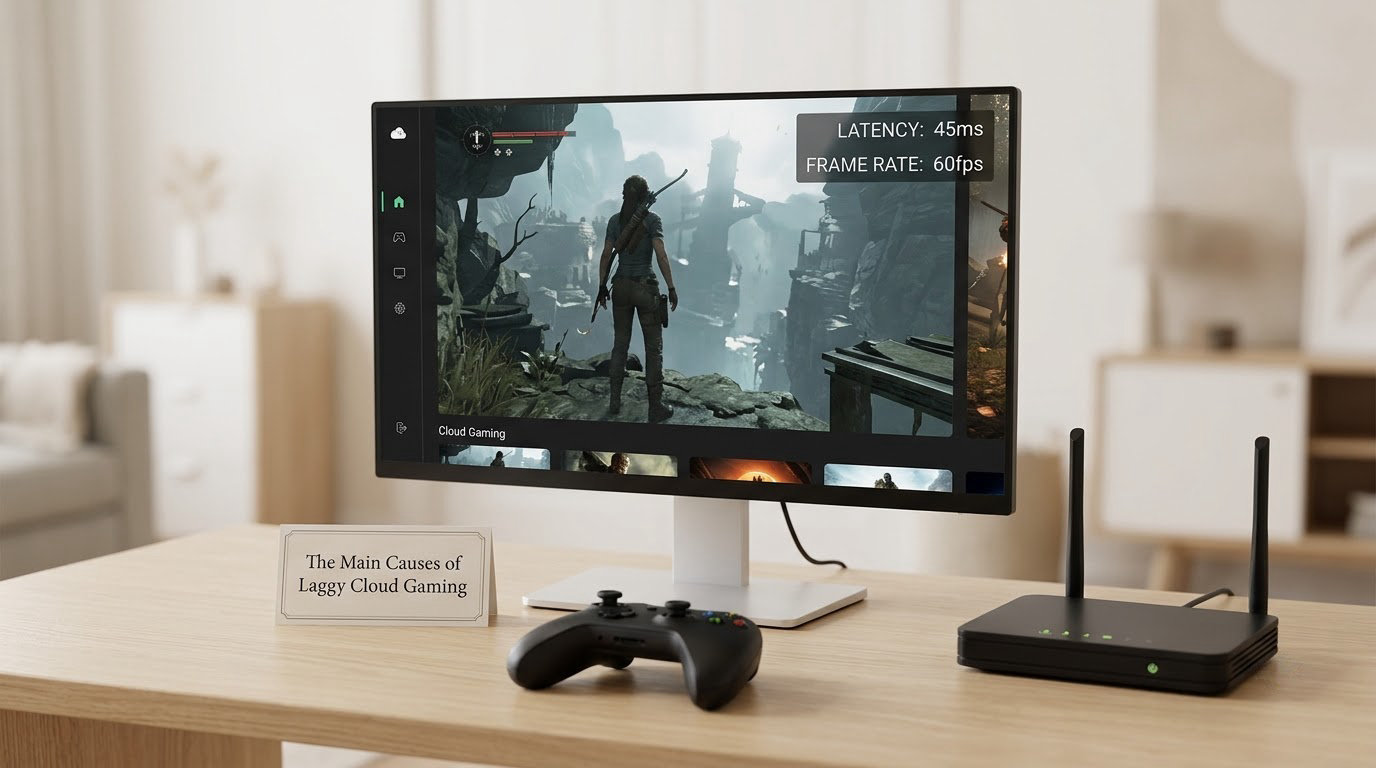
Most cases come down to six causes, and they stack on top of each other.
1. Server distance. The game runs in a data centre somewhere, and every millisecond between you and it is added to each input. Players on r/xcloud put it plainly: the amount of input lag you have depends on how good your internet is and how close you are to Microsoft’s Azure servers.
2. Network congestion. Your router, your internet service provider and the streaming provider all share paths with other traffic. Evening hours are the worst of it. A Facebook PS Portal group thread put it as: during some hours of the day, mainly in the evening, the game lags continuously.
3. Wi-Fi problems. Interference, weak signal, a distant router and half the household streaming at once all add jitter and packet loss that a wired connection would not have.
4. Encoding and decoding. The server compresses your game into video and your device decompresses it. That processing takes tens of milliseconds on its own, and it is the part nobody can tune away.
5. Your own hardware chain. A Bluetooth controller, a TV running picture processing, a phone with Wi-Fi power saving on, a streaming stick underpowered for the stream it is decoding. A Bluetooth controller is a repeatable offender: one r/xcloud user reported that wiring the controller fixed the input lag for them.
6. The game and the client. Some titles are simply heavier to stream than others, and some browsers and decoders handle motion worse than others.
Here is the quick diagnostic map. Ask what is actually wrong, then read the matching line.
- Only your controls feel delayed: network latency, Bluetooth controller pairing, or a slow device.
- Movement looks choppy but aim is accurate: frame-rate loss from bitrate or a struggling client device.
- Everything looks soft, blocky or smeared: stream resolution or compression, not latency.
- All three at once, usually in the evening: congestion, packet loss, or an overloaded streaming node.
- Bad only on one game: the title’s own streaming profile, not your setup.
How to Test Whether Cloud Gaming Is Laggy
Run these five checks in order. Each one takes under a minute and tells you something the others cannot.
1. Ping. Open a command prompt or terminal and ping the game server or the nearest streaming endpoint. Look at the average round-trip time, not a single result.
2. Jitter. Ping the same target 30 times in a row. If your readings bounce between 8 ms and 70 ms, your average looks fine but your stream will not. Jitter is the number most players have never looked at.
3. Packet loss. Any sustained loss above roughly 1 percent causes visible stutter and retransmission stalls in the stream.
4. Frame rate. Check what the stream is actually delivering, not what the service claims. Look for a stable frame counter and a resolution scale.
5. Upload speed. Most advice focuses on download. Your controller input travels upstream, so a thin upload line shows up as input delay even on a very fast download.
Here is what the numbers usually mean in practice.
| Latency band | What it feels like | Verdict for cloud gaming |
|---|---|---|
| 0 to 30 ms | Noticeably instant, comparable to a local cable | Excellent |
| 30 to 60 ms | A faint delay, easy to forget about | Fine for most genres |
| 60 to 100 ms | Clearly there; aiming and dodging feel soft | Casual and single-player only |
| 100 to 150 ms | You plan inputs a beat ahead of your hands | Frustrating in anything reactive |
| 150 ms and above | Menus feel delayed, combat feels disconnected | Not worth playing |
Consistency matters more than the headline number. A rock-steady 55 ms plays better than a connection swinging between 20 ms and 120 ms.
A useful sanity check: find the same game running locally and compare. If local play feels instant and the cloud stream does not, that gap is the streaming tax, not your router.
Why Wi-Fi Can Make Cloud Gaming Feel Worse
Wi-Fi adds a variable your cable does not have. The radio spectrum is shared with neighbours, and every microwave, Bluetooth device and baby monitor in range can push packets around.
Three problems show up repeatedly. Signal strength degrades with walls and distance, and a weak link retries packets instead of delivering them. Bandwidth competition hits when someone else in the house streams video or starts a large download. Interference spikes in apartment buildings, especially on the crowded 2.4 GHz band.
Moving closer to the router is the usual advice, and it sometimes backfires. A mesh system with a wireless backhaul adds another hop that can be worse than the original problem. If your controller is paired over Bluetooth while everything else is on Wi-Fi, that radio is carrying two streams at once.
Ethernet for the device sending video is the single most reliable fix. A wired USB controller helps too, and it costs nothing to test.
Does Distance From the Cloud Server Matter?
Yes, and more than most guides admit, but distance is only half the story. Latency is the physical travel time of light through fibre, which works out to roughly 20 to 30 ms for a round trip between London and a nearby European data centre, or about 70 ms each way between London and one on the US east coast. Routing matters as much as geography: a well-routed long path can beat a badly-routed short one.
That is why a low ping can still stutter. Ping measures the path to one machine. Your video stream comes from an encode node, your input may be routed through a different path entirely, and any of those links can be congested.
Change region when the problem tracks time of day, when a nearby region is clearly worse than a further one, or when your provider offers several and one sits close to a major network hub. Do not change region because your router is on a crowded channel.
How to Reduce Lag in Cloud Games
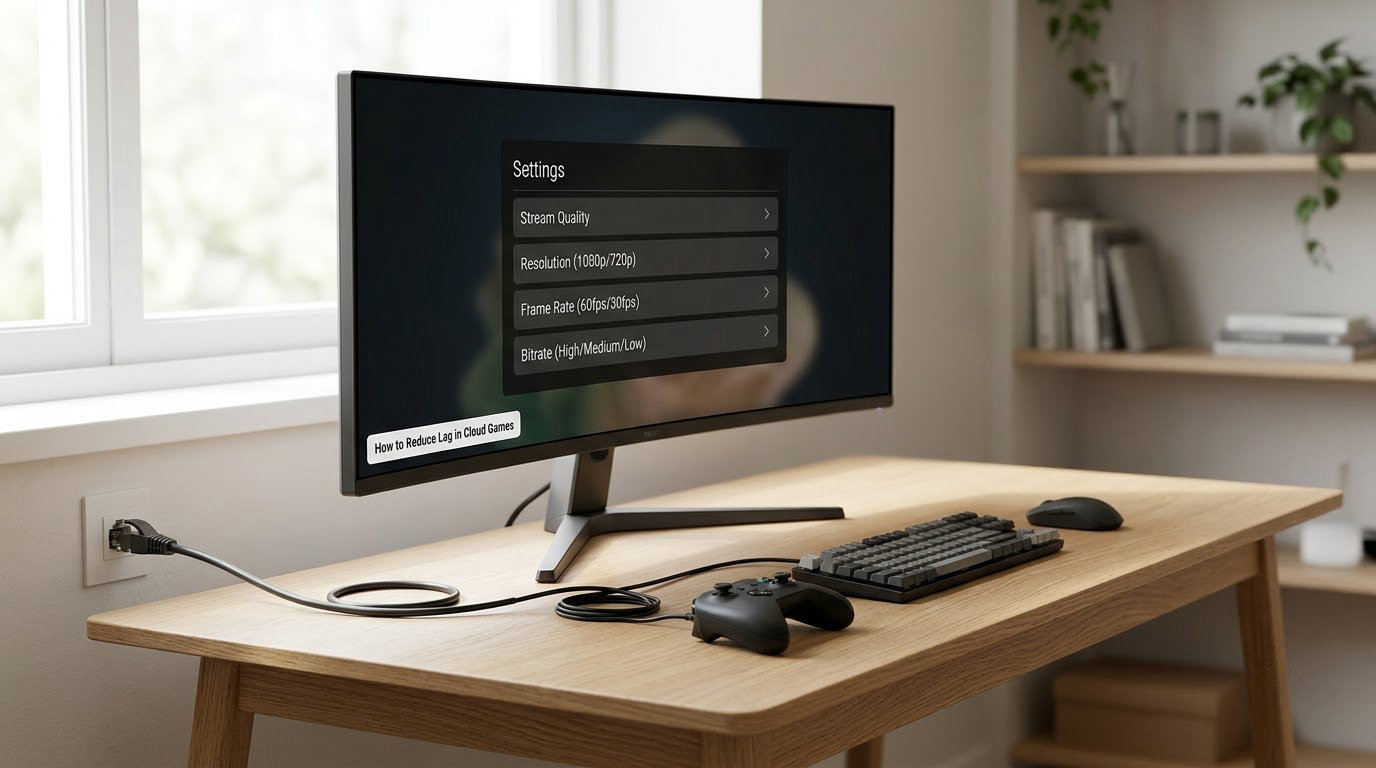
Work down this list and stop when the feel improves. The first three items take about five minutes total.
1. Go wired, both ends. Ethernet for the console, PC or TV, and a USB controller if you have one. This removes Wi-Fi contention and Bluetooth delay in a single move.
2. Lower the stream resolution before you lower the frame rate. Dropping from 1080p to 720p cuts the data the encoder has to push, and frame rate usually survives that better than you would expect.
3. Choose 60 fps over 30 fps where it exists. 30 fps doubles the motion smear and stutter you notice. If your upload is the constraint, 60 fps at 720p beats 30 fps at 1080p.
4. Free up upload bandwidth. Pause large uploads, cloud backups and video calls. Pause anything else on the same line, including smart TV updates running in the background.
5. Check for a competing device. Another console, a TV streaming, or a laptop downloading can eat your uplink without touching your download speed. A speed test on an idle phone will look perfect while your console suffers.
6. Update the browser and client. Decoder performance improves meaningfully between versions. On Xbox Cloud Gaming in Edge, Clarity Boost upscales a lower-resolution stream instead of doing nothing, which is a real gain on weak upload.
7. Try a different service for the same game. Cloud decode quality varies between Xbox Cloud Gaming, GeForce NOW and PlayStation Portal. If one client stutters and the other does not, the client was the problem.
One honest note: an AVForums thread reports a 1 Gb connection with Ethernet still feeling laggy in Fortnite on Xbox Cloud Gaming. Gigabit bandwidth was never going to be the issue there. This is the clearest evidence in the search results that bandwidth and latency are separate things.
Why Cloud Gaming Stutters Even on a Fast Connection
Stutter is a different fault from input lag, and a fast connection does not prevent it.
Frame drops in the client. Your device may decode frames it cannot finish in time. Streaming sticks and older TVs are the usual suspects, and the symptom is a hitch every few seconds that a latency reading never shows.
Server overload. When many people stream the same title, encoding capacity runs short and bitrate per user drops. Users on r/xcloud report that the feel of the stream changes by time of day, with weekends in the afternoon and evening hours distinctly worse.
Browser rendering. Heavy pages, extensions and many open tabs compete for the same resources as the decoder.
Thermal throttling. A console or laptop that has been running for an hour can drop clocks, and the first symptom is uneven frame pacing.
Bitrate ceilings. There is a hard cap on how much video the service will send. Once you are near it, the encoder throws detail away, which shows up as mushy textures rather than delay.
Quick Fixes for Specific Cloud-Gaming Devices
What you can change depends on the client, and the differences matter.
Browser on PC. Use a current Chrome, Edge or Firefox, close every tab you do not need, and disable extensions for the session. If the service offers a quality slider, set it manually rather than letting it auto-adjust.
Xbox Cloud Gaming on console. The stream quality option lives in the network settings on the console. Set Game Mode to on, use a wired adapter if you have one, and check that the console is not sharing bandwidth with a big download.
PlayStation Portal. Portal streams from your own console over the internet, which is why it is often smoother than remote cloud. Keep it close to the router, avoid Wi-Fi extenders, and remember that portal quality depends on the game running well on your PS5 first.
Remote Play. Same network, same principle: wired beats wireless, and the stream caps out on your upload. Players in the PS Portal group put cloud at about 26 ms against roughly 9 ms for remote play on comparable connections.
Smart TV and streaming sticks. Turn on the TV’s Game Mode. r/cloudygamer members flag this as an easy miss, and TV picture processing can add delay that looks exactly like network lag. On sticks, close background apps and keep the device ventilated.
Phone and tablet. Mobile adds its own delay on top: the touch digitizer, a Bluetooth controller, and Wi-Fi power saving throttling the radio. Turn power saving off for the game, pair a controller over USB-C if your phone supports it, and use 5 GHz or 6 GHz.
Frequently Asked Questions
Is cloud gaming laggy because my internet is slow?
Usually not. Download speed tells you how much data can arrive, while your inputs travel the other way and need upload speed. Latency, jitter and packet loss cause most of the feeling people blame on speed. A 220 Mbps line with 90 ms ping to the server can feel worse than a 100 Mbps line with 25 ms. Test ping and jitter next to bandwidth before changing anything.
What internet speed do I need for cloud gaming?
Roughly 25 Mbps of stable download handles a 1080p stream, and 15 Mbps is enough for 720p at 60 fps. Upload matters just as much for input: 10 Mbps up keeps a controller responsive, and 20 Mbps or more gives the encoder room to work. Consistent upload beats a higher headline number, so measure it while nothing else is downloading.
Does lower latency fix cloud gaming stutter?
No, and this trips people up constantly. Latency is a delay; stutter is uneven frame delivery. Lowering ping will not stop hitching caused by a client that cannot decode, a congested server, or a bitrate cap. If your input feels fine but the motion hitches, look at frame rate, client power and stream quality instead of your ping.
Should I use 30 fps or 60 fps for cloud gaming?
Use 60 fps wherever the service offers it. Halving the frame rate makes motion look smeared and doubles the sensation of choppiness, which players read as lag even when input is responsive. If your connection cannot sustain 60 fps, drop resolution first and keep the frame rate, since smooth motion hides a soft image better than a sharp one hides stutter.
Can a VPN reduce cloud gaming lag?
Usually it makes things worse. A VPN adds a hop between you and the streaming node, so ping rises and jitter tends to rise with it. The exception is a badly routed local connection, where a VPN in the same region as the data centre can shorten the path. Test with and without it before deciding, and never use one while playing ranked matches.
How do I tell if the lag is on my side or the server side?
Compare a wired, idle connection against the same game running locally. Ping the streaming endpoint while the lag is happening: a spike at the same moment as the stutter points to the network, while a steady ping with visible hitching points to the server or your client. Comparing the same game on Remote Play gives a second reading on the same connection, which separates the two quickly.
Conclusion
Cloud gaming feels laggy because the game is somewhere else, and that round trip is unavoidable. Fix it in this order:
- Measure ping, jitter and upload speed, not just download speed.
- Move to Ethernet and a USB controller.
- Lower stream resolution, keep 60 fps.
- Change server region if the problem tracks time of day.
- Work out what is left: input delay, visual artifacts or stutter.
Whatever remains after that is the streaming tax. Co-op games, strategy titles and single-player adventures absorb it well. Ranked shooters and fighting games do not, and no setting fixes that. Updated for 2026, and it is still the honest answer.