Port forwarding is a rule you create on your router that sends inbound internet traffic arriving on one chosen port straight to a specific device on your local network, instead of dropping it at the firewall. Your game server sits on a private address that the internet cannot see, and this rule is what makes it reachable.
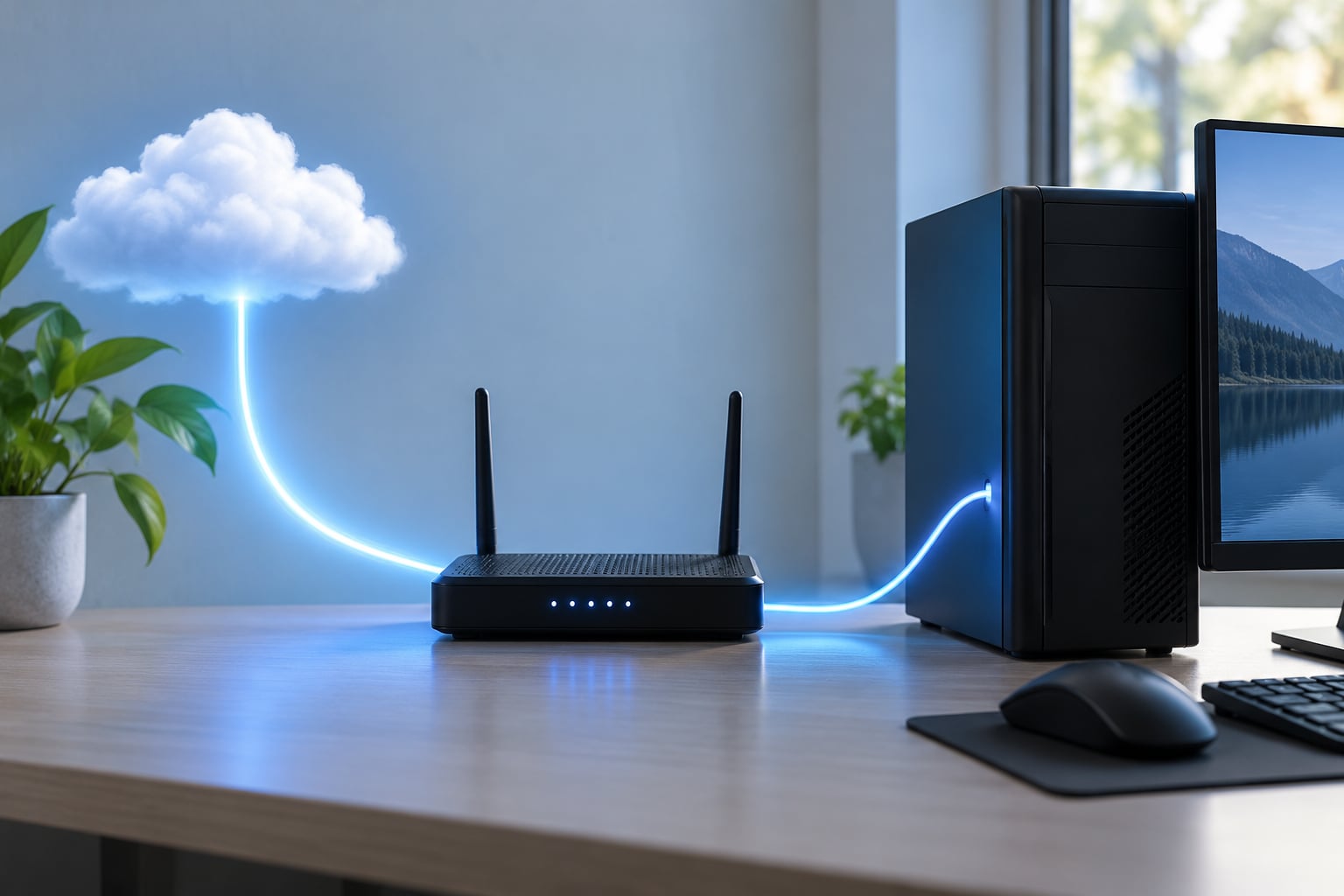
Here is the short version of how it works. A player types your public IP and the game’s port into their client. That request hits your router first, the router matches it against the forwarding table, rewrites the destination to your server’s private IP, and hands the connection to the game process listening on that port.
If you host games at home, you need this. If you only join servers, you do not, with one exception worth knowing about further down. Most people arrive here after their server stays invisible in the server browser even though everything else looks right, so the troubleshooting table near the end is the part to bookmark.
Table of Contents
- 1What Is Port Forwarding for Game Hosting?
- 2How Port Forwarding Works for Game Hosting
- 3Why Players Cannot Connect Without the Right Port
- 4TCP vs UDP: Which Protocol Does Your Game Use?
- 5How to Find Your Server’s Local IP Address and Port
- 6How to Set Up Port Forwarding on Your Router
- 7How to Test the Forwarded Port and Connection
- 8What About Firewalls, NAT, Double NAT, and VPN Software?
- 9Common Port Forwarding Problems and Fixes
- 10How to Keep Your Game Server Secure
- 11Frequently Asked Questions
- 12Do I need a public IP address to forward ports for a game server?
- 13Is port forwarding safe for hosting a game server?
- 14Can I host a multiplayer game behind a router?
- 15Why does port forwarding work locally but not for friends?
- 16Will port forwarding fix lag or high ping in my game server?
- 17What is double NAT, and how do I check whether I have it?
- 18Conclusion
What Is Port Forwarding for Game Hosting?
Port forwarding for game hosting is a router setting that punches a deliberate hole in your home firewall for one specific port, so inbound players can reach a device on your local network.
Every device on your home network has a private IP address, usually something like 192.168.1.42. Those addresses are not routable across the internet, which is deliberate: it is why your laptop, printer and TV do not show up as attack targets. Your router sits between the internet and those devices, and it holds a table mapping one public IP to all of them.
Outbound traffic works on its own. When your game server connects to a master server or a patch server, the router creates a temporary entry allowing the reply to come back. Inbound traffic is the other direction, and the router has no reason to let it through unless you tell it to.
So who actually needs it? Host, not player. If you run a dedicated server, a listen server for friends, or a self-hosted tabletop or game engine server, you need at least one inbound port open. If you only connect to other people’s servers, the outbound rules already cover you.
The exception is console and peer-to-peer matchmaking. A strict NAT type can make a direct connection impossible, so consoles and some PC games try UPnP to open a port automatically. That is the same mechanism, just negotiated by software instead of typed into a web page by you.
One more thing to clear up early: port forwarding does not speed up your internet or lower your ping. It changes reachability, not speed. If your latency is bad, forwarding will not touch it.
How Port Forwarding Works for Game Hosting
Follow the path a single connection takes, from a player’s keyboard to your game process. Five steps, in order.
- The player opens a connection. They enter your public IP address and the game port, for example 25565 for a Minecraft Java server. Their client sends a TCP or UDP packet to that address and port.
- Your ISP delivers it to your router. The packet crosses the internet and arrives at your home connection’s public IP. From the player’s side, this looks like a normal server they could reach anywhere.
- The router firewall checks the table. By default it has no matching rule, so it discards the packet. Nobody outside ever sees a response, and the connection simply times out.
- A matching rule rewrites the destination. Your forward tells the router: anything arriving on the public port, over this protocol, goes to 192.168.1.42 on the same port. The router changes the destination address from your public IP to that private IP and forwards the packet onto the local network.
- The game server accepts it. The operating system hands the packet to the process that called to listen on that port, and the session starts. Replies travel back out along the same path, which is why the original connection needs no extra rule.
That is the whole mechanism. Nothing clever is happening, and no traffic is being rerouted through a third party. The router simply stopped dropping the packet and started delivering it to one address instead of nowhere.
Why Players Cannot Connect Without the Right Port
When a friend cannot connect, the router rule is usually fine and one of the other three pieces is wrong. Knowing which one saves hours.
Wrong port. The player types 25565 and your server actually listens on 25566 because you edited the server.properties file. The packet arrives at your public port, no rule matches, nothing comes back.
Wrong protocol. You opened TCP 27015 for a Source engine game that expects UDP 27015. The number is right, the rule exists, and it still fails. This one catches almost everyone once.
Wrong destination address. The rule points at 192.168.1.42, but your server’s address changed to 192.168.1.57 after a reboot. The router dutifully delivers the packet to a device that has no game running on it.
Two ports matter for most games. The game port carries actual gameplay traffic and has to be forwarded. The query port is what the server browser pings so your server shows a name and player count in the list; it is usually the game port plus one, such as 27016 for query alongside 27015 for game, and it has to be forwarded too or your server joins nobody.
TCP vs UDP: Which Protocol Does Your Game Use?
Almost every game server needs UDP, and a growing number also want TCP. If your router asks you to pick a protocol and you pick wrong, the connection fails even though every other detail is correct.
UDP is the default for game traffic. It sends small packets without waiting for confirmation, so a dropped packet just gets resent by the game protocol rather than stalling the whole connection. That matters constantly in a multiplayer session, where a 50ms stall is worse than a small loss.
TCP guarantees packets arrive in order, which is why servers use it for things that must not be lost: logins, chat, server browser queries, and Steam or patch traffic. It is also what most DDoS protection leans on, so some of your forwarded ports are TCP.
How to find the right one: check the game’s own server documentation or wiki first, then the server config file, which usually names the port and protocol in one line. The game’s Steam community guides and the dedicated server install notes are reliable here, and the same page often lists the query port. When in doubt, create both a TCP and a UDP rule for the port. It costs nothing, and a duplicate rule is harmless if the game only uses one.
How to Find Your Server’s Local IP Address and Port
You need two values before touching the router: the private IP your server machine holds, and the port the game is listening on. Both are easy to get on Windows.
Open Command Prompt and run ipconfig. Look for the adapter you are actually using, usually Ethernet or Wi-Fi, and note the IPv4 Address. It will look like 192.168.1.42 or 10.0.0.23. That is the address you put in the router rule.
Then confirm the game is listening. Run netstat -ano -b in an elevated Command Prompt while the server is running. Find the game process in the list and note the local address ending in the port you expect, such as 0.0.0.0:25565. If nothing shows up, the server is not listening, and no router rule on earth will help yet.
Common ports for dedicated servers, always paired with a protocol:
| Game | Game port | Query port | Protocol |
|---|---|---|---|
| Minecraft Java | 25565 | 19132 (Bedrock, UDP) | TCP |
| Counter-Strike 2 and other Source engine games | 27015 | 27015 | UDP |
| Valheim | 2456 | 2457 | UDP |
| Terraria | 7777 | 7777 | TCP |
| Rust | 28015 | 28015 | UDP |
| Nintendo Switch games | 45000-65535 | same range | UDP |
Switch titles need a whole range rather than one port, which is the case where a range rule earns its keep.
How to Set Up Port Forwarding on Your Router
Set the server machine’s address first, then create the rule. Doing it in the other order is how forwards mysteriously break a week later.
1. Reserve the address. Log into your router’s admin page, usually at 192.168.1.1 or 192.168.0.1. Find the DHCP server settings and add a reservation, binding the server machine’s MAC address to 192.168.1.42. A DHCP reservation is the same as a static IP for this purpose, but the router still manages the address. A plain static IP set on the PC can collide with the DHCP pool and cause a mess.
2. Open the forwarding section. It is usually called Port Forwarding, Virtual Server, NAT, or Applications and Gaming. Vendor names are inconsistent, which is the single most common reason people think this is harder than it is.
3. Fill in the rule. You will meet some or all of these fields: service name (any label you like), protocol (TCP, UDP, or TCP/UDP), external or WAN port (the port the internet uses), internal port (usually the same number), and internal IP or device address (192.168.1.42).
4. Apply, then restart the game server. A few routers apply rules immediately and a few need a reboot. Restarting the server afterwards avoids a stale bind.
That is the whole setup. On TP-Link and Netgear routers the menu sits under Advanced or Advanced Settings, then Virtual Servers or NAT Forwarding. ASUS puts it under WAN, then Port Forwarding, with a column for the source IP left blank. Fritz!Box calls it Port Forwarding in the Internet section and asks for the source port and destination address instead. The labels change; the five fields do not.
How do I undo a rule? Delete it. A forwarding rule only redirects one port, so removing it cannot break the rest of your internet, which is the fear most first-time hosts have.
How to Test the Forwarded Port and Connection
Test in three stages, and stop at the first one that fails. Most problems are found before you leave the house.
- Is the server listening? Run
netstat -anoon the server and look for your port. If it is missing, the game is not running or is bound to a different port. - Can your own LAN reach it? From another device on the same Wi-Fi, run a connection test against 192.168.1.42 and that port. This bypasses the router entirely, so it tests the game and the Windows firewall but says nothing about your forward.
- Can the outside world reach it? Use an external port checker from a phone on mobile data, or ask a friend on a different network to connect. A port checker on your own Wi-Fi tells you almost nothing, because the request never leaves the network.

There is a catch with stage three. Some routers do not support hairpin NAT, which is the feature that lets a device inside your network reach a public address on that same network. If your own test fails from the LAN while a friend’s connection works, your router simply cannot loop the traffic back. The forward is fine.
Finally, check the server browser, not just the connection. If a player can connect by IP but your server never appears in the list, the game port is open and the query port is not.
What About Firewalls, NAT, Double NAT, and VPN Software?
Your router is only one of three things that can block a connection. The others are the Windows firewall and the shape of your network.
Windows Firewall and antivirus. The router delivered the packet, then Windows dropped it. Add an inbound rule for the game executable in Windows Security, under Firewall and network protection, then Allow an app, and pick the server binary. Third-party antivirus suites with their own firewall often add a second layer that Windows settings will not touch. A quick check: temporarily disable it and see whether the connection appears. If it does, add the exception properly rather than leaving protection off.
Double NAT. If you have an ISP modem or combo unit in front of your own router, you have two layers of network address translation, and the second one receives an address that is itself private. A forward on your router cannot work because no public address ever reaches it. Three fixes, in order of preference: put your own router in bridge mode so the modem stops routing, buy a modem that does the job itself, or connect the server directly to the modem. The giveaway is comparing the WAN IP in your router’s status page with the IP a search engine shows you. If they differ, you have double NAT.
CGNAT. Some providers put you behind carrier-grade NAT, sharing one public address across many customers. Then no router rule can ever work, because the address your router sees is private. Check whether your WAN IP starts with 10., 172.16. through 172.31., or 192.168. Call the provider and ask for a public IPv4 address, sometimes free, sometimes a few dollars a month. If they will not, use a tunnel or relay service, or rent a small virtual server and run the game there.
VPN and filtering software. A VPN client, a third-party firewall, or a parental control suite can install its own routing rules and silently break forwards you created correctly. Temporarily disconnect them when testing. Note that a VPN on the server machine itself also changes the address the router rule points at.
Common Port Forwarding Problems and Fixes
Work down this table in order. The first two rows account for most failed setups.
| Symptom | Likely cause | Check | Fix |
|---|---|---|---|
| Friends get “connection timed out” | No rule, or it points at the wrong address | Compare the rule’s internal IP with ipconfig on the server | Correct the destination, or add a DHCP reservation |
| Connect works by IP, server not in the list | Query port not forwarded | Look for a query port in the game docs, usually game port plus one | Add a rule for the query port, same protocol |
| Server shows as offline for everyone | Server not listening, or the port in config does not match the rule | netstat -ano -b on the server | Fix the port in the server config, then restart it |
| Works on Wi-Fi, fails over Ethernet | Machine got a different address on the new adapter | Run ipconfig on both adapters | Reserve an address per adapter, or forward each one |
| Worked for weeks, then stopped | Public IP changed after a reconnection | Compare your public IP with what players are using | Use dynamic DNS, or a static IP from the provider |
| Intermittent drops | Connection tracking timeout, or a flaky cable | Router logs for dropped sessions | Raise the UDP and TCP timeout values, update firmware |
| Nothing works after an ISP router swap | Double NAT, or a new modem with no bridge option | Compare router WAN IP with your public IP | Bridge the modem, or put the server on the modem |
| Antivirus flagged the server | Dedicated server binaries get quarantined | Your AV quarantine log | Add an exclusion for the server folder |
Update your router firmware before a long session, too. Old firmware has a habit of dropping rules after a power cut.
How to Keep Your Game Server Secure
Opening a port puts a service on the internet that strangers can reach. It is a real change in exposure, though a modest one, and a few habits keep it small.
Forward the narrowest scope that works. One port, or one range, not DMZ host. A DMZ setting points every inbound port at one machine, and hosts reach for it because it appears to fix everything. It fixes the symptom by removing the firewall, and forum threads about it being the worst thing you can do to a home network are not exaggerating.
Require authentication, use a long admin password on the server itself, and keep the server software patched. A forwarded port on an unpatched server is the one worth worrying about, not the port itself.
Watch what the rule was for. Set the game port to something else when you are not hosting, delete rules you no longer use, and update the server for active games on a schedule. If your game supports bans, rate limits, or a whitelist, turn them on before you invite anyone.
Finally, be honest about uptime. A home connection drops, the power goes out, and your address can change. When you need the server to be up for a scheduled event or for people outside your household, a small virtual server or a managed host removes the router work entirely and gives you a stable address. Port forwarding is the right tool for a weekend LAN party, not for something with an uptime promise attached.
Frequently Asked Questions
Do I need a public IP address to forward ports for a game server?
Yes. Port forwarding only works if your router holds a public IPv4 address, because players must be able to reach it from the internet. If your router’s WAN address is private, such as one starting with 10, 192.168, or 172.16 to 172.31, you are behind carrier-grade NAT and no rule will help. Ask your provider for a public address, or use a tunnel or relay service instead.
Is port forwarding safe for hosting a game server?
It is safer than most people fear, provided you keep the rule narrow. Forward one port for one protocol to one device, never use DMZ host, require authentication on the server, and keep the game software patched. The real risk is an unpatched server left reachable for months, not the port rule itself. Delete the rule when you stop hosting.
Can I host a multiplayer game behind a router?
Yes, as long as you have a public IP and one forwardable port. Most home routers handle several game servers at once, either with several rules or one range rule covering a block of ports. Give each server a different port in its config file and match it to its own rule. Console games often need a wide range, such as 45000 to 65535 for Switch titles.
Why does port forwarding work locally but not for friends?
A test from your own Wi-Fi never leaves the network, so it bypasses your forward entirely and proves almost nothing. Test from mobile data with an external port checker, or ask someone on another connection. If your own LAN test also fails to reach 192.168.x.x, the problem is the game or Windows Firewall, not the router. Some routers also lack hairpin NAT, so they cannot loop traffic back to themselves.
Will port forwarding fix lag or high ping in my game server?
No. Port forwarding changes whether players can reach your server, not how fast data moves. Ping is set by the physical route between players and your line, plus your own upload bandwidth. A forward cannot lower it. If ping is poor, the realistic options are a wired connection, a closer server host, or reducing traffic on the same upload line. Forwarding rules out one cause of connection problems, and that is all it does.
What is double NAT, and how do I check whether I have it?
Double NAT means two routers translate addresses, usually an ISP modem plus your own router, so the inner router receives a private address and forwards can never work. Compare the WAN or internet IP shown in your router’s status page with the IP a search engine reports. If they differ, you have double NAT. Fix it by bridging the modem, replacing it, or connecting the server directly to it.
Conclusion
Port forwarding is a short chain: a player’s packet arrives at your public address on the game’s port, your router matches it against a rule, rewrites the destination to your server’s private IP, and the game process answers. Every failure along that chain has a name, and every name has a fix.
Start with the first three checks. Confirm the protocol the game actually uses, confirm the port the server is listening on with netstat, and note the private IP from ipconfig. Reserve that address on your router, create one rule that matches all three, then test from a different network rather than your own Wi-Fi. If nothing works and your router’s WAN address looks private, the blocker is carrier-grade NAT, and no amount of router fiddling will change that.
Then keep the exposure small: one port, authentication on, software patched, rule deleted when the server goes away. That is how port forwarding works for game hosting, end to end, in 2026.