To sign up for a game beta, you register on the official channel for that game — usually a publisher program such as Xbox Insider, the PlayStation Beta Program, a Steam beta branch, EA Playtest, or Apple’s TestFlight — then meet the listed requirements and wait for an invitation. Registration takes about five minutes. Getting the invitation is the part you do not control.
That is the honest version of how to sign up for a game beta. The signup is easy, the selection is not. Studios choose testers based on playtime, hardware, region, engagement, or sometimes a plain lottery, and most closed betas take only a fraction of the people who apply. This guide covers what to have ready, where each platform handles signup, and what to do when the invite never arrives.
Last checked for October 2026. Beta programs change often, so confirm details on the publisher’s own page before you register.
Table of Contents
- 1What You Need Before You Register
- 2How to Sign Up for a Game Beta, Step by Step
- 3Find the Official Beta Announcement
- 4Check Eligibility and Pick the Right Test
- 5Create or Sign In to the Required Account
- 6Complete the Beta Registration or Waitlist Form
- 7Join the Test and Confirm Your Access
- 8Download the Correct Client and Verify the Test
- 9Common Mistakes That Kill an Application
- 10Quick Tips for Increasing Your Chances
- 11Frequently Asked Questions
- 12How do I find out if a game beta is actually open?
- 13Do I need a code to sign up for a game beta?
- 14Can I join a beta on any platform?
- 15Why did I not receive a beta invitation email?
- 16Is it safe to register for a game beta online?
- 17Conclusion: Start With the Official Test Page
What You Need Before You Register
Most betas need a short list of things ready, and you probably already have most of them. Not every beta requires everything, but going in with the account and hardware sorted saves the frustration of getting approved and then failing a last-second check.
- An account on the right platform. A PSN account with a matching region, a Steam account that owns the game, an EA account, or an Apple ID and Google account for mobile tests.
- An email inbox you actually read. Invitations often land in promotions or spam, and some go out from a sender address you have never seen before.
- A birth date and region that match the test. Many closed tests are 18+ or region-locked, and some only run in specific countries or languages.
- Hardware that clears the published spec. Beta builds are frequently larger than the shipped game, so check free disk space before the download starts.
- A stable connection and a few free evenings. Tests run on tight windows, often a weekend or a single week, and they are hard to catch if you only find out after they close.
- Willingness to sign a confidentiality agreement. Closed tests usually come with a non-disclosure agreement and a no-capture rule covering screenshots and video.
Where you register depends entirely on the platform holding the test. Each program has its own entry point, its own account requirement, and its own selection method.
| Platform | Program | Where you sign up | How testers are picked |
|---|---|---|---|
| Xbox consoles and PC | Xbox Insider | In-app on console, or the Xbox Insider app on Windows | Wave-based enrolment; the studio picks waves by profile, hardware and playtime |
| PlayStation consoles and PC | PlayStation Beta Program | PSN profile page or the PlayStation mobile app | Invitation waves; some tests open to anyone on the list, others are curated |
| PC | Steam beta branch | Game page in the Steam client, under the Betas tab | Anyone who owns the game and has the password; no approval at all |
| PC and console | EA Playtest via the EA app | Playtests hub in the EA app or on the publisher’s site | Application questionnaire, then invitation to redeem a code in the store |
| iPhone and iPad | TestFlight | TestFlight app on the App Store, or a direct link from the developer | Build slots are limited, so early signups matter |
| Android | Google Play testing tracks | Play Store listing under the tester opt-in link | Open track is instant; closed track is approved by the developer |
| Any platform | Developer or community signup | Studio website, publisher newsletter, Discord, or an event sign-up page | Entirely the studio’s call — often questionnaire-based |
How to Sign Up for a Game Beta, Step by Step
Find the Official Beta Announcement
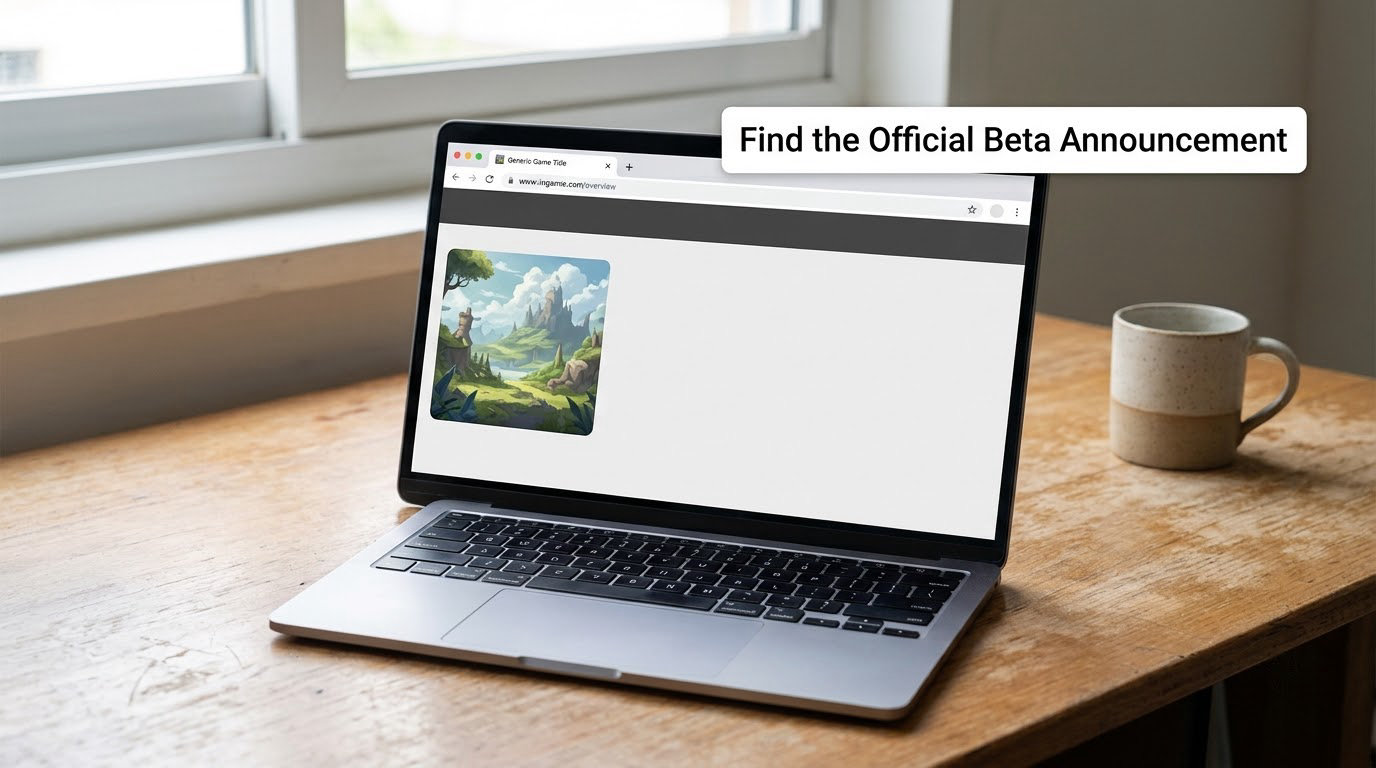
Start at the source, not at a link someone sent you. The developer’s website, the publisher’s news page, the official game page in the store, and the studio’s verified social accounts are the places announcements actually appear first. Cross-check the date: an official post for an open test usually links straight to the store page or the studio’s own signup form.
Imitation pages are the main risk in this whole process. A lookalike domain with a broken padlock, a countdown timer that resets when you reload, or a form asking for your platform password is a scam. If the form is not hosted on the publisher’s domain, close it.
For discovery, players on r/pcgaming point each other toward aggregator sites that track upcoming tests, and those are useful as a heads-up. They are a lead, not an authority — always open the game page yourself before entering anything.
Check Eligibility and Pick the Right Test
Read the requirements line by line before you fill anything in. Look at the platform (console, PC, mobile, or cross-play), the region, the age minimum, the hardware spec, and any account history the studio wants — playtime on the previous entry or hours in the current one.
It also helps to know which kind of test you are entering. A closed beta is invite-only and the smallest. An open beta lets anyone with the right platform and region in. A technical beta targets players with a specific setup, such as a particular GPU or headset. A focus beta is small and questionnaire-heavy, and regional betas run only in selected countries.
If a test lists several options, pick the one matching your real setup rather than the one that sounds more exclusive. A mismatch on specs is one of the most common reasons an approved tester gets removed before launch.
Create or Sign In to the Required Account
Most signup forms quietly assume an account is already in place, so get that sorted first. Console tests need a PSN or Xbox account set to the correct region and, often, a birth date that satisfies the age rule. Steam beta branches need the Steam account that owns the game.
Sign in with the account attached to the profile you actually play on. Linking a fresh throwaway account is a common way to lose a place later, because the invite follows the account you registered with.
Mobile tests add one more layer: TestFlight builds go through your Apple ID, and Google Play closed tests need you to be opted in as a tester under the Play Store listing. Different accounts on the same phone means different access.
Complete the Beta Registration or Waitlist Form
The form is usually short but not optional. Expect fields for region, platform, age, hardware, and sometimes a Steam ID, timezone, audio setup, or Discord handle. A short questionnaire asking how you play and what you want changed is common, and filling it out properly is one of the few ways to influence selection.
Mark the optional marketing boxes only if you want them. Test announcements are useful, marketing emails are not, and unsubscribing later does not undo the signup.
Save the confirmation page or screenshot it. If the test is invite-based rather than instant, that confirmation number is what support will ask for when you go looking for your entry.
Join the Test and Confirm Your Access
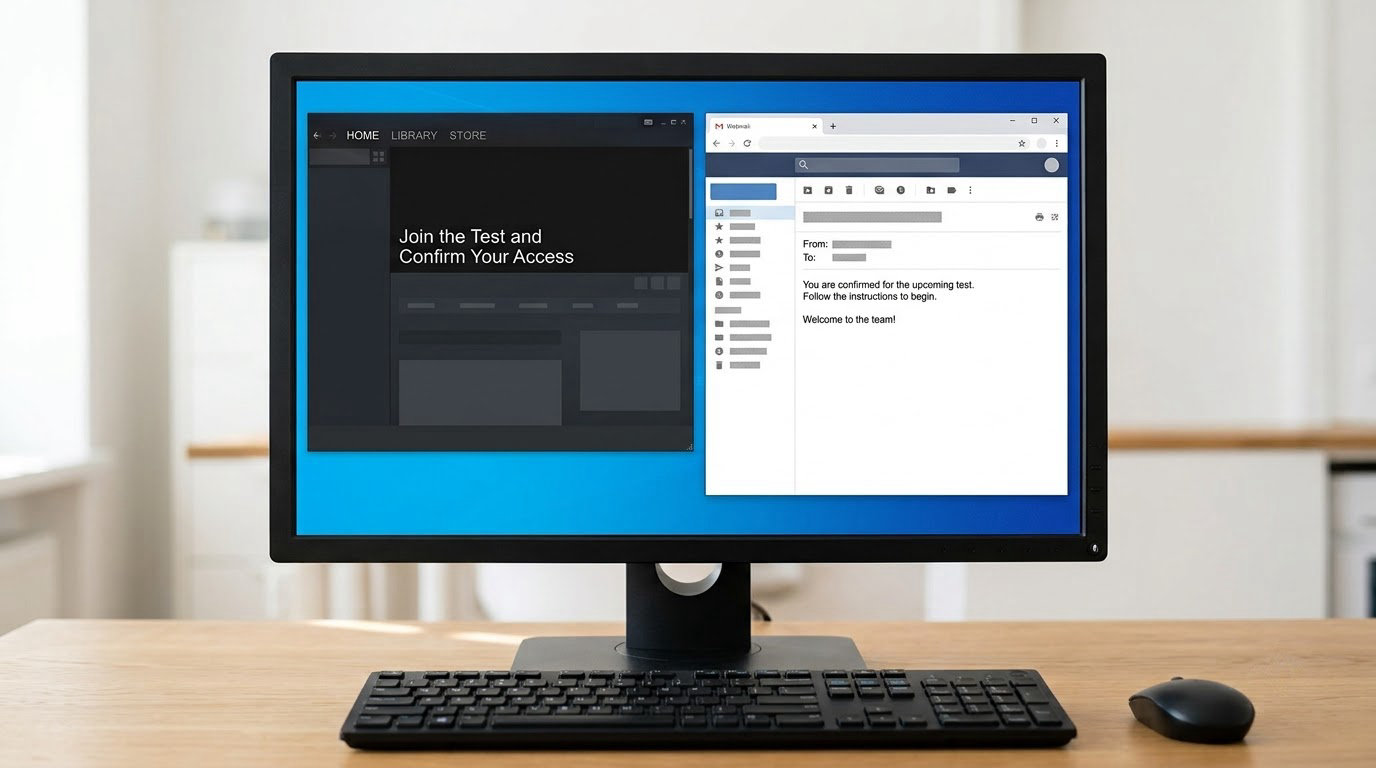
Approval arrives in one of a few shapes. You get an email with a beta code to redeem in the store, a store notification waiting in your library, an entry in the launcher’s games list with a new test branch, a TestFlight build with an Accept button, or a Play Store link for an open track.
Redeeming a code usually means pasting it into the platform’s redemption field and confirming on the same account you registered with. If nothing appears in your library after a few minutes, restart the client fully rather than just refreshing the page.
Check that the build reports the username you expect. Several studios include a support contact or in-client feedback button for exactly this — a wrong account is fixable in minutes if you spot it early.
Download the Correct Client and Verify the Test
Install from the platform launcher rather than any third-party link, and if the test uses a branch, select it from the game’s beta or Betas menu and enter the password if one was supplied. Queue the download early; beta servers are busy in the first hour of a wave.
Before you play, confirm the version number, the server region, and whether your account shows any beta reward. Then report problems through the developer’s own channel — a support ticket, a bug form, or the in-client prompt.
Do not post your invitation link publicly. Invite windows close silently once they fill, and a shared code is the reason some testers get nothing at all.
Common Mistakes That Kill an Application
Most failed beta signups come down to a handful of avoidable errors. Each one is easy to fix once you know what it was.
- Registering with a mismatched region. A PSN or Xbox account set to the wrong country will not receive invites for a region-locked test. Match your account region to where you actually are.
- Using a sign-up link from an unofficial source. Copy-pasted community links often point to expired applications or fake pages. Navigate from the store or the studio’s site instead.
- Forgetting the spam folder. Invitation emails from unknown senders get filtered constantly. Search the sender address as well as words like “beta” or “playtest”.
- Applying twice. Duplicate applications with slightly different account names can cancel each other out or split your data. Keep the first confirmation.
- Ignoring hardware requirements. A PC that is close but not over the bar can get you an invite and then a refusal at download time.
- Overlooking regional restrictions. Language, country, and sometimes even time zone are checked. A test open in Europe may not accept a North American account at all.
- Granting permissions you do not understand. Some signup flows ask for contacts or file access through connected apps. Read the permission screen before approving.
- Assuming the form is still open. Players report clicking invitation links months after a wave closed and getting nothing back. Applications have end dates, and they are not extended.
Quick Tips for Increasing Your Chances
Selection is mostly out of your hands, but a few habits measurably improve the odds that you are on a list when the studio picks a wave.
- Follow the official channels first. The studio’s verified accounts and newsletter are where waves are announced. Aggregators are useful for discovery, but only official pages confirm a test is live.
- Fill in every questionnaire field truthfully. Studios sort candidates by profile, so a complete form beats a bare email every time.
- Use the platform the test actually runs on. Being an expert on another platform rarely helps. A PC-only tester is not a candidate for a console wave.
- Join the publisher community. Discord servers and official forums sometimes run giveaways or extra waves for active members.
- Keep your invitation email unfiltered. Add the publisher’s sending domain to your contacts the moment you register, so promotions routing cannot bury a code.
- Keep the account in good standing. Clean up any platform bans or chargebacks before applying. They show up in the data the studio sees.
- Answer the exit survey. Feedback is the whole point of the test, and returning testers are the first people studios invite again.
Frequently Asked Questions
How do I find out if a game beta is actually open?
Check the developer or publisher’s official website, the store page for the game, and the studio’s verified social accounts. An open test usually has a live signup link on the store page itself, while a closed test only has an application page. Cross-check the dates and the domain before entering any details, because expired and imitation signup pages are common.
Do I need a code to sign up for a game beta?
Usually not. Signup is normally an application form, a waitlist, or a beta program enrollment such as Xbox Insider or the PlayStation Beta Program. The code arrives later, if you are selected, and you redeem it in the platform store. Steam is the exception: some betas are unlocked instantly from the Betas tab with a password and no approval at all.
Can I join a beta on any platform?
No. Every test names the platforms it supports, and some run on one console generation only, or on PC without console versions at all. Mobile tests are separate from PC and console tests, and a TestFlight build never translates to a Play Store one. Check the supported platforms on the announcement before you register, because your account has to match exactly.
Why did I not receive a beta invitation email?
Common reasons include an account in the wrong region, a beta that closed its signups, or your invitation landing in spam and promotions. Some studios also cap each wave and stop sending once a wave fills, and acceptance depends on profile and playtime. Search your inbox for the publisher’s domain and for the words beta or playtest, and check that you registered with the account you actually play on.
Is it safe to register for a game beta online?
Official beta signups are safe: they ask for contact details, region, platform and hardware, and they never ask for your platform password outside the platform’s own login screen. Be cautious with shortened links, lookalike domains, and forms asking for card details to “unlock” a beta. If you reached the form from the store page or the studio’s own domain, you are in the right place.
Conclusion: Start With the Official Test Page
To sign up for a game beta, work from the studio outward: verify the developer or publisher, use the account tied to your game profile, meet every stated requirement, and register on the official page rather than a forwarded link. Then check spam and promotions daily during the window.
If no invitation arrives, it usually means the wave filled, the region or platform did not match, or the signups closed. Start again from the official channels and register for the next wave — and keep the account details right, because that is the part you can actually control.