To fix NAT type issues, restart your modem and router, connect your console or PC with an Ethernet cable, and turn on UPnP in your router settings. If that is not enough, forward the ports your platform needs or put the game in your router’s DMZ. Open NAT gives the most reliable multiplayer connections, and the whole first pass takes about ten minutes.
The confusing part is that NAT has almost nothing to do with your download speed or your ping. It is a label for how your device handles incoming connections from other players, which is why a connection with 40 ms and 300 Mbps can still refuse to let you join your friends’ party.
This guide covers Xbox, PlayStation, PC and Switch, plus the two situations that break every other fix: double NAT from a second router, and carrier-grade NAT from your ISP. Work the steps in order and stop when your network test passes.
Table of Contents
- 1What You Need to Fix NAT Type Issues
- 2NAT Types Compared: Open vs Moderate vs Strict
- 3Step-by-Step: How to Fix NAT Type Issues on Any Device
- 4Step 1: Confirm the problem and rule out plain Wi-Fi problems
- 5Step 2: Power cycle the network in the right order
- 6Step 3: Turn on UPnP in the router
- 7Step 4: Forward the ports manually if UPnP is not enough
- 8Step 5: Check for double NAT and CGNAT
- 9Step 6: Use the console’s own DMZ feature as a last resort
- 10Step 7: Verify the new NAT type in game
- 11How to Fix NAT Type Issues on Consoles
- 12PlayStation 4 and PS5
- 13Xbox One and Series X|S
- 14How to Fix NAT Type Issues on PC
- 15How to Fix NAT Type Issues Behind a Router
- 16Common Mistakes That Keep Your NAT Type Wrong
- 17Frequently Asked Questions
- 18What NAT type is best for online games?
- 19Can NAT type affect matchmaking?
- 20Is double NAT the same as strict NAT?
- 21Should I disable UPnP to fix NAT?
- 22Why does my game still show a NAT error after I changed my router settings?
- 23Does a VPN help with strict NAT?
- 24Conclusion: The Fastest Reliable Path
What You Need to Fix NAT Type Issues
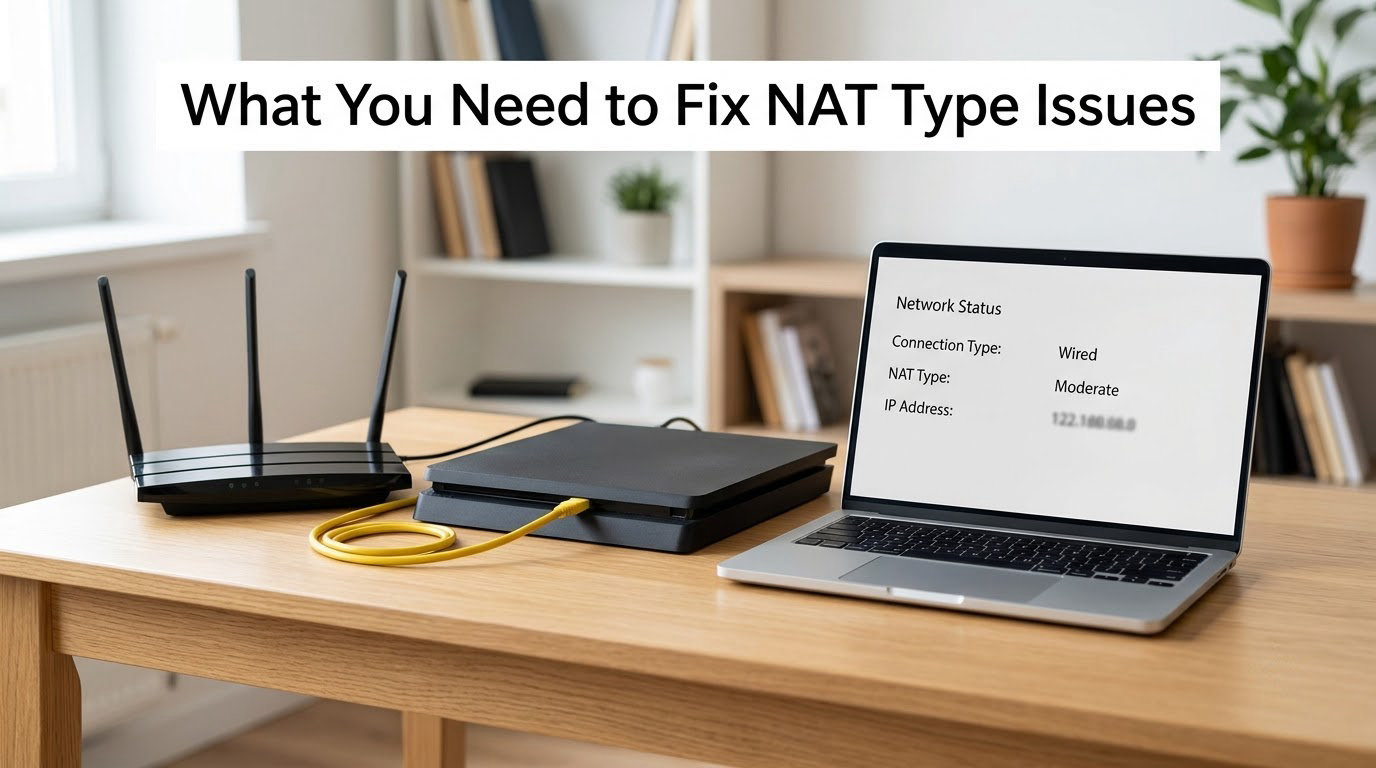
You need four things, and only the first one is optional hardware. Everything else is already sitting in front of you.
- Access to your router settings. Open a browser on the same network and go to
192.168.1.1or192.168.0.1. The password is usually printed on a sticker on the back or bottom of the router. If the sticker is gone, the ISP manual has the default. - An Ethernet cable. A wired connection fixes NAT far more often than Wi-Fi does, because Wi-Fi adds its own set of connection problems to the pile. The port on a console is usually labelled LAN or LAN1.
- Your game’s platform settings. On PlayStation, Settings > Network > Network Status. On Xbox, Settings > General > Network > Test network connection. On PC, run the network test in Settings > Network & Internet > Status, or use the in-game test in Steam, Epic or Battle.net.
- Ten minutes and a clear restart order. Change settings first, then power off modem, then router, then the console. That order matters more than most people expect.
On a console, most of the fix happens in your router. The console only has a few switches of its own, and one of them (alternate port selection) matters a lot if you cannot reach the router at all.
On PC, more of the work is local. Windows Defender Firewall blocks inbound game traffic by default, and games running as administrator are treated as a different program, so the rule that worked for one launch can fail for the next.
If you are in a dorm, a rented flat, a hotel, or school housing, skip the router sections. There is no admin panel behind that wall, and the fixes that do work without it are covered below.
NAT Types Compared: Open vs Moderate vs Strict
Your router translates your device’s private address (192.168.x.x) into a public one. The NAT type label describes how picky that translation is about who is allowed to start a conversation with you.
| NAT type | What you can connect to | What it feels like in game |
|---|---|---|
| Open (Type 1) | Anyone, including Open, Moderate and Strict players | Matchmaking fills fast, party invites work every time, you can host |
| Moderate (Type 2) | Open and Moderate players only | You can join most people, but friends on Strict sometimes cannot reach you |
| Strict (Type 3) | Open players only | Matchmaking timeouts, empty lobbies, failed party invites, no hosting |
Strict is the only type that genuinely blocks you. Moderate is a nuisance rather than a wall, and plenty of players never notice the difference.
Two related words you will meet in network tests: double NAT means two devices are translating your traffic, usually an ISP modem plus your own router, and CGNAT means your ISP is sharing one public address between many customers. You cannot fix CGNAT from your sofa.
Step-by-Step: How to Fix NAT Type Issues on Any Device
Step 1: Confirm the problem and rule out plain Wi-Fi problems
Run your platform’s connection test first and write down the exact line it gives you. “NAT type: Strict” is a different problem from “Teredo is unable to qualify”, and “Port is blocked” is different again from “Multiple NATs detected”.
Then move to Ethernet. If the problem disappears on a cable, you had a wireless issue, not a NAT issue, and every router setting you were about to change was unnecessary.
Step 2: Power cycle the network in the right order
Unplug the modem from power, wait thirty seconds, plug it back in and wait until its status lights settle. Then do the same with the router. Finally restart the console or PC.
This clears the NAT translation table and every port lease the router handed out, which is why a full power cycle often resolves a type that has been stuck on Strict for weeks.
Step 3: Turn on UPnP in the router
Open 192.168.1.1 or 192.168.0.1 in a browser, sign in, and find the UPnP setting. The path depends on the brand, but it is usually under Advanced, NAT, or Port Forwarding, and the option is often called UPnP or NAT Traversal.
Save, then restart the router and your console. UPnP lets your console open the ports it needs by itself, which is why it is the single most reported working fix on the forums. The rule that trips people up: enable it on your own router, not on the ISP modem in front of it.
Step 4: Forward the ports manually if UPnP is not enough
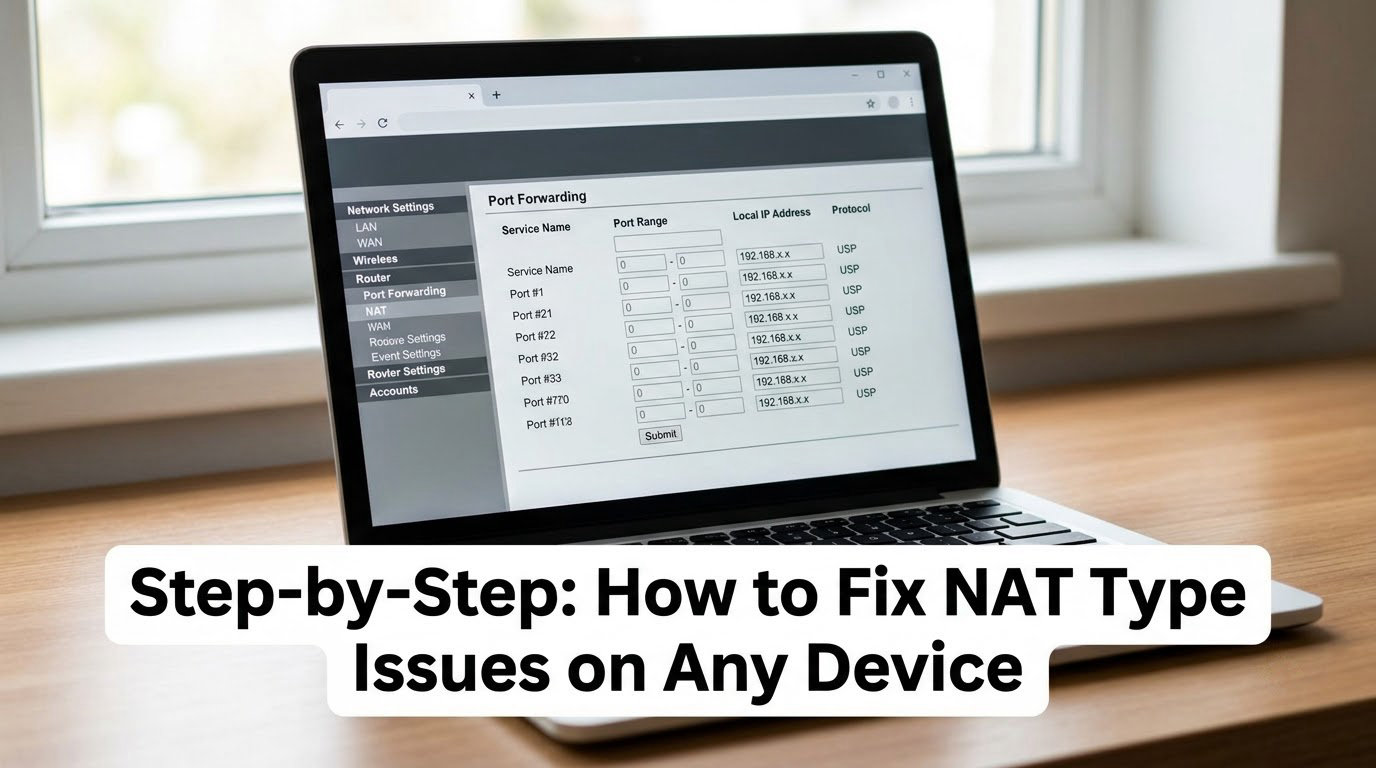
Manual port forwarding is the same idea with you doing the typing. Before you start, reserve a static IP for the device so the rule keeps pointing at the right machine after the router hands out new addresses.
Set a DHCP reservation in your router’s LAN settings, then add one forwarding rule per port, pointing the external port to the same port on your device’s reserved address. Save, restart the router, and re-test.
| Platform | Ports to forward |
|---|---|
| Xbox One and Series X|S | TCP 88, 500, 3544, 4500, 3074; UDP 88, 500, 3544, 4500, 3074 |
| PlayStation 4 and PS5 | TCP 9295, 80, 443; UDP 9295, 987, 3478 to 3480, 3659 |
| PC with Steam | TCP 27015 to 27020, 27036 to 27037; UDP 27000 to 27036, 4380 |
| PC with Epic Games | TCP 5222; UDP 5222, 5795 to 5847 |
| PC with Battle.net | TCP 1119, 3724, 6113, 8000 to 8999; UDP 1119, 3724, 6113 |
The Nintendo Switch asks for an unusually wide range, and on its own it generally handles this without help. If you see NAT complaints on Switch, the real cause is nearly always double NAT rather than the console.
Step 5: Check for double NAT and CGNAT
Double NAT happens when your ISP modem does its own translation before your router does. Players using a mesh system, or their modem plus a personal router, hit this constantly without realising it.
Check your router’s WAN or Internet IP address and compare it to what a public “what is my IP” search tells you. If they match, you have one layer. If they differ, you have two, and the fix is to put the modem into bridge mode so only one device translates.
If your router’s WAN address starts with 100.64 through 100.127, you are behind CGNAT. No amount of port forwarding or UPnP will work in that situation, and this is normal on mobile and 5G home internet.
Step 6: Use the console’s own DMZ feature as a last resort
Xbox has a built-in setting for this: Settings > General > Network > Network Settings > Alternate port selection, plus the DMZ option for your console in network settings. It puts your console in a demilitarised zone on the router so all inbound traffic reaches it directly.
It fixes Strict NAT quickly, and it is reported as working in minutes more often than manual forwarding. It also exposes your console to the open internet, so use it to confirm a diagnosis, then take it back out and do the real fix with port rules.
Step 7: Verify the new NAT type in game
Re-run the platform network test. On PlayStation, open Settings > Network > Network Status and check the NAT Type line. On Xbox, run Test network connection again and read the NAT details line.
Then do the real test: have a friend who is on Strict NAT send you a party invite. That is the only check that proves peer connections work, and it catches the case where the console reports Open but the game still will not connect.
How to Fix NAT Type Issues on Consoles
PlayStation 4 and PS5
Open Settings > Network > Network Status and run Test Internet Connection. The View Connection Status option shows your current NAT type and IP address, and that is the screen to check before and after any change.
If you see “NAT Type: Strict” or the game shows a cannot-connect message, work the router steps above. A factory reset of network settings (Settings > Network > Advanced Network Settings) is worth trying before a full console reset, and it clears stored connection profiles without touching your games.
Xbox One and Series X|S
Run Settings > General > Network > Test network connection. Read the NAT details line carefully. “Multiple NATs detected” means double NAT, “Port is blocked” means forwarding, and “Strict” on its own means the translation type is the issue.
Two console-side options help a lot without router access. Alternate port selection tries a different port range when the default is blocked, and the DMZ setting for your console pushes all traffic to the machine directly. Both are under network settings and both are reversible.
How to Fix NAT Type Issues on PC
On Windows, open Settings > Network & Internet > Status and look for the network status line. The most common complaint here is “Teredo is unable to qualify”. Teredo is Windows’ IPv6 transition mechanism, and it cannot qualify when the network blocks the handshake it relies on.
Teredo only matters for games that use it for peer discovery. If your game runs fine, ignore it. If it is in the way, disable it in the command prompt with netsh interface teredo set state disabled, then restart the PC.
Next, allow the game through Windows Defender Firewall. Open Windows Security > Firewall & network protection > Allow an app through firewall and tick the game on both the Private and Public columns. If it is not listed, use Allow an app, browse to the executable, and add it yourself.
For a faster route, PowerShell can add inbound rules in one go. Open PowerShell as administrator and run New-NetFirewallRule -DisplayName "Game" -Direction Inbound -Program "C:PathToGame.exe" -Action Allow -Profile Any, swapping the path for your game’s executable.
Finally, make sure your network profile is set to Private. Windows treats a Public network far more restrictively, and a profile that flipped to Public after you joined a new network is a quiet cause of blocked inbound connections. Set it in Settings > Network & Internet > Wi-Fi > Network properties > Network profile type.
Launchers need their own treatment. Steam has Settings > Downloads > In Game, Epic and Battle.net both have their own connection settings, and each of them can override the firewall permission you just set for the game executable itself.
How to Fix NAT Type Issues Behind a Router
Log in to your router at 192.168.1.1 or 192.168.0.1. The address is printed in your router manual, and it is also the default gateway you can see by running ipconfig on Windows.
Update the firmware before anything else. Old firmware on ISP-supplied modems is a frequent source of leaky translation tables and stale UPnP behaviour.
Then check for double NAT. If your ISP modem and your router are both doing translation, turn the modem into a bridge. On most ISP modems this is a setting called Bridge Mode or Bridge my DSL or cable connection, and after it applies you reboot both devices.
If you would rather not lose your router’s features, the other option is to enable DMZ on the modem and point it at your router’s WAN address. That puts the second layer of translation out of the path without losing your network settings.
Turn off anything that filters traffic for no good reason. Parental controls, guest network isolation and AP isolation on a mesh node all block the peer connections a console needs, and they are easy to leave switched on for years.
If you have no router access at all, your options are narrower. Console alternate port selection, the DMZ feature on Xbox, and a reverse proxy tunnel service are the ones that consistently come up. On mobile hotspots and 5G home internet, port forwarding is not possible because the carrier holds the address, so the tunnel or a gaming VPN is the realistic path.
Common Mistakes That Keep Your NAT Type Wrong
Confusing signal problems with NAT problems. Weak Wi-Fi, packet loss and bufferbloat all make games feel broken without touching your NAT type. Test on Ethernet before you touch a single setting.
Enabling UPnP on the modem instead of the router. This is the most repeated mistake on the forums. The device doing the translating is the one that needs the setting.
Changing settings on the wrong device. Console network profiles and Windows firewall rules do not affect your router’s NAT type at all. Work outward: device first, then router, then modem.
Skipping the restart, or restarting in the wrong order. Ports and translation tables are held in memory. Modem, then router, then console, each fully powered off rather than refreshed.
Forwarding the wrong ports. Forwarding a random game port from a listicle does nothing for a console that needs its own set. Use the platform table above.
Leaving the console in the DMZ. It is a diagnostic tool, not a permanent setting. Confirm the problem disappears, then remove it and use targeted rules.
Trusting the fix without testing a party invite. A console can report Open while a specific game still will not connect, because games run their own peer-to-peer layer on top of the system one.
Expecting the fix to stick forever. Players report the type flipping back to Strict weeks later, usually after the ISP renews your public address or you add a second console to the network. Setting a DHCP reservation stops most of these.
A few habits keep the problem away. Keep the console on Ethernet, keep the router firmware current, avoid stacking a second router behind the first, and run the network test after any big change to your network.
Frequently Asked Questions
What NAT type is best for online games?
Open NAT, also called Type 1, is the best type for online games. It lets you connect to players on any NAT type, so matchmaking fills faster and party invites always work. Moderate is usually fine for everyday play, and Strict limits you to connecting with Open players only.
Can NAT type affect matchmaking?
Yes, mostly through connection failures rather than speed. A Strict player cannot connect to Moderate or Strict players, which causes matchmaking timeouts, empty lobbies and failed party invites. NAT type does not change your ping, download speed or raw connection quality.
Is double NAT the same as strict NAT?
No. Double NAT is a different problem with a different message. It means two devices, usually an ISP modem plus your own router or a mesh system, are both translating your traffic. Xbox calls it Multiple NATs detected, and the fix is bridge mode on the modem.
Should I disable UPnP to fix NAT?
No, enable it rather than disabling it. UPnP lets your console open the ports it needs automatically, and it is the fix most players report working first. Turn it off only if you would rather manage every port by hand, or if a security audit at work requires it.
Why does my game still show a NAT error after I changed my router settings?
Usually one of three things: you have not rebooted the console so it is still using the old port leases, you are behind carrier-grade NAT so no router setting can work, or the game runs its own peer layer separate from the system one. Test with a party invite from a friend on Strict to see which it is.
Does a VPN help with strict NAT?
It can, because some gaming VPNs relay your traffic through a server with a friendlier address, which sidesteps carrier-grade NAT and double NAT. It is not a fix for ordinary Strict NAT, and a standard VPN often makes things worse by adding another translation layer.
Conclusion: The Fastest Reliable Path
Start on Ethernet, power cycle the modem then the router then the console, and turn on UPnP in your own router. That covers most Strict and Moderate cases in about ten minutes.
If it is still wrong, change the console or PC network setting directly: alternate port selection on Xbox, a network settings reset on PlayStation, and a Windows firewall inbound rule plus a Private network profile on PC.
When router settings do nothing, stop tweaking and diagnose. Compare your router’s WAN address to your public IP to find double NAT, look for a 100.64 address to confirm CGNAT, and then pick the matching fix: bridge mode for double NAT, or a gaming VPN or tunnel for CGNAT.
Finally, verify with a party invite from someone on Strict NAT. That is the only test that tells you the problem is actually gone.