To test your internet for gaming, run a browser speed test for throughput, then measure ping, jitter and packet loss with a command-line ping, and finally check the in-game net graph while you play. Download speed matters least of the four: most online games push well under 1 Mbps once a match is running, so a fast line with 80 ms ping and heavy jitter feels far worse than a modest line at 15 ms.
That is the whole argument for testing in this order. A speed test on its own tells you almost nothing about how a match will feel, and the number it reports depends on which server the tool happens to pick. Five minutes of layered testing tells you everything.
Everything below was re-checked for 2026 and reflects the order that actually finds the problem.
Table of Contents
- 1What You Need
- 2Step-by-Step: How to Test Your Internet for Gaming
- 31. Connect Directly to Your Router
- 42. Run a Reliable Speed and Ping Test
- 53. Check Latency, Jitter and Packet Loss
- 64. Test During the Time You Play
- 75. Verify the Game Server and Improve the Result
- 8Common Mistakes
- 9Frequently Asked Questions
- 10What is the best internet speed test for gaming?
- 11Is 20 Mbps slow or fast?
- 12Is 27 ms ping good?
- 13What is a good jitter for online gaming?
- 14How much packet loss is bad for gaming?
- 15Is Wi-Fi or Ethernet better for gaming?
- 16Conclusion
What You Need
You need very little, and almost all of it is already on your desk. The important part is testing from the device and network you actually play on, not from a phone sitting next to the router.
- A wired Ethernet connection from your PC or console to the router, if you have one. This is the single biggest variable in the whole test.
- A fallback wireless option — preferably 5 GHz or 6 GHz, sitting close to the router. Test both so you can compare.
- A browser speed test: Speedtest by Ookla, the Cloudflare Speed Test, or Fast.com. All three run in a tab with nothing to install.
- Command Prompt on Windows or Terminal on Mac and Linux for ping, traceroute and pathping. This is where jitter and packet loss become visible.
- The game itself, open on the same device, at roughly the same hour you normally play.
If you play on a PlayStation 5, Xbox Series X|S, Nintendo Switch or phone, the console cannot run a command line, so the browser and in-game steps carry the load. We cover those below.
Step-by-Step: How to Test Your Internet for Gaming
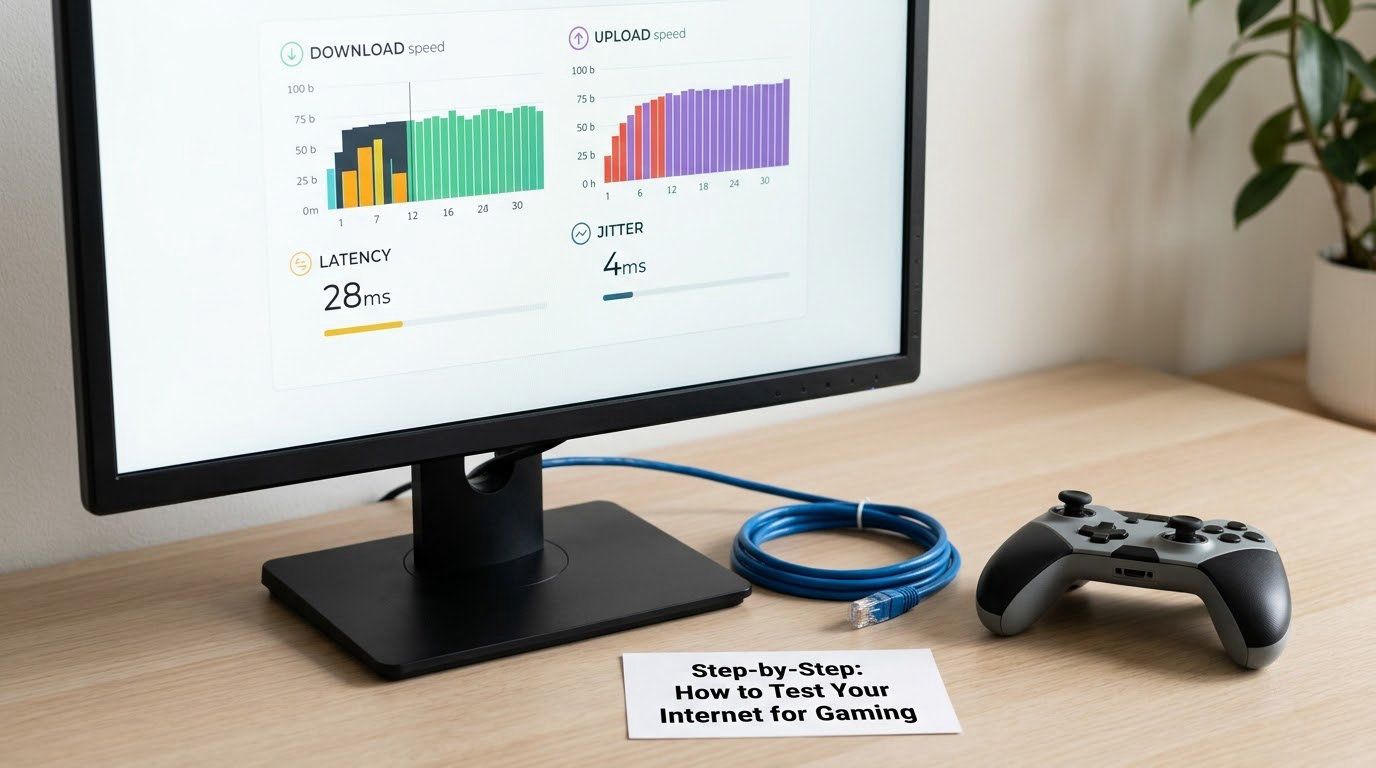
1. Connect Directly to Your Router
Plug into Ethernet if you can, and skip the VPN. A VPN adds a hop and frequently a congested one, so any test taken with it running describes a network you do not play on.
Power-cycle the router before you start: unplug it, wait 30 seconds, plug it back, and give it two full minutes to finish booting and sync. A router that has been up for weeks accumulates stale sessions and occasionally runs a hot, degraded routing table.
Also stop other traffic. Pause downloads, close cloud backup, turn off a 4K stream, and ask anyone else on the network to hold off. Most surprising results in the HomeNetworking and gaming subreddits trace back to one household member saturating the line during a match.
2. Run a Reliable Speed and Ping Test
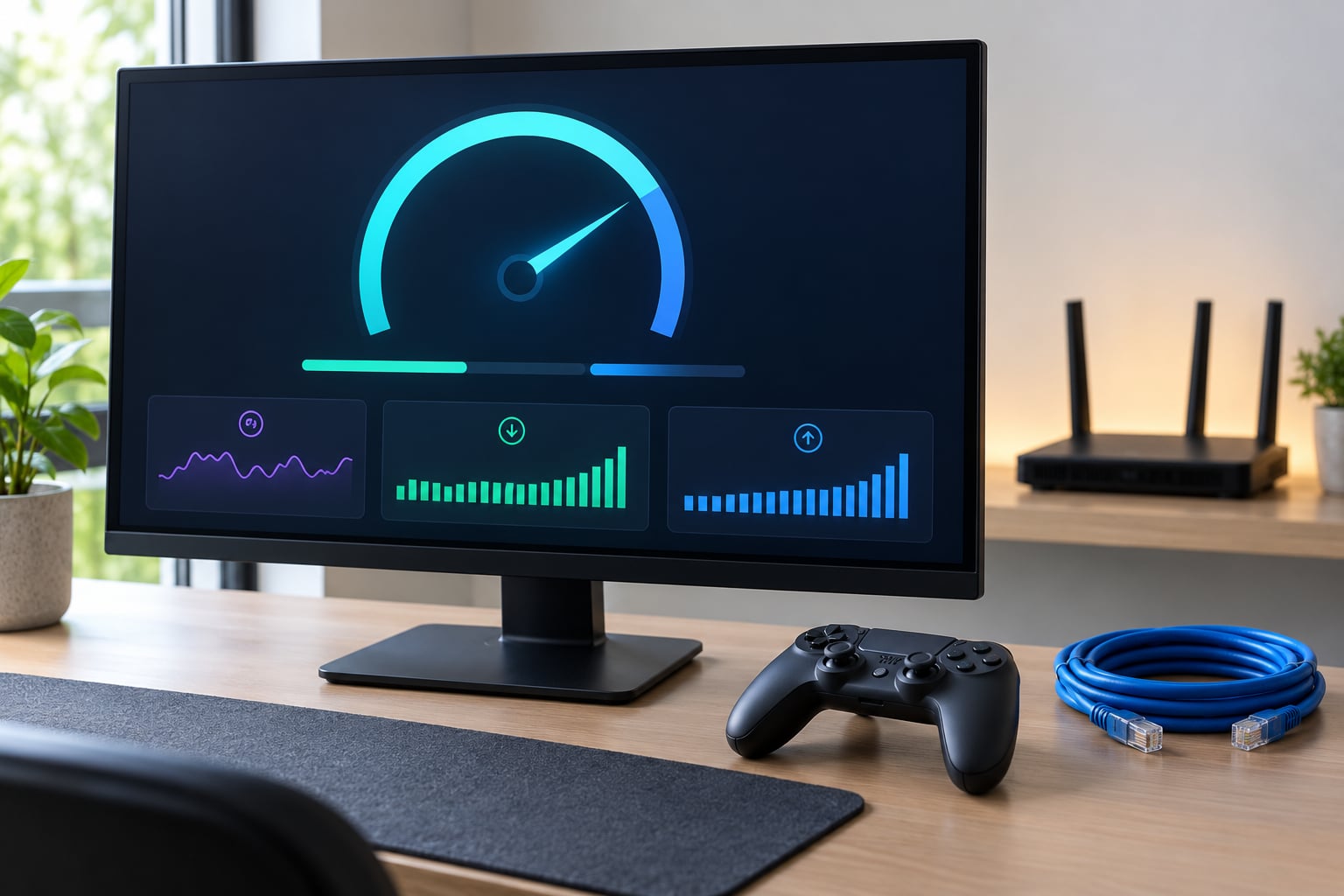
Open Speedtest by Ookla, Cloudflare Speed Test or Fast.com and run it once. Note three numbers: download Mbps, upload Mbps, and idle ping in milliseconds.
Choose your nearest server manually if the tool offers a list. Auto-selected servers sometimes land two states away, and a 30 ms detour inflates your ping reading for reasons that have nothing to do with your equipment.
For gaming, read the results like this:
| Measure | Excellent | Playable | Poor |
|---|---|---|---|
| Idle ping | under 20 ms | 20-50 ms | over 100 ms |
| Jitter | under 5 ms | 5-20 ms | over 30 ms |
| Packet loss | 0% | under 1% | 2% and above |
| Download | 100 Mbps and up | 25-50 Mbps | under 25 Mbps |
| Upload | 20 Mbps and up | 10 Mbps | under 5 Mbps |
Upload is the one people underestimate. Your gameplay stream travels upstream, and so does your voice chat, so a line with 300 Mbps down and 3 Mbps up will choke the moment a squad starts talking.
Now check for bufferbloat. Keep a ping running (step 3) while the speed test downloads at full speed. If your ping climbs by more than 30-40 ms during the download, your router queues packets under load and your ping will suffer the same way every time someone else streams or downloads.
3. Check Latency, Jitter and Packet Loss
Ping sends a small packet to a server and measures the round trip. Jitter is how much that number wanders between one packet and the next. Packet loss is the share of packets that never come back at all — the one that produces rubber-banding, hit registration complaints and dropped parties.
On Windows, open Command Prompt and run:
ping google.com -n 20
For a continuous run you can watch while you play:
ping google.com -t
On Mac or Linux, open Terminal and use:
ping google.com -c 20
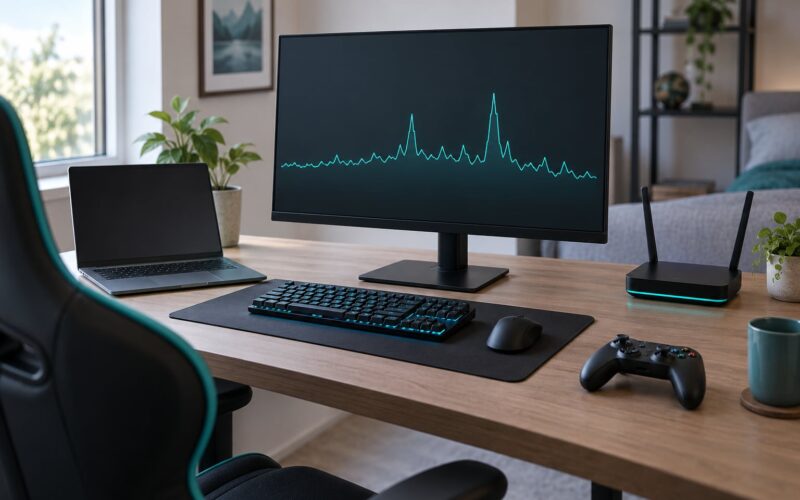
Read the output line by line. The average tells you your floor, but the gap between the best and worst reply is your jitter. Replies of 18, 19, 20, 21, 22 ms are healthy. Replies jumping between 15 and 90 ms are the reason your aim feels inconsistent even on a fast connection.
Lost replies, or “Request timed out”, are packet loss. Timeouts scattered through an otherwise clean run point to a specific problem rather than general congestion.
To find where the trouble happens, trace the route:
tracert google.com on Windows, or traceroute google.com on Mac and Linux. pathping google.com on Windows goes further and reports per-hop loss, which is slower but far more precise.
Ping your router first, before blaming the ISP. Find its address in your network settings, usually 192.168.0.1 or 192.168.1.1, and run ping 192.168.1.1 -n 20. A clean router ping with a bad external ping is a local or ISP fault. A jumpy router ping is Wi-Fi or a dying cable, and nothing you change at the provider will fix it.
4. Test During the Time You Play
A midday test tells you almost nothing. Congestion on shared networks builds through the evening, and the classic complaint in gaming threads is a perfectly clean test at 2 PM and an unusable connection at 9 PM.
Run the whole sequence again in the hour you usually queue, on the same device. Write down the ping average, the jitter spread, the loss percentage and the server used. Three evenings of notes will show a pattern that a single run never will.
Compare wired against wireless deliberately. Plug in, test, unplug, test. If Ethernet gives 14 ms with 1 ms jitter and Wi-Fi gives 40 ms with 18 ms jitter, you have your answer and you have already chosen the fix.
5. Verify the Game Server and Improve the Result
Now open the game and read its own diagnostics. Most competitive shooters have a network graph or ping overlay, usually behind a settings toggle, and MMOs and battle royales nearly always show a latency readout. Compare that number with your command-line ping.
If in-game ping runs far above your external ping, the gap is server distance and routing, not your line. Pick the nearest server region in the game’s settings, and on Steam check the download region under Settings to make sure you are pulling data from a nearby data centre rather than across an ocean.
If the problem only shows up in a specific session, look outside the network. Peer-to-peer host quality, frame rate drops, and a GPU hitting 100 percent all read as lag to the player, and none of them will move a single ping reading. Check your frame rate during a drop before you open a support ticket.
For intermittent faults that never reproduce on demand, run a long monitor instead of a one-shot ping. PingPlotter and WinMTR trace continuously and graph the result, so a three-second dropout every two minutes becomes visible in a ten-minute trace. The difference is that a one-shot test simply walks past the fault.
One more failure mode deserves a mention: NAT type. Strict, moderate and double NAT do not affect ping at all, but strict NAT blocks or slows peer connections, and a double NAT is common behind carrier-grade NAT. If matchmaking works but voice chat and party invites fail, check the NAT type in your console network settings before touching anything else.
When you do call your provider, you now have evidence. “My ping averages 15 ms but I show 4 percent loss to the nearest hop” is a support ticket someone can act on. “It’s laggy” is not.
Common Mistakes
Judging gaming quality by download speed alone. A gigabit line and a 50 Mbps line play online games identically once the game is loaded. Read ping first, jitter second, loss third, speed last.
Testing on a crowded Wi-Fi network. 2.4 GHz is the worst possible test environment. It shares spectrum with neighbours, microwaves and Bluetooth, and the result tells you about your neighbour’s router as much as your connection.
Ignoring latency spikes. An average of 20 ms with occasional 200 ms spikes hurts more in a match than a steady 45 ms. Continuous ping output or a monitor graph is the only way to see spikes.
Measuring once. One run is a sample, not a result. Three runs at your normal play time give you something to act on.
Changing five settings at once. Adjust the router, the DNS, the region and the Wi-Fi channel together and you will never know which one mattered. Make one change, retest, then move on.
Testing on a different device than the one you play on. A clean laptop result while the console drops tells you nothing about the console. Test where you play, and remember consoles cannot run a ping command, so rely on the browser test plus the in-game readout.
Frequently Asked Questions
What is the best internet speed test for gaming?
For a quick check, use Speedtest by Ookla in any browser, then confirm with the Cloudflare Speed Test or Fast.com. Look at idle ping, download and upload, and pick your nearest server manually rather than accepting the auto-selected one. For jitter and packet loss, a command-line ping run for a minute beats every browser tool.
Is 20 Mbps slow or fast?
For online gameplay, 20 Mbps is comfortably enough. A match rarely needs more than a couple of Mbps once it is running, so 20 Mbps handles several devices plus streaming. Where it gets tight is uploads and big downloads: 20 Mbps down with 3 Mbps up causes voice chat crackle and stutter whenever someone else on the network is active.
Is 27 ms ping good?
Yes, 27 ms is a good result and comfortably playable in most competitive shooters, fighting games and MMO combat. Under 20 ms is excellent and starts to feel noticeably sharper. The number that usually matters more is consistency: a steady 27 ms plays better than an average of 22 ms that spikes past 90 ms several times a minute.
What is a good jitter for online gaming?
Under 5 ms is ideal, and under 10 ms is fine for almost any genre. Between 10 and 30 ms, you will start noticing uneven response in shooters and fighting games. Above 30 ms, movement feels inconsistent and hit registration becomes questionable. Judge jitter by the spread between your lowest and highest ping replies, not the average.
How much packet loss is bad for gaming?
Under 0.5 percent is unnoticeable, and even 1 percent is usually survivable. At 2 percent, expect rubber-banding, occasional hit registration failures and voice chat cutting out. Above 5 percent and connections will visibly drop. A clean ping test with scattered timeouts is a strong sign the problem sits in one specific hop, so run pathping to find it.
Is Wi-Fi or Ethernet better for gaming?
Ethernet, by a wide margin. It typically holds 1-3 ms of jitter with no contention, while even a good 5 GHz Wi-Fi setup varies more and drops under distance or interference. Wi-Fi is fine for downloads and casual play, but if your wired and wireless tests differ by more than about 15 ms, run the cable for matches and keep Wi-Fi for everything else.
Conclusion
Start by running one browser speed test on the device you actually play on, wired if you can, and check the nearest server. Then run a one-minute ping in Command Prompt or Terminal and read the spread between your lowest and highest replies, not just the average.
Three numbers decide everything: idle ping for raw responsiveness, jitter for consistency, and packet loss for whether the connection holds at all. Download speed is the fourth number and the least important one for a match in progress.
Make a single change, such as moving from Wi-Fi to Ethernet or pausing household downloads, and retest at your usual play time. One variable at a time is the difference between a fix and a guessing game.