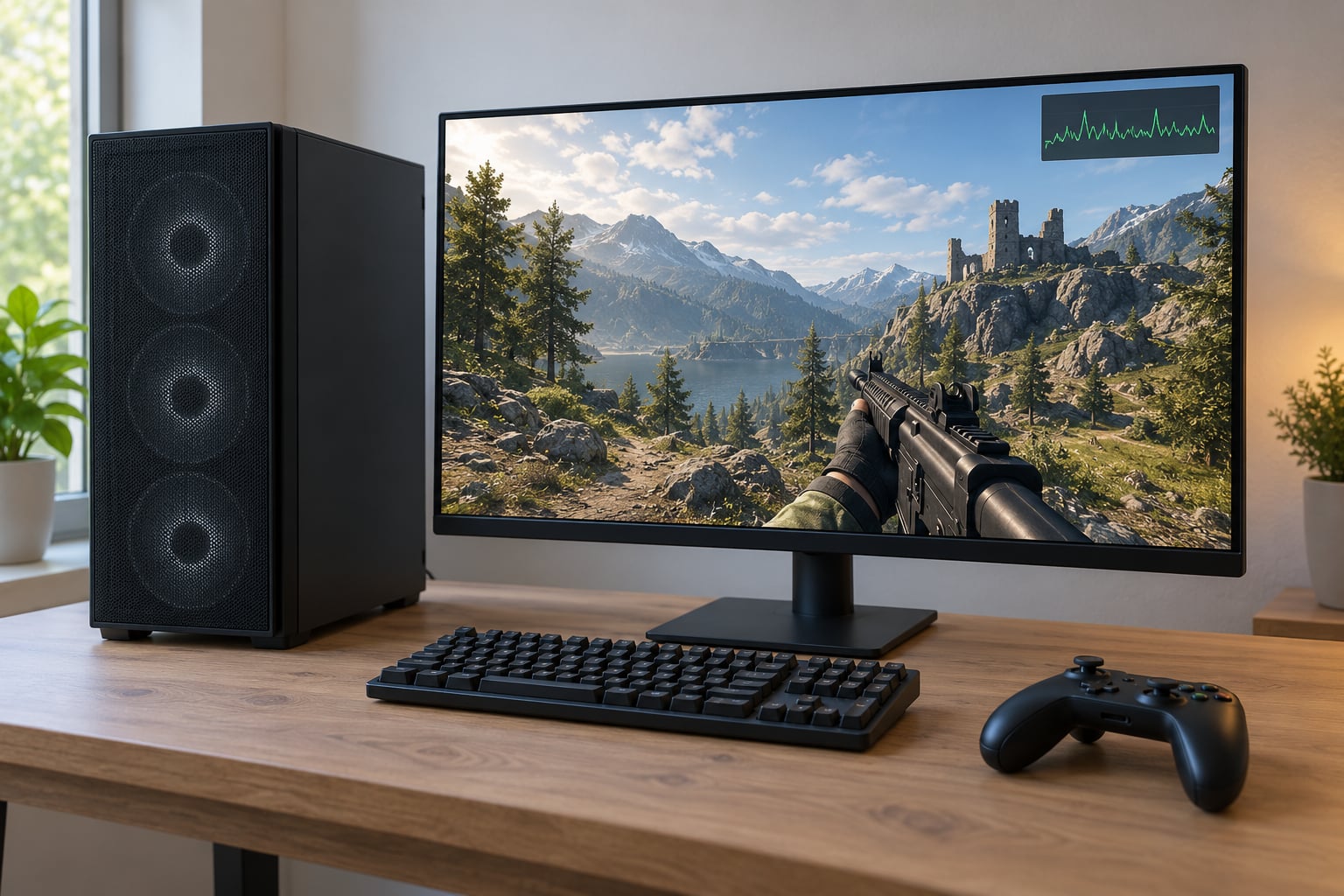
Stuttering in PC games is nearly always a frame-pacing problem, not a frame-rate problem, and the fixes that work are free: cap your frame rate below your monitor’s refresh rate, clean-install the graphics driver, and switch off overlays and background apps. Work the steps below in order and test after each change, because adjusting five settings at once tells you nothing about which one mattered. This guide is updated for October 2026 and covers Windows 10 and 11.
That single sentence is worth slowing down on. A lot of players open Task Manager, see the frame rate sitting at a comfortable 180 FPS, and conclude their PC must be fine. The counter is telling the truth, it just isn’t answering the right question. What you feel as a stutter is uneven spacing between frames, and two builds can both hold 180 FPS while one of them delivers those frames in a smooth rhythm and the other delivers them in clumps.
Good news first: this is usually diagnosable in an afternoon, and most of it costs nothing. In an r/AMDHelp thread with 750-plus comments after a PC upgrade, the fixes people actually landed on were enabling the memory profile in BIOS, updating chipset drivers, and a clean driver install. Nothing exotic. I’ll walk you through the same kind of sequence.
Table of Contents
- 1What You Need
- 2Step-by-Step
- 31. Confirm Whether the Problem Is Input or Frame Stutter
- 42. Update Graphics Drivers and Check the Game Profile
- 53. Check Windows Display and Graphics Settings
- 64. Lower the Settings That Cause Frame-Time Spikes
- 75. Close Background Apps and Test a Clean Boot
- 86. Check Storage, Memory, CPU, and GPU Headroom
- 97. Fix Overheating and Power-Limit Problems
- 108. Repair, Reinstall, or Replay the Specific Game
- 11Common Mistakes
- 12Frequently Asked Questions
- 13Why does my PC game stutter even when the average FPS is high?
- 14Is VSync the best fix for stuttering in PC games?
- 15Can an SSD stop stuttering in PC games?
- 16How do I know whether stutter comes from my CPU or GPU?
- 17Should I install the newest GPU driver or use a stable older version?
- 18When does PC game stutter indicate a hardware problem?
What You Need
None of the tools below cost money, and you can skip straight to the steps if you already know which one is stuttering. Gather these first so you are not hunting for programs mid-diagnosis.
- Administrator access to Windows, for driver changes, power plan edits, and the clean boot test in step 5.
- The current stable graphics driver for your card, downloaded in advance from the GPU vendor rather than through an automatic updater.
- MSI Afterburner with RivaTuner Statistics Server, which ships as a bundle and is the single most useful tool in this guide. It draws an overlay showing frame time, frame rate, VRAM, RAM, CPU usage per core, disk activity, and GPU temperature while the game runs.
- HWiNFO64, optional but worth installing. It shows clock speeds, throttling flags, and power limits that no other tool reports clearly.
- A repeatable test scene in the affected game. The same route, the same graphics settings, about ten minutes of play. Random testing tells you nothing.
- A way to re-test cleanly, meaning either a second game to compare against, or a launcher profile with overlays disabled.
Step-by-Step
1. Confirm Whether the Problem Is Input or Frame Stutter
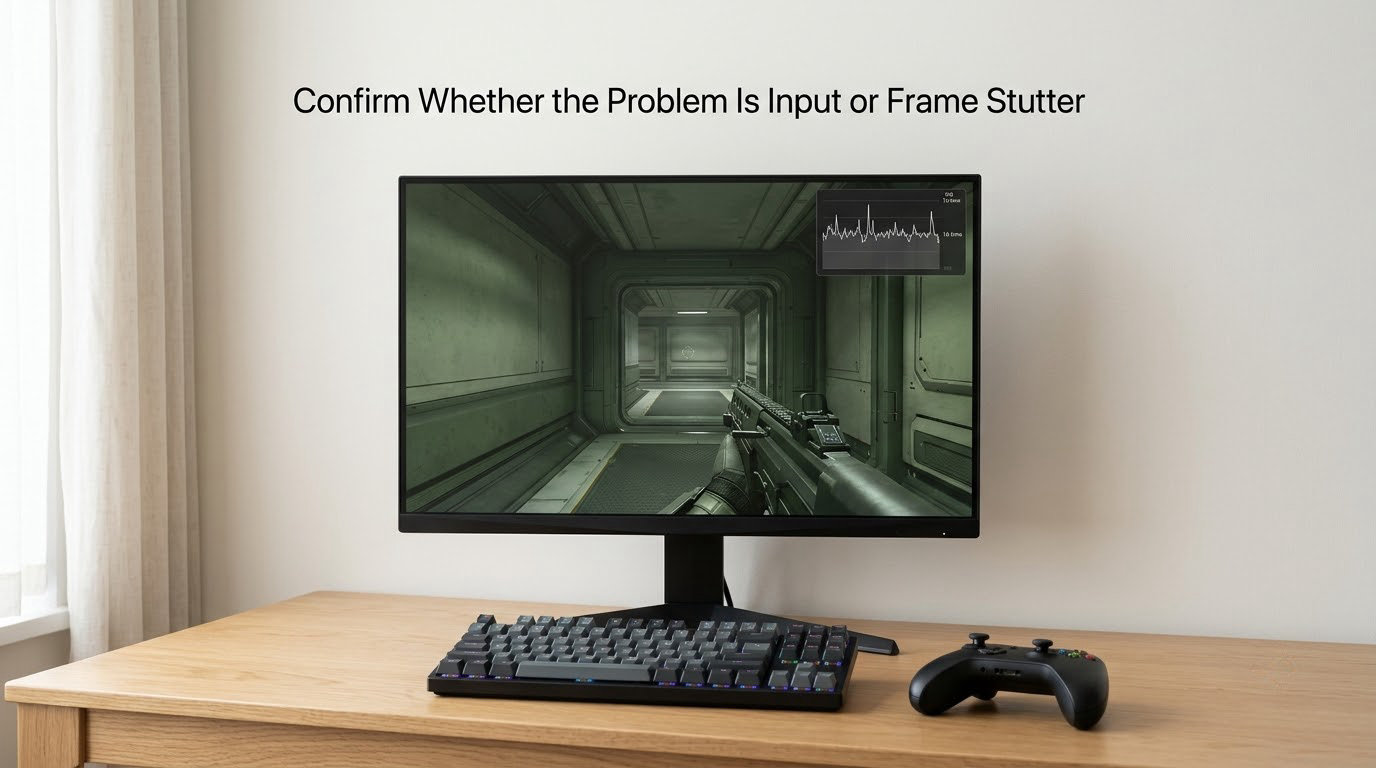
Before touching performance settings, make sure the stutter is coming from the game and not from your peripherals. Frame stutter repeats at a similar rhythm and shows up in recordings. Input lag feels like your input arrives late while the picture keeps moving smoothly, and it does not appear in a video.
Quick test: record ten seconds of gameplay with a phone or the built-in recorder and watch it back. Visible hitching in the recording means real frame-time trouble. A perfectly smooth recording with sluggish controls means the problem is input lag, and you should look at polling rate, wireless interference, and whether Windows Game Mode is interfering. Turning Game Mode off, or testing with a wired mouse, is a five-minute check that saves people from an entire afternoon of the wrong fix.
2. Update Graphics Drivers and Check the Game Profile
Drivers are the first thing people try, but they try them badly. An automatic update that installs over an existing installation leaves fragments behind, and those fragments are a genuine cause of stutter that no amount of settings tweaking will fix.
For a clean install, download Display Driver Uninstaller, restart into Safe Mode, run DDU, then install the stable driver package from the vendor site rather than the express installer. While you are there, verify the refresh rate in Windows display settings matches your panel, because a game locked to 60 Hz on a 144 Hz screen is a common and confusing cause of feeling that everything is sluggish.
Then check the vendor per-game profile. NVIDIA App and AMD Software both let you assign settings and frame caps to individual titles, and an inherited profile from an old driver install is a genuine trap.
3. Check Windows Display and Graphics Settings
Several Windows features change how frames are scheduled, and each one is worth testing on its own rather than all at once. Hardware-accelerated GPU scheduling, variable refresh rate, fullscreen optimizations, and the vendor control panel options like low latency mode can all change frame pacing.
Toggle one, play the test scene, note the result, toggle it back if nothing changed. Multiplane Overlay is the one people ask about most and the one least likely to be the answer, since disabling it fixes nothing on most systems and makes text slightly blurrier in some cases. If you do try it, test it properly rather than assuming.
4. Lower the Settings That Cause Frame-Time Spikes
Not all settings affect stutter equally. Texture quality is the one to move first when VRAM is tight, since exceeding VRAM forces the game to stream assets from storage mid-frame. Ray tracing costs a large block of VRAM, so dropping it from high to medium often smooths open-world games more than any other single change.
Shadows, volumetrics, ambient occlusion, and foliage density all spike CPU frame time in dense scenes. VSync can hide stutter by adding input lag, so treat it as a mask rather than a fix and turn it off while you diagnose.
- 60 Hz panel: cap at 58 to 60, or leave uncapped if you cannot reach it.
- 75 Hz panel: cap at 72 to 74.
- 120 Hz panel: cap at 117 to 119.
- 144 Hz panel: cap at 141 to 143.
- 165 Hz panel: cap at 162 to 164.
- 240 Hz panel: cap at 237 to 239.
Use the in-game limiter where possible, because it is applied inside the frame loop where the problem happens. NVIDIA Control Panel, AMD Adrenalin, and the RivaTuner frame limiter all work when a game offers no cap of its own.
5. Close Background Apps and Test a Clean Boot
Overlays are the quietest cause of regular stutter. Discord, GeForce Experience, Steam, the Xbox Game Bar with background recording, RGB utilities, and antivirus real-time scanning all inject code into the frame loop. Disable the overlays one at a time and keep them disabled, because they rarely add anything during actual play.
For a broader test, hold Shift while choosing Restart on the Shut Down menu to boot into a minimal Windows with drivers and nothing else. If the stutter vanishes, you have narrowed it to software. Start services back in halves rather than one at a time so you do not spend the evening bisecting, and never leave essential startup services permanently disabled.
6. Check Storage, Memory, CPU, and GPU Headroom
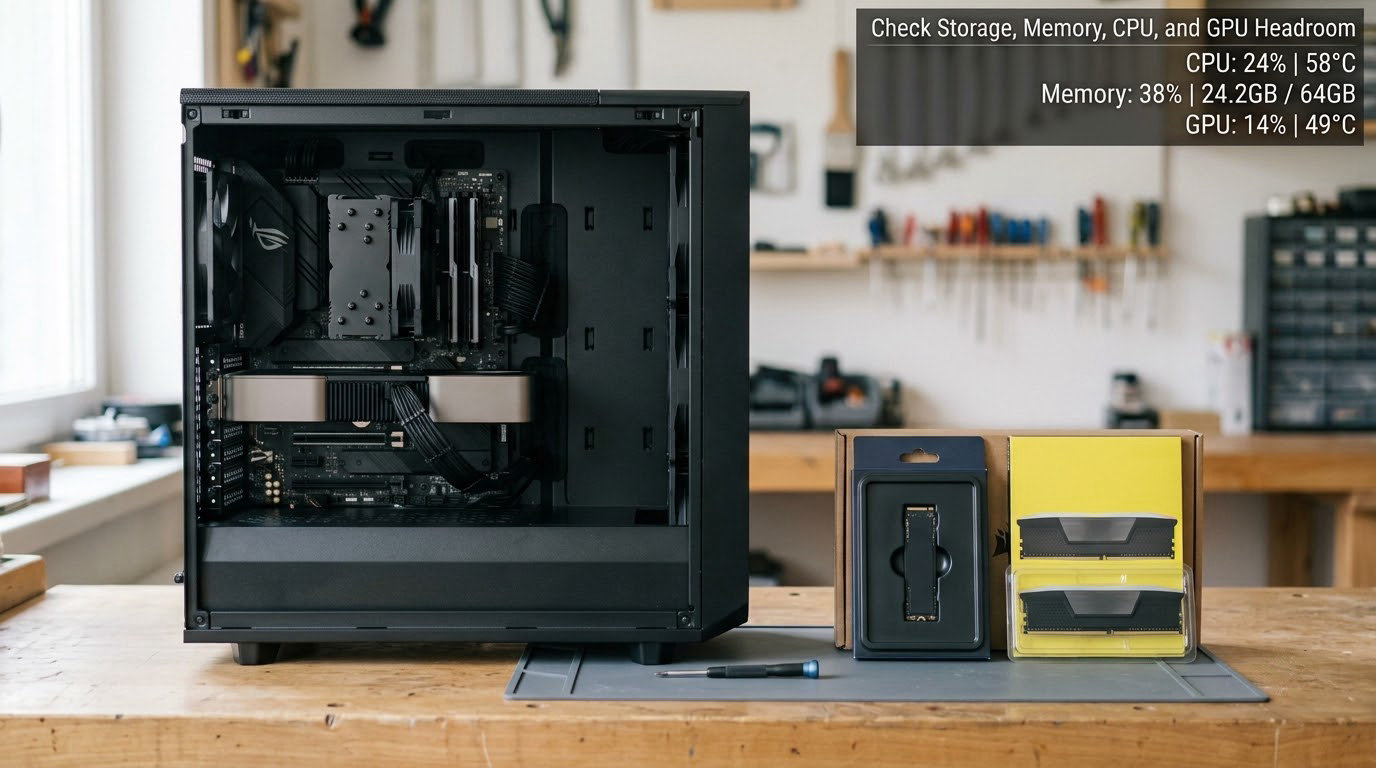
Turn the overlay on and watch the graph while the stutter happens, rather than guessing. A VRAM reading pinned at the card’s full capacity points at texture quality. System RAM above roughly 85 to 90 percent means the game is paging to disk. A single CPU core sitting at 100 percent while others idle points at a main-thread bottleneck, which is why dropping resolution will not help. Disk activity spiking to 100 percent during a hitch means assets are streaming in from a slow drive.
With the cause identified, the fix is straightforward. Move the game to an SSD or NVMe drive if it sits on a hard disk, which removes asset-streaming hitches almost entirely. Close memory-heavy browser tabs and background launchers. Lower texture quality one step. Raise a specific CPU bottleneck by cutting shadow distance and foliage density. The user experience of stutter reported in one large open-world game thread traced back to settings like these rather than to hardware.
7. Fix Overheating and Power-Limit Problems
Thermal throttling is invisible until you look for it. HWiNFO64 shows clocks dropping and throttle flags flipping, and a CPU pinned at 3.4 GHz instead of its rated 5.2 GHz will produce exactly the uneven performance that feels like stutter. Compare temperatures and clock speeds under load against what the chip should hold.
Power limits cause the same symptom more often than people expect. On a laptop, staying on the charger, selecting the discrete GPU mode in the vendor utility, and using the performance power plan all matter. Do the safe checks first: clear dust from vents, confirm the machine is on a hard surface, replace the thermal paste if you are comfortable opening it, and reseat an cooler that has been mounted unevenly. Avoid undervolting or power-limit edits you do not fully understand, since a wrong value there can cost you stability.
8. Repair, Reinstall, or Replay the Specific Game
If stutter appears in one game and nowhere else, stop working on the system and work on the game. Verify the game files through the launcher, remove mods one at a time, delete shader caches the game exposes in its own settings where supported, and check whether a recent patch has a known issue listed on the developer support page.
New releases also stutter for the first one or two sessions while shaders compile in the background. That is expected and it settles on its own. If stutter appeared right after a Windows or driver update, test another game to confirm the scope before you change anything else, since an OS regression is a genuine possibility and rolling back is easier while the rollback window is still open.
Common Mistakes
Most stutter troubleshooting fails because of the order of operations, not because the fixes are wrong.
- Changing five settings at once. You will not know which one worked, and you cannot undo the combination. One change, one test scene, one note.
- Assuming the GPU at 100 percent means a GPU problem. A full GPU load is normal in demanding scenes, and the stutter usually lives on the CPU or storage side. Watch frame time, not the usage bar.
- Lowering resolution to fix hitches. Resolution changes how many pixels you draw. It barely moves CPU or disk limits, which is where most hitches originate.
- Forcing VSync before capping frame rate. VSync smooths tearing at the cost of input lag. A cap near the refresh rate does the useful part without the delay.
- Installing experimental or beta drivers. They exist to test new hardware. If you want a stable machine, stay on the stable branch.
- Trusting optimizer apps and one-setting videos. Booster utilities and registry tweak videos generate easy views and frequently recommend disabling services that matter. Change one documented setting at a time instead.
- Reinstalling the whole game first. A multi-day reinstall for a five-minute verify-files check is backwards.
Record your test conditions every time: the scene, the graphics preset, the driver version, the average frame rate, and the frame-time graph. Without a record, you will test something, decide it did not help, change it back, and never know.
Frequently Asked Questions
Why does my PC game stutter even when the average FPS is high?
Because your frame counter averages. It smooths out the brief stalls that make stutter visible, so a game holding 180 FPS on average can still deliver unevenly spaced frames. The number you need is frame time, measured in milliseconds, plus the 1% lows, which show your worst frames. Open MSI Afterburner with RivaTuner Statistics Server, watch the frame-time graph, and look for spikes rather than watching the frame rate.
Is VSync the best fix for stuttering in PC games?
Not usually. VSync smooths out-of-order frames and removes tearing, but it adds input lag, which many players mistake for the fix working. It also does nothing when the cause is disk streaming or a CPU bottleneck. Cap your frame rate slightly below your refresh rate instead, such as 141 on a 144 Hz panel, and keep VSync off while you test whether stutter is actually gone.
Can an SSD stop stuttering in PC games?
It removes one specific cause: asset streaming hitches. When a game lives on a hard disk and needs a texture it does not have in memory, the frame waits for the read, and that pause is a hitch. Moving the game to an SSD or NVMe drive clears it. It will not help CPU bottlenecks, driver problems, or overheating, so check your overlay readings for disk activity before spending on storage.
How do I know whether stutter comes from my CPU or GPU?
Watch the overlay during the hitch. One CPU core pinned at 100 percent while others sit idle means a main-thread bottleneck, and lowering texture quality will not touch it. VRAM at full capacity points at the GPU side, and dropping texture quality or ray tracing a step usually helps there. Disk at 100 percent during the stutter means storage. Note the readings for three separate hitches before changing anything.
Should I install the newest GPU driver or use a stable older version?
Use the newest stable release unless a known issue is documented against it. Beta and developer drivers are for testing new hardware, and they cause stutter more often than they fix it. If stutter started right after a driver update, clean the old install off with Display Driver Uninstaller in Safe Mode, then reinstall the stable package. If that fails, step back one driver version and test again.
When does PC game stutter indicate a hardware problem?
Look for stutter that comes with other symptoms: boot times measured in minutes, fans that have stopped spinning, audio crackling, or crashes under load. One solved thread on the Tom’s Hardware forums tracked worsening stutter on a Ryzen 9 7900X and Radeon 6800 back to a failing motherboard after exactly those warning signs appeared. Stutter alone is usually software, but stutter plus those signs means test the RAM, the storage, and the power supply before buying anything.
If you only do one thing today, install MSI Afterburner with RivaTuner Statistics Server and watch frame time through three stutters. That single reading tells you whether you are looking at VRAM, memory pressure, a single CPU core, or storage, and each of those points somewhere completely different. Everything else in this guide is a consequence of that diagnosis.
If your PC is brand new and stuttering, check the memory profile in BIOS first. Plenty of expensive builds ship with memory running at its slow default speed because nobody enabled the profile, and that single toggle fixes the problem more often than any driver or setting change on this page.