A game cache is a pile of temporary files your console, PC, phone or browser keeps so a game can load faster next time. How to clear a game cache simply means deleting those temporary files and letting the game rebuild them on the next launch. It takes two minutes and it does not touch your saved games. It is the first thing to try when a game crashes on startup, freezes on a loading screen, stutters, or refuses to update.
I have cleared enough of these on my own PS5, PC and phone to know the pattern: the fix works about half the time, and the other half the problem was never a cache at all. That distinction is what this guide is for. Below I cover every platform properly, flag exactly which options destroy your saves, and give the escalation order for when clearing is not enough.
Firmware and app updates move these menus around, so treat this as a 2026 guide and match the label you see on your screen rather than the position.
Table of Contents
- 1What You Need Before You Clear a Game Cache
- 2Step-by-Step: How to Clear a Game Cache on Any Platform
- 3How to Clear a Game Cache in a Browser Game
- 4How to Clear Cache Files for a Windows Game
- 5How to Clear Cache in Steam, Epic Games, or Another Launcher
- 6Restart and Check That the Fix Worked
- 7Common Mistakes
- 8Common Mistakes and Quick Fixes That Actually Work
- 9Frequently Asked Questions
- 10Is it good to clear the cache on games?
- 11Will I lose game progress if I clear the cache?
- 12How do I delete game cache on iPhone or iPad?
- 13What happens when you clear the cache on PlayStation 5?
- 14Will clearing the PS5 cache improve performance?
- 15How often should I clear your game cache?
- 16Conclusion
What You Need Before You Clear a Game Cache
What you need depends on where the game runs. A browser game needs nothing but the browser. A PC game needs the name of its launcher, usually visible on your desktop shortcut or in your library. Consoles need the game powered down properly, and phones need about 500 MB of free storage so the cache can be rebuilt without failing halfway.
Before you touch anything, have these ready:
- Your platform: browser, PS5, PS4, Xbox Series X|S, Xbox One, Nintendo Switch, Windows PC, Mac, iPhone or iPad, Android.
- The launcher name if you play on PC: Steam, Epic Games Launcher, EA App, Battle.net or Ubisoft Connect.
- A working account sign-in, because clearing site data in a browser or resetting a launcher will log you out.
- A note of the exact error message, screenshot or the name of the one screen that hangs. This matters more than it sounds, because it decides which cache you touch.
- Ten spare minutes, plus a backup of any save file you are nervous about. That backup is the only real insurance in this whole process.
Here is the whole platform map in one view. Nothing on this table is safe to run without reading the saves column first.
| Platform | Where the cache option lives | Deletes saves? | Risk |
|---|---|---|---|
| PS5 | Settings > System > System Software, plus Clear System Software Cache and Clear Rebuild Database in Safe Mode | No | Low. Rebuild database takes time but keeps saves and games. |
| PS4 | No cache menu. Full power off, unplug the power cord for 60 seconds, restore power | No | Low, if you actually restore Default Options and do not initialize. |
| Xbox Series X|S and One | No cache menu. Power drain: hold the power button until the fan stops, unplug, wait, replug. Verify files via Manage game and add-ons | No for a power drain. Yes for Clear local data | Mixed. Read the label before clicking. |
| Nintendo Switch | System Settings > System > Formatting Options > Clear Console Cache | Keeps saves only if Nintendo Cloud backup is on, but resets the profile | High. This is not a routine fix. |
| Steam | Steam > Settings > Downloads > Clear Download Cache, and right-click a game > Properties > Installed Files > Verify integrity of game files | No | Low. Verification downloads anything missing. |
| Epic Games, EA App, Battle.net, Ubisoft Connect | Launcher settings, or webcache folders under AppData after closing the launcher fully | No for cache folders | Low to medium. Reset Download Files is broader than it sounds. |
| Windows PC, manual | %localappdata% and AppDataLocal game folders, plus NVIDIA, AMD and Intel shader cache folders | No, if you only touch folders named cache, webcache or shader cache | Medium. Never delete Preferences, Application Support or Saved games. |
| Mac, manual | ~/Library/Caches and ~/Library/Containers/bundle ID/Data/Library/Caches | No | Low. Leave Application Support and Preferences alone. |
| iPhone and iPad | No per-game clear cache button. Settings > General > iPhone Storage > the game > Offload App | Usually no, because documents and data are kept | Low, but Offload removes downloaded assets so the game needs Wi-Fi again. |
| Android | Settings > Apps > the game > Storage > Clear cache | No for Clear cache. Yes for Clear data | Low if you pick the right button. The two buttons sit right next to each other. |
Step-by-Step: How to Clear a Game Cache on Any Platform
The order matters more than the method. Back up anything you cannot recreate, close everything, clear the smallest thing that fits the symptom, then restart and test before doing anything else. Skipping straight to a broad reset is how people end up reinstalling a game they never needed to touch.
How to Clear a Game Cache in a Browser Game
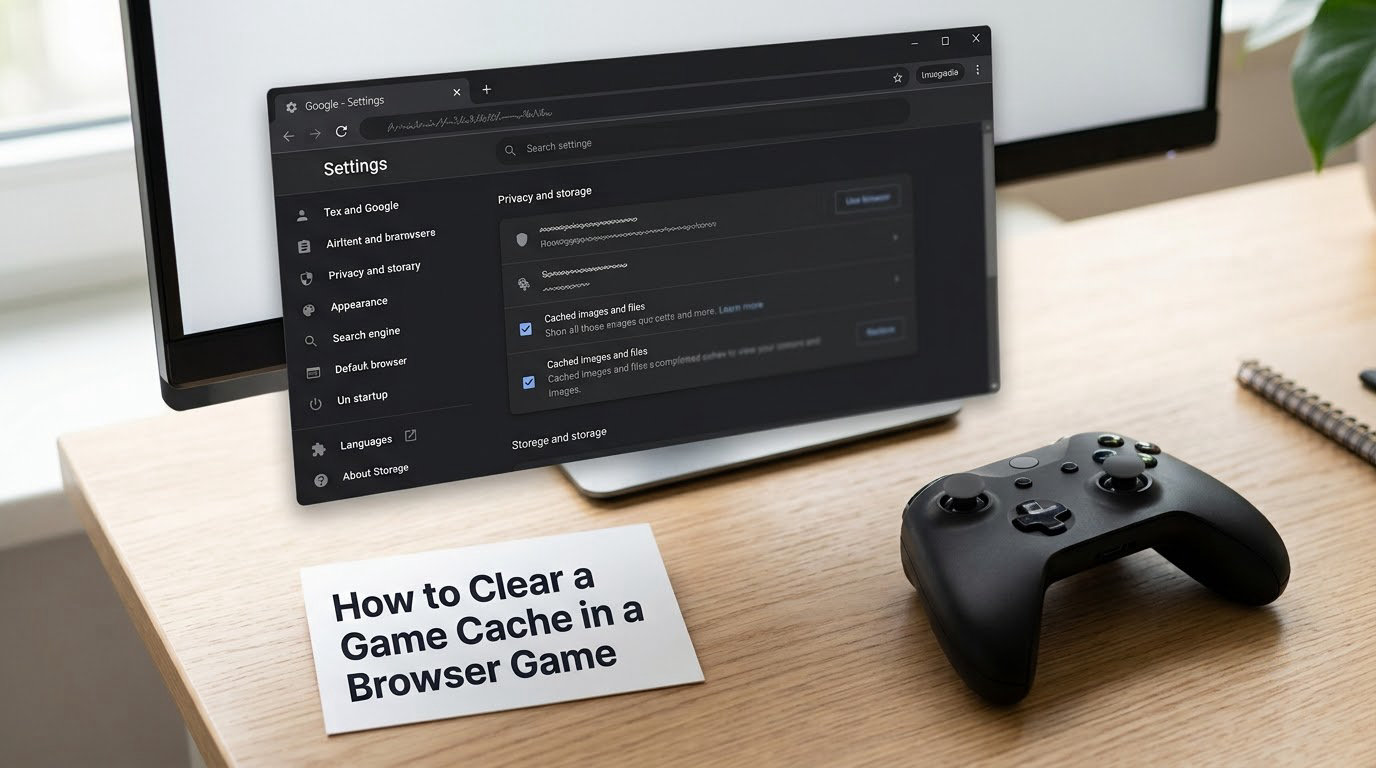
On a browser game you have two levels of clean: clear cached images and files, which is safe, or clear site data, which is not. Use the first one unless the game is genuinely broken.
In Chrome on a desktop computer, open the game, then click the lock or tune icon at the right of the address bar. Choose Site settings, then View permissions and data stored across your sites, or jump straight to the page chrome://settings/content/all, search for the game domain, click the trash icon and confirm Delete displayed data. In Edge the same list sits at edge://settings/content/all, or use Settings > Privacy, search and services > Cookies and site permissions > See all site data. In Firefox, open Settings > Privacy and Security > Cookies and Site Data > Manage Data, search the game domain and Remove Data.
Two warnings here. First, if you have more than one Chrome or Edge profile, you are probably clearing the wrong one, so check which profile icon is active before you start. Second, many browser games store saves in IndexedDB or local storage, which counts as site data rather than cache, so clearing all site data for that domain can wipe your progress. That is exactly why clearing cached images and files is the better first move.
Expect to sign in again after clearing site data, and expect the first load back to the game to be slower. That delay is the game rebuilding, not a sign you broke something.
How to Clear Cache Files for a Windows Game
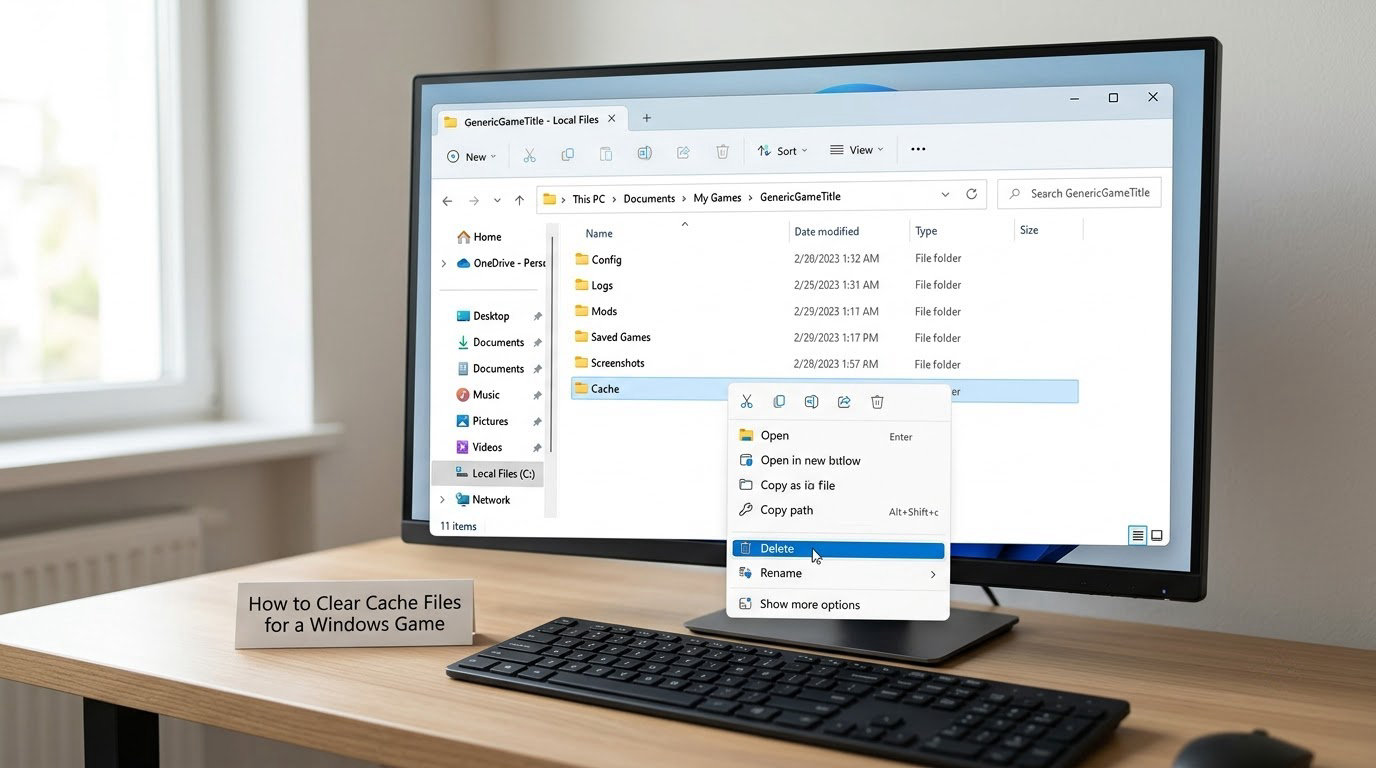
On Windows, start at the launcher and only drop to File Explorer when the launcher has nothing for you. Check the developer support page for the game first, since it often names the exact folder, and confirm whether your build even stores a cache locally.
To find the folder, press Win and R, type %localappdata% and hit enter. That opens AppDataLocal, where games keep their data under a publisher folder. A typical path looks like AppDataLocalPublisher NameGame NameSaved, and inside it you will often find folders named webcache, Cache, Logs or CrashContextClient.
Now do this in order:
- Back up your save. Saves usually live under DocumentsMy Games, the Documents folder, or a Saved folder inside the game directory. Copy it somewhere safe before you delete anything.
- Close the game completely, then close the launcher from its system tray icon rather than just closing the window.
- Open %localappdata% and navigate to the publisher and game folders.
- Delete only the folders whose names contain cache, webcache or Logs. Leave Config, Preferences, Saved games and Application Support exactly where they are.
- Reopen the launcher and the game.
If your frame rate is the problem rather than loading, the file you want is the shader cache. The graphics driver stores compiled shaders there, and a corrupt entry shows up as stutter or a broken texture. NVIDIA keeps them in %localappdata%NVIDIADXCache, %localappdata%NVIDIAGLCache and %localappdata%NVIDIA CorporationNV_Cache. AMD uses %localappdata%AMDDxCache and %localappdata%AMDVkCache. Intel uses %localappdata%IntelShaderCache. Close the game and the driver overlay first, because any of these folders locks while the game is running.
Be realistic about the payoff here. Deleting shader and web caches usually reclaims a few hundred megabytes, and it fixes stutter caused by bad cached data. It will not turn a console that cannot run the game into one that can.
How to Clear Cache in Steam, Epic Games, or Another Launcher
Launcher controls are not interchangeable, and each launcher spells the same idea differently. Match the label rather than assuming one client’s button equals another’s.
In Steam, open Steam > Settings > Downloads and choose Clear Download Cache to drop browser-style data the store and news pages build. That fixes a store that will not load or log in. For a game that will not launch or shows corrupted files, right-click the game in your library, choose Properties > Installed Files > Verify integrity of game files, and let Steam download anything missing. Verification never touches saves.
Competitive players often go one step further and delete the game config folder inside the Steam userdata directory, then set launch options fresh. That is a real technique with real risk, because some games keep saves in that same tree, so back it up before you touch it.
In the Epic Games Launcher, sign out of your account, exit the launcher from the system tray, then delete the folders under %localappdata%EpicGamesLauncherSaved named webcache and webcache_4147 along with the Logs folder. Start the launcher, sign back in, and your library will rebuild. If a game is corrupt rather than the launcher, use the Library, open the game menu and choose Manage > Verify.
EA App users should close the client fully and look under %localappdata%Electronic ArtsEA Desktop for a cache or webcache folder before hunting further. For Battle.net, right-click the game and choose Verify Game Files, then restart the launcher; the client’s own folder under AppDataLocalBattle.net is the next place to look if that fails. For Ubisoft Connect, exit the client, then remove the cache folder inside %localappdata%Ubisoft Game Launcher. It signs you out every time.
Whatever the launcher, back up your saves before you use a broad reset. Reset Download Files in Epic re-downloads the whole install, and reinstalling a game is only worth doing after the smaller options have failed.
Restart and Check That the Fix Worked
The test is simple and it is the step people skip. Restart the layer that was holding the cache: the browser for a browser game, the launcher for a PC game, the console for console games, the phone for mobile.
Then launch the game from its normal shortcut rather than from a shortcut you just created, and watch for four things: do the menus draw, do maps load, do textures look correct, and does multiplayer connect and find other players. If all four work, you are done.
Players on Xbox have a trick worth knowing. Loading a different game first flushes the active cache held in memory, then switching back can bypass a stale state. It shows up often in answers on the Xbox subreddit and it costs nothing, so try it before touching storage.
If only one mode stays broken, that is a clue. A campaign that works and a multiplayer lobby that does not points at the network or the account, not the cache. If the whole game is broken again within days, something is rewriting bad data on every launch, so check for a pending update and let the game install it fully before the next launch.
Common Mistakes
Five errors show up again and again, and all of them cost more time than the fix they replace.
- Deleting the save folder. Saves do not live in the cache folder, but they sometimes live next to it, and Documents, Saved games and Preferences are not caches. Leave them alone.
- Closing only the game window. The launcher and its helpers keep the cache locked and rewrite it on exit. Exit from the tray icon every time.
- Clearing the wrong browser profile. Work profiles and personal profiles keep separate data, so clearing the other one changes nothing and wastes a restart cycle.
- Reinstalling to fix a server problem. If matchmaking, login and game servers are the failure, nothing on your machine changes that. Check the server status before you download anything.
- Changing five settings in one sitting. You will never know which one worked, and the next problem will start from a state you cannot describe.
Common Mistakes and Quick Fixes That Actually Work
Cache clearing fixes stale local data, and it is not a repair tool. Running the wrong fix on the wrong symptom wastes an evening, so match the problem first.
| The problem | What it usually is | What to do |
|---|---|---|
| Game crashes or freezes on the startup screen | Corrupt cache, or a background process holding a lock | Exit the launcher from the tray, clear the game cache folder, power drain, relaunch |
| Stuck on a loading screen forever | Stale cache or an update that half-installed | Clear the cache, then run the launcher’s verify or integrity check so the patch completes |
| Missing, blurry or purple textures | Shader cache corruption, often after a driver update | Close the game and delete the NVIDIA, AMD or Intel shader cache folders listed above |
| Stuttering and FPS drops | Shader recompilation, thermal throttling or a busy background app | Clear the shader cache once, then close recording overlays and check thermals |
| Update fails or restarts download endlessly | Download cache, or storage running low | Clear Download Cache in the launcher, then free 10 GB or more of console storage |
| Console or phone storage is nearly full | Accumulated system data and old updates | Clear the cache, delete old games, then use the platform storage management screen to see what is actually large |
| Nothing changes after all of it | It was never a cache | Work down the ladder: verify files, update drivers, restart the router, test on a second network, then reinstall |
The power drain is the universal fallback worth memorising, and it is the fix most endorsed in player threads. Turn the console fully off rather than leaving it in rest mode, unplug the power cord for 60 seconds, plug it back in and boot. Sixty seconds, not thirty, is the number people settle on after arguing about it.
On Xbox Series consoles, go further: hold the power button until the fan stops spinning, keep holding while you unplug, then wait, replug and boot. Players describe the short version, pressing the Xbox button then pressing back, as a ritual, but a full drain does more.
On PlayStation, Safe Mode holds the two deeper options. Power the PS5 off, hold the power button through the first chime until you see the Safe Mode menu, then choose Options > Reset PS5 > Restore Default Options > Clear System Software Cache. Recent firmware also offers Clear Rebuild Database in the same menu. That rebuilds the PS5’s index of games and saved data: it can take a long time and it does not delete anything, but it can surprise you with how long it sits on a percentage bar.
Three habits prevent most repeat visits. Write down the exact error before you change anything. Clear the smallest cache that fits the symptom first, not the biggest one that exists. And if the fix held for two days, something upstream is still writing bad data, so go one rung further up the ladder rather than repeating the same clear every week.
Frequently Asked Questions
Is it good to clear the cache on games?
Yes, when a game misbehaves. A cache is disposable data the game rebuilds on the next launch, so clearing it is low risk and costs a couple of minutes. Clear it when a game crashes on startup, hangs on a loading screen, shows broken textures, or fails to update. Clearing on a schedule with no symptom does almost nothing, because there is nothing stale to remove.
Will I lose game progress if I clear the cache?
No, not if you stay inside the cache options. Cache files are temporary copies of assets, thumbnails and settings that regenerate themselves. Saves live separately, in a save folder, cloud storage, or a profile database. The exceptions are commands named Clear local data, Delete saved data, Clear data on Android, and Clear Console Cache on Switch, which do much more than empty a cache.
How do I delete game cache on iPhone or iPad?
iOS has no per-game clear cache button, which is a real gap compared with Android. Go to Settings, then General, then iPhone Storage, then select the game, then choose Offload App. That frees the downloaded assets while keeping documents and data, and the game re-downloads them on next launch. Deleting the app instead removes its data too, so check the game syncs to iCloud first.
What happens when you clear the cache on PlayStation 5?
Nothing you will miss. The console rebuilds its temporary system software data on the next boot, your installed games and saved data stay where they are, and your settings are untouched. Two side effects to expect: the first boot takes a bit longer, and anything in Safe Mode menus such as Clear System Software Cache or Clear Rebuild Database requires a full power off to reach.
Will clearing the PS5 cache improve performance?
Only when the cache is the problem. Clearing it can fix endless loading screens, failed updates, corrupted game data and a store that will not sign in. It will not raise your frame rate on a console that is already at its limit, and it will not fix stutter caused by heat or a game that is simply demanding. If performance is your real complaint, check the game’s recent patch notes first.
How often should I clear your game cache?
Only when something is wrong, and then once. Most people never need a schedule at all, and clearing weekly buys nothing while eating a few minutes and a sign-out. If you like a habit, clearing a launcher’s download cache every few weeks during a slow patch week is harmless. Reserve the big options like Switch Formatting Options or a database rebuild for a real problem.
Conclusion
Start with the smallest thing that fits the symptom. Know which platform you are on, clear the cache that platform actually offers, restart that layer properly, and give the game one launch to rebuild. If it is still broken, work up the ladder: verify game files, rebuild the database, update drivers, restart the router, test on a second network, and reinstall only after all of that.
And remember the label that matters. Cache options are disposable. Anything that says saved data, local data or clear data is not a cache at all, so back up before you click it. Done correctly, clearing a game cache takes less time than the download it fixed.