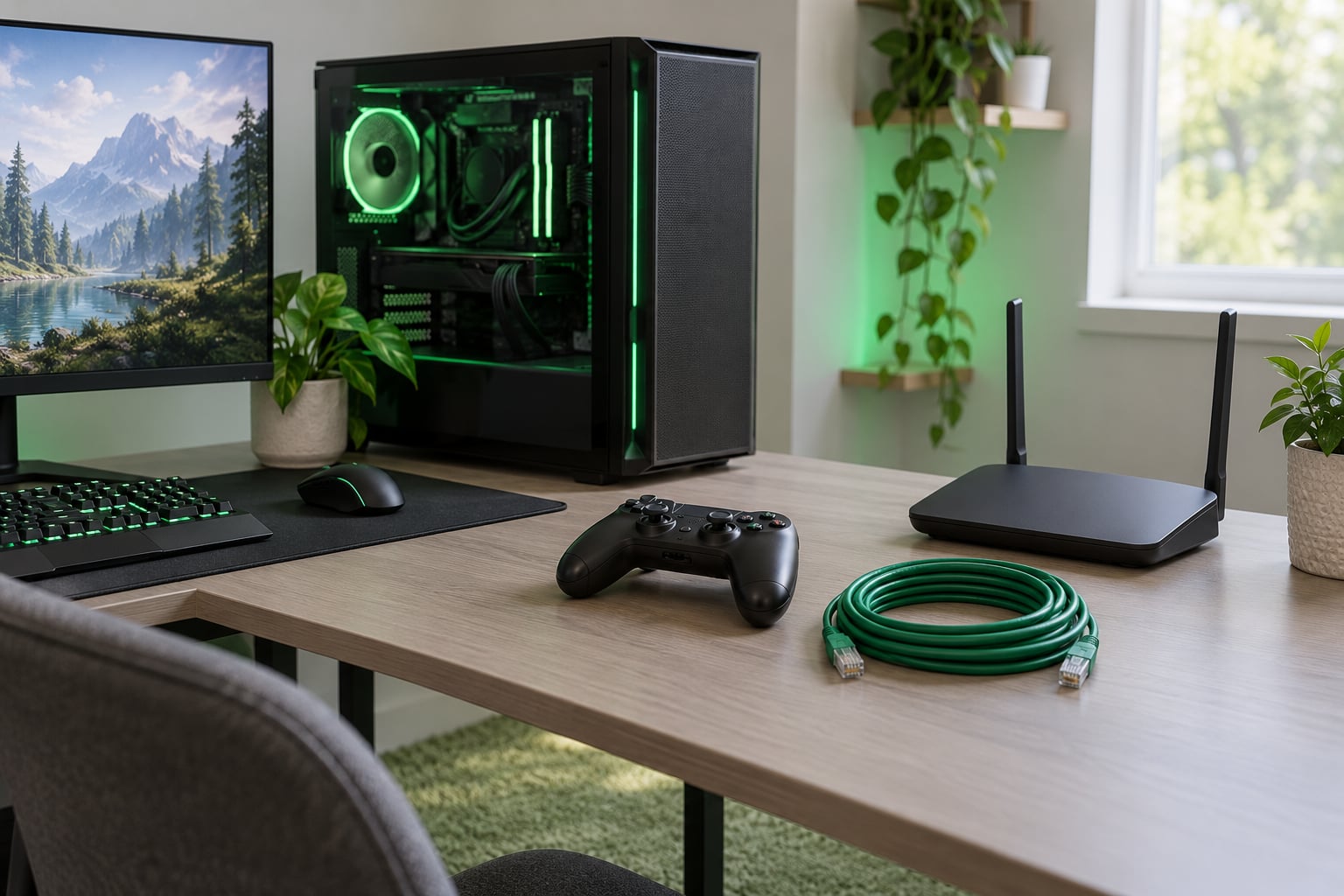
To use ethernet instead of WiFi for gaming, plug one end of an Ethernet cable into a LAN port on your router and the other into your console or gaming PC, then select the wired connection in the device’s network menu. It takes about five minutes and needs no new hardware beyond a cable most people already own.
The honest part: going wired will not make your downloads faster. What it fixes is jitter, packet loss and ping spikes, which are the things that make you rubber-band across a map or miss a shot you had. If your lag is happening outside your house, in your provider’s network or on the route to the game server, the cable will not touch it, and I explain how to tell the difference further down.
Table of Contents
- 1What You Need
- 2Step-by-Step
- 3Step 1: Check Your Ethernet Port and Cable
- 4Step 2: Connect the Device to the Router or Modem
- 5Step 3: Select the Wired Network on Your Device
- 6On Windows 11 or Windows 10
- 7On PlayStation 5 and PS4
- 8On Xbox Series X|S and Xbox One
- 9On Nintendo Switch
- 10Step 4: Verify Ping, Download Speed, and Packet Loss
- 11Step 5: Configure the Connection for Gaming
- 12Common Mistakes
- 13Quick Tips for a Lower-Lag Connection
- 14Frequently Asked Questions
- 15Does Ethernet actually reduce ping for gaming?
- 16Is Ethernet faster than Wi-Fi for gaming?
- 17Is Cat6 enough for 1000Mbps?
- 18Can I connect with Ethernet if I only have a modem?
- 19How do I know if my console is actually using Ethernet?
- 20How long can an Ethernet cable run for gaming?
What You Need
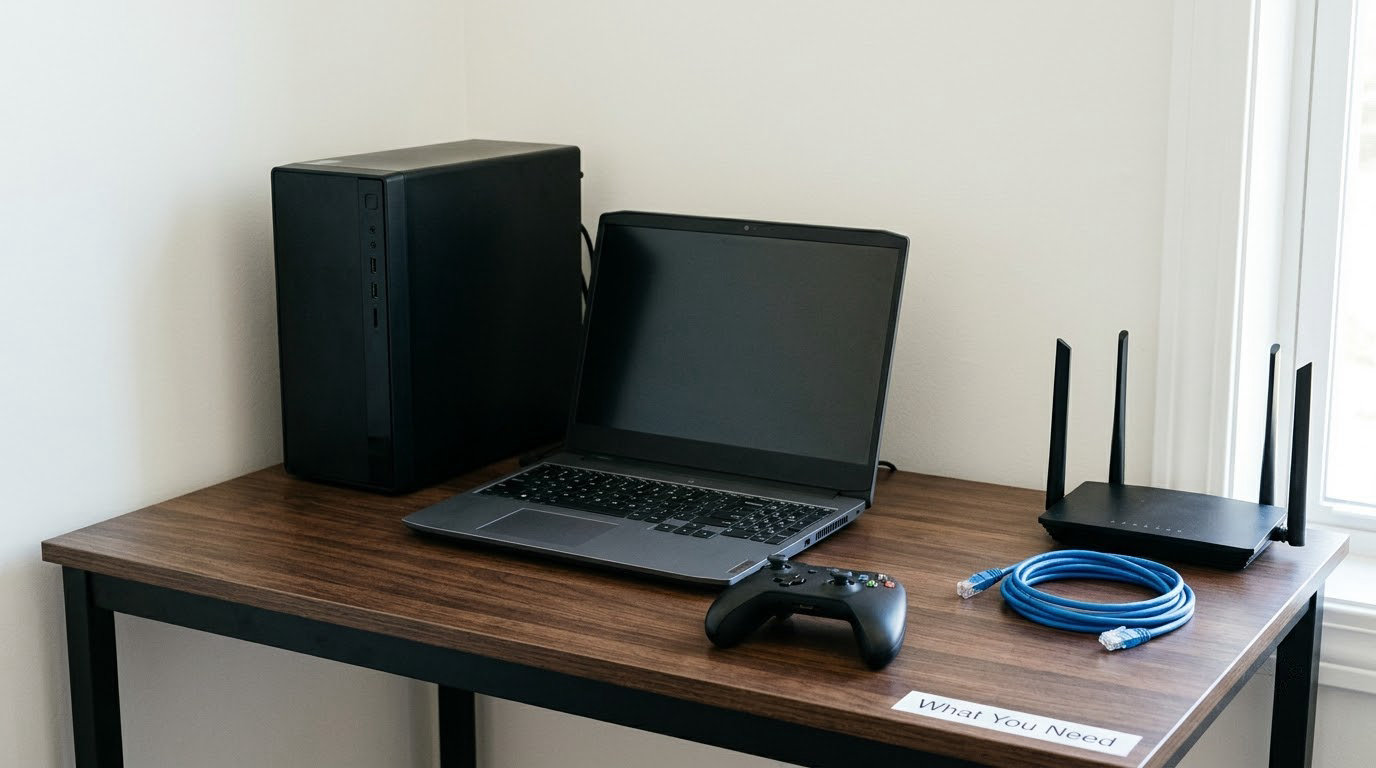
Three things, and one of them is optional.
- A router, not just a modem. Most homes have both. If you have a modem only, check whether it has more than one Ethernet port before you start.
- An Ethernet cable. Any Cat5e or Cat6 cable does the job for gigabit speeds. Length matters less than most people think.
- A device port. PS5, PS4, Xbox Series X|S, Xbox One, and most gaming PCs ship with an RJ45 port. Nintendo Switch needs the dock.
- Optional: a USB to Ethernet adapter if your laptop or handheld has no built-in port, or an inline switch if you need to split one router port into several.
Before you plug anything in, look at the back of your router and count the LAN ports. They are usually the same colour, often numbered 1 through 4. The one port that looks different, sometimes labelled Internet, WAN or ONT, is the port your provider’s cable comes out of. Almost every beginner mistake in this guide comes from using that port instead.
Also worth knowing: a router cannot give a wired device a better route to the internet than it gives a wireless one. Both leave through the same WAN port. What the cable changes is the last ten metres.
Step-by-Step
If the only guide you have seen is a YouTube video on how to use ethernet instead of wifi for gaming, this section is the whole job in order: check the port, run the cable, select the wired connection, test it, then tune it. Five steps, and each one ends with a way to confirm it actually worked.
Step 1: Check Your Ethernet Port and Cable
The Ethernet port is a square socket with a small clip inside it, and it looks identical on every platform.
- PC: on the back of the tower, usually grouped with the USB ports. Laptops put it along the side or back edge, often next to a charging port.
- PS5 and PS4: the PS5 has one on the rear panel next to the HDMI ports; the PS4 has it on the back of the console.
- Xbox Series X|S and Xbox One: at the rear of the console. On the Series X the port is nearer the front of the rear panel.
- TVs and Nintendo Switch: TVs usually have one or two along the side or back. The Switch only has one when docked.
Check the cable before the router. Look at both RJ45 connectors: if any pin is bent, pushed down, or the clip snaps loose when you tug gently, replace the cable. A cheap tester with two lights, one at each end, tells you in ten seconds whether all eight wires are continuous, which is faster than troubleshooting a mysterious lag spike later.
Step 2: Connect the Device to the Router or Modem
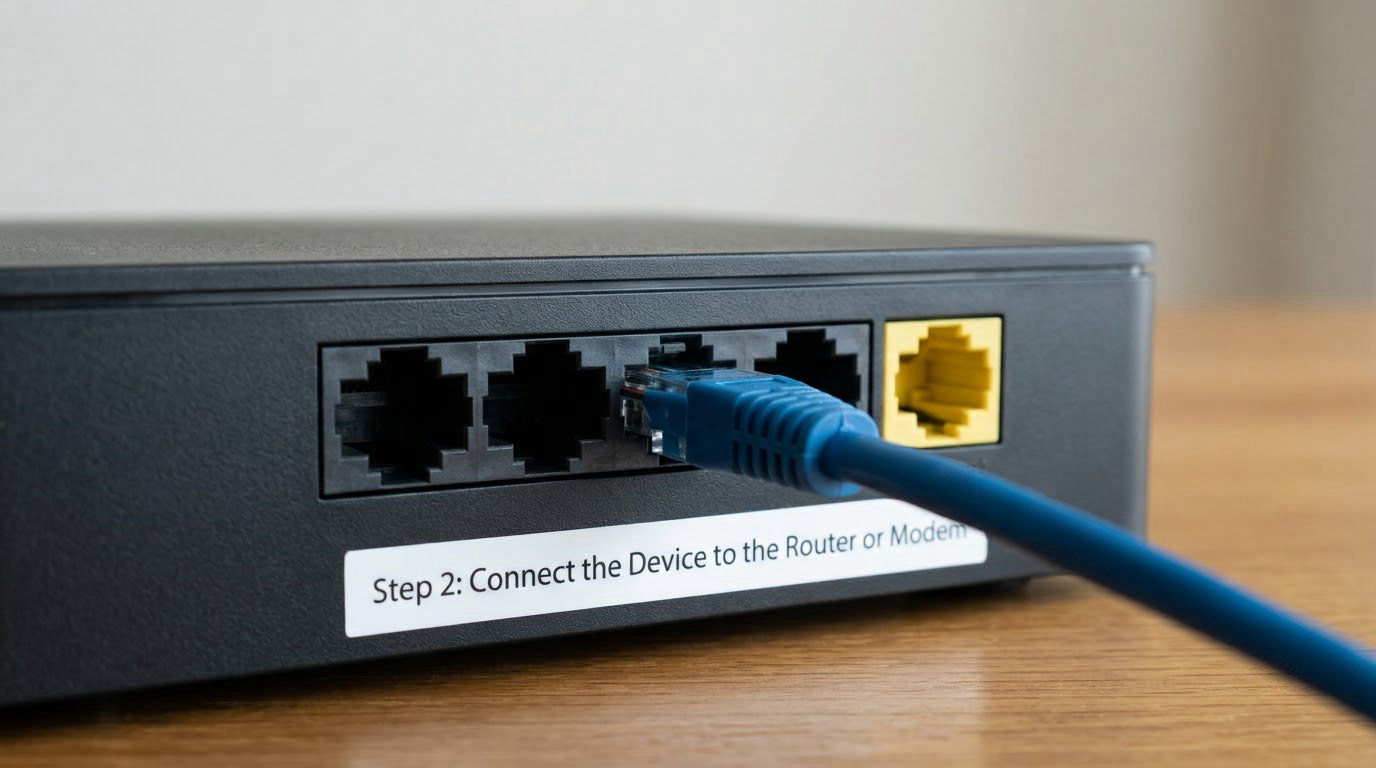
Plug one end into any LAN port on the router. Plug the other into the device. That is the whole physical job.
Plugging into the Internet or WAN port is the single most common error. Your console will either show no connection at all, or it will connect and then sit without internet, because the WAN port is shaped for your provider’s line, not for a local device.
If you have a modem and a router stacked separately, the cable goes into the router, not the modem. The modem already occupies the router’s WAN port.
For a device in another room, run the cable along the baseboard or under a door with a gap, not across a walkway. Copper Ethernet has a hard limit of 100 metres, or 328 feet, for one run. Beyond that you need a repeater, a switch, or a fibre or wireless link between two short runs. An unpowered four-port switch costs little, adds well under a millisecond, and is a perfectly reasonable way to turn one wall port into three desk ports.
Step 3: Select the Wired Network on Your Device
Most consoles switch to the cable on their own, but confirming it takes a minute and saves you from playing on Wi-Fi by accident.
On Windows 11 or Windows 10
Go to Settings, then Network and internet, then Ethernet. If your network type already reads Ethernet, you are done. If it reads Wi-Fi or a network icon without a type, open the Network and sharing center, right-click the connection, choose Properties, and confirm the type line says Ethernet.
If both Wi-Fi and Ethernet are connected at once, Windows may route game traffic over either one. Set the wired adapter to win: in Network and internet, open Wi-Fi, turn Wi-Fi off while you test, then decide whether to keep it off.
On PlayStation 5 and PS4
On the PS5, go to Settings, then Network, then Settings, then Set Up Internet Connection, then choose Set Up Wired LAN Connection. Name the profile, select Test Connection, and press through to save it.
The PS4 path is Settings, Network, then Set Up Internet Connection, then Set Up Wired LAN Connection. It detects the cable immediately and offers the option on the same screen.
On Xbox Series X|S and Xbox One
Press the Xbox button, open the Guide, go to the Network tab, then Advanced settings, then Network settings. Change the connection type to Wired, then run Test connection.
The result matters as much as the switch. You want NAT type Open, and packet loss near zero. Strict or Moderate NAT still works but makes voice chat and party invites awkward in multiplayer games.
On Nintendo Switch
Handheld mode cannot be wired. The Switch has no Ethernet port on the console itself. Dock it, plug the cable into the port on the back of the dock, and the Switch picks it up on the next launch.
Step 4: Verify Ping, Download Speed, and Packet Loss
This is where people stop caring and keep playing. Run the numbers, because they tell you whether you actually improved or just feel hopeful.
On a console, the built-in network test reports connection type, NAT type, ping, download speed and upload speed. Run it on Wi-Fi first, write the numbers down, then run it again on the cable and compare.
On a PC, open a terminal or PowerShell window and ping three targets in order. Ping your router’s address first, usually 192.168.1.1 or 192.168.0.1. Then ping a public resolver such as 1.1.1.1 or 8.8.8.8.
Reading those two numbers splits the problem cleanly. A high or spiking ping to the router means the fault is inside your house: interference, a saturated Wi-Fi link, or a mesh unit fighting for the same uplink. A clean ping to the router but a poor one to the public resolver means the delay begins at your provider’s network, and no cable on earth fixes that.
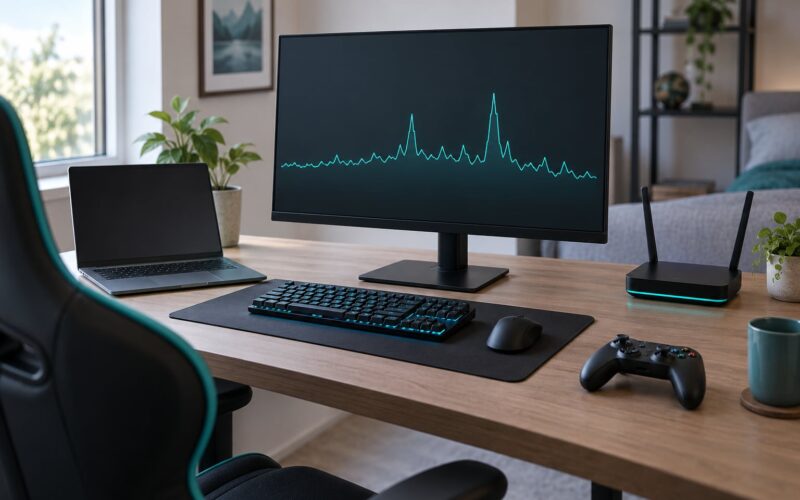
A useful pattern to watch for is spikes rather than a high average. Steady 35ms is fine. 20ms that jumps to 200ms every minute or two, the pattern players report in shooters, is usually packet loss or bufferbloat, not Wi-Fi range.
Step 5: Configure the Connection for Gaming
The cable is the easy half. A few settings decide whether the wired link stays quiet.
- Close big uploads before you queue. A cloud sync, a console game download, or someone uploading a video on the same Wi-Fi can spike your ping for the duration. Watch a Netflix stream or a large backup on the wired device and it will show you immediately whether your router has bufferbloat.
- Turn on QoS or gaming prioritisation in your router settings if it has them. On a busy household it moves your console traffic to the front of the line.
- Update the router firmware. ISP-supplied routers in particular ship with old drivers and default QoS settings that nobody asked for.
- Restart everything in the right order after a change: modem first, wait for its lights to settle, then router, then console or PC.
- If the PC still feels worse wired than wireless, check your network adapter ordering, and note that on many recent motherboards both the onboard NIC and Wi-Fi sit behind the same chipset, so wired adds a tiny delay rather than removing one.
One honest caveat on adapters: a USB to Ethernet dongle is a fallback, not an upgrade. Buyers report being disappointed by the dongle rather than the cable, particularly cheap USB 2.0 models. If you go that route, a USB 3.x adapter with a gigabit chipset is the difference between fine and pointless.
Common Mistakes
Using the wrong router port. Fix: use a numbered LAN port, never the Internet or WAN port.
A cable that only connects sometimes. Four of eight wires is enough for a link that negotiates and then drops packets. Fix: wiggle the connector at both ends while watching the connection status. If the status flickers, swap the cable.
Plugging in but never checking. Fix: look at the connection type in the network menu. It must read Wired or Ethernet, and on PS5 the status screen should show a wired icon.
Leaving the console connected to Wi-Fi as well. Fix: forget the wireless profile, or disable Wi-Fi on the device, so nothing can fall back to it.
Expecting Ethernet to fix ISP lag. This is the big one, and it is why so many threads on r/HomeNetworking are titled variations of ethernet being just as bad as Wi-Fi. Fix: run the two-part ping test in Step 4. If the router responds fast and the public resolver does not, the remaining delay is upstream and no cable will move it.
Ignoring a congested router. A second-hand or ISP-supplied unit with poor queueing can make a wired connection feel worse than a good Wi-Fi one. Fix: check whether anything else is saturating the line during the lag.
Quick Tips for a Lower-Lag Connection
- Use a short Cat5e or Cat6 cable if you can. Shorter runs mean fewer opportunities for damage and less mess to route.
- Keep the router off the floor and away from metal, microwaves, and cordless phone bases.
- Reboot in order: modem, wait, router, wait, then console or PC.
- Keep large uploads off the connection during a match. Pause game downloads and cloud saves rather than queueing them.
- If you must stay partly wireless, put the console on 5GHz or 6GHz rather than the 2.4GHz band, which reaches further but crowds and interferes badly.
- For a room you cannot cable, a mesh system with Ethernet backhaul behaves like a cable between nodes. Powerline adapters over coax are the fallback people dislike most; they inherit the wiring quality of the house.
None of this makes your ping number lower at the same house with the same provider. It makes the number stop moving.
Frequently Asked Questions
Does Ethernet actually reduce ping for gaming?
Usually it steadies ping rather than lowering the average. Wired links remove Wi-Fi interference, distance loss and airtime contention, so the spikes disappear and jitter drops. The baseline ping depends on your provider and the route to the game server, which a cable cannot change. If your router ping is low but your public ping is high, the remaining lag is outside your house.
Is Ethernet faster than Wi-Fi for gaming?
On download speed, in most homes, no. A good Wi-Fi 6 connection can match or beat gigabit Ethernet. What Ethernet wins on is consistency: lower jitter, zero packet loss and no interference from neighbours. For gameplay that is the deciding factor, because a steady 40ms feels better than a connection swinging between 15ms and 90ms.
Is Cat6 enough for 1000Mbps?
Yes, comfortably. Cat5e supports gigabit to 100 metres, and Cat6 supports 10Gbps up to about 55 metres. For a normal home run to a console or PC, either one works, and Cat6 is the sensible default purchase. Cat6a and Cat7 cost more and matter mainly for 2.5Gbps or 10Gbps links over longer distances.
Can I connect with Ethernet if I only have a modem?
Often yes. Most ISP-provided modems include several LAN ports alongside the single Internet port, so you can plug straight into one. If yours has only the Internet port, either enable its router or bridging mode, or add a separate router and run the cable from the modem into the router’s WAN port, then use a LAN port for your console.
How do I know if my console is actually using Ethernet?
Open the console’s network status screen and read the connection type. On PS5 it should show Wired connection; on Xbox the Network tab should read Wired alongside NAT type Open. Run the built-in network test, which reports connection type directly. If it still says Wi-Fi, forget the wireless profile or turn Wi-Fi off on the device to force the wired route.
How long can an Ethernet cable run for gaming?
One continuous copper run works up to 100 metres, or 328 feet. Beyond that you need an intermediate switch, repeater, or a link between two shorter runs. Long runs in the same room can still pick up interference from power and phone lines, so route them away from those rather than tucking them alongside mains cabling.
Start tonight like this: run the network test on Wi-Fi, plug the cable into a LAN port, confirm the menu says Wired, and run the test again. If the average ping barely moved, ping your router and then a public resolver before you decide the cable was a waste. If it is now steady, you already know it was worth five minutes.
Last updated 2026.