If you want to know how to tell if your PC is overheating during games, ignore how warm the case feels and read the actual sensors instead. A PC is overheating when the CPU or GPU holds a temperature above its documented limit, throttles its clock speed to cope, or shuts itself down to protect the hardware. You need a temperature reading and a performance baseline, not a guess. That whole check takes about ten minutes on a Windows machine.
This guide covers desktop and laptop, stock and modified systems, with the menu paths spelled out for Windows 11 and current versions of NVIDIA and AMD driver software. The numbers below are the ones chip vendors publish, and they still hold up in 2026.
Table of Contents
- 1What You Need
- 2Step-by-Step: Check for Overheating During Games
- 3Monitor CPU and GPU Temperatures
- 4Look for Performance Drops and Stuttering</
- 5Check Fans, Airflow, and External Clues
- 6Test Whether Cooling the PC Helps
- 7How to Tell If Your PC Is Overheating During Games: 7 Signs
- 8What to Do If Your PC Is Overheating
- 9Common Mistakes
- 10Frequently Asked Questions
- 11What is an unsafe temperature for a gaming PC?
- 12Is 120 F (49 C) hot for a CPU?
- 13Is 70 C or 72 C too hot for a GPU?
- 14Is a laptop overheating if it reaches 90 C while gaming?
- 15Can an overheated PC be fixed, and when do I need a technician?
- 16Conclusion
What You Need
You need a way to read your CPU and GPU temperature while a game is running, and something to compare that reading against. That is the whole toolkit.
A free monitoring app is the most useful piece. HWiNFO64 gives you every sensor your motherboard and graphics card report, including per-core detail, and it can log readings to a file. HWMonitor does the same job with a much simpler screen, so start there if a wall of sensors sounds intimidating. MSI Afterburner plus RivaTuner Statistics Server puts an on-screen display over the game itself, which is the easiest way to watch temperatures without alt-tabbing.
Windows Task Manager works too, with no install at all, though it shows less. You also want your game’s graphics settings, a stopwatch, and a note of the room temperature. A manual for your PC or cooler helps if you plan to check vents or filters.
What you do not need is a phone app or a website that claims to check your PC temperature. Browsers cannot read hardware sensors, and thermal camera apps measure the surface of your skin or the room. They are not a substitute for CPU and GPU package readings.
Step-by-Step: Check for Overheating During Games
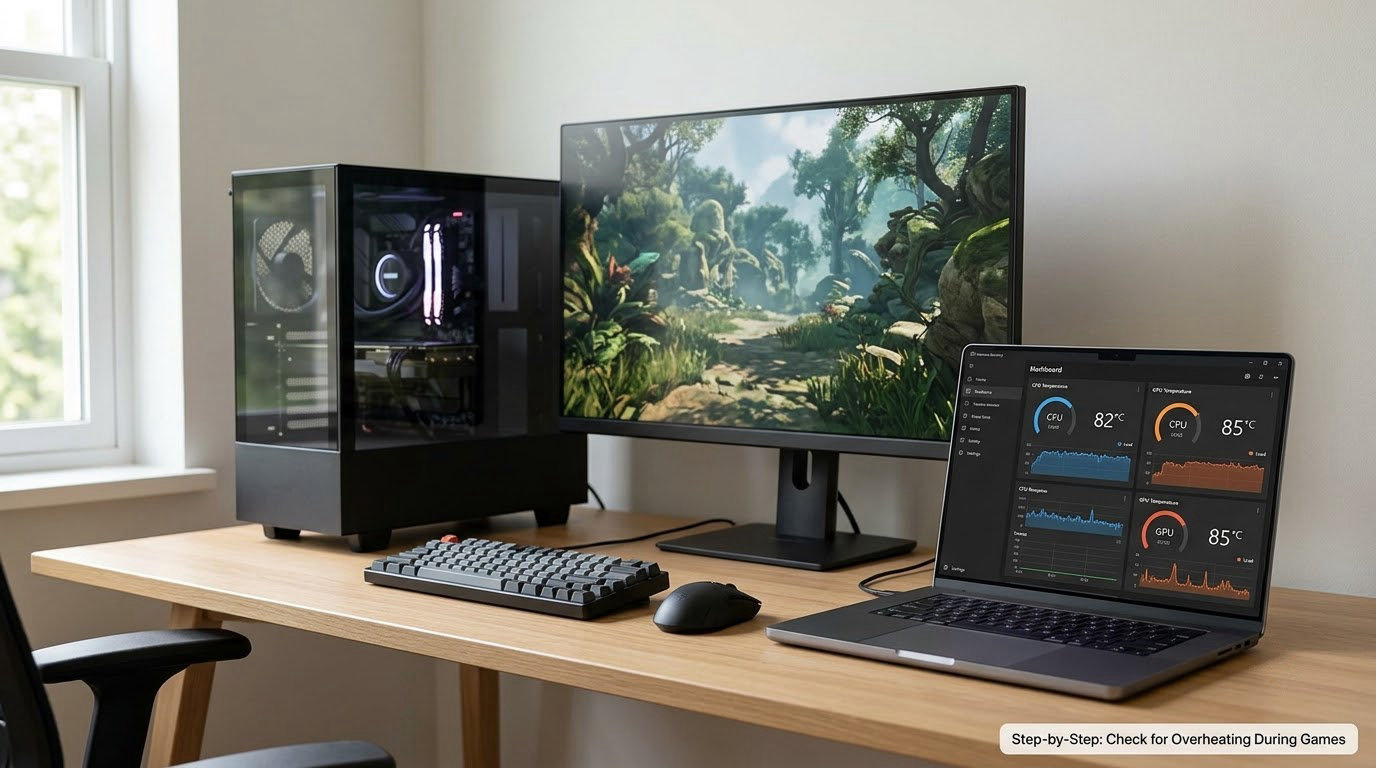
Run this sequence during a normal session, not during a synthetic stress test. Games produce realistic mixed loads, and that is where your problems actually show up.
Keep your hands off the internals while the machine is running. Do not open the case, touch the heatsink, or move cables with the power on. If you need to look inside, shut down fully, switch the power supply off at the wall, and let it sit.
Monitor CPU and GPU Temperatures
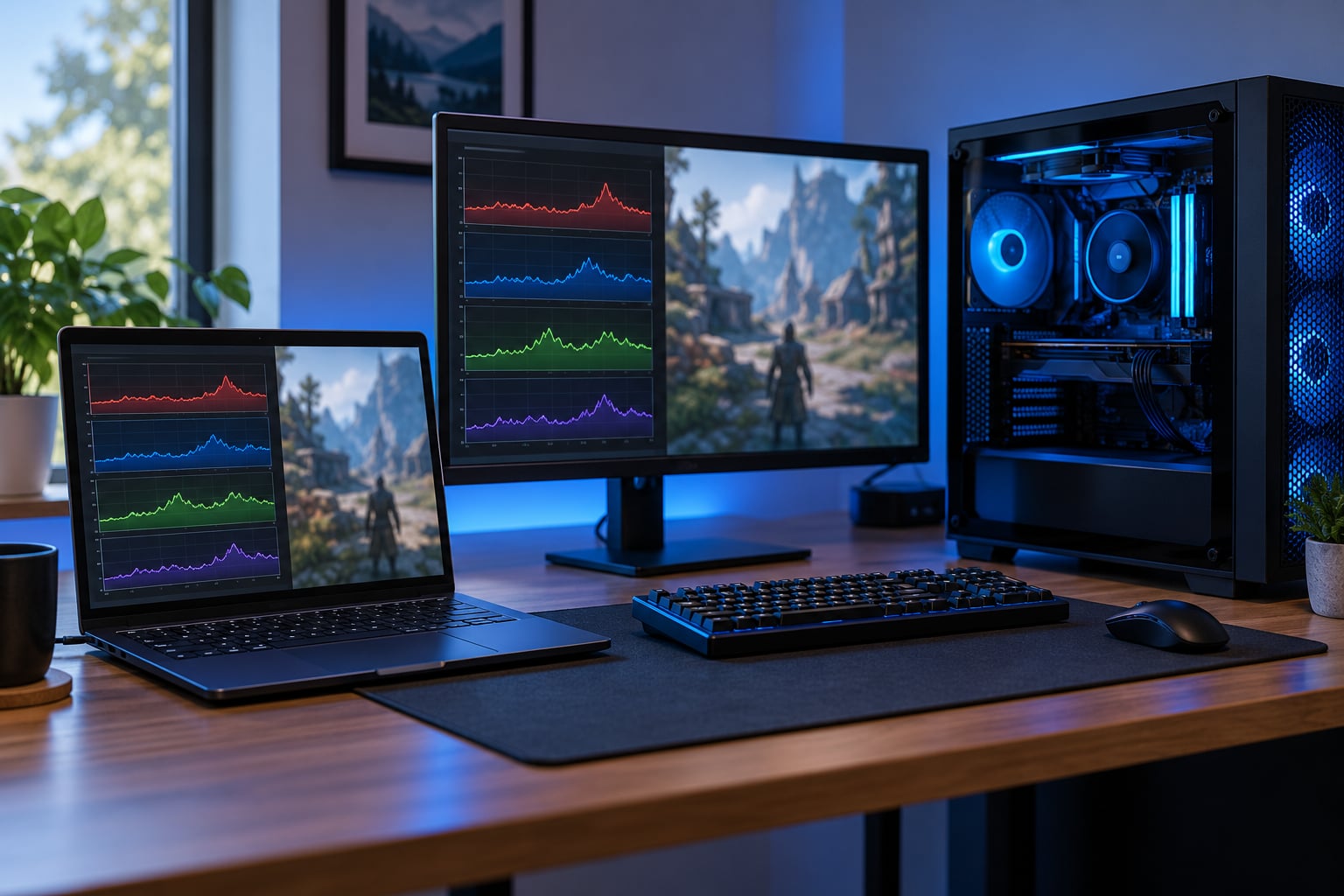
To check PC temperature while gaming, open your monitoring tool before you launch the game. In HWiNFO64, click Sensors-only, then find CPU Package in the list and read the Current and Maximum columns. Scroll to the GPU section for GPU Core and GPU Hot Spot. Right-click the window and choose Show Sensors in Tray so it keeps logging in the background.
In HWMonitor, launch it, expand the tree on the left, and note the CPU Package and GPU Core values. On Windows 11, press Ctrl+Shift+Esc, open the Performance tab, and hover over CPU or GPU to see a temperature graph. Task Manager on Windows 10 shows temperatures only for some hardware, so treat it as a quick check rather than a full diagnosis.
For NVIDIA cards, the overlay lives in the NVIDIA Control Panel under Settings, Setup Environment, User Defined, and the On-Screen Display section. AMD users can enable metrics in AMD Software, or use Adrenalin’s Performance tab. Either way, confirm the overlay is visible in the game before you trust what it says.
Write down three numbers: the idle reading after five minutes of no load, the average during the heaviest part of the game, and the highest peak. The gap between idle and load is as informative as the peak. A system sitting at 55C idle and 72C under load is behaving normally. One sitting at 45C idle and 95C under load has almost no thermal headroom.
Then account for spikes. A five-second jump to 93C during a boss fight or a shader compile is normal boost behaviour, not overheating. What matters is the sustained average over several minutes and whether your chip’s throttling point was reached. Check the vendor’s documented limit for your exact processor or card rather than trusting a universal number.
Look for Performance Drops and Stuttering</
Heat causes trouble by making your hardware slow itself down. When a chip reaches its limit, it cuts clock speed to hold temperature, and you feel that as stutter rather than a crash.
Small frame-time variation is normal in almost every game. Thermal problems show up as repeated hitching in the same spot, a frame rate that walks downward over a long session, or a sudden drop when a heavy area loads. Turning settings down and getting a big gain also suggests heat, since lower settings mean less power and less heat. Changes to the same settings that recover nothing usually mean something else.
To check whether the CPU or the GPU is the hotter component, watch GPU usage during the stutter. If it sits near 99 percent while frame times spike, the graphics card is the constraint. If usage swings between 40 and 80 percent, the game is CPU-bound, and the processor is the one to watch. Sim games and strategy games lean CPU-heavy, while high-settings shooters lean GPU-heavy.
Check Fans, Airflow, and External Clues
Louder fans usually mean the system is asking for more cooling, which can be normal during a heavy scene and a warning sign if it happens all the time. Unusually high fan noise right when a game starts is often a clogged dust filter or blocked intake, not a dying fan.
Hold your hand a few centimetres from the exhaust vents without touching anything. Warm air is expected. Weak airflow, where you barely feel anything coming out, points to a fan that has failed or come loose inside the case. On a laptop, check that the vents are clear and that the machine is on a hard surface rather than a blanket or a cushion.
Look at the intake side for dust build-up, especially in mesh filters and between the case fans. A warm room pushes every reading up, so note the room temperature on the same day you test. On a laptop, also check whether both the power plug and the USB-C port are connected, because a single port often limits the processor and raises temperatures noticeably.
None of this proves overheating on its own. A hot case with cool sensors means the outside of the machine is fine and the sensors are telling you the truth.
Test Whether Cooling the PC Helps
Pick one demanding scene in a game you play often. Play it for ten minutes, record the average CPU and GPU temperatures plus your frame rate, and note the room temperature. Then move the tower away from a wall or a heat source, open the case to give it breathing room if you are comfortable doing so, or clear a laptop’s vents, and repeat the same ten minutes.
If temperatures fall several degrees and frame times smooth out, airflow was part of the problem. If nothing changes and temperatures still sit above the documented limit, the cooling hardware itself needs attention. Improved numbers support the diagnosis but never replace it if you were already over the limit.
How to Tell If Your PC Is Overheating During Games: 7 Signs
You have real evidence of overheating when several of these show up together, especially alongside high sensor readings.
- Sustained temperatures at or above the chip limit. Your CPU holding 95C or more for minutes, not seconds, with the vendor limit lower than that.
- Thermal throttling. Clock speeds that drop during play. HWiNFO64 shows a Thermal Throttling indicator, and MSI Afterburner reports the current clock against the stock clock.
- Repeated stutter in the same spots. Hitches that follow you through a familiar scene rather than random one-off spikes.
- Crashes or shutdowns under load. The machine powering off or restarting mid-game with no warning is thermal protection doing its job.
- Abnormal fan noise. Fans at maximum the entire time, or a fan you cannot hear at all when the system is under load.
- Frame rate that falls as the session goes on. Good performance in the first fifteen minutes, noticeably worse an hour in, often returning after a cool-down.
- Blue screens or a frozen desktop. Particularly WHEA hardware error entries, which can point at instability under sustained load.
Warm is not the same as overheating. A desktop CPU idling at 40 to 50C and sitting at 70 to 80C in a heavy game is working as intended, and 70C on a graphics card is fine for most of its life. A hot room explains higher readings across the board with no sign of throttling. Genuine trouble is sustained heat above the limit, paired with slower performance or instability.
What to Do If Your PC Is Overheating
Start with the easy, reversible steps. Lower the demanding settings in your games, cap the frame rate, and close background applications that are loading the same processor. Then move the system away from walls, make sure nothing blocks the intake or exhaust, and clear any dust you can reach without opening the case.
Verify your measurement too. A sensor can fail, and a faulty reading shows up as an implausibly high idle temperature or a number that jumps wildly. Compare your tool’s reading against the Windows Task Manager value or the vendor control panel. If two sources disagree by a large margin, trust the one that looks more plausible before you start pulling parts off.
Avoid opening a sealed system while it runs, and be careful with thermal products you cannot identify. Applying an unknown paste or an improvised cooling hack can make heat transfer worse and can damage the board.
Stop testing and have a technician look at it when the machine shuts down or blue-screens under load, when temperatures stay above the limit with clean airflow, when fans are silent or grinding, or when a laptop throttles so hard that it barely runs its own games. Dust inside the heatsink, dried thermal paste, worn thermal pads, and a failing pump all need physical work, and they are the points where a home fix stops being sensible.
Common Mistakes
Judging by the case temperature. A warm side panel tells you the case is warm, not what the processor is doing. Fix: read sensors, and use the case as a hint about airflow only.
Treating one hot number as proof. A peak of 94C that lasted eight seconds is a spike, not a diagnosis. Fix: average over several minutes and compare with the sustained peak.
Putting a laptop on a bed or a cushion. Soft surfaces block the intake and the readings climb immediately. Fix: hard surface, vents clear, and both power connectors in use.
Changing settings with no baseline. Dropping graphics quality until the frame rate improves hides the cause instead of measuring it. Fix: record numbers first, change one thing, then measure again.
Stress testing a system that is already unstable. Running Prime95 or FurMark on a machine that already crashes adds heat without adding information. Fix: confirm stability in ordinary games first, then soak test for ten to fifteen minutes while logging.
Treating fan noise as proof of heat. Loud fans can be a failing bearing or a blocked filter with normal temperatures. Fix: pair the noise with a sensor reading before concluding anything.
Frequently Asked Questions
What is an unsafe temperature for a gaming PC?
It depends on the component and the chip. A desktop CPU that holds 95C or above for minutes is past the point most chips are designed for, and laptop CPUs commonly reach 90C by design. Graphics cards throttle in the mid-80s to low 90s depending on the model. Use the vendor’s published limit for your exact hardware rather than a generic number.
Is 120 F (49 C) hot for a CPU?
That is warm but normal, especially at idle. 120 F converts to about 49 C, which is a typical desktop CPU temperature while idle with nothing running. Watch for the load reading instead: if your processor sits near 49 C idle and climbs toward its limit under load with no thermal headroom, the cooling is worth checking.
Is 70 C or 72 C too hot for a GPU?
No, neither one is a problem. Most graphics cards are designed to sit in the 65 to 83 C range during heavy gaming, and 70 to 72 C is a healthy mid-range reading. What matters is whether the card holds close to its throttle point, whether performance drops, and what the GPU Hot Spot sensor shows relative to the core.
Is a laptop overheating if it reaches 90 C while gaming?
Often it is not. Laptop processors run at higher temperatures by design because the cooling hardware is thin and shared, and users on gaming laptops report averages of 60 to 80 C with occasional spikes into the 90s. Signs of a genuine problem are heavy throttling, shutdowns, or a chassis too hot to touch for long, not the number alone.
Can an overheated PC be fixed, and when do I need a technician?
Most cases are fixed with airflow changes, a dust clean, a fan curve adjustment, fresh thermal paste, or lower power limits. Call a technician when the machine shuts down or blue-screens under load, when temps stay above the limit with clean airflow, or when fans are silent or grinding, since those point to failed hardware inside the case.
Conclusion
Check the hottest CPU and GPU readings during the same demanding game scene, compare frame times before and after you improve airflow, and hold those numbers against the manufacturer’s limits rather than against how the case feels.
If the system is throttling, unstable, or reading above its documented limit, pause the test and deal with cooling before you play again. Lower the demanding settings, clear the vents, and re-measure. That ten minutes of work tells you far more than an hour of guessing.