If a game runs in your browser, the fastest way to sync progress across devices is to sign into the identical account on each one and let the game’s cloud save upload when you close the tab properly. The catch is that many browser games keep saves in local storage on that one device, and nothing you click will move them. Ten minutes of checking tells you which kind you have before you waste an evening trying to make progress follow you.
There are only two kinds of browser game storage to work with, and the whole guide comes down to telling them apart. Account saves live on the developer’s server and follow you everywhere. Local saves live in your browser profile and stop dead at the edge of that device.
Here is the fast version. Open the game on both devices, check whether you signed in or started as a guest, and look for a cloud save, account, or profile screen inside the game’s own settings. If progress follows you there, the sync is already working and you only need to quit games cleanly. If one device shows a fresh game while the other has hours of play, you have local storage, and the honest answer is that the game does not support cross-device play.
Table of Contents
- 1What You Need for How to Sync Progress Across Devices
- 2Step-by-Step
- 31. Confirm the game actually supports cross-device saves
- 42. Sign into the identical account on both devices
- 53. Update the browser and the game client
- 64. Turn on the cloud-save option if the game has one
- 75. Select the correct save slot
- 86. Quit the game cleanly on one device before opening it on the next
- 9How to Sync Progress Across Devices in a Browser Game
- 10Test the Sync and Resolve Conflicts
- 11Common Mistakes
- 12Frequently Asked Questions
- 13Does every browser game support cloud saves?
- 14Why can my progress appear on one device but not another?
- 15Can I transfer browser-game progress from one device to another?
- 16What should I do if two devices have different versions of my save?
- 17Can I recover progress after accidentally overwriting a cloud save?
- 18Conclusion
What You Need for How to Sync Progress Across Devices
Before you change anything, gather these four things. Without them you will end up debugging the wrong problem for an hour.
- The same account on both devices. Same email, same provider, same username. A guest session is not an account.
- Current browser and operating system updates on each device, since a stale client often fails silently during sign-in.
- The correct game build. Some titles ship a separate browser version with fewer features than the desktop app.
- A steady connection on both devices while you test, because a sync that half-completes looks exactly like a sync that never ran.
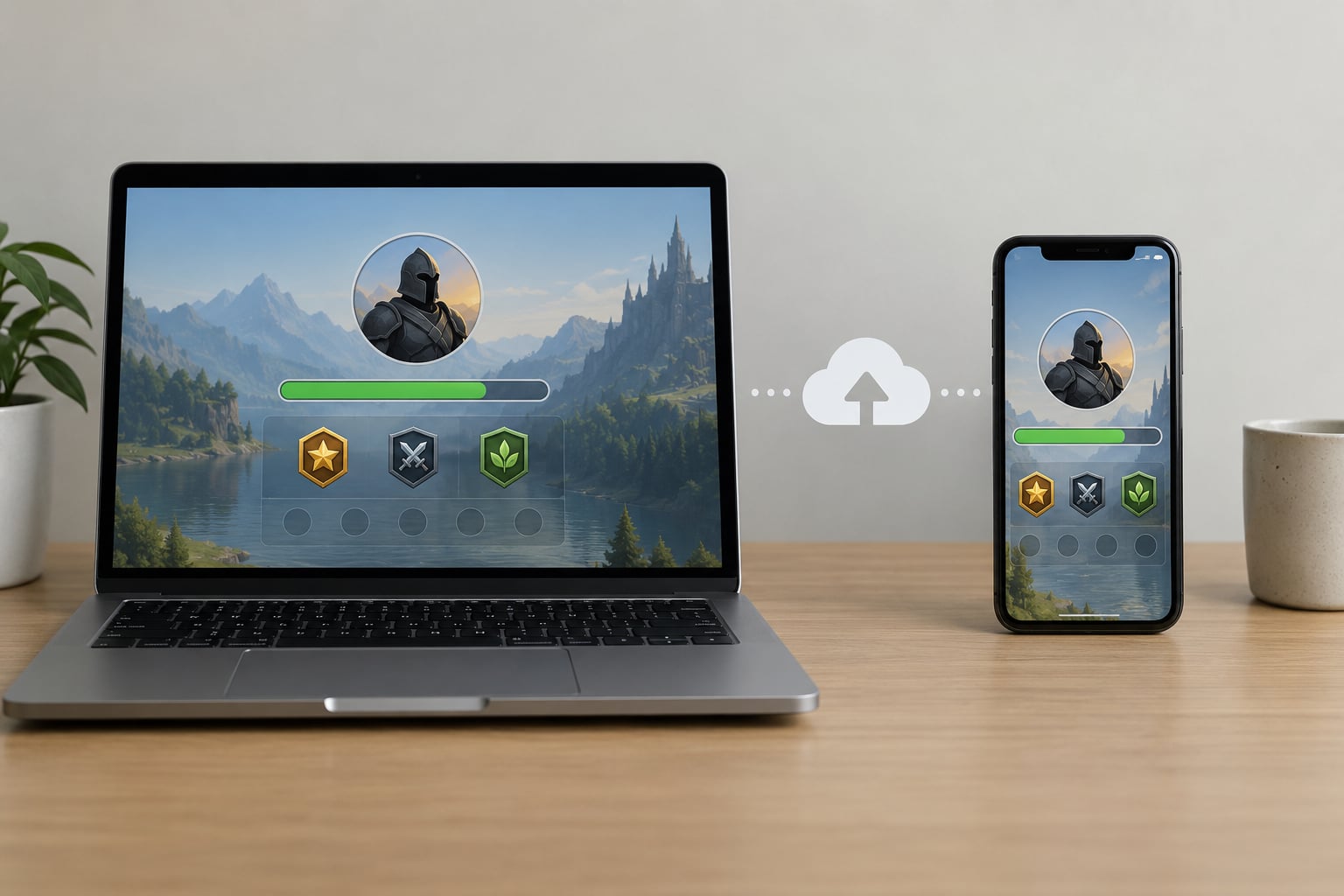
The distinction that trips up most people sits inside that list. A cloud save is stored on the developer’s server under your account, and any device can pull it. Local browser storage is a set of files inside one browser profile, and no account system touches it.
Quick test: open the game on your phone, make a small change, close the tab fully, then load the game on your laptop. If the change appears, you have account-based cloud saves. If the laptop starts from zero, you have local storage.
One more prerequisite before you experiment. Export or copy whatever progress already exists so you can put it back if a sync goes sideways. Most browser games keep an export or backup option under settings, and copying the whole browser profile folder to a spare USB drive takes a couple of minutes.
For players who want the wider picture on why saves behave differently depending on the platform, the distinction between saving, syncing and backing up matters more than it sounds. A game you play on a console handles this differently from one you play in a browser tab, and the same three words get used loosely across help pages.
Step-by-Step
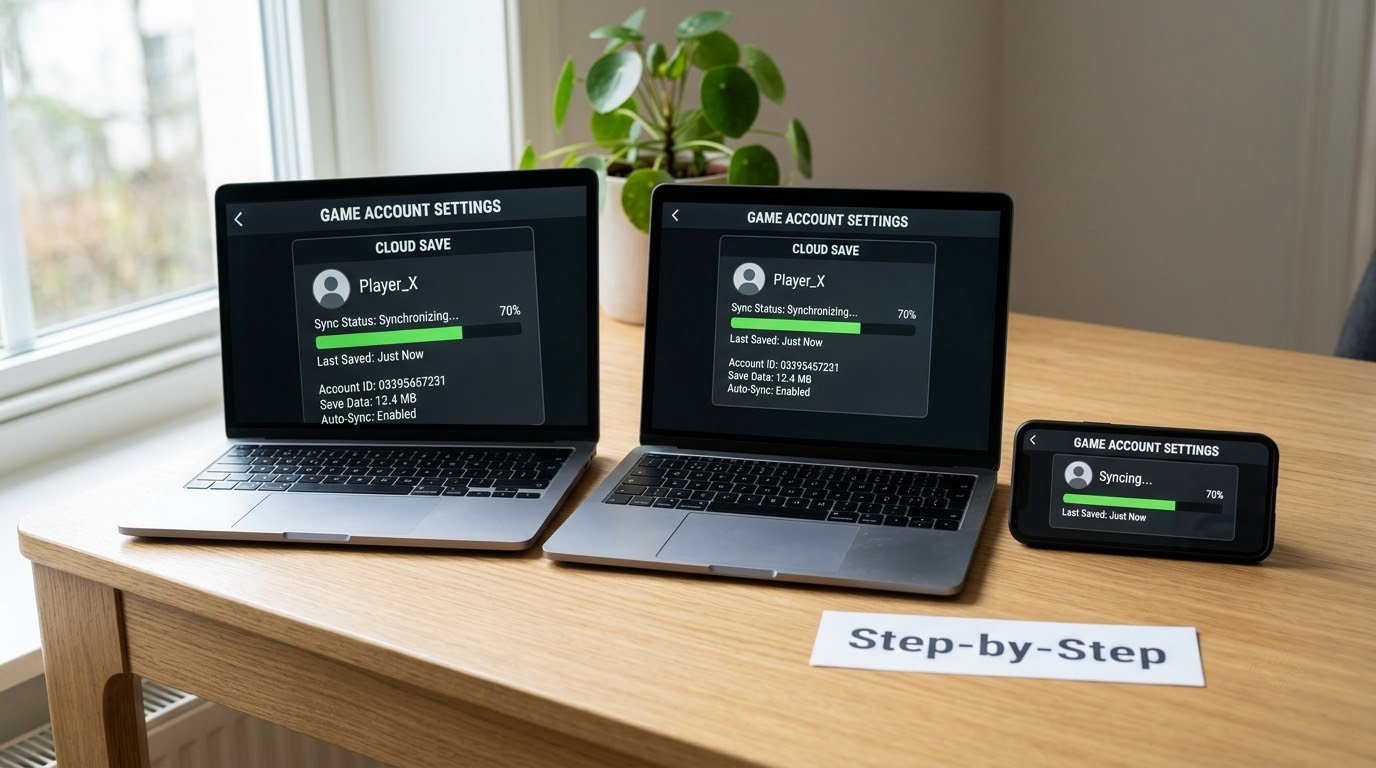
Work through these in order and check the result after each one. Skipping ahead is how people end up fighting a sync conflict that a simpler sequence would have avoided.
1. Confirm the game actually supports cross-device saves
Look for a cloud save, account or profile option inside the game’s own menu, or on its store listing or publisher page. No account option usually means no server-side save.
How you know it worked: the game shows an email address, a username, or a sync status line, and it shows the same account name on both devices.
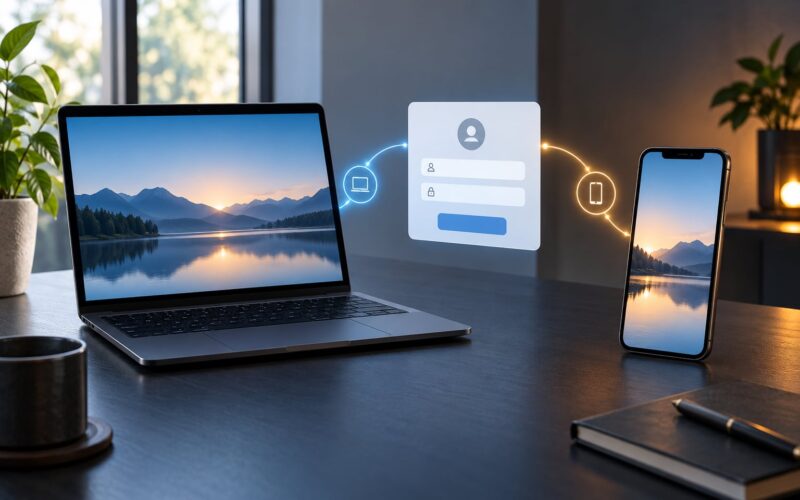
2. Sign into the identical account on both devices
Log out of any guest or local profile first, then sign in with the same credentials. Typing the address by hand instead of picking it from an autofill menu catches typos that create a second, empty account.
How you know it worked: the account name displayed in the game matches character for character on both devices, and any profile picture or username you set appears on both.
3. Update the browser and the game client
Install pending browser and system updates on each device, then reload the game or reinstall the app if it launches a desktop wrapper. Old builds sometimes skip the upload step at exit.
How you know it worked: the game runs without a compatibility warning, and its version number matches on both devices.
4. Turn on the cloud-save option if the game has one
Some titles ship with saving to the cloud switched off by default, or hidden behind a toggle labelled sync saves, backup, or save to account. Enable it on every device you use, since the setting is usually stored per device rather than per account.
How you know it worked: the toggle stays on after you close and reopen the game.
5. Select the correct save slot
Games with new game plus continue plus multiple profiles pick one slot to treat as the cloud copy. If your progress sits in slot two and the game uploads slot one, the sync runs perfectly every time and moves the wrong data.
How you know it worked: the slot holding your real progress is the one shown as synced, and the empty slots stay empty.
6. Quit the game cleanly on one device before opening it on the next
Close the tab or exit the app rather than force-closing the window or pulling the plug on a handheld. Most games write the save and the upload during a graceful exit, so a forced close loses both.
How you know it worked: the second device shows the updated progress the first time you load the game, with no conflict prompt.
How to Sync Progress Across Devices in a Browser Game
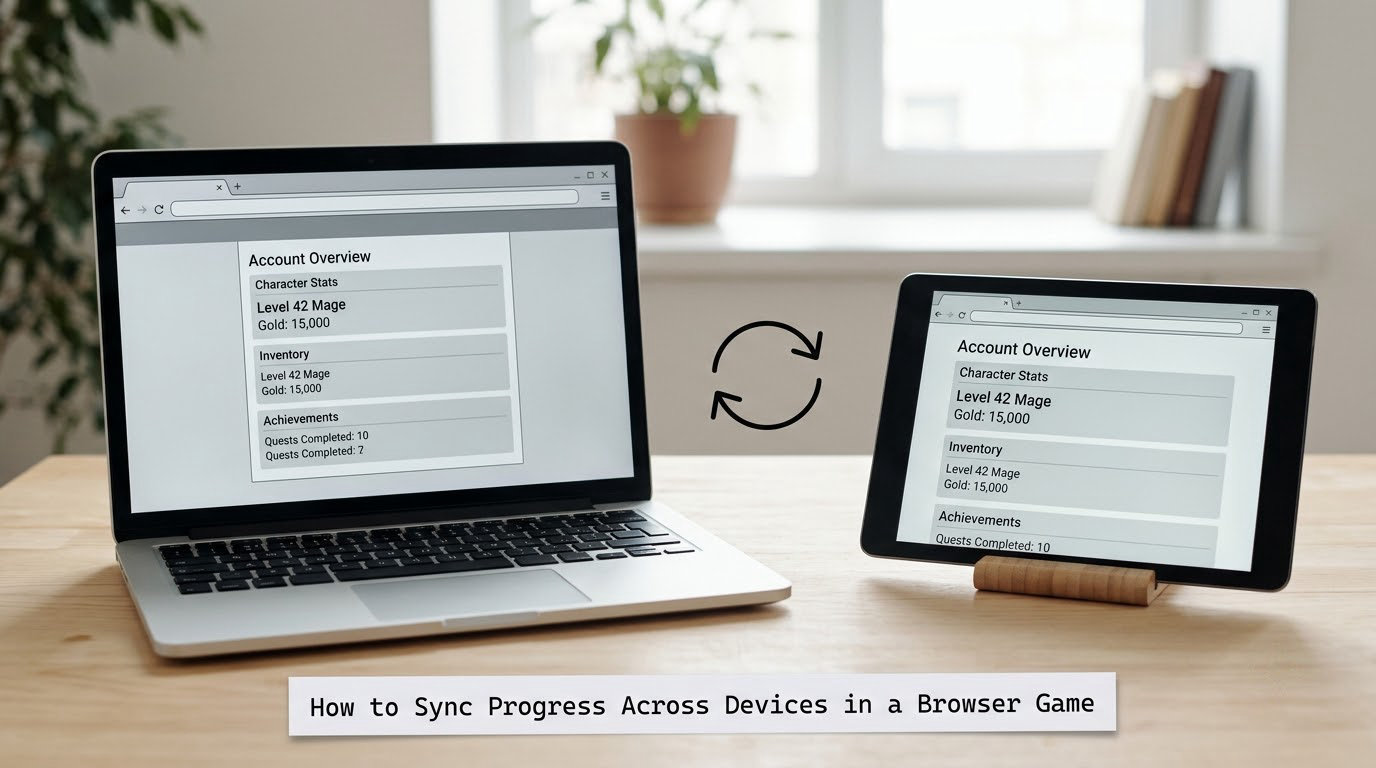
Browser games add four checks that console games never need. Walk through them in order and you will know within a minute whether your problem is the game or the browser.
Check the account, not the profile. Choose the sign-in option, not the play-as-guest or offline option. Guest sessions frequently create a throwaway profile that quietly replaces your saved progress the moment you switch back to the real account.
Allow cookies and site data for the game. Browser games usually store the session token in cookies. Blocked third-party cookies, a strict tracking setting, or a privacy extension can sign you out every few minutes, which stops the upload from ever completing.
Stay out of private and guest windows. Most browsers keep a separate, wiped storage area for private windows, so a save made there disappears the moment you close it. This one causes a lot of lost hours.
Test with a change you can see instantly. Earn one level, spend one item, or bump a single statistic. Long sessions make it hard to tell a fresh save from a stale one. Once the small change appears on device two, the sync is working and the rest is habit rather than repair.
If you play on more than one browser or one phone and one laptop, remember that cookies, local storage and the account session are separate in each. Signing in on each one is the whole job.
Test the Sync and Resolve Conflicts
Testing takes about two minutes. Make your small change on device one, quit the game the proper way, wait for any upload or sync indicator to clear, then open the game on device two and check the same screen. If the change shows up, you are done.
If it does not show up, the two most common causes are an unfinished upload and a conflict. Most modern games store several versions with timestamps and pick the newest one when they download, so a stale local copy normally loses on its own. The exception is when both devices uploaded in the same window, which leaves the game with two versions of the same slot.
When that happens, pick the version with the later timestamp. It usually holds the more advanced play, since the device that was played last tends to be the one with more progress. If the later version looks wrong or fails to load, restore the earlier one through the game’s cloud or version history screen if it offers one, then stop using the second device until you have checked it.
Two devices saving at the same moment is the one situation that reliably corrupts data. Never open the same account on a phone and a laptop to compare progress, and treat a conflict prompt as a stop signal rather than something to click through quickly.
Know where the line sits. If the game keeps your progress in local browser storage, no conflict dialog and no third-party tool will move it for you, because there is no shared copy to move. That is a limitation of the game, and the honest fix is to play on one device or to look for a version with an account system.
Common Mistakes
Almost every failed sync matches one of these nine. Find your symptom, apply the fix, then retest with a small visible change.
Signed in as a guest on one device. Fix: sign out of the guest session and use the sign-in or register option on both devices.
Two different accounts with similar names. Fix: check the exact account identifier in the game’s profile screen rather than trusting the display name.
Private or guest browsing. Fix: play in a normal window. Storage created in a private window usually vanishes when the window closes.
Cookies or site data blocked. Fix: allow cookies and site data for the game’s address, or pause the privacy extension while testing.
Stale cached data in the browser. Fix: clear cached files for the game only, then reload. Avoid clearing everything, since that wipes unrelated logins.
The game was force-closed. Fix: always exit through the game’s own menu. A hard close skips both the save write and the upload.
The wrong save slot is being uploaded. Fix: select the slot holding your real progress on each device and confirm the game marks it as synced.
One device runs an older build. Fix: update the browser and game on every device you use, then retest.
Assuming local storage is a cloud save. Fix: if the game never asks you to sign in, your progress is local and stops at the edge of that device.
A few habits prevent most of this. Quit games through the menu every time, keep one account per game, update devices when prompted, and make a small test change after any switch until you trust the sync. Saving to two accounts at once is the fastest route to a conflict, and it is entirely avoidable.
Frequently Asked Questions
Does every browser game support cloud saves?
No. Only games built with an account system store saves on the developer’s server, and those are the ones that follow you between devices. Games that ask you to pick a display name and start playing keep progress in your browser profile instead. Check the game’s menu for a sign-in, profile or cloud save option before assuming sync is available. If there is no account option anywhere, progress stays on that one device.
Why can my progress appear on one device but not another?
The usual cause is a different account or a guest session on the second device. The second browser sees an empty profile because it never loaded the saved one. Cookies or blocked site data, private browsing, and a different browser profile on the same computer can produce the same symptom. Check the account identifier shown inside the game on both devices. If the names do not match exactly, that is your answer.
Can I transfer browser-game progress from one device to another?
Only if the game stores progress somewhere shared. With an account-based save, sign into the same account on the new device and the progress downloads automatically. With local browser storage, there is no server copy to pull from, so a straight transfer is not possible. Some games offer an export and import code for moving local saves, so look for that in settings before giving up on the idea entirely.
What should I do if two devices have different versions of my save?
Use the version with the later timestamp, since that is usually the device you played last. Most games compare versions automatically and load the newest. When both devices uploaded at once, the game may show a conflict prompt instead. Do not open the same account on two devices again until the versions agree, and restore the earlier copy from version history if the newer one fails to load.
Can I recover progress after accidentally overwriting a cloud save?
It depends on whether the game keeps version history. Titles with a cloud or backup history screen may let you roll back to an earlier copy within a few days, so check that screen first. Without version history, the overwritten save is usually gone, and no sync tool can bring it back. This is exactly why copying your progress before risky changes is worth the two minutes it takes.
Conclusion
Start by confirming the game has cross-device saving at all, because nothing else matters if progress sits in local browser storage. Then sign into the identical account on both devices, make one small visible change, quit the game through its own menu, and check that change on the second device. Once that test passes, keep one account per game and let each session close cleanly. If the test fails after those steps, the problem is almost always cookies, a guest session or a second account, and the fixes take a couple of minutes each.