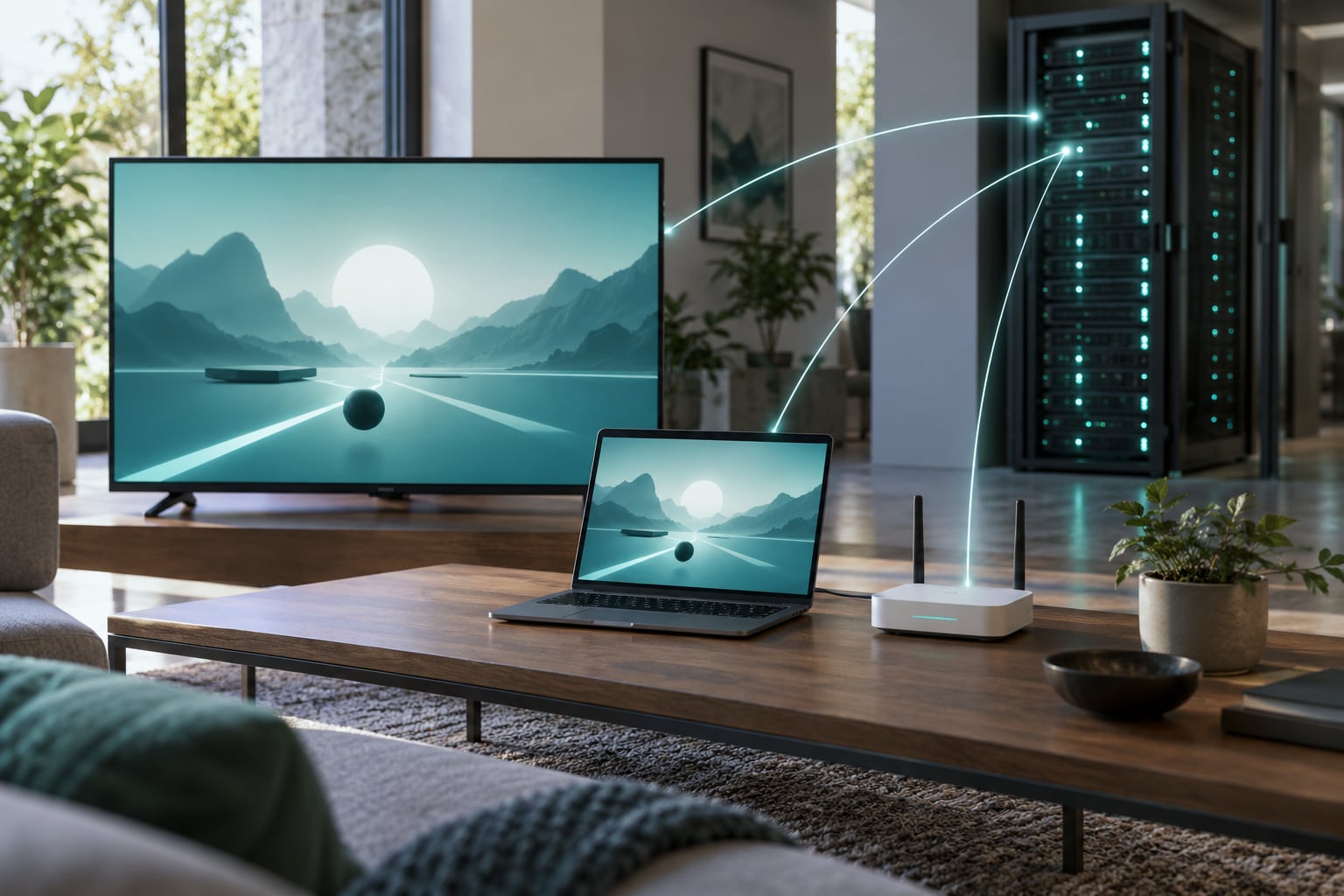
Cloud gaming runs the whole game on a computer in a data center somewhere else, then streams that computer’s screen to your TV, laptop or phone while your controller inputs travel back up the same connection. Understanding how cloud gaming services work comes down to one idea: your device becomes a screen and a gamepad, not a gaming machine.
The confusion is mostly about where the work happens. Players assume a streaming box is running a weaker copy of the game. It isn’t. A good datacenter GPU is often faster than the console under your TV, and the picture arriving at your sofa is that machine’s output, compressed and sent over the internet in real time.
Table of Contents
- 1How Cloud Gaming Services Work
- 2What Is Cloud Gaming?
- 3How Does the Game Run on a Remote Server?
- 4How Is the Game Video Streamed to Your Device?
- 5How Do Your Controls Reach the Cloud Server?
- 6Why Does Internet Speed and Latency Matter?
- 7What Happens When You Start a Cloud Gaming Session?
- 8Which Devices and Controllers Are Supported?
- 9What Are the Main Advantages and Disadvantages?
- 10How Cloud Gaming Differs from Local and Remote Play
- 11Frequently Asked Questions
- 12Is cloud gaming worth it if I already own a decent gaming PC?
- 13How much internet speed do you need for cloud gaming?
- 14Can you use your own controller with cloud gaming?
- 15How much data does one hour of cloud gaming use?
- 16Is cloud gaming the same as game streaming on YouTube or Twitch?
- 17Conclusion
How Cloud Gaming Services Work
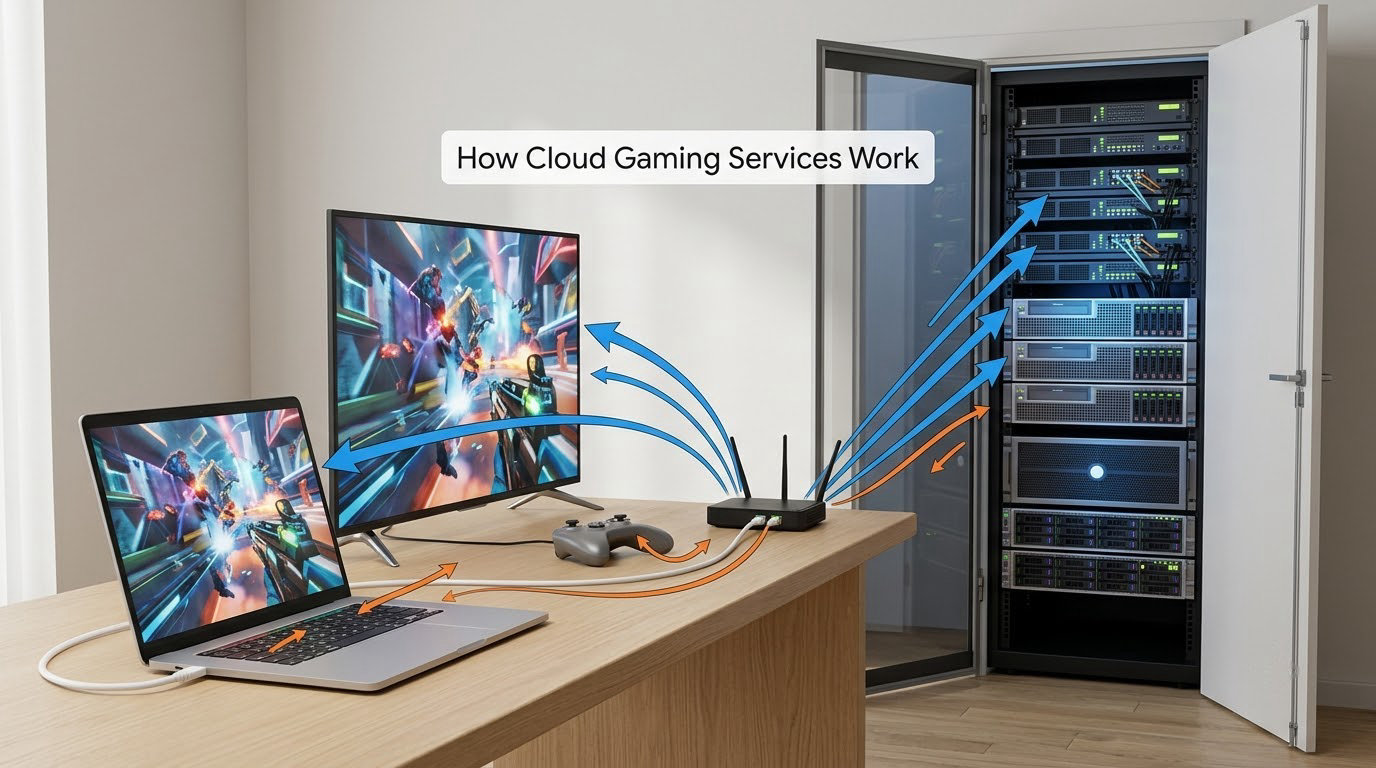
In plain terms, cloud gaming services work by running the game on a remote server, streaming the video output to your device, and sending your controller, keyboard or touch inputs back to that server. Nothing is installed on your device. There is no game running locally at all.
The full round trip is short but it is not instant. When you press a button, your device captures that press, packages it and sends it across the internet. The server reads it, the game reacts, a GPU renders the next frame, an encoder compresses that frame, and the video comes back down to your device, which decodes it and draws it on the screen.
Measure that round trip and you will land somewhere around 20 to 40 milliseconds on a good setup. That is the total delay between your thumb and the pixel that reacts. Local console gaming on a television adds its own display delay on top of essentially zero network time, which is why the same game can feel tighter at home even when the cloud version looks just as sharp.
What Is Cloud Gaming?
Cloud gaming is playing a video game that is executing on someone else’s hardware. The game files, the CPU, the graphics card and the memory all sit on a server in a datacenter. Your device receives finished video frames and sends back button presses.
Contrast that with what most people did before. You bought a game, downloaded 60 to 150 GB onto a console or PC, waited for the install, and then rendered every frame on hardware you own. That model is local play, and it is still the norm.
Streaming is a third thing people often mix in. YouTube is video streaming, but nobody plays it. The difference is that game streaming has to keep up with you in real time, which is why a bad connection ruins it in a way a buffering YouTube video never does.
There is also cloud gaming in the older sense of downloading a full game to a server and leaving it there for you to launch later. Most people mean live streaming when they use the term today.
How Does the Game Run on a Remote Server?
Think of a session as a rented virtual machine. When you pick a game, the service assigns you a slice of a physical server in a nearby datacenter, loads the game onto it, and hands you a live view of its screen. Players usually never see that setup, but it happens on every launch.
Those servers are built for it. Multiple high-end graphics processors sit in standard rack enclosures in warehouses with fibre links and serious cooling. One session can land on a machine far beefier than a mid-range console, which is how a five-year-old laptop can display a current-generation game at a steady frame rate.
The service also stores the game library. Library services install the titles themselves onto their servers so you never download them. Bring-your-own-games services do the opposite: you buy the game in the usual store, the service checks your account, and the game runs on their hardware instead of yours.
Saves are stored server-side too, which is why cloud games can continue on a different device. The flip side, and it is the worry people raise after any service shutdown, is that a subscription library is access, not ownership. If a service disappears, the library goes with it.
How Is the Game Video Streamed to Your Device?
Four stages happen every frame, and they all happen faster than you can blink. The server’s graphics card renders the frame, a hardware encoder compresses it into a video stream using a codec tuned for moving pictures rather than for storage, the internet carries it as ordinary network packets, and a decoder on your device turns those packets back into pixels.
Compression is unavoidable here. A raw 1080p frame is far too big to send sixty times a second, so the encoder throws away detail the eye barely misses and sends a fraction of the data. The quality setting you pick in the service menu is really a choice about how many bits per second the encoder gets to spend.
Take a concrete example. You open a racing game on a smart TV at 1080p and 60 frames per second. Roughly a second and a half after you press start you are steering. The screen is not a video file being played back; it is a live window into another machine that is roughly a few hundred miles away, and your car is on that machine, not on the television.
Higher resolution or frame rate costs more bandwidth, which is why a 4K stream looks sharper and feels more fragile on the same connection than a 720p one.
How Do Your Controls Reach the Cloud Server?
Your input travels the opposite direction from the video, and it is a much smaller job. You press a button on a controller, the local app reads it, labels it as one or two bytes of data, and sends it up the connection. No graphics, no video, just intent.
That asymmetry is why cloud gaming leans so hard on low latency rather than high speed. A 1080p stream needs a steady pipe in both directions, but responsiveness is decided by how quickly a small message gets there and gets answered.
Connection methods vary by service and device. A Bluetooth gamepad usually pairs straight with a TV or laptop once and stays paired. A wired controller through USB avoids wireless interference entirely, and players who hit stutter regularly often find that one cable removes it. Phone and tablet players use touch controls that map finger positions on the glass directly to on-screen buttons.
Keyboard and mouse are the awkward case. Several services support them on desktop clients and browsers, but many TV apps simply do not accept them. Check before you plan a session around them.
Why Does Internet Speed and Latency Matter?
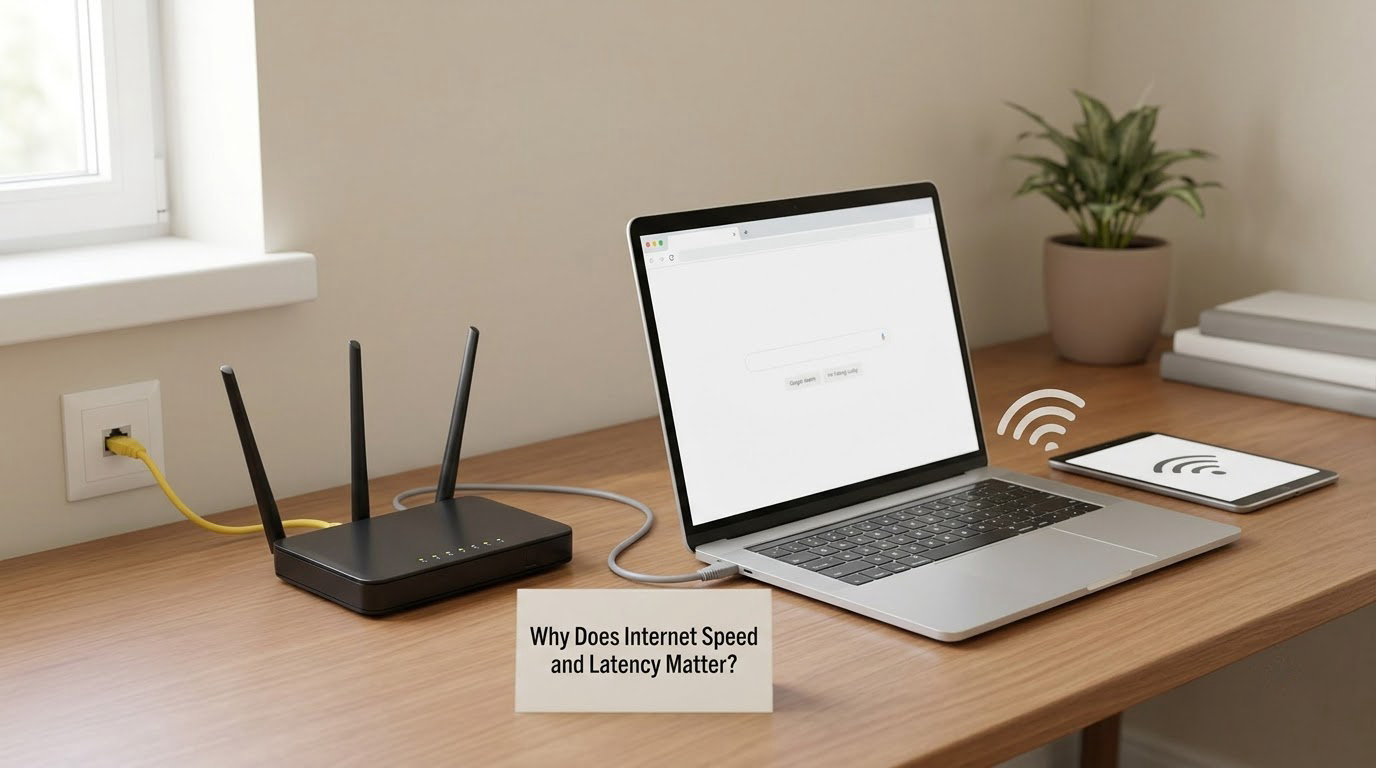
Four different things get called internet quality, and they fail in different ways. Bandwidth is how much data moves per second. Latency is the delay for one trip and back. Jitter is how much that delay wobbles from packet to packet. Packet loss is data that never arrives at all and has to be resent.
Bandwidth stops the picture from turning blurry or dropping to a lower resolution. Latency decides whether an aim feels connected to your hand. Jitter causes stutter, because a frame that arrives later than its neighbours waits behind them. Packet loss causes the visible hitch where a chunk of the video has to be reconstructed.
| Connection factor | What it measures | What goes wrong when it is poor |
|---|---|---|
| Bandwidth | Data per second, in Mbps | Resolution drops, image blurs, stream stalls |
| Latency | Round-trip delay, in milliseconds | Aiming and movement feel detached from input |
| Jitter | Variation in that delay | Frame pacing stutters, even at high speed |
| Packet loss | Share of data dropped | Hitches, frozen frames, audio crackle |
| Wi-Fi congestion | Contention on the 2.4 GHz and crowded 5 GHz bands | Spikes of lag on a connection that tests fine |
| Server distance | Physical distance to the datacenter | Baseline latency climbs, and no upgrade fixes it |
This is where most advice goes wrong. A speed test tells you bandwidth, and plenty of people report unplayable sessions on very fast fibre. The number that matters more is the round trip to the specific datacenter you were assigned, and the steadiness of that round trip, not the headline download figure.
Players in gaming communities keep repeating the same fix for a reason: plug in Ethernet, or move to a less crowded Wi-Fi band. It costs nothing and it removes the most common source of jitter in a home.
What Happens When You Start a Cloud Gaming Session?
The sequence is longer than most players expect, and knowing it explains the pauses people complain about. First you sign in on the device itself, which is what makes these services work on a TV with no account of its own. Your session credentials travel to the service and are verified.
Then you browse the library or your own game list. Choosing a title sends a request, and the service checks that you are entitled to it, either through a subscription library or a purchase on your game account.
Next comes the queue and the spin-up. The service finds a datacenter with capacity, reserves a machine, and copies or restores the game onto it. On a busy evening this is the stage that eats ten minutes, particularly on free tiers. Queues reflect demand for the hardware, not a problem with your connection.
Your controller gets paired, the stream starts and opens as a live video, and the first rendered frames arrive. From that point the session runs the round trip described earlier until you stop. When you exit, your save is written back to the service, and progress shows up the next time you launch, usually on a different device.
Which Devices and Controllers Are Supported?
Support is broader than it was a few years ago, because the requirement is only that the device can show video and pass input. Smart TVs with a service app are the most common living-room setup. Streaming sticks cover older televisions that have no gaming built in. Browsers on desktop machines and laptops work with several services and skip the install entirely. Phones and tablets run the mobile apps, with touch controls standing in for a gamepad. Dedicated handhelds and portable PCs have joined the list, which is the natural home for this model.
Controllers connect three main ways. Bluetooth works with most modern gamepads and TVs, and pairing is usually a one-time step held on the controller while the service app scans. USB is the most dependable and the easiest to diagnose. Wireless dongles through USB cover older pads and consoles without Bluetooth.
What changes by device is bandwidth. A phone on mobile data competes with everything else on that connection, and video calls running beside a stream will take their share. A television on Ethernet has no such problem, which is why people who switch to a wired TV report the most consistent results.
What Are the Main Advantages and Disadvantages?
The upside is straightforward. You skip downloads entirely, a multi-gigabyte install turns into a short wait, and weak hardware stops being a barrier since the demanding work happens elsewhere. Libraries can be enormous without taking up disk space, and games can move between a laptop, a television and a phone without carrying a save file by hand.
It also solves a household problem. Several people can play different things on devices that would never run them locally, which is genuinely useful when one console is shared between two kids or a partner plays something else entirely.
The costs are equally real. Everything depends on the connection, so a dropout takes you out of the game rather than merely slowing a download. Input lag is the complaint that comes up most often in player communities, and genre matters enormously: fighting games, flight simulators and competitive shooters punish delay far harder than a turn-based strategy game does. Nobody playing a tournament on a fighting game through a stream would call that a good time.
Same game, different service, different feel. Players report competitive shooters running close to native on one service while the same title on another has an aiming response you can feel. Titles get prioritised differently, and quality is not uniform across a library.
Data use is the quiet one. Streaming video runs to several gigabytes an hour depending on quality, which matters on capped or mobile connections. Library services cost a subscription and shift what owning a game means. Session limits and evolving hour caps are real, and they land hardest on people who play long.
How Cloud Gaming Differs from Local and Remote Play
These three get confused constantly, and they behave very differently in practice. Local play means the game runs on your hardware. Remote play means your console renders the game at home and squeezes that image to another screen. Streaming your own PC is closer to remote play, except the source is a computer. Cloud gaming means nobody in your house owns the hardware the game is running on.
| Cloud gaming | Remote play | Streaming your own PC | |
|---|---|---|---|
| Where the game runs | Service datacenter | Your console at home | Your PC at home |
| Graphics generated by | Server GPU | Your console | Your GPU |
| Where inputs are processed | Remote session | Console in the room | PC in the room |
| Hardware you need | Any screen and controller | A capable console | A gaming PC |
| Added delay | Highest, both directions over the internet | Lower, often over local network | Lower over local network |
| Works away from home | Yes | Yes, within reach of your connection | Yes, within reach of your connection |
| Needs the game installed somewhere | No, on the server | Yes, on your console | Yes, on your PC |
| Save location | Service account | Console storage | PC storage |
Remote play is the one people misjudge most. Because the game is rendering on hardware sitting in the same building as the source, the video has a short trip and the input response usually feels tighter than cloud streaming. What it does not do is free you from that hardware, which is the reason people turn to cloud gaming in the first place.
Frequently Asked Questions
Is cloud gaming worth it if I already own a decent gaming PC?
Usually not for everyday play. A local PC renders the frame instantly and input lag is nearly zero, which cloud streaming cannot match. Cloud gaming earns its place when you want games on devices your PC cannot serve, when you travel, when your console is busy, or when you want a subscription library without buying hardware. Treat it as a second option rather than a replacement.
How much internet speed do you need for cloud gaming?
Most services publish a floor around 15 Mbps for 720p at 60 frames per second, around 35 Mbps for 1080p60, and roughly 45 Mbps for 4K. Those figures describe bandwidth only. Responsiveness depends on latency to the datacenter you are assigned, so a steady 25 Mbps with 20 milliseconds of ping beats a 300 Mbps line with 80 milliseconds.
Can you use your own controller with cloud gaming?
Usually yes. Bluetooth gamepads are the most common route, and most services pair one to your TV, laptop or phone in a couple of steps. A USB controller is the fallback for pads without Bluetooth and tends to be steadier because it avoids wireless interference. Before planning a keyboard-and-mouse session on a television, check the service app, since many TV clients refuse both.
How much data does one hour of cloud gaming use?
An hour of 720p streaming lands around 3 GB, an hour at 1080p60 closer to 7 GB, and an hour at 4K can run past 15 GB. Treat those as ballparks, since bitrate varies with how busy the on-screen action is. On a capped or mobile connection, check your plan before streaming at high quality, and keep an eye on background video calls.
Is cloud gaming the same as game streaming on YouTube or Twitch?
No. On YouTube and Twitch you watch a recording of someone else playing, with no input of your own. Cloud gaming is live and two-way: your inputs travel to a server and your screen shows that server right now, which is why a bad connection affects you interactively. The closest comparison is a very responsive video call where the other side is a game.
Conclusion
The whole model in one line: the game runs on a server, your screen shows that server live, and your controls travel back to it. Everything else follows from that, including the strengths and the weak spots.
Before signing up, check six things. Which games you actually want are in the library, whether your device and controller are supported, what your latency to the service really is rather than what your speed test reports, whether your data allowance can handle it, what a session costs you per month, and how well your local connection holds up on a busy evening. If those all look good, a phone or a thin laptop becomes a surprisingly capable machine. If latency is your problem, nothing about the service will fix it.