Game Mode is the switch in Windows 11 that tells the operating system to treat whatever you are playing as the priority task. Open Settings, click Gaming, click Game Mode, and flip the toggle on — three clicks, no restart, and it stays that way until you turn it off. That is the whole mechanic, and this guide covers exactly how to use Game Mode in Windows 11, what changes behind the scenes, and the one situation where turning it off makes sense.
Menu paths below were checked against Windows 11 24H2 and 25H2 builds, plus the Windows 10 version of the same page.
Table of Contents
- 1What You Need
- 2Step-by-Step: How to Use Game Mode in Windows 11
- 31. Open Windows Settings
- 42. Enter the Gaming Section
- 53. Turn On Game Mode
- 64. Restart or Relaunch Your Game
- 75. Check the Feature in Settings
- 8Common Mistakes
- 9Frequently Asked Questions
- 10Does Windows 11 Game Mode improve performance?
- 11Is Game Mode automatically enabled on Windows 11?
- 12Does Game Mode work on laptops?
- 13Should I leave Game Mode on all the time?
- 14Does Game Mode use more battery?
- 15Why can’t I find the Game Mode setting?
What You Need
You need a PC running Windows 11 with the standard Settings app and a Gaming section inside it. There is no extra download, no background service to install, and no third-party optimizer involved. You also do not need administrator rights — Game Mode is a per-user preference, so it applies to the account you are signed in with and nothing else.
Check Windows Update first if the Gaming page looks stale. Game Mode has shipped since Windows 10 version 1703, so anything reasonably current has it. The one exception is Windows LTSC or a heavily debloated custom install, where Microsoft removed the Gaming pages entirely. I cover that failure below.
Now the part most guides skip — what Game Mode actually changes when it is on:
- Background work gets deferred. Windows Update installations and automatic restart scheduling pause while a game has focus.
- Some background services are throttled instead of being allowed to compete for CPU time.
- Notification banners from apps are held back during play.
- The scheduler gets a hint that the foreground game should be served first, which is where smoother frame pacing and better 1% lows come from.
And what it does not do, which matters just as much:
- It does not overclock anything or raise clocks.
- It does not add RAM or VRAM, and it does not reserve memory for your game.
- It does not change your power plan or power mode.
- It does not disable Defender, memory integrity, or any security feature.
- It does not fix a game that runs badly because of its own settings, a bad GPU driver profile, or thermal throttling.
One last bit of housekeeping before the steps. Windows Game Mode is not the Xbox Game Bar — pressing Win + G opens that overlay, which handles capture, performance widgets, and audio mixing and does not change scheduling at all. It is also not the Gaming Mode button on your television, your router, or a Logitech keyboard, all of which share the name and none of which do anything Windows does.
Windows 10 has the identical toggle at the identical path, so the steps transfer. Worth knowing that Windows 10 reached end of support on October 14, 2025, so no security updates are landing on that machine anymore. Get to Windows 11 eventually; until then, Game Mode still works.
Step-by-Step: How to Use Game Mode in Windows 11
1. Open Windows Settings
Press Win + I. That is the fastest route and it works from the desktop, from inside a game, and from most full-screen apps. If your keyboard is missing the Windows key, open Start, type Settings, and hit Enter.
There is also a direct jump. Press Win + R to open Run, type ms-settings:gaming-gamemode, and press Enter. Settings opens straight on the Game Mode page, skipping the sidebar entirely. Worth memorizing if you toggle it often.
2. Enter the Gaming Section
In the Settings sidebar, click Gaming. It sits in the left-hand column alongside System, Bluetooth and devices, and Network and internet. The page that loads has a handful of cards: Game Mode, Game Bar, Captures, and on newer builds Auto HDR.
Find the Game Mode card and click the words Game Mode (or the arrow in its corner). You are now one click from the toggle.
3. Turn On Game Mode
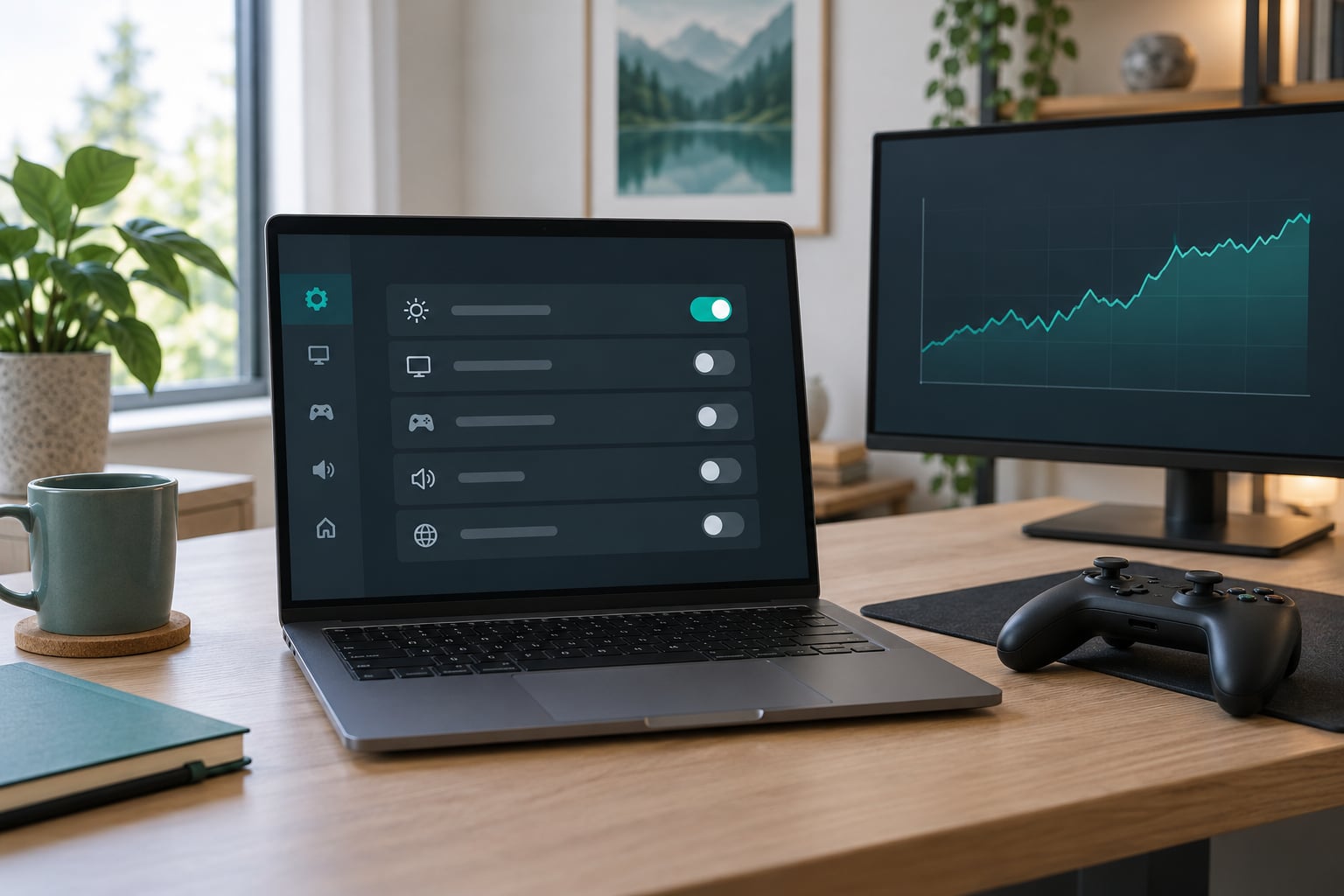
Click the switch in the Game Mode card so it turns blue and reads On. Beneath it, Windows describes the feature in one line — something along the lines of optimizing your PC for play. That description text is the confirmation; no dialog appears and nothing needs saving.
The change takes effect immediately. Windows does not ask for a restart, does not warn about closing your game, and does not require a sign-out. It also survives reboots, so you only do this once unless something changes it for you.
To turn it back off later, walk the same path — Win + I, Gaming, Game Mode — and click the switch again so it reads Off. Nothing else needs undoing, because Game Mode does not install components or change hardware behaviour.
4. Restart or Relaunch Your Game
Windows restarting is unnecessary. Your game restarting is a good idea though, because the scheduling hint applies to processes that start while Game Mode is already on. A game launched before you flipped the toggle keeps whatever priority it was given at launch.
For most people this means: enable Game Mode while nothing is running, then start playing as usual. If you are mid-session and a background update just landed, close the game, wait ten seconds, and reopen it.
5. Check the Feature in Settings
The simplest verification is to reopen Settings, go to Gaming, and look at Game Mode. The switch should still read On. If it has flipped back to Off on its own, something restored the default profile — check whether you are on a work or school account with policy applied.
During actual play, press Win + G. The Xbox Game Bar performance widget shows live frame rate, GPU and CPU usage, RAM, and VRAM. Game Mode does not add a badge or an on-screen label for itself, so this widget is your window into whether the machine is behaving while a game has focus.
Common Mistakes
Five problems come up repeatedly, each with a straightforward fix.
The Gaming section is missing entirely. Open Win + R and try ms-settings:gaming-gamemode anyway — the direct URI sometimes works when the sidebar entry has been removed. If it fails too, you are likely on Windows LTSC, a Server edition, or a debloated build where the Gaming pages were stripped. Run winver to confirm the edition. On those systems Game Mode is not available and no amount of registry fiddling is worth the risk.
You turned it on and nothing changed. On a modern desktop with eight or more CPU cores, the difference in average frame rate is usually inside the margin of error — somewhere around 0 to 2 percent. The benefit on that hardware is consistent frame pacing and no interruption from a background install, not raw frames. Measure before and after with the Game Bar widget or your favourite overlay, and watch 1% lows rather than the average.
Notifications still appear mid-match. Game Mode suppresses banners for many apps, but it is not a full do-not-disturb system. Turn on Focus Assist for the whole session: Win + A opens Quick Settings, then the focus icon toggles Do Not Disturb. For per-title control, the Game Mode page lists installed games with their own toggles.
One specific game stutters after you enabled it. Legacy DirectX 9 and Source-engine titles are the usual suspects, and the old community belief that Game Mode causes stutter dates from real bugs in 2017 to 2019 that Microsoft has since fixed. If a specific title is genuinely worse with it on, disable it for that game only: on the Game Mode page, open the list of game windows and switch off the toggle next to that title. Everything else stays protected, and you can flip that one game back later without touching the global setting.
You are pairing it with other gaming settings and got conflicting advice. Hardware-accelerated GPU scheduling lives under Settings > System > Display > Graphics, and Auto HDR is its own card on the Gaming page — neither is part of Game Mode, and turning Game Mode on does not enable them. On power, switch Windows power mode to Best performance in Settings > System > Power and battery, which is a bigger lever on laptops than Game Mode will ever be.
Frequently Asked Questions
Does Windows 11 Game Mode improve performance?
Yes, but the size of the gain depends entirely on your hardware. On 4 to 6 core laptops and budget desktops, expect a few percent more average frame rate and noticeably steadier frame pacing, because the scheduler has fewer spare threads to hide behind. On 8 core and faster desktops the change is usually within the margin of error, closer to 0 to 2 percent. The reliable win on any machine is fewer interruptions from background installs and notifications.
Is Game Mode automatically enabled on Windows 11?
No. It ships in the On state on many consumer installs, but that is a default profile choice, not a rule, and upgrades, fresh installs, and organizational policy all vary. Check it yourself with Win + I, then Gaming, then look at the Game Mode switch. If you have never seen the page, do not assume it is off or on.
Does Game Mode work on laptops?
Yes, and laptops are where it earns its keep more than on desktops. Low-core-count laptops feel background contention hardest, so deferring Windows Update work and throttling background services produces the most visible improvement there. On battery it makes little difference to runtime, because Game Mode does not change your power plan. Pair it with Best performance power mode and a cooling-friendly surface for a bigger difference.
Should I leave Game Mode on all the time?
Leaving it on is the right default for almost everyone, because the cost of having it on is effectively zero and the cost of a mid-session restart or a stuttering background install is not. The one sensible exception is a specific legacy title that measures worse with it enabled, where you can switch off Game Mode for just that game from the per-game list on the Game Mode page and keep it on everywhere else.
Does Game Mode use more battery?
Not directly. Game Mode does not change your power plan, power mode, or processor speed limits, so by itself it does not meaningfully shorten or lengthen battery life. What can affect runtime indirectly is the deferred background work: with fewer services actively running during play, some laptops draw a little less. If battery life is your priority, the power mode slider under System, then Power and battery is the setting that actually matters.
Why can’t I find the Game Mode setting?
Most often it is a missing Gaming entry in the Settings sidebar, which happens on Windows LTSC, Server editions, and custom debloated installs where the Gaming pages were removed. Try the direct route: press Win + R, type ms-settings:gaming-gamemode, and press Enter. If that does not resolve, run winver to check your edition. Rarely, a work or school account with policy applied hides the toggle entirely.
Do this first, before anything else on this page: press Win + I, click Gaming, click Game Mode, and look at the switch. If it is on, close Settings and go play — there is nothing further to configure. If a single older title feels worse than it used to, switch off the per-game toggle for that one entry rather than giving up on the setting everywhere else.