Knowing how to play MMOs on mobile comfortably comes down to four levers: how you hold the phone, what your thumbs touch, how the game maps input, and how long you play before you rest. None of that costs money, and most of it takes about ten minutes to set up. Expect touch to stay a little less precise than a keyboard and mouse, though.
The reason MMO comfort needs its own method is simple. The genre demands dodging, skill presses, menu juggling and inventory work at the same time, so a setup that feels fine in a single-player game falls apart in a raid. People posting on r/gaming describe holding the phone up until their hands go numb, and players in r/AndroidGaming point out that the real learning curve is the game, not the touchscreen.
What follows is the order I would set things up in, cheapest fix first. Every step tells you how to tell whether it worked.
Table of Contents
- 1What You Need
- 2How to Play MMOs on Mobile Comfortably: Step-by-Step
- 31. Check Performance and Device Compatibility
- 42. Choose the Right Control Layout
- 53. Set Graphics for Smooth Frame Rates
- 64. Stabilize Your Connection
- 75. Set Audio and Notifications for Less Interruption
- 86. Improve Grip, Posture, and Thumb Comfort
- 97. Protect Your Eyes During Long Sessions
- 108. Test Before a Long Session
- 11Common Mistakes
- 12Quick Comfort and Session Tips
- 13Frequently Asked Questions
- 14Are mobile MMOs better than playing on a computer?
- 15How much storage does a mobile MMO usually need?
- 16Can I play an MMO while charging my phone?
- 17Why does my mobile MMO keep lagging?
- 18When is a phone too old to play MMOs comfortably?
- 19Conclusion
What You Need
Start with six things: a phone the game actually supports, a steady internet connection, a charged battery, a headset or speakers, a clear table surface, and one optional accessory.
Before you download anything, check the game’s store page for its stated minimum Android or iOS version and its storage requirement. A game listing that asks for more free space than your phone has will install and then fail during the first update, which is a confusing half-hour.
Then update the operating system and the game itself. Both updates often fix touch lag, which people mistake for a weak device. On Android you will find this under the app’s entry in your settings; on iPhone, updates land through the App Store or the game launcher itself.
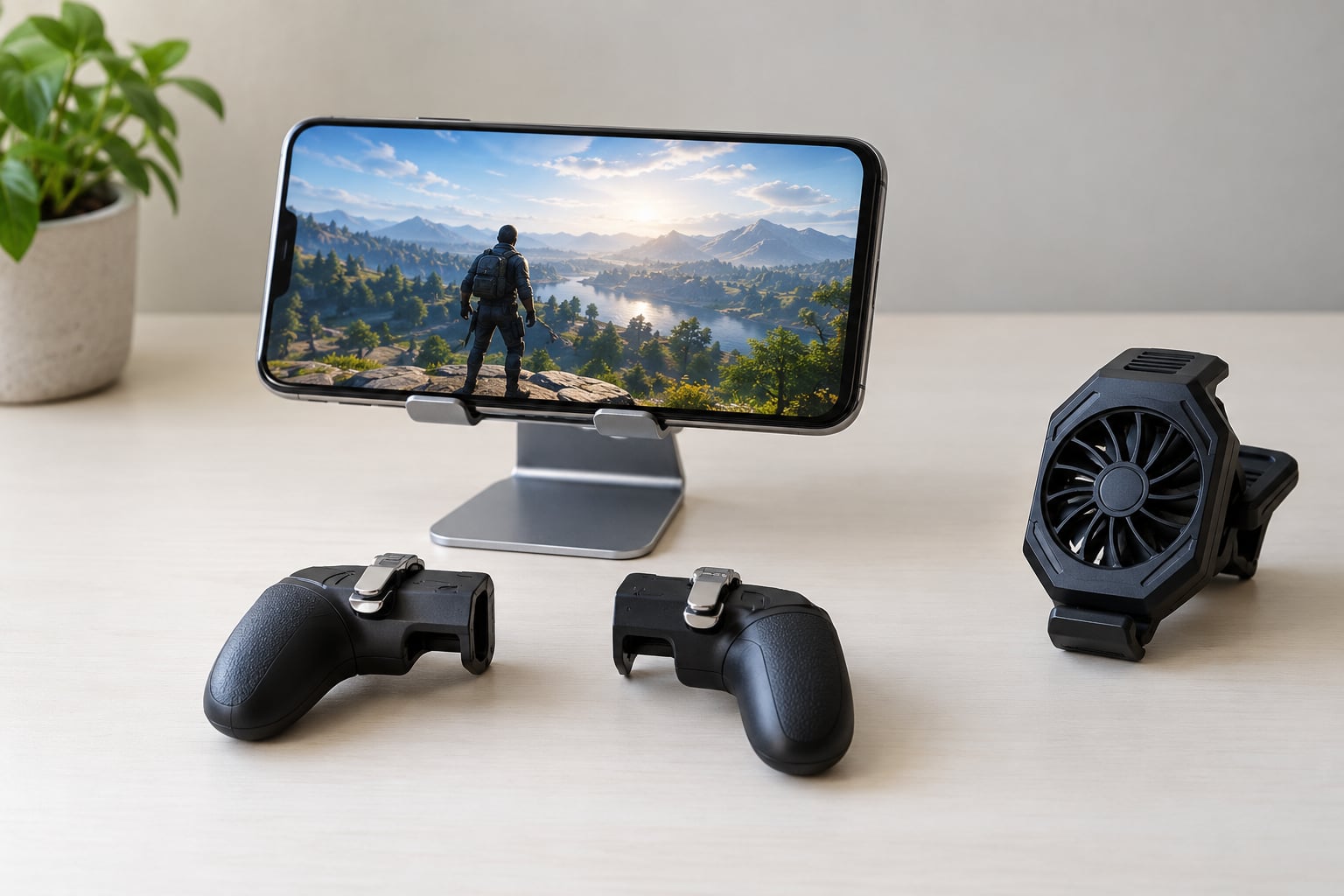
The optional accessory is a grip, a stand, or a controller. Most sessions need none of them, so treat it as a later purchase once you know which problem you actually have.
How to Play MMOs on Mobile Comfortably: Step-by-Step
Work through these eight steps in order, because each one removes a problem the later steps depend on. Most players only need the first four.
1. Check Performance and Device Compatibility
Confirm the game supports your phone, then close memory-heavy apps before you launch. On Android, recent versions list running memory inside the developer options panel; on iPhone, force-quitting from the app switcher is enough. Both platforms throttle a game that shares memory with a dozen open tabs, and a stuttering frame is usually the game waiting on background work rather than the phone being slow.
Distinguish two kinds of lag. Temporary stutter during the very first minutes is normal while the game downloads assets and builds its cache. Persistent stutter that repeats every few seconds, or dropped frames in the same town every time you enter it, means the device is the bottleneck and you should lower graphics rather than expect maximum quality.
Use the game’s own FPS counter if it has one; enabling it takes two taps in the graphics settings and turns a vague feeling into a number. Most of the current mobile MMO releases also include a short benchmark or test area, which gives you a clean read before you commit to a long session.
2. Choose the Right Control Layout
The right control layout puts every button you press inside thumb reach without covering the play area. Start with the preset the game offers, play a few minutes in a low-risk area such as an empty field or a training room, then switch to custom editing and move things.
Most editors let you drag the skill bar, resize individual buttons and change their opacity, and lowering opacity lets you see through a button you must hit constantly. Games with a one-thumb mode collapse movement and actions into a single side of the screen, which is genuinely useful on a commute and useless for anything requiring two-handed dodging.
Menu names differ between MMOs, so treat every setting below by function rather than by label and look for the equivalent in your current version. Paths also shift between operating system releases, so re-check them after any major update.
3. Set Graphics for Smooth Frame Rates
Lower resolution first, then graphics quality, then shadows and effects, and leave the frame-rate limit on whatever your device can hold steady. Quality sliders in mobile MMOs usually move together, so dropping the preset one notch usually handles all four at once.
Prioritize a stable frame rate over visual quality. A steady 30 frames per second feels far better than a fluctuating 60, because consistent timing means your dodges land where you expect them. Battery-saver modes are the exception to most advice here: they cap background activity and often cap your refresh rate too, so turn that mode off for play and use it between sessions.
The available controls differ between iPhones, Android phones, and individual games, and some titles expose almost nothing. When that is the case, the levers you still control are screen brightness, background app count and battery mode.
4. Stabilize Your Connection
A stable connection beats a fast one. Wi-Fi near the router usually beats cellular in a building, while cellular beats congested Wi-Fi in a busy place. Either can fail, so learn to read the game’s ping indicator rather than guessing.
Three symptoms have three causes. Steady delay that never changes is latency, often distance or congestion. Occasional frozen or rubber-banded movement is packet loss. Disconnects that follow you from room to room are Wi-Fi roaming between access points. Disabling VPN and data-saving tools that run in the background fixes a surprising share of connection complaints on both platforms, and restarting the router or toggling airplane mode clears the rest.
I would not promise a specific improvement here, because the fault can sit anywhere between the tower and your socket. What you can do is remove the causes you control.
5. Set Audio and Notifications for Less Interruption
Balance four things so that alerts matter: combat cues, music, voice chat and notification sounds. Music louder than incoming alerts is the common mistake, and cutting music to near zero while keeping cues sharp is a bigger comfort win than most players expect.
Test microphone and speaker volume before you need them, ideally in voice chat with one other person, since feedback problems only show up on a live call. Then turn on Do Not Disturb or your platform’s Focus mode, allowing calls only from your contacts or your guild.
On iPhone, Focus lives in Settings and Do Not Disturb options are per-focus. On Android, Digital Wellbeing and notification categories handle the equivalent. Exact labels shift between releases, so look for the notification-control screen rather than a fixed path.
6. Improve Grip, Posture, and Thumb Comfort
Hold the phone with both hands and let your fingertips touch, rather than pressing hard enough to keep them in place. Resting the phone on a surface takes the weight off your forearms entirely, and a phone stand or adjustable mount does this better still for menus, crafting and other slower activities.
Keep your wrists neutral, elbows supported by armrests or a cushion, and use landscape orientation for anything involving dodging. This is where most of the physical work of how to play MMOs on mobile comfortably actually happens, because a bad grip turns a good layout into a strain. Take short thumb rests every few minutes by opening both hands and shaking them out. If heat from the device or pressure from a charging cable makes holding uncomfortable, unplug and take a break, because that discomfort is a signal rather than a cost of playing.
Stop if you feel pain, numbness or tingling that does not fade after a break, and raise it with a clinician rather than pushing through. Persistent discomfort during a mobile game is worth taking seriously.
7. Protect Your Eyes During Long Sessions
Long sessions need brighter settings, not dim ones, though not so bright that you squint. Raise brightness to match your room, keep text size at the level you can read without leaning in, and take your eyes to a distant object for a moment every 20 minutes.
Clean the screen edges where fingerprints collect, since players lean closer to read small text and end up bending their neck forward. A matte anti-glare protector helps in a bright room, though some games need a light touch-test pass afterwards because an extra layer can change the feel of a swipe. Try a short combat sequence on it before committing.
Build movement into the routine. Stand up, refill water, and walk to a window between sessions rather than playing for hours from the same curled position on the sofa.
8. Test Before a Long Session
Run a 10 to 15 minute trial that checks touch response, frame stability, ping, audio, heat, battery drain and notification behavior. Fifteen minutes is enough to reveal every problem that matters, and doing it before a planned evening saves you from a session cut short.
Write down the settings you like. When a game patches its interface or your system updates, reset your custom layout and re-test rather than assuming nothing moved, since reapplying a short known-good note takes less time than rediscovering everything from scratch.
Common Mistakes
These are the seven defaults that ruin sessions, each with the fix that replaces it. Learning how to play MMOs on mobile comfortably is mostly undoing them.
- Running maximum graphics on every device. Start at medium and only climb if your FPS counter stays stable in a busy area.
- Placing controls outside comfortable reach. Move the skill bar to where your thumbs already rest rather than reaching across the screen.
- Playing through unstable Wi-Fi. Check ping before a raid, move closer to the router, and disable any VPN or data-saving tool that runs in the background.
- Holding the phone too tightly. Brace it on a surface and use a light touch, which also reduces accidental presses.
- Ignoring heat and battery drain. Expect thermal throttling in a long session and give the phone rest breaks; a hot phone in your hands is uncomfortable regardless of frame rate.
- Using tiny default text. Increase in-game text size before you start rather than leaning in later.
- Never testing settings before a long session. Fifteen minutes of trial run prevents most ruined evenings.
Quick Comfort and Session Tips
Start at medium graphics, use a lightweight grip, enable the FPS display, and take brief movement breaks every 20 to 30 minutes. When the phone becomes warm or the frame rate starts fluctuating, switch to a less demanding activity such as crafting, inventory management or quest dialogue rather than pushing through a boss fight.
Frequently Asked Questions
Are mobile MMOs better than playing on a computer?
Mobile MMOs win on availability, not precision. Touch controls suit slow activities like crafting, trading and questing, and lose ground during fast dodging and long skill chains where a keyboard and mouse are clearly more accurate. For short sessions on a commute or in bed, a phone is the better tool, and for competitive PvP at a desk, it is not.
How much storage does a mobile MMO usually need?
Expect anywhere from a couple of gigabytes for a lighter title to well over ten gigabytes once a full game and its updates are installed. The store page usually lists both the app size and the data it needs after the first session, and the install itself is rarely the largest part. Check your free space before downloading rather than after.
Can I play an MMO while charging my phone?
You can, but heat is the deciding factor rather than the charging itself. A phone under load and charging runs warmer, and a warm phone is uncomfortable to hold and may throttle its performance mid-session. If you charge while playing, use a stand or a mount so the cable is not pressing on your hands, and stop if the device becomes uncomfortably hot.
Why does my mobile MMO keep lagging?
Lagging usually comes from one of four places: the device struggling with graphics, too many background apps eating memory, a weak or unstable connection, or thermal throttling after a long session. Turn on the FPS display, close background apps, check ping, and watch whether the problem appears only after the phone has been running for a while. That single observation tells you which of the four you are dealing with.
When is a phone too old to play MMOs comfortably?
A phone is too old when it cannot hold a stable frame rate at medium graphics, or when it overheats within a few minutes of play. Comfort has little to do with how recent the hardware is and a lot to do with whether performance stays steady in a busy area. If your FPS counter keeps dipping in the same location and lowering settings does not fix it, the device has become the bottleneck.
Conclusion
Do six things tonight, in this order. Check that the game supports your phone, install any pending operating system and game updates, set graphics to medium, drag your skill bar into thumb reach, confirm your connection is stable, and finish with a 15-minute trial session.
If a step solves the problem, stop there. Most discomfort traces back to one setting or one habit rather than the phone itself, and once you know how to play MMOs on mobile comfortably, the rest is just maintenance when a game or system updates.