Short version: VSync is a GPU setting that forces your frame rate to wait for the monitor’s fixed refresh cycle, and FreeSync is a monitor feature that lets the refresh rate flex to match whatever your GPU is producing. If you have a variable-refresh display, adaptive sync is usually the better tool; VSync is what you fall back to when nothing else is available.
To answer how vsync and freesync work properly, you have to start below the settings menu. Both technologies exist to solve one display problem — your GPU finishes a frame at a moment that doesn’t line up with your monitor drawing one — but they fix it by moving different parts of the system. One slows the graphics card down to match the monitor. The other speeds the monitor up to match the graphics card.
That single difference explains almost everything people argue about: input lag, stutter, judder in cutscenes, and whether your extra frames are actually visible. Here’s how each one behaves, with real millisecond numbers rather than marketing language.
Table of Contents
- 1How VSync and FreeSync at a Glance
- 2What Is VSync and How Does It Work?
- 3What VSync actually changes
- 4What Is FreeSync and How Does It Work?
- 5What FreeSync actually changes
- 6Vsync vs FreeSync: The Main Technical Differences
- 7Fixed refresh versus variable refresh
- 8Where the cost lands
- 9Hardware and licensing
- 10What happens when the frame rate changes
- 11G-Sync, for context
- 12How Each Technology Affects Frame Pacing
- 13Input Lag, Tearing, and Visual Smoothness
- 14Monitor, GPU, and Game Compatibility
- 15Which Should You Choose?
- 16Frequently Asked Questions
- 17Can I use FreeSync and VSync at the same time?
- 18Is FreeSync always better than VSync?
- 19Does VSync cause input lag?
- 20What frame rate should I use with FreeSync?
- 21Does FreeSync work with NVIDIA and AMD graphics cards?
- 22Why does my monitor still tear with FreeSync enabled?
- 23Conclusion
How VSync and FreeSync at a Glance
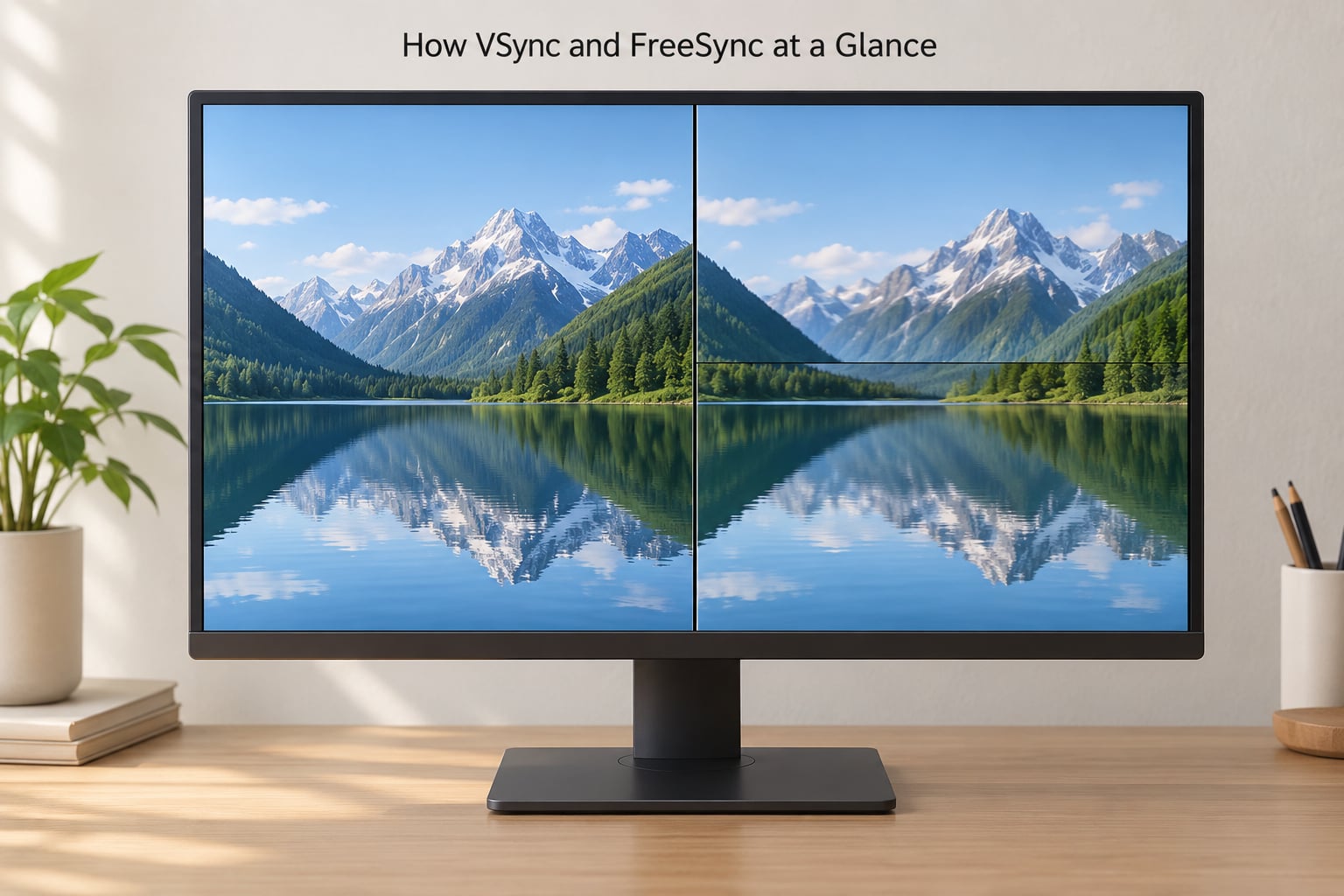
The table below puts the two mechanisms side by side. Read the “what changes” row first — everything else follows from it.
| Criterion | VSync | FreeSync (adaptive sync) |
|---|---|---|
| Core idea | GPU waits for the monitor’s refresh cycle | Monitor varies its refresh rate to fit the frame |
| Refresh behaviour | Fixed, for example 60 Hz or 144 Hz | Variable inside a supported range |
| What changes | Your frame rate and input latency | The monitor’s timing |
| Hardware needed | Any display; it is a driver feature | An adaptive-sync display plus a suitable cable |
| Licence cost to the maker | None, it’s built into the display pipeline | None, it is built on the open VESA Adaptive-Sync standard |
| Screen tearing | Prevented inside the cap, appears above it | Prevented inside the variable range |
| Input lag | Adds up to roughly one frame time | Minimal inside the range |
| Behaviour below the cap | Stutters from uneven frame delivery | Stays smooth if the range extends low enough |
| Video and cutscene playback | Can add judder at mismatched frame rates | Generally unaffected |
| Best for | Older GPUs, fixed-refresh and most TVs | Modern variable-refresh displays, 144 Hz and up |
What Is VSync and How Does It Work?
VSync (vertical synchronisation) is a graphics setting that synchronises your GPU’s frame output to your monitor’s fixed refresh rate, so the monitor only draws complete frames instead of showing a new image partway through a scan.
Every LCD panel draws a picture one horizontal line at a time, top to bottom, then has a short rest period before the next picture starts. That rest period is the Vblank, or vertical blanking interval. A 60 Hz monitor has about 16.7 ms per refresh, a 144 Hz monitor about 6.94 ms, and a 240 Hz monitor about 4.17 ms. That number sets the pace for everything.
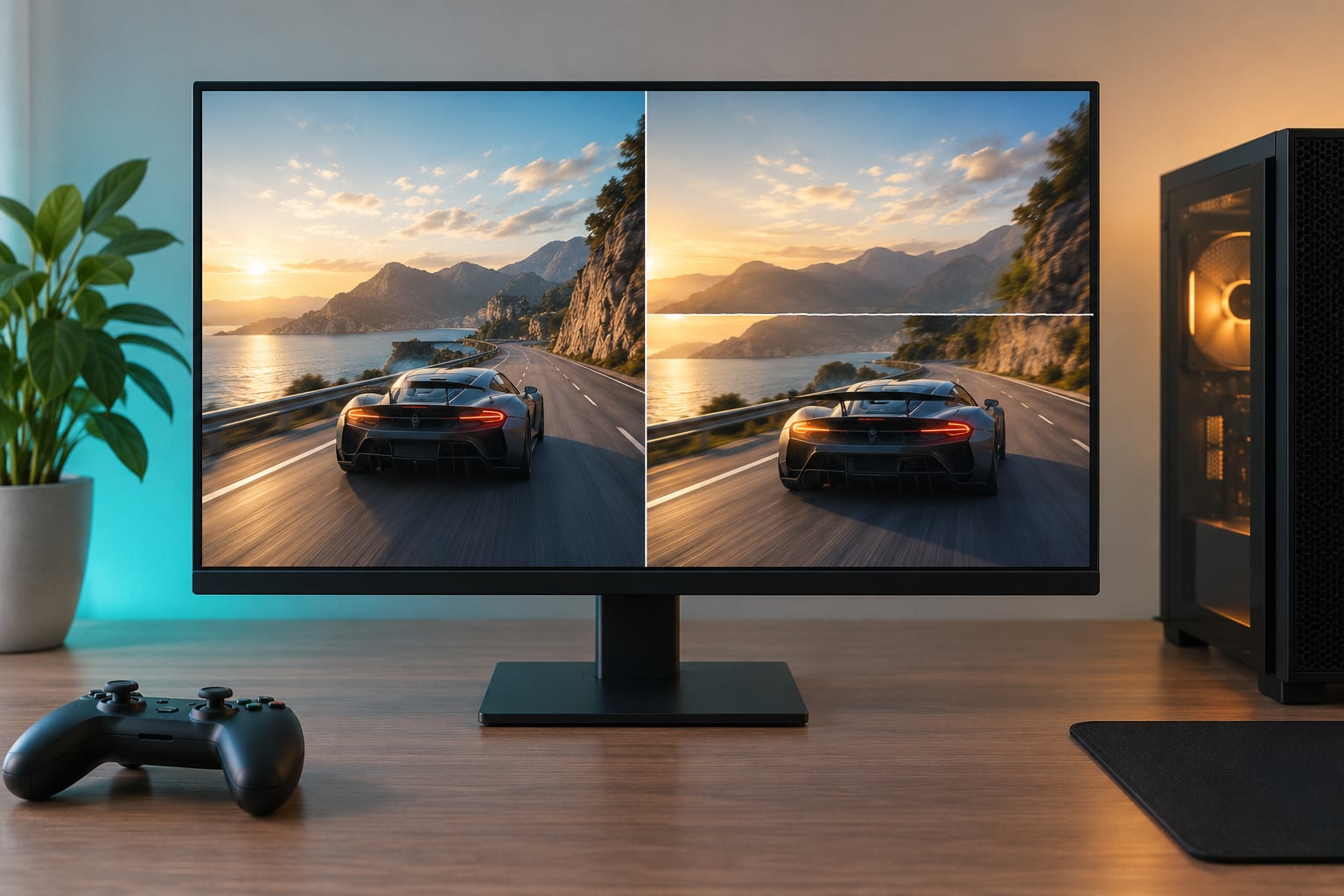
Without VSync, your GPU is free to begin drawing the next frame whenever it finishes. If it finishes halfway through the monitor’s 16.7 ms cycle, you see the top half of the old image and the bottom half of the new one. That horizontal split is screen tearing, and it scrolls because the two images are out of step.
What VSync actually changes
- Adds a frame buffer. The GPU renders into an off-screen buffer and holds it until the monitor is ready.
- Hard-caps your frame rate at your monitor’s refresh rate — 60, 144, whatever the panel is rated at.
- Removes tearing inside that cap, because no frame is ever shown half-drawn.
- Adds latency, because your input can sit in the queue behind up to two frames of buffering.
- Stutters when the GPU dips below the cap, because uneven frame times arrive at an uneven rate.
That last point is the one that makes people dislike VSync. A GPU hitting a steady 144 fps on a 144 Hz monitor is fine. A GPU bouncing between 95 and 130 fps is not — the buffered frames arrive irregularly and the motion judders even though the image never tears.
VSync is also not a way to raise your refresh rate. Turning it on at 60 Hz will not make the panel draw faster; it only stops the GPU outrunning it.
What Is FreeSync and How Does It Work?
FreeSync is AMD’s adaptive synchronisation technology, built on the open VESA Adaptive-Sync standard, that lets a monitor vary its refresh rate between a minimum and maximum to match whatever frame rate your GPU is delivering.
Where VSync locks the frame rate to a fixed number, FreeSync gives the monitor a range it is allowed to move inside. A panel advertised as 48 Hz to 240 Hz can present a frame every 4.17 ms or every 20.8 ms, and the GPU drives that timing through the cable.
What FreeSync actually changes
- The monitor’s refresh rate moves to match the frame it just received — nothing waits.
- Tearing disappears inside the range because each scan matches one whole frame.
- Frame pacing stays even across the whole range, so mid-range frame rates no longer stutter.
- Latency stays close to the panel’s own, because no frame sits waiting for a fixed Vblank.
- Outside the range, it stops — a 28 fps game on a 48 Hz minimum display gets no benefit below that floor.
That last point explains a behaviour that confuses a lot of people: FreeSync can look worse than plain VSync in a heavy scene. Drop into 40 fps on a display whose minimum is 48 Hz and you are outside the range, where the panel reverts to fixed timing and tearing returns. Monitors with Low Framerate Compensation extend the range downward to cover those dips.
Vsync vs FreeSync: The Main Technical Differences
Strip away the branding and these are the comparisons that matter, in the order they matter.
Fixed refresh versus variable refresh
VSync assumes one refresh rate forever. FreeSync assumes the frame rate will move around and adjusts the panel to meet it. Everything else on this list flows from that.
Where the cost lands
VSync’s cost is in milliseconds of added latency on your input. On a 144 Hz panel, a buffered frame can wait up to about 6.94 ms and, because two buffers are usually in play, the worst case is closer to 13.9 ms. FreeSync’s cost is basically hardware you didn’t own before.
Hardware and licensing
VSync needs nothing special — any monitor works, because it’s a driver-side timing rule. FreeSync needs an adaptive-sync capable display, and since the standard lives in the DisplayPort and HDMI specifications, the right cable matters. NVIDIA added support for VESA Adaptive-Sync displays under the “G-SYNC Compatible” label, so FreeSync-mode hardware is no longer AMD-only.
What happens when the frame rate changes
VSync re-locks to the refresh rate every cycle, so a fall below the cap shows up as stutter. FreeSync follows the fall inside its range, so motion just gets slower and stays even. Past the top of the range, FreeSync stops helping and you get tearing again.
G-Sync, for context
NVIDIA’s G-Sync works on the same principle as FreeSync — the panel varies — but it historically required a proprietary hardware module in the monitor, which raised prices. G-SYNC Compatible mode exists so modern NVIDIA cards can use standard adaptive-sync panels in that mode.
How Each Technology Affects Frame Pacing
Frame pacing means how evenly your frames arrive, and it matters more than the biggest number in the corner. A game that holds a steady 110 fps feels calmer than one bouncing between 90 and 140.
Take a 144 Hz monitor and a GPU rendering 144 fps. One frame every 6.94 ms, arriving on every Vblank. Both technologies look perfect, because steady frame time matches the panel exactly.
Now drop to 100 fps, so 10 ms per frame. With FreeSync the panel stretches its cycle to 10 ms and every frame is shown whole. With VSync the GPU buffers frames until each 6.94 ms slot opens, and an uneven 10 ms frame time lands unevenly in those slots — which is exactly the stutter players describe.
The old example worth remembering is 45 fps on a 60 Hz display. That’s 22.2 ms per frame, just over two 16.7 ms cycles. VSync shows roughly 30 fps of perfectly even motion, which is why that configuration has a reputation for looking capped.
One more case: 300 fps on a 144 Hz monitor. Neither technology helps at all, because the panel is already showing more frames than it can present. There is no sync penalty in raw performance — the frames are simply discarded.
Input Lag, Tearing, and Visual Smoothness
These three get tangled together, so it helps to separate them.
Tearing is a mismatched scan. The top of the screen shows one moment and the bottom shows another. It only happens when your GPU is pushing frames faster than the panel draws them, and both VSync (inside its cap) and FreeSync (inside its range) prevent it.
Input lag is time between your mouse or controller input and the change on screen. VSync adds to it because buffered frames wait. FreeSync adds very little inside its range, which is why competitive shooters on variable-refresh displays are a common recommendation.
Judder is uneven motion with no tearing at all — the picture is whole, but it steps. VSync causes it whenever frame delivery is inconsistent below the cap. Judder also appears when video is played at a frame rate the display cannot match smoothly.
Neither technology makes your hardware faster. Your frame rate, your graphics settings, and your CPU all stay exactly where they were; sync only decides which of those frames you actually see.
Monitor, GPU, and Game Compatibility
On Windows with an AMD GPU, open AMD Software: Adrenalin Edition, go to the gaming display settings, and turn Adaptive Sync on. From October 2026 driver generations the option usually sits under Display or Gaming > Display. Enable it per game, and let the driver handle variable refresh.
On Windows with an NVIDIA GPU, open Control Panel > Display > Set up G-SYNC, tick the monitor, choose the windowed or full-screen mode you play in, then tick “Enable settings for the selected display mode”. In NVIDIA App or the Control Panel’s global VSync box, set VSync to “Application controlled” and turn the in-game VSync switch off.
On Intel Arc GPUs, Adaptive Sync is exposed through Intel’s graphics software, and the same rule applies: leave the in-game VSync off and let the display handle timing.
Cables matter. Adaptive sync over DisplayPort generally needs DisplayPort 1.2 or newer. Over HDMI it depends on the port — many monitors will not expose the setting over HDMI 2.0, and HDMI 2.1 is the usual requirement for consoles and modern TVs. Forum users regularly connect over HDMI, find the FreeSync option simply missing, and assume the monitor is faulty. It usually isn’t; the cable is the problem.
Window mode matters too. Adaptive sync has historically been tied to full-screen exclusive rendering on Windows. Some titles in borderless windowed mode never activate it, which is a common reason people think their FreeSync is broken.
On consoles, the same technology ships under the HDMI 2.1 VRR label on current-generation consoles and many televisions. If your TV supports VRR and the game holds a frame rate near the panel’s native rate, motion cleans up noticeably.
To confirm VRR is active, enable the performance overlay built into your GPU software and watch the VRR indicator while the game is running. If the indicator stays off, check the cable, check the window mode, and check that the in-game frame rate is actually inside the supported range.
Which Should You Choose?
Match the setting to what you actually own and play.
- Fixed-refresh monitor or older PC: use VSync, and cap below your refresh rate if you get judder.
- Variable-refresh monitor: turn adaptive sync on in the driver, leave in-game VSync off, and cap just under the maximum refresh rate.
- Competitive shooters: adaptive sync with a cap inside the range gives you clean frames without VSync’s latency penalty.
- Single-player and cinematic games: both work well; adaptive sync simply avoids the stutter when your GPU can’t hold the cap.
- Consoles and TVs: use the console’s VRR setting, but only when the game sits near the panel’s native refresh rate.
- Lowest latency possible: keep both off and cap with a frame limiter, accepting tearing in exchange for an immediate response.
Whichever route you take, the frame cap matters more than people expect. A cap three or four frames below the maximum refresh rate keeps you comfortably inside the variable range, and it also stops a modern GPU from rendering frames nobody will ever see.
Frequently Asked Questions
Can I use FreeSync and VSync at the same time?
Yes, but they should do different jobs. Turn the in-game VSync switch off and let adaptive sync handle everything inside the monitor’s variable range. VSync’s remaining role is to catch frame rates above the maximum refresh rate, where some drivers use it to steer the tear line off screen. Cap your frame rate just below the maximum so you stay inside the range.
Is FreeSync always better than VSync?
No. FreeSync is better when your GPU’s frame rate sits inside the monitor’s supported range and you care about low input lag. Below the range’s minimum, or on a fixed-refresh display, it does nothing extra. VSync remains the right answer on older GPUs, many TVs, and any setup where your card regularly outruns the panel.
Does VSync cause input lag?
Yes, and it is measurable rather than imagined. Because frames are buffered until the next refresh cycle, a frame can wait up to one refresh interval before being shown. On a 144 Hz panel that is about 6.94 ms, and with two buffers in play the worst case is closer to 13.9 ms. FreeSync avoids this inside its range because nothing has to wait.
What frame rate should I use with FreeSync?
Aim just below your monitor’s maximum refresh rate, typically three or four frames under it. Staying inside the variable range is what keeps motion even, and a cap also prevents your GPU from wasting power on frames the panel cannot show. In a game that cannot reach that cap, a lower cap that the GPU can hold steadily often feels smoother still.
Does FreeSync work with NVIDIA and AMD graphics cards?
It does on both. FreeSync was built on the open VESA Adaptive-Sync standard, and NVIDIA GPUs can drive adaptive-sync monitors through G-SYNC Compatible mode. On Windows, enable it in Control Panel under Display and Set up G-SYNC, set the global VSync option to Application controlled, and leave the in-game switch off.
Why does my monitor still tear with FreeSync enabled?
Most often the frame rate has dropped below the range’s minimum, so the panel falls back to fixed timing. Other common causes: the wrong display mode, an HDMI cable that cannot carry adaptive sync, or a game running in borderless windowed mode where some titles never activate it. Check the VRR indicator in your GPU overlay first to confirm whether it is engaged.
Conclusion
VSync slows the picture down to fit the monitor; FreeSync speeds the monitor up to fit the picture. If your display supports variable refresh, turn adaptive sync on in the driver, leave the in-game VSync switch off, and cap a few frames below the maximum — that is the setup that removes tearing without adding VSync’s latency.
On a fixed-refresh display, use VSync and cap below the refresh rate if the motion judders. Either way, frame pacing beats a bigger frame-rate number, and neither technology makes your hardware any faster.