To figure out how to tell if your PC can run a game, read your own hardware specs from Windows and compare each component against the game’s published minimum and recommended requirements. It takes about ten minutes, costs nothing, and no download is required. Skip it and you find out the hard way, after a 90 GB download, with a slideshow instead of a game.
The short version:
- Read your specs — press Ctrl + Shift + Esc, open the Performance tab, then run dxdiag from the Run dialog for the exact graphics card and VRAM.
- Compare them — check the minimum and recommended rows on the Steam store page, the Epic Games store, or the publisher’s own site.
Everything below is the detail version of those two steps, plus what to do when the answer lands somewhere in the middle.
Table of Contents
- 1What You Need Before You Start
- 2Step-by-Step: How to Tell If Your PC Can Run a Game
- 31. Find the game’s minimum and recommended requirements
- 42. Compare your processor, graphics, memory and storage
- 53. Check the Windows version, drivers and game support
- 64. Match resolution and graphics settings to your PC
- 75. Run a real-world play test
- 8Common Mistakes When Checking Game Compatibility
- 9Comparing only RAM
- 10Treating minimum requirements as a target
- 11Ignoring the graphics card
- 12Assuming a game supports your Windows version
- 13Testing only the menu
- 14Lowering settings without watching stability
- 15Trusting a single online checker verdict
- 16Frequently Asked Questions
- 17How can I check whether my laptop can run a game?
- 18Does meeting a game’s minimum requirements mean it will run well?
- 19What frame rate should I aim for in a PC game?
- 20Which PC part should I upgrade first for better gaming performance?
- 21Why does a game meet the system requirements but still stutter or crash?
What You Need Before You Start
You need the game’s requirements list, which lives on the store page or the publisher’s site, and access to a few built-in Windows tools. No third-party software is required for the manual method.
- The game’s system requirements. Minimum and recommended specs for processor, graphics card, memory, storage and operating system.
- Windows access. Settings, Task Manager, System Information (msinfo32) and dxdiag all ship with Windows 10 and 11.
- Free disk space to check. File Explorer on This PC shows the capacity and free space of each drive, and matters more than people expect on big installs.
- The right input. A controller if the game lists one, since a wrong controller can block a Steam install outright.
- Thirty minutes of free time for the final test. The first launch compiles shaders and often runs worse than every session after it.
One thing to keep in mind: published requirements are tied to a preset, a resolution and a feature set. The same card can pass at 1080p low with ray tracing off and fail at 1440p high with ray tracing on.
Step-by-Step: How to Tell If Your PC Can Run a Game
1. Find the game’s minimum and recommended requirements
On Steam, the specs sit in the right-hand column of any store page, under Minimum and Recommended. The Epic Games Store and GOG put them on the product page too, and console exclusives list them on the publisher’s site. If you own the game already, Steam has a built-in check: right-click the game in your library, choose Properties, then Installation, then Check system requirements.
Read both rows. Minimum is the publisher’s promise that the game will launch and stay playable at a low preset. Recommended is what the developer actually tested and tuned against, usually at 1080p or 1440p on a mid preset with extras such as ray tracing switched on.
Two numbers in those rows get skipped by beginners more than any others. The graphics memory (VRAM) figure is often missing from older listings even though the game needs it. And the storage line means free space on top of whatever Windows and your other games are already using, not the install size.
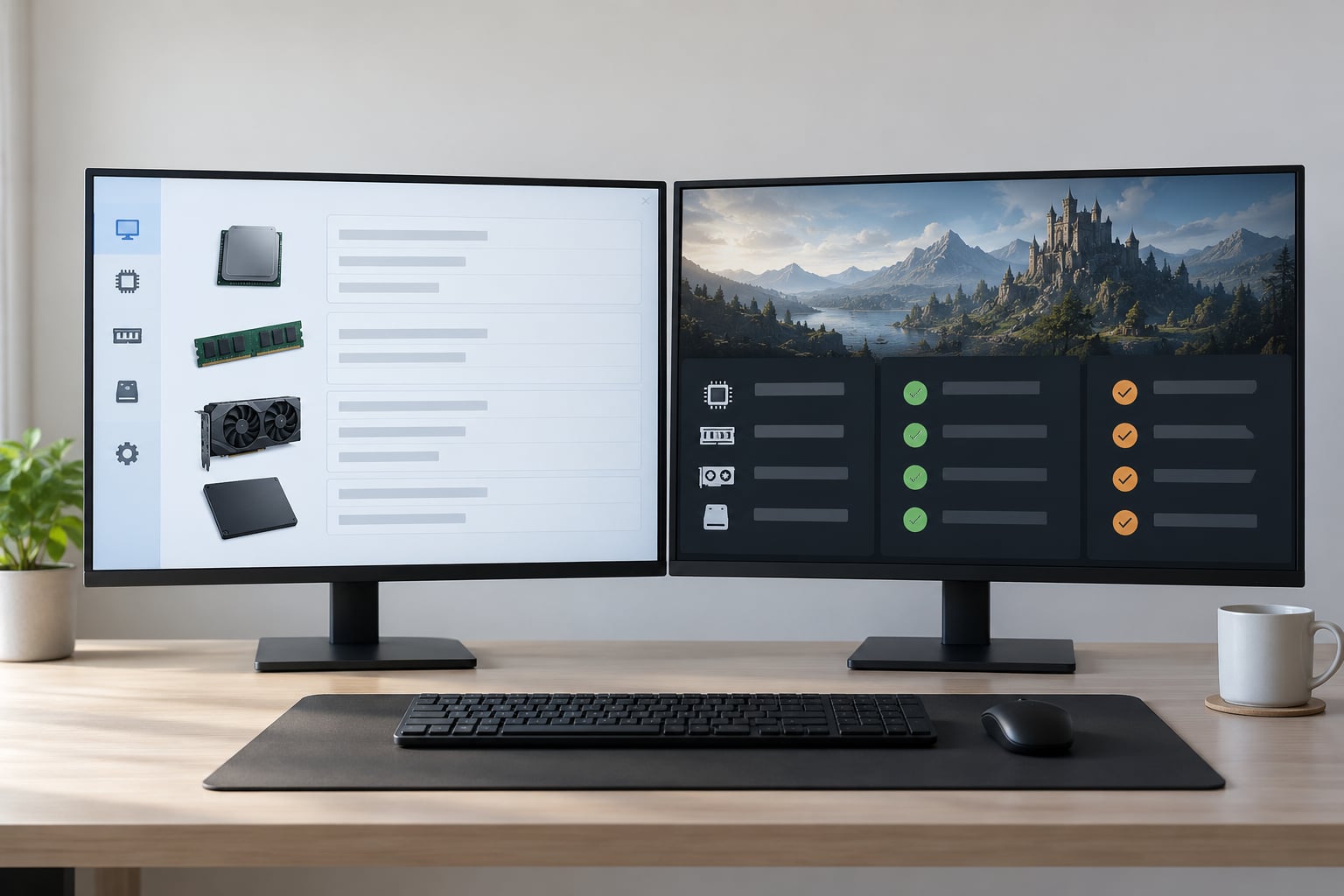
2. Compare your processor, graphics, memory and storage
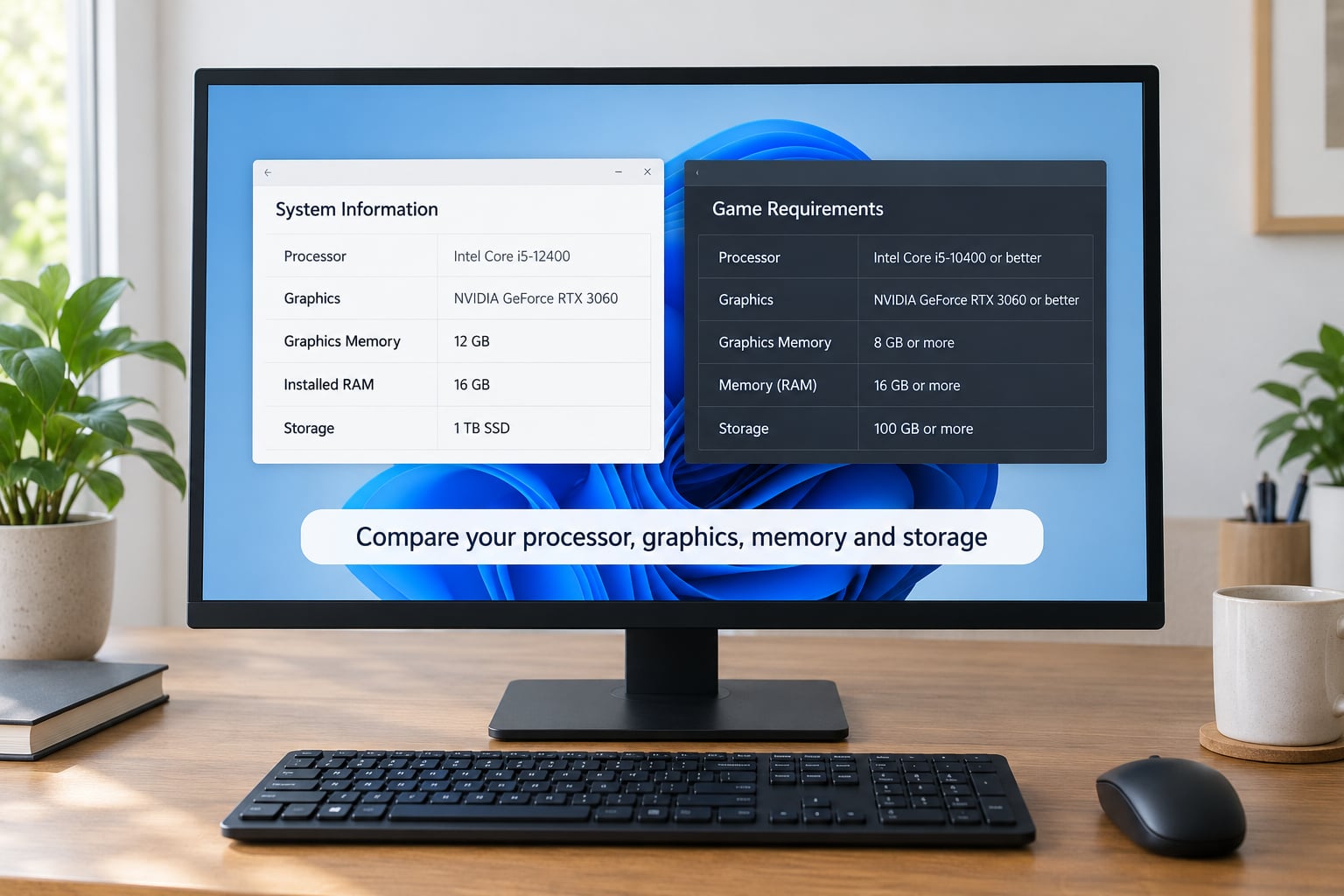
Here is where to find each number, all in Windows:
| Component | Where to find it | What the requirement means |
|---|---|---|
| Processor | Ctrl + Shift + Esc, Performance tab, CPU row (model name top right) | Model and core count decide single-thread speed; graphics-heavy games lean on the GPU instead |
| Graphics card and VRAM | Win + R, type dxdiag, Display tab (or Performance tab, GPU row) | The closest match matters more than any other single line |
| Memory | Task Manager, Performance tab, Memory row, or About for installed total | Installed total, not free memory; Windows takes several GB |
| Storage and free space | File Explorer, This PC, or Settings > System > Storage | Free space on the target drive, ideally an SSD |
| Operating system | Settings > System > About, top three lines | Edition, version, build and whether it is 64-bit |
| DirectX version | dxdiag, System Information tab, DirectX Version line | Many recent titles list DirectX 12 as a hard requirement |
msinfo32, reached the same way through the Run dialog, is the best single screen for the full list including BIOS mode and processor type. Settings > System > About gives you the cleanest summary of the machine’s age, which tells you a lot at a glance.
Decoding model names takes thirty seconds. An Intel Core i7-9700 or a Ryzen 7 5800X reads as brand, tier, then generation; on a graphics card, RTX 4070 or RX 7800 XT means the second number is the generation and the last number is the tier. Newer within the same tier generally means more speed, and a newer generation at the same tier is a large jump.
Then compare line by line rather than overall. If your card meets the recommended GPU but the processor is four generations behind, games will still look fine until a crowd appears.
3. Check the Windows version, drivers and game support
Plenty of capable machines fail at this step. Open Settings > Windows Update and run Check for updates, including the optional updates, which is where driver updates usually sit. A game released years after your driver was installed can refuse to start or render wrong simply because the shader compiler is out of date.
For Windows 10, that is Settings > Update & Security > Windows Update. For Windows 11, Settings > Windows Update. Current Windows 11 builds ship with the newer graphics stack that recent DirectX 12 titles expect.
Two more checks here. Confirm the system is 64-bit in Settings > System > About; a 32-bit install cannot run 64-bit only games at all. And check dxdiag’s System Information tab for your DirectX version, since the requirements list will say so if it matters.
A pass at this step means the game is supported by your operating system, your driver is current, and the required runtime is present. Without it, none of the hardware comparisons mean anything.
4. Match resolution and graphics settings to your PC
Requirements describe a preset, so test that preset. Launch at the monitor’s native resolution first, set every graphics option to low, then raise one setting at a time and watch what happens. Raising everything at once tells you nothing about which option caused the frame rate to fall.
To watch the frame rate, enable the game’s own counter if it has one, or turn on the overlay: Shift + Tab for the Steam overlay, or use the overlay built into GeForce Experience and AMD Adrenalin. Most modern titles display frame rate and the current graphics card directly in their settings menu too.
Aim for a steady number rather than a peak. Around 60 fps suits most single-player games and most competitive shooters. Competitive shooters stay playable at a lower range because input response matters more than image smoothness. Ray tracing is the first setting to turn off on hardware that struggles, and upscaling options like DLSS, FSR or XeSS are worth enabling on a card that supports them.
A pass here means steady play at your target resolution without frequent stutter, and with a frame rate you are happy living with.
5. Run a real-world play test
Spend real time in the game, not just the main menu. Menus are cached and often rendered at a fraction of the real load, which is why a title that looks perfect at the title screen can fall apart in the first busy area.
Play the opening area, then the densest mission or busiest city you can reach. Watch for these five symptoms:
- Crashes to desktop, usually a driver timeout or a missing runtime.
- Freezing for a second or more, which is usually drive or memory pressure.
- Stutter, where the frame rate periodically drops even though the average looks fine.
- Load times that drag on badly, which usually points at an HDD or a nearly full drive.
- A frame rate below what you need, held steady, no matter what you change.
Watch Task Manager’s Performance tab while you play. If the GPU hits 100 percent while the CPU sits idle, your graphics card is the limit and no settings change will fix it. If the CPU sits pinned instead, the opposite is true.
Finish here and you have your answer in one of three shapes. Technically compatible means it launches and holds a stable frame rate at the recommended preset. Playable with adjustments means it runs after lowering resolution and settings, or with ray tracing off. Not suitable means it crashes, freezes, or sits unplayably low regardless of settings.
Common Mistakes When Checking Game Compatibility
Comparing only RAM
Memory is the easiest line to read and one of the least predictive. Matching or beating the RAM number changes little on its own. Check the graphics card first, then the processor.
Also remember that an 8 GB machine rarely has 8 GB available. Windows and background apps take several GB, so a requirement of 8 GB leaves a very thin margin.
Treating minimum requirements as a target
Minimum specs mean the publisher will not offer support if it stutters. Many players sit at minimum and enjoy the game, though a competitive shooter at 35 fps is a different experience from the same game at 120.
Decide what you want first, then pick the row. Recommended is the honest answer for smooth play.
Ignoring the graphics card
VRAM is where games fail before the frame rate does. Textures stutter and shadows flicker when a card runs out of it, and no amount of lowering other settings fixes that.
On a laptop or a PC with integrated graphics, the VRAM number may be shared with system memory. If the reported amount is half your total RAM or more, that is a shared figure, not dedicated memory.
Assuming a game supports your Windows version
New releases increasingly target Windows 11 and DirectX 12 only, and some titles block older builds outright. Check the operating system line in the requirements before anything else, since a mismatch ends the discussion.
The same applies to 32-bit versus 64-bit systems.
Testing only the menu
Title screens and character creators are the lightest scenes in most games. A clean menu tells you the game launches, nothing more. Load a save or a mission with heavy geometry, lighting and lots of on-screen characters.
Give it ten minutes in the busiest area available before you decide.
Lowering settings without watching stability
Dropping every option to low can introduce instability, from aggressive temporal upscaling to unstable frame generation. Change settings one at a time and keep the frame rate counter on so you can see the effect.
If performance improves by two frames, that setting was never the problem.
Trusting a single online checker verdict
Browser-based Can I Run It sites are quick and often useful, but they match model names against lists rather than measuring anything. Two sites can return opposite answers for the same machine, and laptop results are usually too generous.
Use them as a first filter. Confirm with your own Task Manager and dxdiag numbers before buying.
Frequently Asked Questions
How can I check whether my laptop can run a game?
Use the same method as a desktop. Press Ctrl + Shift + Esc for the Performance tab to read the CPU, memory and disk, then run dxdiag from Win + R to see the graphics card and whether its VRAM is dedicated or shared with system memory. Laptop parts are lower-power versions of desktop chips and the machine throttles under sustained load, so a game that passes the spec sheet may run below its desktop numbers. Expect a playable result at low settings and a lower frame rate than the same build in a tower.
Does meeting a game’s minimum requirements mean it will run well?
No. Minimum requirements are the floor a publisher tests to guarantee the game launches, not the setting the developer tuned it on. At minimum you can expect low presets, no ray tracing, and a frame rate that may dip during busy scenes. Recommended requirements describe what was actually tuned, usually at 1080p on medium. If you care about frame rate and image quality, aim for the recommended row rather than the minimum one.
What frame rate should I aim for in a PC game?
For most players, a steady 60 frames per second is the target. Competitive shooters stay playable at lower rates because input response matters more than image smoothness, and single-player action games benefit greatly from 60 or more. Virtual reality feels uncomfortable below 90. Watch the number rather than the peak: a game that spikes to 120 and then drops to 30 every few seconds will feel worse than one locked at 60. Frame generation and upscaling can raise both numbers, though the sharpness and input latency trade-offs are worth checking.
Which PC part should I upgrade first for better gaming performance?
The graphics card, in most cases. With the GPU at 100 percent load and the processor idle, a faster card is the only change that raises your frame rate. If the CPU is the one sitting pinned while playing, upgrading the graphics card will do nothing for you. RAM matters once you are at 8 GB or less, and moving from a hard drive to an SSD fixes long load times and hitching more than any other single upgrade. Test with the Task Manager Performance tab open during play to see which part is actually the limit.
Why does a game meet the system requirements but still stutter or crash?
Published requirements leave a lot out. They rarely mention driver maturity, VRAM pressure, background software, thermal throttling on a laptop, or the shader compilation that makes the first few minutes rough. A machine with exactly 8 GB of RAM also has several GB already consumed by Windows. Update your graphics driver, close background applications, close the launch options for overlays and recording software, and play for fifteen minutes past the first session. If crashes continue, run the game at a lower resolution with everything on low to rule out a hardware limit.
If you take one thing from this, do it in this order: read your specs in Task Manager and dxdiag, compare the graphics card against the recommended row, then confirm free storage and your Windows version. That covers the four reasons a PC fails a compatibility check before any play testing begins.
And keep an online Can I Run It checker in your back pocket as a quick first pass, not a final word. Knowing how to tell if your PC can run a game takes ten minutes, and it beats discovering the answer after a long install.