To choose a monitor for fast-paced games, start with the refresh rate your hardware can actually feed, then check that the pixels respond cleanly in motion. A 144Hz or faster panel with low overdrive overshoot and adaptive sync will feel far better than an expensive 240Hz screen running a mismatched cable. Here is the order I work through, spec by spec.
Fast games punish two things: delay between your click and what you see, and smearing behind anything that moves. Refresh rate handles the first, pixel response handles the second, and everything else — resolution, panel type, VRR, ergonomics — is a supporting decision that follows from those two.
This guide covers how to choose a monitor for fast-paced games in 2026 without drowning you in spec sheets. It takes about 15 minutes to read and another 20 to apply at a desk with a game running.
Table of Contents
- 1What You Need Before You Start Comparing Monitors
- 2How to Choose a Monitor for Fast-Paced Games: Step by Step
- 31. Match the Refresh Rate to Your Games and Your Hardware
- 42. Check Real Response Time, Not Just the Label
- 53. Decide Whether You Need VRR When You Choose a Monitor for Fast-Paced Games
- 64. Choose the Right Resolution and Screen Size
- 75. Select a Panel Type for the Game You Play
- 86. Check the Details You Will Use Every Day
- 97. Confirm Compatibility and Test Before Buying
- 10Common Mistakes That Ruin an Otherwise Good Choice
- 11Frequently Asked Questions
- 12What refresh rate is best for fast-paced games?
- 13Is a 1 ms response-time monitor really necessary?
- 14How can I make my fast-paced games feel smoother on a 60Hz monitor?
- 15Do I need variable refresh rate for competitive gaming?
- 16Can I use a gaming monitor with a different PC or console later?
- 17Conclusion
What You Need Before You Start Comparing Monitors
Gather four things first. Without them, every spec comparison turns into guesswork.
Your GPU or console output. Know the resolution and refresh rate your hardware can drive over the port you plan to use. A midrange card that holds 165fps at 1440p will not hold 240fps at 1440p, and no monitor changes that. On PC, check the graphics card model and the ports on the back of your tower. On console, note which generation you own.
Your preferred resolution. Decide whether you want 1080p for maximum frame rates, 1440p for the balance most competitive players land on, or 4K for detail. Resolution is the single biggest driver of GPU load, so it constrains everything else.
Your priority. Competitive shooters and fighting games reward motion clarity above all. RPGs, racing and cinematic single-player runs reward contrast, colour and HDR. Be honest about which one you actually play, because the two lists conflict.
Desk and power constraints. Measure the depth of your desk and the distance of your wall outlets. A 32-inch panel needs roughly 70 cm of desk width and a stand that will not sit at an angle. Also check whether your desk has a monitor arm mount if you plan to adjust height daily.
And keep access to display settings in mind. You will want the Windows display settings, your GPU control panel, and the monitor’s own on-screen menu available during testing. If you are shopping in person, ask whether the model can be returned with the box opened.
How to Choose a Monitor for Fast-Paced Games: Step by Step
1. Match the Refresh Rate to Your Games and Your Hardware
Refresh rate is how many times per second the display redraws, and it sets the theoretical frame time budget. A 60Hz panel has 16.7ms to draw every frame. A 144Hz panel has 6.9ms. A 240Hz panel has 4.2ms. That shrinking window is why higher refresh rates feel sharper: your frame has less time to sit on screen before the next one replaces it.
| Refresh rate | Frame time | What it feels like in practice | Who it suits |
|---|---|---|---|
| 60Hz | 16.7ms | Visible stepping in camera pans; fine for menus and strategy | Office and general desktop use |
| 120Hz | 8.3ms | A clear step up from 60Hz, noticeable within a day | Console players on HDMI 2.0 |
| 144Hz | 6.9ms | The mainstream competitive standard; big jump from 120Hz | Most FPS and battle royale players |
| 165Hz | 6.1ms | Marginal over 144Hz, but much easier for midrange GPUs to feed | Value builds and 1080p high refresh |
| 240Hz | 4.2ms | Noticeably smoother than 144Hz, especially in wide horizontal swings | Enthusiast shooters with a strong GPU |
| 360Hz | 2.8ms | Gains over 240Hz shrink sharply; some players see them, many do not | Competitive players who compete |
The catch is that the monitor cannot exceed what your GPU produces. If your card renders 90fps at 1440p on ultra settings, a 240Hz panel will show repeated frames and feel inconsistent rather than fast. Two fixes help: lower settings until you sit just under the refresh rate, or drop the resolution by one step. Frame pacing matters as much as the average number here, which is why a steady 160fps on a 165Hz screen feels better than an erratic 230fps on a 240Hz screen.
Worked example. Someone with a midrange GPU plays shooters at 1440p and hits roughly 150fps on high settings. Options are a 165Hz or a 240Hz panel. At 240Hz, they would need to lower settings or drop to 1080p to stay near 240fps, and any dip would show as judder. A 165Hz panel runs at a near-constant 160fps with everything on high. For that player, 165Hz is the better buy, and the money saved goes toward a better mouse or a stable screen instead.
Player reports also point to a pattern worth knowing: moving from 144Hz to 240Hz is regularly described as noticeable, while 240Hz to 360Hz is called diminishing returns far more often. If your budget is fixed, a solid 144Hz or 165Hz panel beats a compromised 360Hz one.
2. Check Real Response Time, Not Just the Label
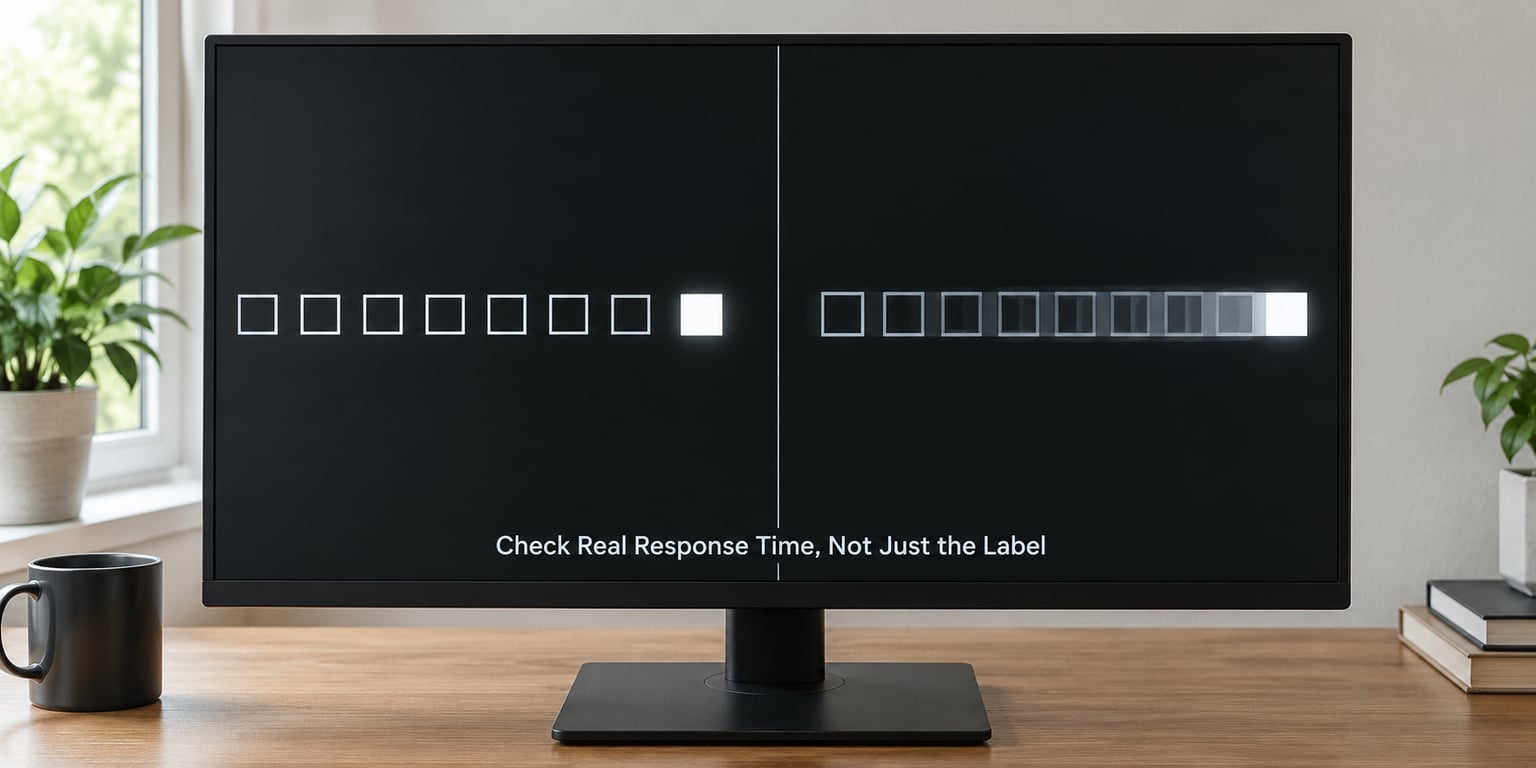
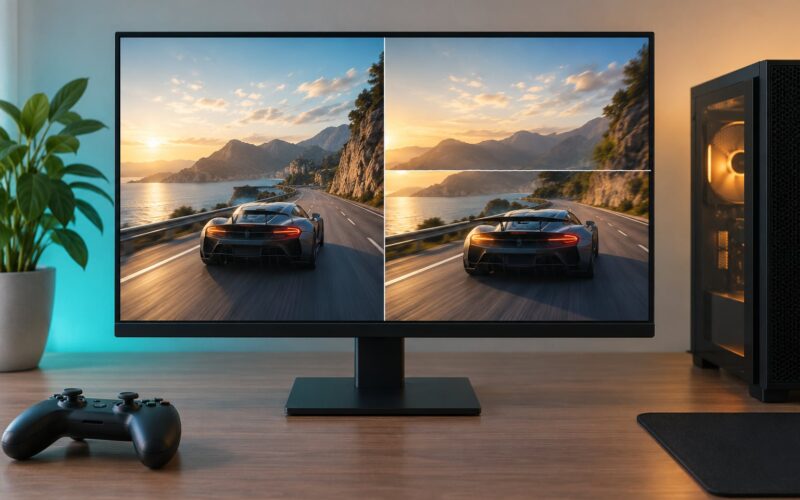
Response time is how long one pixel takes to switch from one brightness to another. Two numbers get printed on boxes: GtG, grey-to-grey, and MPRT, moving picture response time. GtG is the honest physical measurement. MPRT is derived by adding backlight strobing to it, which is why a monitor can advertise 0.5ms MPRT while behaving like a much slower panel.
That is the core confusion. A monitor labelled 1ms is usually quoting its fastest GtG transition under maximum overdrive, which is not the transition you see most of the time. Mid-tone to mid-tone changes, where characters, walls and terrain usually sit, are often two to four times slower than the headline figure.
Two artefacts matter in fast games. Overshoot happens when overdrive pushes pixels past their target brightness, producing a bright trail ahead of a moving object — sometimes called inverse ghosting, because it appears in front rather than behind. Black smearing happens when dark pixels lag behind light ones, leaving a grey plume trailing dark shapes against a light background. It is most visible in dark corridors and shadowed rooms.
Testing at home takes five minutes. Open a fast-moving pattern — a fan test video or any game with a swinging camera — and watch for three things:
- Consistency. Every transition should look the same speed. If bright-to-dark snaps instantly but dark-to-bright drags, that panel has uneven response.
- Overshoot. Bright halos in front of moving edges mean the overdrive setting is too aggressive. Drop it one notch.
- Smear direction. Trailing blur behind dark objects points to VA or a slow IPS panel; blur ahead of moving edges points to overdrive set too high.
For fast-paced games, prioritise a low GtG that stays low across mid-tones rather than a dramatic headline number. Professional measurements from sites like RTINGS and motion tests from the Blur Busters community are worth an hour of reading before you commit.
3. Decide Whether You Need VRR When You Choose a Monitor for Fast-Paced Games
Variable refresh rate lets the display match its refresh to whatever the GPU is producing each frame, so drops below the panel’s ceiling show up as slightly lower smoothness instead of stutter or a fixed tearing line.
There are three families, and they are not interchangeable:
- FreeSync is the AMD standard, built into Adaptive-Sync. It is open and works across a wide certified range.
- G-Sync Compatible means an Adaptive-Sync monitor has been validated by NVIDIA for full-range operation including below 48Hz.
- G-Sync module is a proprietary NVIDIA board inside the monitor, with an exclusive price premium.
Practical notes that decide whether it works for you. Check the certified range in the specifications — a 165Hz panel certified from 48Hz to 165Hz behaves far better than one certified only from 120Hz to 165Hz, because your frame rate dips in the 90-to-110fps band constantly in shooters. FreeSync models also vary: “FreeSync Premium” or “Pro” tiers add low framerate compensation for flickering above a certain refresh level.
Over HDMI, VRR is capped by the bandwidth of the link. Many monitors advertise VRR over DisplayPort only, and console VRR needs the full 48 Gbps bandwidth of HDMI 2.1 rather than the 18 Gbps of the older standard. This is a common reason PS5 players find variable refresh simply refuses to engage.
One real conflict to plan around: on most monitors you cannot run VRR and backlight strobing features such as ULMB or ELMB at the same time. Strobing cuts brightness noticeably, since the panel is dimmed for part of every frame. Decide which problem you actually have — judder or motion blur — and enable the matching feature.
4. Choose the Right Resolution and Screen Size
Resolution and size work as a pair, and the pairing matters more than either alone.
| Resolution and size | Typical pixel density | Strength | Weakness |
|---|---|---|---|
| 1920×1080 at 24 inch | About 92 PPI | Cheapest GPU load, fine for high refresh tiers | Visible pixels at desk distance, weakest text |
| 2560×1440 at 27 inch | About 109 PPI | The common choice for competitive plus general use | Demanding on older cards at high refresh |
| 3840×2160 at 27 inch | About 163 PPI | Sharp text and desktop work in one screen | Needs a strong GPU to hold high refresh |
| 3840×2160 at 32 inch | About 138 PPI | Immersive for racing, sims and consoles | Too large for many desks and most competitive FPS |
| 3440×1440 ultrawide at 34 inch | About 109 PPI | Wide field of view in racing and flight sims | Stretched console output, a real disadvantage in competitive shooters |
Twenty-seven inches at 1440p keeps coming up in player discussions as the sensible middle, and the reason is arithmetic rather than opinion. You get pixel density above 100 PPI, so text stays readable at arm’s length, while the frame load remains manageable for midrange hardware. Twenty-four inches at 1080p still makes sense if your GPU is the weak link or you play at 240fps and above.
Windows scaling matters at 4K. At 100% scaling, 4K on a 27-inch screen gives small interface elements and can strain your eyes over a long session. Setting the system to 150% gives comfortable text at the cost of a slightly smaller usable desktop, which most people prefer for mixed work and play.
On ultrawides, check two things before committing. Console games frequently output 16:9 pillarboxed rather than filling the screen. And competitive shooters place interface elements and off-screen information at the extreme edges, which players report can cost them an edge against opponents on standard ratios.
5. Select a Panel Type for the Game You Play
Panel technology sets the trade-offs you will actually notice while playing.
| Panel | Motion clarity | Contrast and black level | Viewing angles | Watch out for |
|---|---|---|---|---|
| TN | Fastest native response | Weakest; greyish blacks | Narrow; washes out off-centre | Bleeding colour shift at the edges |
| Fast IPS | Very good with correct overdrive | Average; IPS glow in dark rooms | Wide and consistent | Overshoot if overdrive is maxed |
| VA | Slower dark transitions | Best of the three; deep blacks | Wide | Black smearing in dark scenes |
| OLED | Excellent in both directions | True blacks, near-infinite contrast | Excellent | Burn-in risk from static HUD elements |
For competitive shooters, fast IPS gives the best balance: motion clarity close to TN without the colour shift at the edges, plus far better contrast than TN. VA suits dark, atmospheric games where slow black transitions rarely show, but that smearing is exactly what ruins a night map. OLED is the strongest motion performer and the best-looking, though competitive players raise burn-in worries about fixed HUD elements, minimaps and scoreboards sitting in the same spot for hours. If you go OLED, run the panel’s pixel-refresh or logo-luminance cycle on a schedule and keep brightness moderate.
Color and viewing-angle quality belong in the same decision. TN washes out as soon as you lean back or shift position, which is annoying in a chair you will sit in for hours. IPS and OLED hold colour from the corners.
6. Check the Details You Will Use Every Day
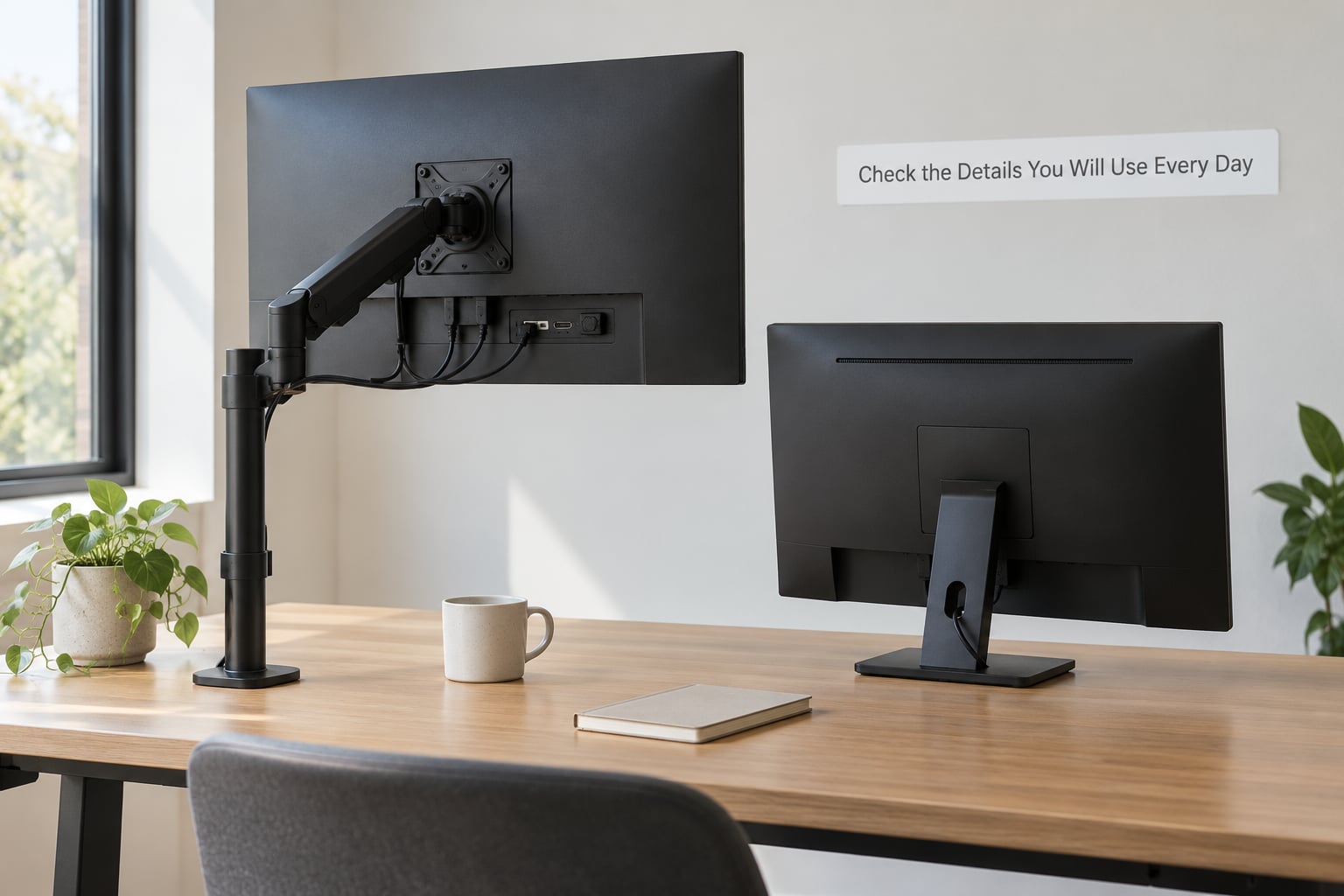
Two monitors with identical panels can feel completely different over a year of daily use. Height, tilt, swivel and rotation decide whether you sit comfortably or develop a neck ache. A stand that adjusts height by 10cm or more is worth paying for if you also use the monitor for work.
Ports decide what you can plug in without adapters. Look for at least two HDMI and one DisplayPort if you switch between a PC and a console, plus a headphone jack so you can use a headset without reaching behind the desk. USB hubs and KVM switching are genuinely useful in a dual-PC or PC-and-console setup, and they are also the features most often skipped.
HDR deserves a sceptic’s ear. Many monitors carry an HDR400 badge that adds almost nothing. Look for a VESA DisplayHDR certification tier instead, and check whether the brightness rating is measured at a small window rather than full screen, because small-window figures look far better than what you actually see across a whole display.
Speakers on monitors are for system sounds and dialogue, not for shooters where footstep direction decides rounds. Headphone output matters more.
Finally, brightness and warranty. A monitor that is uncomfortable at your desk brightness is a monitor you turn down or leave on a menu, and people who leave static elements parked on a bright UI are the ones who report burn-in later. Look for a three-year warranty on gaming panels, since dead pixels and backlight dimming are the failures that show up after month six.
7. Confirm Compatibility and Test Before Buying
The final checks happen after the monitor arrives, and the return window is your only real leverage.
- Confirm the refresh rate actually engages. On Windows, right-click the desktop, open Display settings, then Advanced display, and check that the mode list shows the top rate. On PlayStation, Settings then Screen and Video then Video Output Information shows the active resolution and refresh. If the highest mode is missing, change the cable or the port — that is the cause nine times out of ten.
- Verify VRR in the right place. It usually lives in the monitor’s own on-screen menu and must be enabled there before the GPU control panel will see it. On PC, check the Adaptive-Sync setting in the NVIDIA Control Panel or the AMD Software display tab.
- Inspect for dead pixels. Show a full white, full red, full green and full blue image. Stuck or dark pixels on a bright field are obvious; a faulty subpixel often only shows on one colour.
- Test overdrive at several settings. Run a fast-moving pattern in a game and check for overshoot in front of moving edges. Most monitors have three or four levels, and the highest one is almost never the best.
- Set brightness and colour in the OS first. Let Windows neutral display settings and the monitor’s own picture mode do the baseline work before you install a calibration profile. You will know whether you need one.
- Note the return deadline. Write the date down. Motion problems show up after a week of real play, not during the first ten minutes of a menu screen.
Common Mistakes That Ruin an Otherwise Good Choice
Chasing the 1ms label. The number is real but narrow — it describes one fastest transition, not the mid-tone changes you see in a game. Fix: ignore it and read reviews with actual motion measurements, or test the panel yourself with a moving pattern before the return window closes.
Running overdrive at maximum. The top setting often produces inverse ghosting, a bright trail in front of moving objects. Fix: step down one level and retest. On a good fast IPS panel, the second-highest setting is almost always the best-looking one.
Using a cable or port that caps the refresh rate. A 240Hz monitor locked at 60Hz is the single most common new-monitor complaint. Fix: use the cable that shipped with it or a certified DisplayPort 1.4 or HDMI 2.1 cable, plug into the correct port, and confirm the mode in display settings.
Assuming every adaptive sync mode behaves the same. Compatibility Mode on an uncertified panel can flicker badly, and VRR over an older HDMI link may never engage. Fix: check the certified refresh range and the supported connectors before you buy, not after.
Ignoring the panel trade-offs behind the spec sheet. A fast VA panel still smears in dark scenes, and a narrow TN panel still washes out when you lean back. Fix: match the panel to the games you play, and be honest if cinematic looks matter more than headshot accuracy.
Testing only in menus. Menus are static text on a flat background, the easiest possible case for any panel. Fix: run a real game with a swinging camera, dark interiors and fast lateral movement. That is where every problem shows up.
Two smaller habits pay off. Enable VRR or strobing, not both, and check the frame rate counter periodically so you know whether your settings hold above the display’s refresh rate.
Frequently Asked Questions
What refresh rate is best for fast-paced games?
At least 144Hz is the practical floor for competitive shooters, and 165Hz is often the smarter target because midrange GPUs hold that rate steadily. 240Hz makes a real difference over 144Hz in wide horizontal camera swings, while 360Hz gains are described by most players as diminishing returns. The right number is the highest rate your GPU can hold at your chosen resolution without dropping frames.
Is a 1 ms response-time monitor really necessary?
No. The 1ms figure describes a single fastest grey-to-grey transition under maximum overdrive, not the mid-tone shifts that dominate gameplay. What matters is whether transitions stay fast across mid-tones and whether overdrive causes overshoot, which shows as a bright trail in front of moving objects. Read independent motion tests and adjust the overdrive level yourself before deciding.
How can I make my fast-paced games feel smoother on a 60Hz monitor?
Reduce your frame rate so it divides evenly into 60, then cap it there with a frame limiter in your GPU control panel. Uneven frame pacing is a bigger source of perceived choppiness than the refresh rate itself. Keeping effects and resolution steady also helps, because fluctuating frame times feel worse than a consistent lower number.
Do I need variable refresh rate for competitive gaming?
It helps most when your frame rate dips, since VRR turns a stutter into a gentle loss of smoothness. It is less critical at 240fps and above, where frame time is short and steady, and it usually cannot run at the same time as backlight strobing features. Check the certified refresh range, since a narrow range handles low frame rates poorly.
Can I use a gaming monitor with a different PC or console later?
Yes, with caveats. Check the connectors: DisplayPort for most PCs and HDMI 2.1 at full 48 Gbps bandwidth for current-generation console VRR. Console output is usually pillarboxed on ultrawides and never exceeds 4K 120Hz. A monitor bought for competitive PC play works fine for consoles, though you lose access to strobing features when VRR takes over.
Conclusion
The decision rule is short: buy the highest refresh rate your GPU can hold steadily at your chosen resolution, on a panel whose mid-tone response stays fast with overdrive turned down one notch from maximum. Everything else — ultrawide, HDR, KVM switches, premium stands — matters far less to how a fast game feels.
Your first action is simpler. Before you pick anything, run a fast-moving test pattern on your current screen, drop the overdrive setting one level, and watch what changes. That ten-minute baseline tells you whether your problem is response, refresh rate or frame pacing, and it stops you buying the wrong panel to fix it.