If a game keeps dying on your PC, the fix is almost always found in the first hour: verify the game files, install a clean graphics driver, put every overclock back to stock, and turn off overlays. Most people asking how to fix game crashes on PC stop after one of those four, and none of them need a reinstall of Windows or a new graphics card.
I’ve written this as an ordered ladder on purpose. Each step is cheap and safe, so you stop after the one that fixes things and you don’t undo good work further down the list. Work through it top to bottom rather than jumping to the hardware section first, because a driver conflict and a failing power supply produce surprisingly similar symptoms.
Two crash types behave completely differently, and confusing them is why so much troubleshooting advice stalls. A crash to desktop, where the game vanishes and your desktop comes back with no message, is an application-level fault — drivers, files, software, or configuration. A hard crash, where the whole machine restarts, blue-screens, or black-screens with a buzzing noise, points at power, thermals, or memory. Start there and half your guesswork disappears.
Table of Contents
- 1What You Need
- 2How to Fix Game Crashes on PC Step by Step
- 31. Record the crash message and reproduce the problem
- 42. Close background programs and restart Windows
- 53. Verify or reinstall the game files
- 64. Update graphics, chipset, and audio drivers
- 75. Turn off overlays, recording tools, and injected software
- 86. Reset the game’s graphics, audio, and mod settings
- 97. Check storage, temperatures, and memory stability
- 108. Run Windows and game compatibility checks
- 119. Reinstall the game cleanly as a last resort
- 12Common Mistakes
- 13Frequently Asked Questions
- 14Can overheating cause game crashes on PC?
- 15Should I disable antivirus or Windows Defender to stop game crashes?
- 16How can I tell whether my GPU or RAM is causing crashes?
- 17Can Windows updates fix a game that keeps crashing?
- 18What do I do when only one game crashes on my PC?
- 19Conclusion: Start With the Crash Details
What You Need
Before you change anything, gather five things. Without them you’ll repeat steps that were never the problem.
- Administrator access on your Windows account, for driver installs, system file scans, and disk checks.
- The exact error text, written down or screenshotted, plus the game name and the point where it dies — launch, main menu, or 15 minutes into a match.
- A restore point. On Windows 11: Settings > System > About > System protection > Create.
- Reliability Monitor, which is already installed. Press Win + R, type perfmon /rel, and hit Enter.
- Optional but useful: Event Viewer (Win + R > eventvwr.msc), MSI Afterburner for GPU and CPU temperatures, and a USB stick with MemTest86 for memory testing later on.
If the crashes began right after a Windows update, a driver install, or a BIOS change, write that down too. Timing is the strongest clue you’ll get, and it’s the one you can never reconstruct later.
How to Fix Game Crashes on PC Step by Step
This triage table maps what you’re seeing to the likely cause and the step that fixes it. Find your row before you start testing.
| What you see | Most likely cause | Start at |
|---|---|---|
| Crashes the instant the game launches | Corrupt files, missing runtimes, antivirus blocking the executable | Steps 3, 6, 8 |
| Plays fine for 10 to 20 minutes, then dies silently | Graphics driver, unstable memory, PSU running out of headroom | Steps 4, 7 |
| Crash to desktop with no error code at all | Driver conflict, overlay injection, corrupted settings | Steps 1, 4, 5, 6 |
| Whole PC restarts, black screen, or blue screen under load | Power supply, overheating, unstable memory | Step 7 |
| Only one game crashes; everything else is fine | That game’s patch, config, or mods | Steps 3, 6, 9 |
| Crashes started after a Windows or driver update | New driver or cumulative update interacting with your setup | Steps 4, 8 |
| Crashes only when alt-tabbing to the desktop | Shell extension, overlay, or driver bug in the switch | Steps 5, 6 |
| Unsaved progress lost every time | Hard crash on a game writing direct to disk | Step 7, then back up saves |
1. Record the crash message and reproduce the problem
Write down the exact error text before you touch a setting. A specific message is worth more than ten guesses, and forum helpers consistently tell people to paste it rather than describe it in their own words.
Then try to trigger the crash on purpose. Play until the same point, and while it happens open Reliability Monitor (perfmon /rel) and sort by date to see the faulting application and the faulting module. If a blue screen appears, the dump file is waiting for you at C:WindowsMinidump.
Reproduce twice. A crash that only happens under a specific load, a specific mission, or a specific alt-tab is pointing at a cause, not at bad luck.
2. Close background programs and restart Windows
A plain restart clears memory pressure, stops half-finished updates, and ends any stuck background process. On Windows 11, click Start > Power > Restart; on Windows 10, use Start > Power > Restart from the corner menu. Avoid Shut down then Power on, which skips the full memory reset on some machines.
After it boots, close what you don’t need. Right-click a taskbar icon to close it properly, or press Ctrl + Shift + Esc and end the heavy ones in Task Manager. Browsers with 40 tabs, launchers, video editors, and cloud sync clients are the usual suspects.
Never end a process under System, Windows Explorer, Desktop Window Manager, or anything labelled Antimalware Service Executable. Force-closing system processes causes the kind of crash you’re trying to fix. Launch the game from a clean desktop and note whether it survives.
3. Verify or reinstall the game files
Corrupt files are the most common single cause of launch crashes, and verification is free. Each launcher puts the command somewhere different.
- Steam: open your Library, right-click the game, choose Properties > Installed Files, then Verify integrity of game files.
- Epic Games Launcher: open My Apps, click the three dots beside the game, choose Manage > Verify.
- EA app: open Library, right-click the game, choose Manage > Repair. Full reinstall sits next to it.
- Xbox app: open My library, click the three dots on the title, choose Manage game & add-ons > Verify install.
Verification re-downloads only the files that don’t match, so it’s usually quicker than a reinstall. Let it finish, update the launcher itself, restart, and launch the game. If it still crashes, the files weren’t the problem — move on.
4. Update graphics, chipset, and audio drivers
Download drivers from the GPU vendor or the machine manufacturer, not from a driver-finder site. Those utilities sometimes install driver sets that conflict with each other, and it’s a common complaint that three different detector tools returned three different answers on the same machine.
Go to NVIDIA or AMD directly for the current Game Ready or Adrenalin release, or to your laptop/desktop maker if you have an OEM machine. Update the chipset driver and the audio driver from the same place. Then restart.
A clean install goes further: download the driver, use Display Driver Uninstaller in Safe Mode to strip the old files completely, then install the fresh package and check Perform a clean installation on the NVIDIA installer. That’s for experienced users only — if you’re unsure, a normal install over the top is fine. Test one change at a time so you know what fixed it.
5. Turn off overlays, recording tools, and injected software
Overlays inject code into the game’s process, and they’re among the most overlooked crash sources. Turn them off one at a time and relaunch after each: the Steam overlay (Steam > Settings > In Game), the Discord overlay (User Settings > Activities > Overlay), Xbox Game Bar (Settings > Gaming > Xbox Game Bar), the overlay in NVIDIA App or GeForce Experience, OBS game capture, and MSI Afterburner with RivaTuner Statistics Server.
Background software is a wider net. Some antivirus suites hook into game processes, so a trial of running the game with it disabled is a reasonable test. Don’t uninstall anything yet — just exit the tray icon, relaunch, and see.
6. Reset the game’s graphics, audio, and mod settings
A single bad setting can crash a game that otherwise works. Reset graphics to defaults from the game’s own Graphics, Video, or Display menu, and do the same for audio. Turn off uncapped frame rate, custom resolutions, HDR, ray tracing, and any third-party mods you added.
If the menus won’t open, delete the configuration files instead — but copy them to your desktop first so you can put them back. Close the game fully, check Task Manager for a leftover process, then delete the config folder from your documents directory. Rename it rather than deleting it, honestly. It saves an argument later.
Always test the base game with no mods loaded at all before assuming the game itself is broken.
7. Check storage, temperatures, and memory stability
Free space matters more than most guides admit. Keep at least 10 to 15 percent of your drive free, check that you’re running from an SSD rather than a mechanical drive, and run chkdsk on a schedule to check the file system for errors.
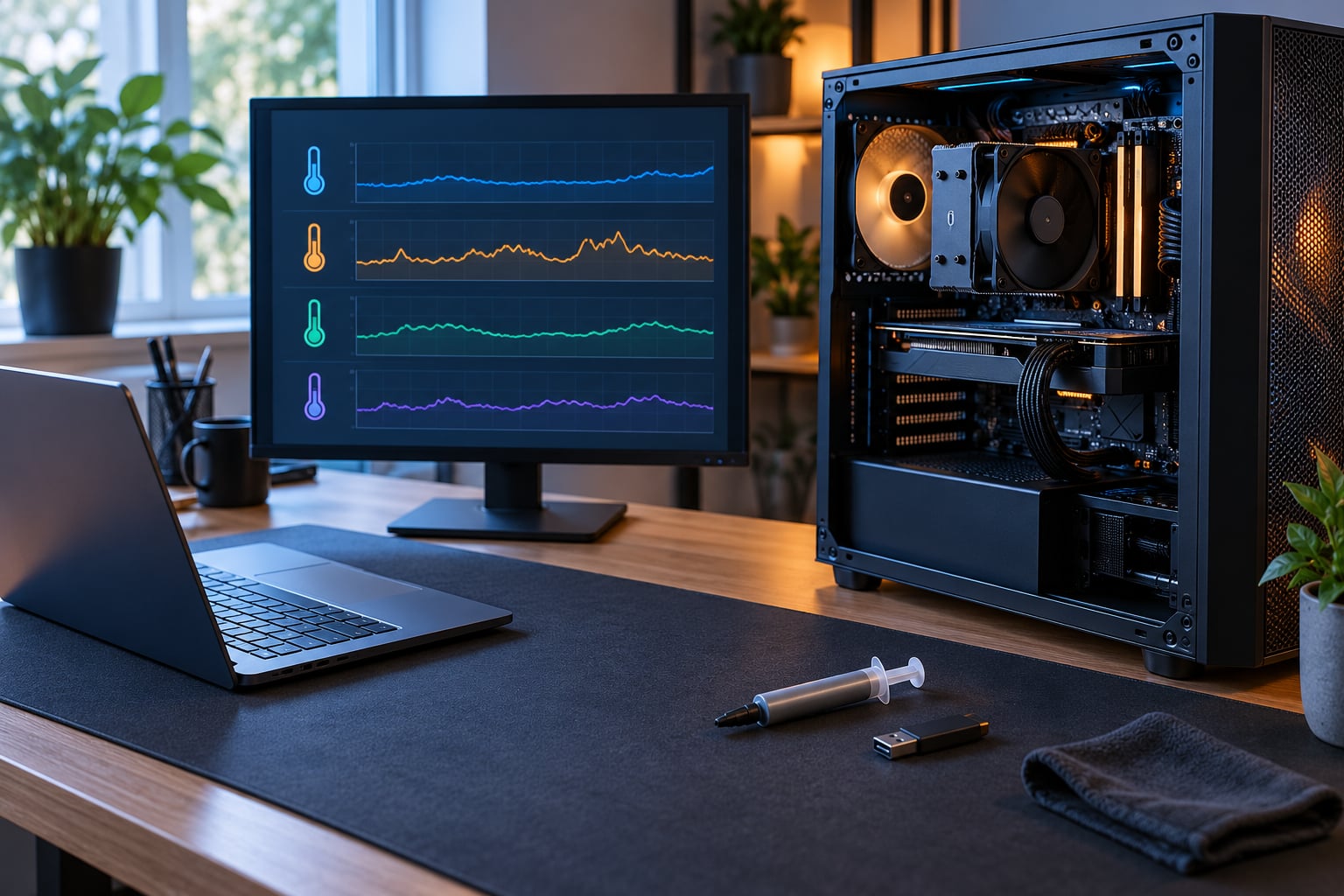
Watch the numbers while you play, using MSI Afterburner on screen. Sustained CPU temperatures in the high 90s Celsius, or any GPU thermal throttle event shown in the on-screen display, explains a lot. If you see throttling, clean the dust from the filters, check that case fans actually spin, and try again.
For memory, this is where to fix game crashes on PC properly rather than guessing. Leave the BIOS XMP or EXPO profile off so the memory runs at its default speed, and see whether the crashes disappear. Dropping a DDR5 kit from 2666 to 2133 in BIOS is the kind of one-line fix that stops crashes across several games at once, and it costs nothing to try before anyone spends on a replacement module. For a definitive answer, boot MemTest86 from a USB stick and run several passes; errors there mean the module or the memory controller, not the game.
If crashes come with a full restart, black screen, or buzzing noise under graphics load, suspect the power supply next. Compare your PSU wattage against the GPU manufacturer’s recommended figure and leave headroom for a power spike. A restart 5 to 10 minutes into a session is the classic signature of a PSU that can’t hold up. Experienced users rank random crash causes roughly as temperature first, power second, memory third, CPU last.
Swap a PSU or open a case only if you’re comfortable with it. Never open a power supply itself, and don’t test one with a multimeter unless you already know what you’re doing — the internals hold charge even when unplugged.
8. Run Windows and game compatibility checks
First, install pending updates: Settings > Windows Update. A crash that starts after a cumulative update is often a driver interaction, and rolling back is easier than anything else. Use Settings > Gaming > Game Mode to turn Game Mode on as well.
Then repair Windows itself. Open Command Prompt as administrator and run sfc /scannow to repair protected system files, then DISM /Online /Cleanup-Image /RestoreHealth. Both are safe and free.
For a clean-boot test, open Task Manager > Startup apps, disable everything there, restart, and play. If the crashes vanish, re-enable your startup items in halves to find the culprit. Leave security software alone — you are hunting conflicts, not stripping protection.
Compatibility mode (right-click the executable > Properties > Compatibility) is worth trying only for a genuinely older game, and it’s not a general fix for modern titles.
9. Reinstall the game cleanly as a last resort
A full reinstall is justified when verification has failed, the config reset didn’t help, and the crash persists across sessions with everything else ruled out. Clear the launcher’s download and shader caches, uninstall the game, delete the leftover game folder by hand, reboot, update the launcher, and download again.
Before you delete anything, preserve the evidence. Screenshot the crash timing and any error text, copy your save files somewhere separate, and note which mods you had active — all of it disappears with the folder. Cloud saves have their own limits, so keep a manual copy of the local ones.
If you reach this point, you are probably past software fixes. Move to stress-testing the hardware and the warranty route rather than reinstalling a third time.
Common Mistakes
Changing five settings at once. If the crash stops, you have learned nothing about the cause. Change one variable per test or you lose the ability to repeat it.
Downloading drivers from a driver-finder website. These install unsigned or conflicting driver sets. Go to NVIDIA, AMD, Intel, or your machine manufacturer instead.
Deleting save data during a config reset. Rename the configuration folder rather than deleting it, and back up your saves before any reinstall.
Treating an antivirus exclusion as a universal cure. An exclusion can confirm a false positive, but leaving one in place forever on a broad folder leaves your system exposed. Test, confirm, then narrow it to the game folder.
Testing only with mods loaded. Disable mods and run the vanilla game first. Many mod conflicts are mistaken for broken base games.
Buying replacement hardware before collecting evidence. Replacing a graphics card to fix a RAM speed problem wastes the cost and leaves you with the same crash. Read the logs first.
Repeating the same steps over and over. Users past the DDU, Windows reinstall, and BIOS update stage need a different path: read the minidump, test memory at stock speed, load-test the GPU and CPU separately, and then use the warranty. Re-doing step 4 for the fifth time isn’t diagnosis.
Frequently Asked Questions
Can overheating cause game crashes on PC?
Yes, and it is one of the most common causes. When a CPU or GPU gets too hot, it throttles its clock speed, and if that isn’t enough it shuts down the process or the machine. Signs include fans running at full speed, crashes that happen after 10 to 20 minutes of load, and performance that drops before the crash. Watch temperatures on screen with MSI Afterburner, clean dust from the filters, and confirm every case fan spins.
Should I disable antivirus or Windows Defender to stop game crashes?
Only as a test, and only temporarily. Antivirus suites can inject themselves into game processes and cause conflicts or false positives on an executable. Disable the real-time protection, launch the game, and see whether it survives. If it does, add a folder exclusion in Windows Security under Virus and threat protection, scoped to the game folder only, rather than leaving protection off permanently.
How can I tell whether my GPU or RAM is causing crashes?
Watch the timing. GPU problems usually follow heavy graphics load and often bring a black screen, a restart, or a buzzing noise, while a manual GPU stress test will fail and show errors. Memory problems are subtler: random crashes across several games, crashes after 10 to 20 minutes, and corrupted textures or audio. Turn off XMP or EXPO so RAM runs at its default speed, then boot MemTest86 and run several passes for a definitive answer.
Can Windows updates fix a game that keeps crashing?
Sometimes, yes, because a cumulative update often patches driver interaction problems that a game reports through its launcher. Install any pending updates under Settings, Windows Update, restart, and test. The reverse is also true: if crashes began right after an update arrived, uninstall that specific update from Windows Update, Show update history, and see whether the game holds steady.
What do I do when only one game crashes on my PC?
Treat it as a game problem, not a PC problem. Verify the game files in its launcher, delete or rename the game’s configuration folder to restore default settings, disable every mod, and reinstall the game cleanly with the launcher’s own option. If it still crashes, check the publisher’s status page and recent patch notes — server-side and anti-cheat issues affect a single title without touching anything else on your system.
Conclusion: Start With the Crash Details
The safest first moves are the boring ones: write down the exact error, reproduce the crash, restart Windows, close the background apps, and verify the game files. Those five cover a large share of what people bring to forums, and each one is free.
After that, change one variable per session and keep notes. If the crash kills the whole machine rather than just the game, stop treating it as software and go straight to memory at its default speed, temperature readings, and PSU wattage. If you already ran DDU, reinstalled Windows, and updated the BIOS, then read the minidump in C:WindowsMinidump before touching anything else — that file has already solved cases where nothing else did.
That’s the working order for how to fix game crashes on PC: evidence first, cheapest fix first, and one change at a time. Work through the nine steps in order, and you’ll either fix it tonight or know exactly which part to test next.