The fastest way to free up storage for games is to work out what is actually filling the drive, clear the caches and temporary files nobody needs, move the games you still want to a second drive or external SSD, and delete the rest through your launcher’s own manager so saves stay intact. On a PC that usually takes 15 minutes. Give it an afternoon on a console and you can reclaim tens of gigabytes without losing a single save.
Before anything else, know that a console’s usable space is much smaller than the number on the box. A 1TB PlayStation 5 leaves you roughly 825GB after the OS, the PS Plus back catalogue and room for updates. A 512GB Xbox Series S gives about 667GB. Against that, current installs routinely run 50GB to 150GB, so a “1TB” machine fills faster than most people expect.
One more reassurance, because it is the question behind almost every one of these threads: uninstalling a game from a platform library removes the install files, not your progress. Your save lives in a separate cloud slot on PlayStation, Xbox and Steam. The exceptions are indie titles with no cloud support and any save you deliberately kept local.
Table of Contents
- 1What You Need
- 2Step-by-Step
- 3How to free up storage for games without deleting games
- 4Move games to another drive or external storage
- 5Clear system and temporary files
- 6Use your game launcher’s cloud save and library tools
- 7Delete unused games and expansions
- 8Archive rarely played games
- 9Compress files and choose a cleaner file format
- 10Set up automatic storage management
- 11Common Mistakes
- 12Frequently Asked Questions
- 13What is the safest way to free up storage for games?
- 14Can I move games to an external hard drive?
- 15Does deleting a game remove its save files?
- 16How do I know which files are safe to delete?
- 17Why does my game library still use so much storage?
- 18Does compressing game files make them run faster?
What You Need
Nothing exotic. Every step below uses tools already on the machine. What you do need is a free afternoon if your drive is genuinely full, and a rough sense of which games you actually play now.
- File Explorer (Windows) or Finder (macOS), plus the right-click menu’s hidden-items option.
- A disk usage analyzer. TreeSize Free is the one PC builders recommend most; macOS has no equivalent built in, so a similar tool or a manual folder-by-folder sort works.
- Your game launcher. Steam, Epic, Battle.net or the Xbox PC app — not a folder you found in File Explorer.
- Console storage menus. PS5: Settings > Storage. Xbox: My games & apps > Storage. Switch: System Software > MicroSD Card.
- Administrator access on Windows, needed for Disk Cleanup and to clear some AppData folders.
- An external SSD or a spare drive if you plan to move rather than delete. A USB 3.2 external SSD holds roughly 500GB to 4TB and is fast enough for games.
- Ten minutes minimum for a careful pass. Rushing through deletions is how saves get caught.
On Windows, Settings > System > Storage gives a category breakdown of what is using the drive, with apps, documents and temporary files listed by size. That page alone answers the “why is my C drive so full” question for most people, and it usually turns up a Microsoft Store install cache or a hiberfil.sys file nobody knew existed.
Each platform shows the same information in a slightly different place:
- Windows 11: Settings > System > Storage, then Apps > Installed apps > Sort by Size.
- Steam: Steam > Settings > Storage. Each game shows its install size on the right.
- PlayStation 5: Settings > Storage > Storage Management > Games and apps.
- Xbox Series X|S: My games & apps > Storage > Internal. Manage > each title > Uninstall.
- Nintendo Switch: System Software > MicroSD Card > Manage Storage.
- Android: Settings > Apps > See all apps > each game > Storage. Long-press the icon for Uninstall & Clear Data.
- iPhone: Settings > General > iPhone Storage, sorted by size, game by game.
Step-by-Step
Work through these in order. Each one is safe on its own, and each tells you how to confirm it actually worked.
How to free up storage for games without deleting games
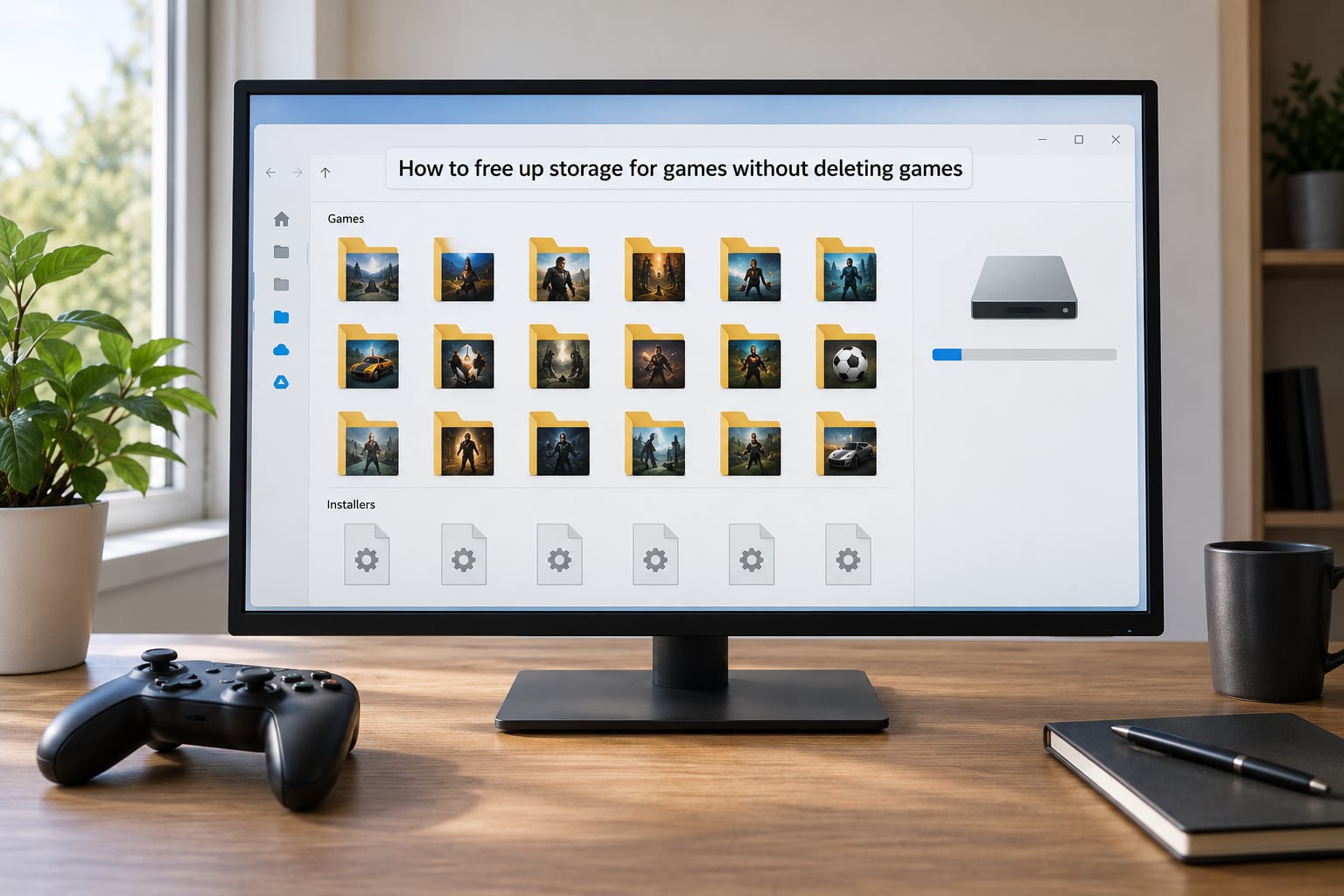
Open your platform’s storage view and sort by size. The biggest install is almost never the one you play, and that is the whole trick.
Then go hunting inside the games you are keeping. Old installers, leftover demo files, language packs you never switched to, and mod folders for titles you have moved on from all sit in the install folder. Inside a Steam install, right-click the game in your library, choose Manage, then Browse local files. Common removable folders are named installer, redist, uninstall, demo and, for some titles, benchmark or crack leftovers. Workshop mods live under workshopcontent and are safe to delete outright.
Verify by watching the drive’s free figure in File Explorer. If a folder reappears after a game launches an update, put it back and move on.
Move games to another drive or external storage
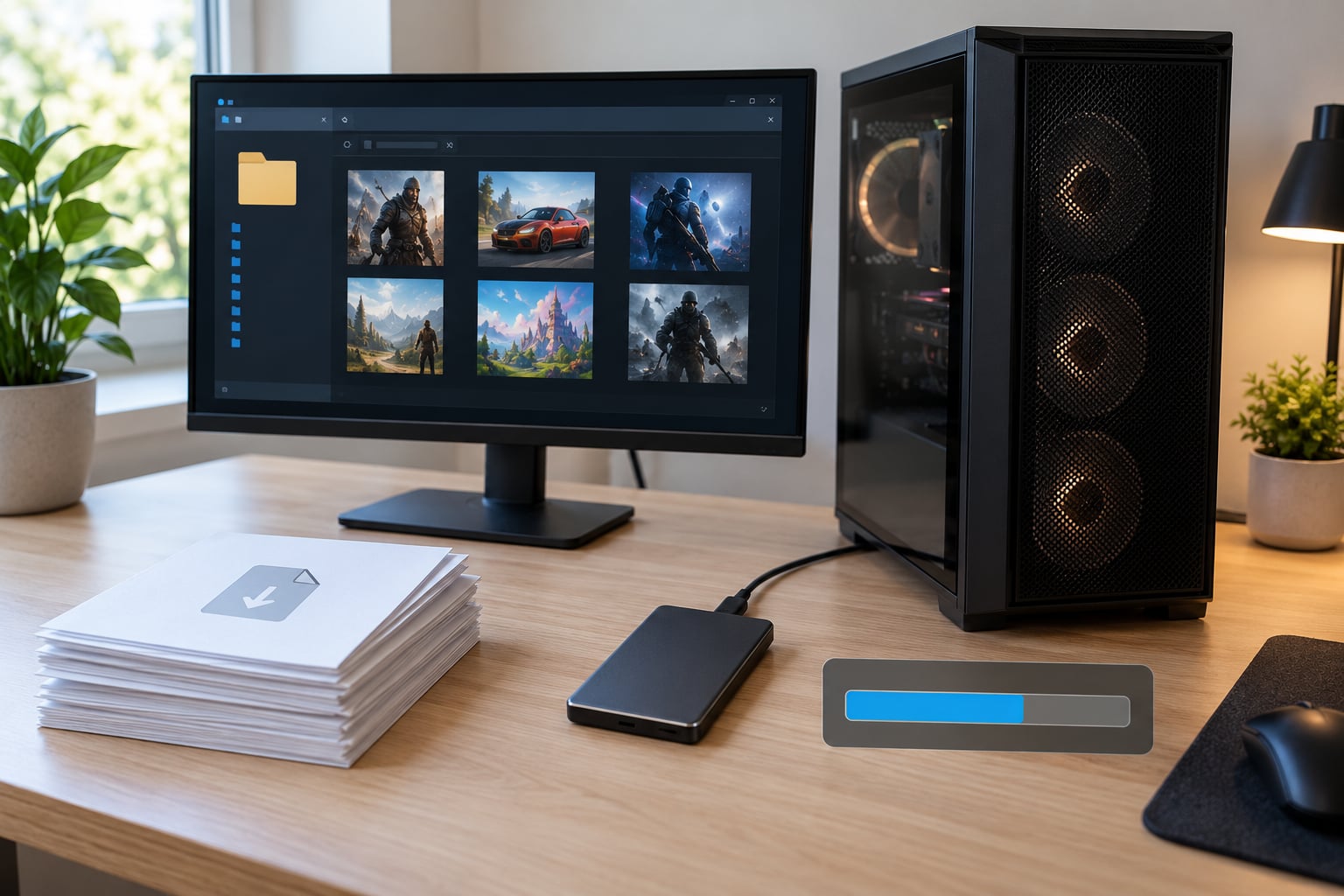
This is the move console players actually want: keep the game, lose nothing, reclaim the internal drive. On PS5, plug an M.2 SSD into the expansion slot on the back of the console or a USB 3.2 external SSD into a front port, then go to Settings > Storage and the console treats it as a second drive you can install and move games to. You cannot move a game to an external drive on a digital PS5, but you can move from external to internal and internal to external.
On Xbox Series X|S, plug in a USB drive of 128GB or larger and it appears under Storage as external storage. Move the console’s default install location there and new games land on the drive by default. Series S owners in particular should do this before buying anything else.
On Steam, Settings > Storage > Add Drive, then use the Move button next to any game and pick the new drive. Steam moves the files itself and updates its library folders. Dragging the folder in File Explorer is the single most common way people break a Steam install.
Verify by launching the game from the new location. If it starts and your progress loads, the move was clean.
Clear system and temporary files
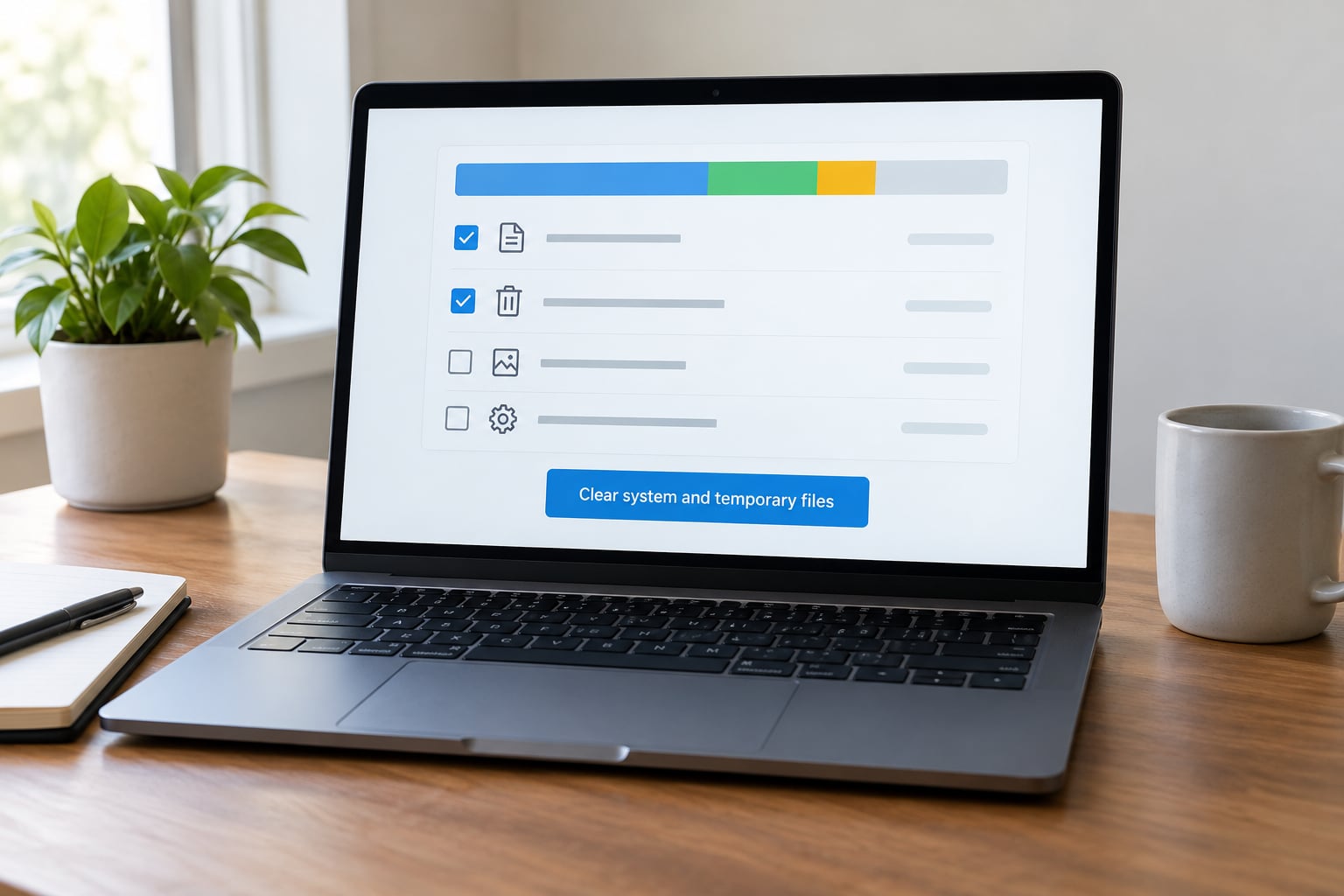
On Windows, search for Disk Cleanup, run it on your system drive, tick every category it offers and confirm. It reclaims Windows Update leftovers, delivery optimisation files, temporary internet files and thumbnail caches. Clearing these is permanent, so read the size next to each box before you click.
Then turn on Storage Sense in Settings > System > Storage > Advanced storage settings. It empties the recycle bin automatically on a schedule you pick and warns you before downloads get cleared.
Two other space eaters get missed. Your hibernation file can be several gigabytes, and it only exists if you never use hibernate. Open an admin command prompt, type powercfg /hibernate off, and press enter to remove it. System Restore points are cleared in the same place: search for Recovery, choose Configure, and delete the older ones.
On PS5 and Xbox, clearing the console’s own cache is a quick win but a small one. On PS5 the option sits under Settings > Storage. Expect tens of gigabytes at most, not hundreds.
Use your game launcher’s cloud save and library tools
Before deleting anything, confirm the save is somewhere you can get it back. On PlayStation, Settings > Storage > Cached and Transfer > Clear Download Storage clears the transfer cache, and saved data syncs as long as you are signed in and connected. On Xbox, your saves sync automatically across the account.
In Steam, the Cloud setting sits at the top of the same Storage page. Check that Steam Cloud is on for each title, and use the game’s Properties > Installed Files > Delete to shed old depot versions rather than manual folder surgery.
The key distinction: a download cache holds files for games you do not own, while a backup is your actual save. They look similar in a folder listing and they are not the same thing.
Delete unused games and expansions
Sort your library by last played, not by install size, and be honest about the top half. Anything untouched in 12 months is a candidate.
Expansions and DLC deserve their own pass. A single expansion pack is often several gigabytes for something you installed on release day and never opened. On PS5, open the game’s hub and use Manage > Delete Expansions, which removes the add-on without touching the base game. Consoles separate base game, DLC and patches, so this deletes only what you choose.
On PC, right-click a game in your launcher and Uninstall. Workshop mods for that title go at the same time. Subscription libraries are the exception: a Game Pass title stops being yours when the subscription ends, so deleting it early saves nothing.
Archive rarely played games
Archiving means compressing the game files into a single archive you can restore later. It suits completed single-player titles and anything you want on hand but not installed.
Use the built-in NTFS compression on a Windows drive or a standard archive tool. The catch is that compressed games lose some speed, and you need the original archive utility to open them. Keep the archive on a drive other than the one you play from, and test restoring one game before you archive the rest.
For anything you plan to play again this year, archiving is slower than just moving the files. For a back catalogue you will not touch, it is worth it.
Compress files and choose a cleaner file format
Compression only pays on content that is not already compressed. Game assets are largely video, audio and pre-packed textures, so zipping a 100GB install typically returns a few percent at best.
It does work well on things that are not game files: recorded gameplay, screenshots, documentation, voice packs, and loose audio or video in your project folders. Turn on compression per folder in File Explorer’s Properties > General > Advanced rather than compressing a whole drive, and recheck game frame times afterwards.
Set up automatic storage management
The reason storage fills up again is that nothing checks it. Fix that once and you rarely have to do a big clean again.
On Windows, set the Downloads folder to a different drive, move the default install location for your launcher to the second drive, and leave Storage Sense on a one-month schedule. On PS5, set Install Location to your expanded drive so new games stop landing on the internal SSD. On Xbox, switch the default to your external USB drive.
On Steam, keep depot download caching on the drive with the most room, and set a library folder per drive. On phones, install new games to the SD card where your phone allows it and clear individual app caches instead of wiping everything.
Two habits worth keeping: keep free space equal to two to three times the size of your largest installed game, so a day-one patch does not strand you, and run a five-minute check every couple of months.
Common Mistakes
Nearly every storage disaster traces back to one of these seven.
- Deleting save folders. Cloud saves are usually safe, but a local-only save is not coming back. Fix: check the game’s platform save slot first, and copy any folder named saves, savegames or the AppDataRoaming path for that game to another drive before you touch it.
- Dragging game folders to another drive. Launchers track file locations, and manual moves break them. Fix: use the launcher’s own move or uninstall controls every time.
- Mistaking a cache for an installed game. A Download Cache folder holding 90GB is not 90GB of games you own. Fix: read the folder name before deleting, and leave anything called depot, shadercache or workshop to the launcher’s own tools.
- Applying PC advice to a console. Windows tools do not exist on a PS5 or Xbox, and deleting system folders on a console is not possible. Fix: use the console’s own Storage menu.
- Not checking free space after deleting. Freed space can go into system restore points, pending deletions or a recycle bin. Fix: empty the recycle bin and re-open the drive properties to see the real figure.
- Leaving no headroom for updates. A small base install can ship with a day-one patch several times its size. Fix: keep free space at two to three times your largest install.
- Buying before clearing. A 512GB Series S owner who uninstalls four games has more room than one who buys a 1TB card and forgets to move anything off the internal drive. Fix: audit first, buy second.
Frequently Asked Questions
What is the safest way to free up storage for games?
Start with your platform’s own storage screen and sort by size. Uninstall through the launcher or console menu rather than deleting folders, and confirm your saves are synced to the cloud first. Clearing caches, temporary files and old download cache is the safest next step because none of it touches a game or a save.
Can I move games to an external hard drive?
Yes. The PS5 supports a USB 3.2 external SSD or an M.2 drive in its expansion slot, and the Xbox Series X|S accepts a USB drive of 128GB or larger as external storage. An external SSD runs games nearly as fast as an internal one; a spinning external hard drive works for storage but loads much more slowly.
Does deleting a game remove its save files?
Usually not. Uninstalling through Steam, PlayStation or Xbox removes the installed files while your progress stays in a separate cloud save. You lose progress only with indie titles that have no cloud support, games where you signed out first, or saves you manually kept local. Copy any local save folder elsewhere before uninstalling just in case.
How do I know which files are safe to delete?
Anything named installer, redist, uninstall, demo, benchmark or crash inside a game folder is expendable, as are cache, depot and shadercache folders. Never delete folders that hold saves, your Documents directory or anything you did not open and recognise. When unsure, check the folder size and name in your platform’s storage screen first.
Why does my game library still use so much storage?
Likely causes are an oversized base install plus day-one patches, several versions of the same game kept by the launcher, workshop mods, leftover download cache, or a full install plus an old copy on another drive. Check your platform’s storage screen for the per-title size, then look at depot and cache folders inside the install directory.
Does compressing game files make them run faster?
No, and it usually makes them slightly slower to load because the drive has to decompress the data on every access. Compression pays off on video, audio, screenshots and recorded footage. Game assets are mostly already compressed, so zipping a large install typically recovers only a few percent of its size.
Start where the space actually is: open Settings > System > Storage on Windows, or your console’s Storage menu, and sort by size. Clear the temporary and cache files first, since nothing you care about lives there, then move what you want to keep to a second drive before you delete anything. If you only do those two things this 2026, most drives recover enough room for the next big release.