Crossplay between PC and console is just cross-platform play: your PC player and your console player join the same lobby, party, or match in the same game, usually without needing the same account. Setting it up takes about ten minutes once both sides confirm the game supports it, both run the same version, and both have the crossplay toggle switched on.
The part that trips people up is not the toggle. It is almost always a version mismatch, a greyed-out setting caused by account-level parental controls, or two friends who each have crossplay in a different state. This guide walks through the whole flow, then gives you a fix for each failure.
This guide was checked against current console and PC system software in 2026. Menu paths shift between game updates, so I’ll label which platform and client each step applies to.
Table of Contents
- 1What You Need Before You Set Up Crossplay Between PC and Console
- 2Step-by-Step
- 3Step 1: Confirm That Your Game Supports PC and Console Crossplay
- 4Step 2: Update the PC and Console Game Clients
- 5Step 3: Sign In With the Correct Account on Each Device
- 6Step 4: Enable Crossplay or Cross-Platform Lobbies
- 7Step 5: Start or Join a Shared Multiplayer Session
- 8Step 6: Test the Connection and Confirm Crossplay Works
- 9Common Mistakes
- 10Frequently Asked Questions
- 11Do PC and console players need the same account for crossplay?
- 12Why can’t my PC friend see me in a console multiplayer lobby?
- 13How do I enable crossplay in games that do not show a crossplay option?
- 14Can I use voice chat with friends on another platform?
- 15What should I do if crossplay is supported but my console cannot join the lobby?
- 16How can I tell whether a game supports crossplay before buying it?
What You Need Before You Set Up Crossplay Between PC and Console
Cross-platform play needs five things lined up, and if even one is missing, nothing works with a useful error message.
- The same game on both sides. Same title, same edition where it matters. A PS5 copy of a game and an Xbox copy are the same game only if the publisher supports it.
- The same game version. Crossplay sessions run on shared servers, and a client that is behind by a patch will fail to connect with a message that looks identical to a misconfigured setup.
- Two platform accounts that can find each other. A PSN ID, a Microsoft account, and on PC usually a Steam, Epic Games Store, or Microsoft Store account.
- The crossplay toggle on, on both devices. One player on PC-only and the other on crossplay means two separate matchmaking pools. You will never find each other.
- An invite or a friend code. A public queue is not where you find a specific person.
Here is the part forum regulars repeat more than anything else: crossplay settings must match on both sides. If one player has it on and the other has it off, both players are in the right game and neither can see the other. It looks like a bug every single time.
A stable connection on both ends matters too, but not as much as people think. If the session fails to form at all, your router is not the suspect. Save that for the step where the lobby forms and then stutters.
Step-by-Step
Step 1: Confirm That Your Game Supports PC and Console Crossplay
Start at the store listing, not at the settings menu. On the PC store page and the console store page, look at the online features line. It usually says something like “Online play with friends on the same console,” “Online play (subscription required) — online multiplayer across PS5, PS4, PC, and Xbox Series X|S,” or a simpler “Cross-play.”
If both listings mention more than one platform, the game supports it. If one listing says “same console” or “same platform” only, the multiplayer is walled off and no setting on your devices will change that. The publisher’s official documentation or support page is the tiebreaker, and it also tells you whether crossplay is automatic, invite-only, or limited by region.
Two other checks here. Crossplay is not the same as cross-gen, which means a PS4 player joining a PS5 session on the same console family. And some games ship crossplay for only part of their content, like co-op but not ranked play.
Step 2: Update the PC and Console Game Clients
On PC, most launchers update on launch. Open Steam and check your library for a pending download, or open the Epic Games Launcher and let it finish any queued update. If the game launches through a third-party launcher, update that instead.
On PlayStation, open Settings (the icon row above the games), then System, then System Software, then System Software Update. On Xbox, open My games & apps, highlight the game, and press the three-dot button for Manage options and updates, then Update if one is available.
You tell it worked because the version number matches on both machines. Check the game properties or credits screen on PC and compare with the version shown in the console’s game information panel.
Step 3: Sign In With the Correct Account on Each Device
Consoles are where this goes wrong. A console has a local user profile sitting on top of a network account, and they are not the same thing. Two people can be signed in on the same console and only one of them appears to your friend.
On PS5, check the current profile under Settings, then Users and Accounts, then Account, and read the PSN ID shown. On Xbox, press the Xbox button, highlight your avatar, and check the gamertag on the sign-in screen.
On PC, read the account name in the game’s friends panel. Some games show a platform nickname and some show a publisher account, and mixing the two is a common reason an invite lands nowhere. If the game uses a publisher account, such as an Epic Games account or a HoYoverse account, make sure both players are signed into the same publisher account, not just the same platform one.
Watch for a one-time linking prompt the first time you launch certain games on PlayStation. Miss it and the game runs on a brand-new empty account with none of your friends in it.
Step 4: Enable Crossplay or Cross-Platform Lobbies
There are two levels of settings and people conflate them constantly. The in-game toggle decides which matchmaking pool you enter. The platform-level settings decide whether an invite and a voice request can even reach you.
On PC, look in the game’s own settings first, under an online, multiplayer, or privacy heading. The crossplay option is sometimes labelled “Crossplay,” “Cross-Platform Play,” “Play with PC Players,” or “Allow Console Players.” On Steam specifically, check Friends and then the game’s community hub, where per-game crossplay toggles live for some titles.
On PS5, the platform layer lives under Settings, then Network, then Network Settings, and the privacy and voice options sit in Settings, then Users and Accounts, then Privacy, then Communication Settings. On Xbox, check Settings, then Privacy and security, then Xbox network, and look at the multiplayer options for voice permissions and invite settings.
If the toggle is greyed out, stop there. Account-level parental controls on a child account will disable it, and no amount of retries changes that. It reads like a bug, and players on forums have posted about it dozens of times, but it is almost always a restriction rather than an error.
Step 5: Start or Join a Shared Multiplayer Session
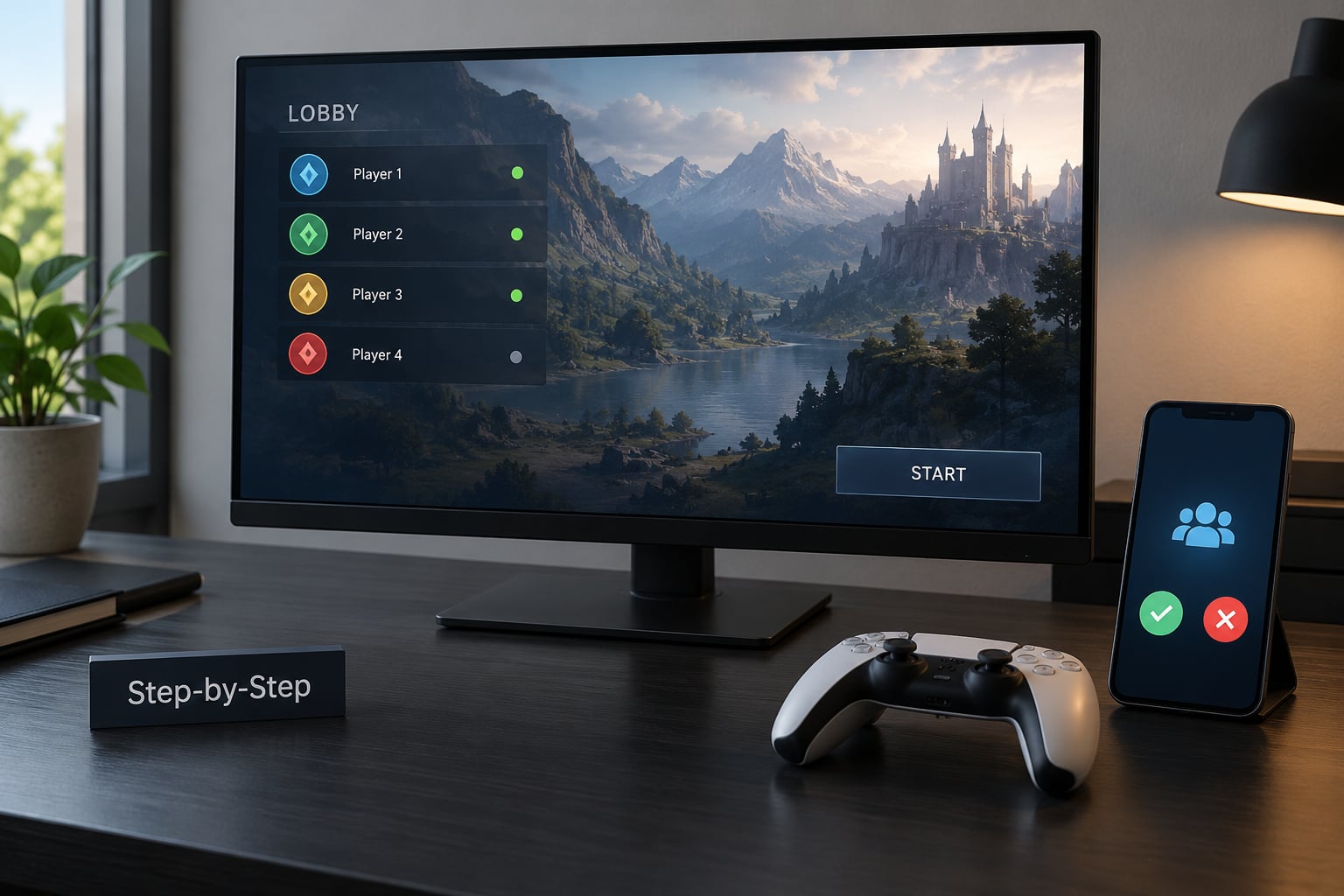
Create a lobby rather than queueing for a public match. In the lobby menu, set the lobby to friends-only if you only want your own group, and check the crossplay checkbox again, because some games carry a per-lobby crossplay flag that resets when the lobby is created.
Invite your friend from the in-game friends list first. If their name is not there, fall back to the platform’s own friends list or share a friend code or UID. Console players usually cannot enter a server address directly, so they need to find your session in the in-game server or friends browser rather than connecting by IP the way a PC player can.
You tell it worked when their name appears in your lobby list without you leaving the screen. If it does not, both of you toggled crossplay off and back on, confirmed identical versions, and tried again.
Step 6: Test the Connection and Confirm Crossplay Works
Run the check in this order. See the invite arrive on the other device, see the friend appear in your lobby, exchange a text chat message, try voice, then queue a short practice match or unranked game.
Text working but voice not points at platform permissions rather than the game’s networking. Open the console’s communication settings on the console side and confirm voice chat with other users is allowed.
For latency, watch the connection indicator in-game and compare ping numbers in a practice match. High ping with an otherwise stable session usually comes from the two players being on different kinds of connections, wired versus Wi-Fi, or on different regions. That is a difference you can fix on your side; a lobby that never forms is not.
Common Mistakes
These are the failures players actually report, ordered by how often they turn out to be the cause.
| Symptom | Likely cause | Fix |
|---|---|---|
| Friend never appears in the friends list at all | Different platform or publisher accounts, or you are signed into the wrong console profile | Compare the signed-in IDs on both devices, then add them through the publisher account rather than the platform one |
| Both players have crossplay on, neither sees the other | Settings do not match, or the session was created with crossplay off | Both players turn crossplay off, relaunch the game, turn it back on, recreate the lobby |
| Failed to connect or version mismatch | One client is behind by a patch | Update on both devices, then restart the console and the PC launcher |
| Crossplay option is greyed out | Account-level parental controls or a platform restriction | Check the account’s family or parental settings, or use an unrestricted account |
| Console cannot find the session | Direct connect is unavailable on console | Find the session in the in-game friends or server browser instead of entering an address |
| Crossplay resets after every match | A patch or lobby setting is resetting the toggle | Re-check the toggle each session until the publisher fixes it |
| Voice works on PC but not on console | Platform voice permissions are set to friends-only or blocked | Allow voice chat with other users in the console’s communication settings |
| Mods active on PC, console friends cannot join | Modified clients are usually kept off crossplay servers | Run vanilla, or host a separate community server with crossplay enabled |
One habit worth building: check the game’s own documentation first when something fails, because publishers move this toggle between menus more often than they admit. A setting that lived under Online last season may now sit under Multiplayer.
Frequently Asked Questions
Do PC and console players need the same account for crossplay?
Usually not. Most crossplay titles let you play with a PC account and a console account as long as the game supports it and both sides have the crossplay toggle on. The exception is games that route everything through a single publisher account, where both players sign into the same account system rather than sharing one login. Check the game’s documentation to see which model it uses.
Why can’t my PC friend see me in a console multiplayer lobby?
In most cases the settings do not match, so you are in two different matchmaking pools. Have both players turn crossplay off, fully close the game, reopen it, and turn it back on. Then check that you are on the same game version. If it still fails, compare the signed-in IDs on both devices, since two people sharing a console often have different local profiles on the same network account.
How do I enable crossplay in games that do not show a crossplay option?
If no option appears anywhere in the game’s menus, the game probably does not support crossplay for that content mode, or the publisher handles it automatically with no user-facing toggle. Check the store listing’s online features line and the publisher’s support page. If the listing mentions only one platform, no setting will enable it, and the multiplayer pool stays single-platform.
Can I use voice chat with friends on another platform?
Often, but not out of the box on every game. In-game voice usually works across platforms when the game supports crossplay, but the console’s own party or voice permissions can block it. Check communication settings on the console and confirm voice chat with other users is allowed. Many players fall back to a third-party voice app, which is the most common workaround reported in gaming communities.
What should I do if crossplay is supported but my console cannot join the lobby?
Console players generally cannot connect to a session by typing in a server address, so they need to find your lobby in the in-game friends or server browser instead. Make sure the lobby is set to friends-only or public as intended, that both players are on the same game version, and that the invite was accepted on the correct console profile. If it still fails, restart the console and relaunch the game before the game itself.
How can I tell whether a game supports crossplay before buying it?
Read the online features line on the store listing. If it names more than one platform, such as PC plus PS5 and Xbox Series X|S, crossplay is supported. If it says online play with friends on the same console or same platform, the multiplayer is walled off. The publisher’s official documentation usually lists supported platforms more clearly, and community server operators often publish per-game compatibility notes.
Start with the store listing, not the settings menu, because nothing else works if the game does not support it. Then update both clients, confirm the crossplay toggle is on on both devices at the same time, and check the signed-in IDs. That sequence resolves nearly every failed session, and when it does not, the troubleshooting table above will tell you which one you are looking at.