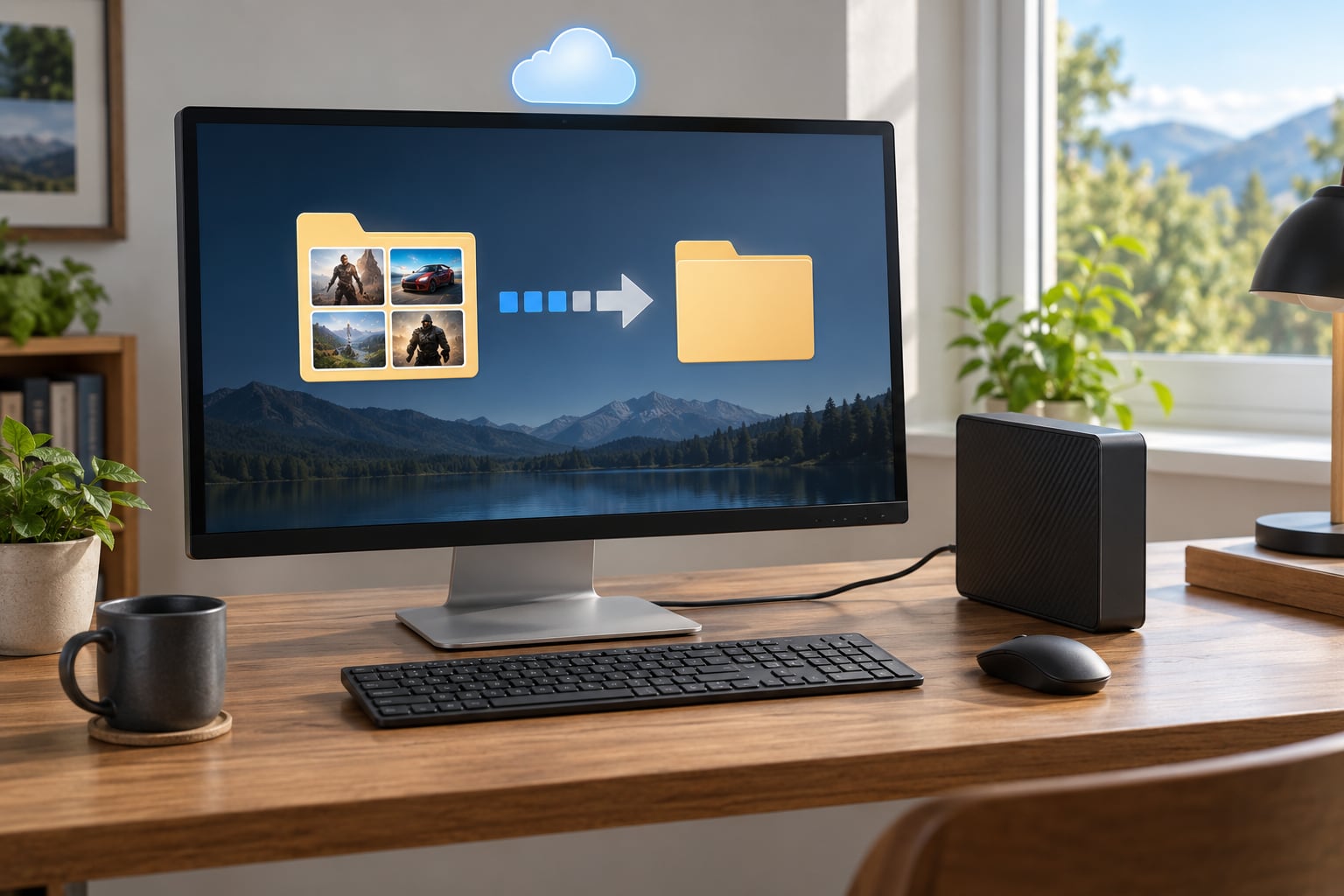
If you want to know how to back up your game saves, copy the folder where the game stores your progress onto a separate drive or into a cloud folder you control, name it with today’s date, and confirm later that it restores cleanly. It takes about ten minutes the first time, then a couple of minutes whenever you play.
Updated for 2026. Menu paths below match current console and PC software.
One warning up front, because it is the reason most people land on this page. Cloud saves are a sync target, not an archive. A conflict, a storage quota limit, or a toggle flipped in the wrong order can quietly replace a long playthrough with an older version, and the vendor will not have your old file. A dated copy on your own storage is the only thing that rolls back.
Players on Reddit’s r/Steam and r/SteamDeck forums describe the same pattern repeatedly: play offline for a week, reconnect, and find weeks of progress replaced by a stale cloud version. r/witcher threads carry a six-day offline playthrough lost to a single sync. Nobody was using a backup tool in those stories. They were all relying on the feature meant to protect them.
Here is the manual method, then the per-platform cloud options and their real limits, then how to prove a backup works before you need it.
Table of Contents
- 1What You Need
- 2Step-by-Step: How to Back Up Your Game Saves
- 3Step 1: Find the Correct Save Location
- 4Step 2: Check the Platform’s Cloud-Save Tools
- 5Step 3: Close the Game and Back Up Your Game Saves
- 6Step 4: Keep Platform and Account Details
- 7Step 5: Add a Second Copy or Cloud Backup
- 8Step 6: Verify That the Backup Can Be Restored
- 9Common Mistakes
- 10Frequently Asked Questions
- 11Where are game saves stored?
- 12Is cloud sync enough if I want to back up your game saves?
- 13How do I transfer game saves to a new computer or console?
- 14What should I do if my game save is missing or corrupted?
- 15Can antivirus software delete or quarantine my game saves?
- 16Conclusion: Make and Verify Two Copies Now
What You Need
Not much, which is the nice part about the manual approach.
- A recent save. Play far enough that the game has written to disk, then save manually if it offers a manual save. A backup of a save from three sessions ago is not the backup you need.
- Free space on the device you are copying from. Save folders are usually small, often under a few hundred megabytes, but your entire library across many games adds up.
- A USB drive or external drive with room for the folder you are copying. Format it as exFAT if you move between Windows and macOS.
- A cloud folder you manage, such as OneDrive, Google Drive or Dropbox, if you want an offsite copy. Sync tools like this mirror your folder; they are not the same as a console’s cloud save.
- The developer’s own notes. The developer decides where saves live and whether a manual slot exists. Their support page beats any generic path list, including this one.
On consoles, add one caveat: an active subscription is usually required before cloud saves do anything. PlayStation Plus gates PlayStation cloud storage, and a Nintendo Switch Online subscription is needed for Save Data Cloud Backup. Without one, you fall back to USB, which still works.
Step-by-Step: How to Back Up Your Game Saves
Step 1: Find the Correct Save Location
Saves live in one of a handful of predictable places, and you can usually find them in under a minute. Check the game’s own folder first, then Documents, then AppData.
On Windows, paste %appdata% into the File Explorer address bar to jump straight to the roaming AppData folder, and %localappdata% for the local one. On macOS, the equivalent lives under ~/Library/Application Support/.
| Store or OS | Where saves usually live | Fast way there |
|---|---|---|
| Steam on Windows | C:Program Files (x86)Steamuserdata<steamid><appid> | Library, right-click game, Manage, Browse local files |
| Steam Cloud copies | ...userdata<steamid><appid>remotestorage | Same folder, remotestorage subfolder |
| Steam on macOS | ~/Library/Application Support/Steam/userdata | Finder, Go, Go to Folder |
| Steam on Linux | ~/.local/share/Steam/userdata | File manager, show hidden files |
| Epic Games Store | %localappdata%EpicGamesLauncherSavedSaveGames | Launcher, Library, Manage, Browse local files |
| GOG Galaxy | Galaxy library folder, then the game’s own save folder | Galaxy, Games, Manage Games, Browse local files |
| Windows games | DocumentsSaved Games, or %appdata%<GameFolder> | Type %appdata% in the address bar |
| macOS games | ~/Library/Application Support/ or ~/Library/Preferences/ | Finder, Go, Go to Folder |
Two things trip people up here. The install folder and the save folder are different places, and copying the wrong one gives you gigabytes of game data with none of your progress. And a game with multiple profiles or slots can hold several folders, so copy the parent folder rather than one slot.
The fastest universal method is in-game: look for a save-management or export option in the game’s own settings. When a developer ships a manual export, that file is usually the cleanest thing to copy because it carries no cached junk.
Step 2: Check the Platform’s Cloud-Save Tools
Every platform has a native option. They all work, and all of them have limits worth knowing before you rely on one.
| Platform | Where the setting lives | What it does not do |
|---|---|---|
| Steam | Right-click game, Properties, General, Steam Cloud | Does not archive old versions, and conflict resolution favours one platform’s file |
| Epic Games Store | Epic Games Launcher, Settings, Cloud Saves tab | Coverage depends on the developer opting in |
| GOG Galaxy | Games, Manage Games, Cloud Saves per title | Per-game opt-in; r/fuckepic threads report GOG Galaxy sync overwriting local saves |
| PlayStation 5 | Settings, Saved Data and Game/App Settings, Saved Data (PS5), Console Storage, Upload to Cloud Storage | Requires PlayStation Plus; a full USB backup is slower and people skip it |
| PlayStation 4 | Settings, Users and Accounts, Other, Backup and Restore | Back up to a USB drive on the console itself, no PC required |
| Xbox Series X|S | Xbox app, My games and apps, Manage game and add-ons, Saved data, Xbox cloud storage | External drive transfer needs enough space and a supported drive |
| Nintendo Switch | System Settings, User, Backup, Save Data Cloud Backup | Requires a Nintendo Switch Online subscription |
| iOS and Android | Game settings, iCloud for iOS, Google Play Games backup | Many mobile games store progress on their own servers, not on the device |
On a PC you also have two built-in tools worth turning on once: File History in Windows, under Control Panel, File History, and Time Machine on macOS. Both snapshot your Documents and AppData folders on a schedule, which quietly covers most save folders without any manual copying.
Step 3: Close the Game and Back Up Your Game Saves
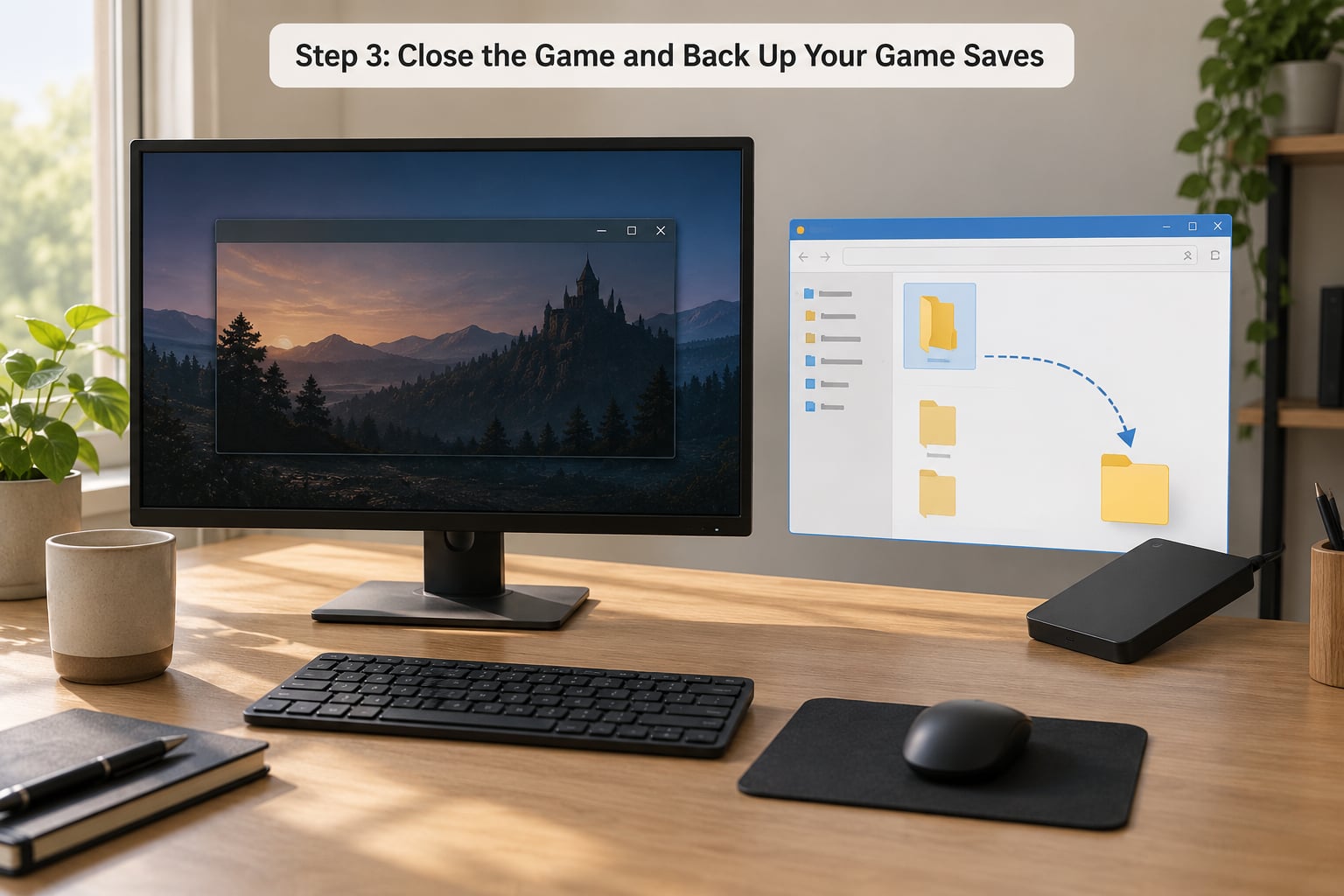
Close the game before you copy. Not the launcher too, ideally, because some games only flush the save file on a clean exit, and a half-written file in your backup restores into a crash loop.
On Windows, open File Explorer, navigate to the save folder, click it once, then press Ctrl+C. Plug in your drive, open it, and press Ctrl+V. On macOS, use Cmd+C in Finder and Cmd+Option+V to paste while keeping both copies.
Copy the whole folder, not individual files. Save folders carry profiles, settings, key bindings and a version number, and a partial copy is exactly the kind that fails to restore later.
If the game has multiple save slots or per-character profiles, copy the parent folder so all of them come along. For heavily modded games, keep a separate copy of the save folder taken before the mods went in, so you have something clean to fall back to.
Step 4: Keep Platform and Account Details
An undated folder called Saves is worthless two years from now when you have three of them and no idea which is which. Name each copy like this: game name, platform, region, account identifier, and the date.
An example: HollowKnight_PC-EU-steam_324d5916_YYYY-MM-DD, with the date filled in when you make the copy. That one line answers most of the questions you will have when restoring.
Then write a short manifest next to the copy as a plain text file. Record the original path, the game version at the time, your platform account name, and any restrictions that could make the backup technically valid but practically unusable.
That last part matters more than people expect. Saves tied to DRM or anti-cheat can fail to load on another account or another machine even when the files are intact. A note saying so saves you an afternoon of debugging later.
Step 5: Add a Second Copy or Cloud Backup
One copy on the drive you play on is one failure away from gone. Aim for three copies on two kinds of media, with one copy somewhere else entirely.
Put a second copy on an external drive that you store away. For the offsite copy, a cloud storage folder you own works well, since your save folder stays a plain folder on your desktop and the sync tool handles the transfer.
Be clear about the distinction. A folder you put in OneDrive or Google Drive is a backup you control, with version history if the provider offers it. A console’s cloud save is managed by the platform, tied to your account, and can be trimmed when a quota fills up.
Two automation options make this less of a chore. ludsavi is free and open source, finds save folders across a large library, and bundles them into a single archive you can drop on a USB stick or in a cloud folder; it is the tool Reddit commenters recommend most often for this exact job. For cross-machine syncing rather than archiving, a symbolic link points your save path at a synced folder. Run an elevated Command Prompt and use:
mklink /D "C:UsersNameDocumentsMy GamesGameName" "C:UsersNameOneDriveGame SavesGameName"
Windows also has a built-in version: Control Panel, Schedule Tasks, create a basic task that runs at a set time, point it at a copy command or a robocopy line, and set the destination to your external drive.
Step 6: Verify That the Backup Can Be Restored
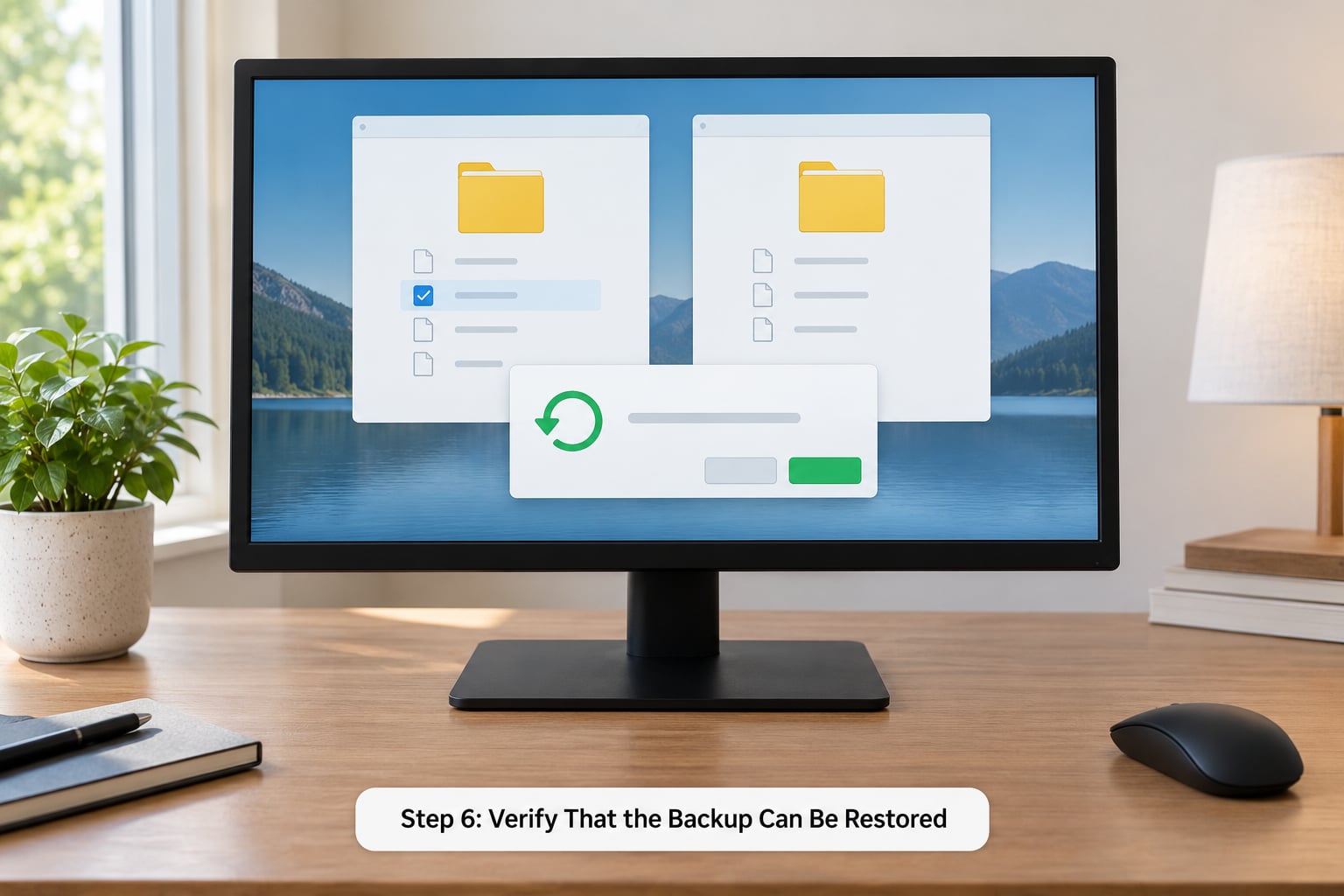
A backup you have never restored is a hope, not a backup. Verification takes five minutes the first time.
Start with the cheap checks. Compare file counts and total size between the original folder and the copy. Open a few nonessential files and confirm they are not zero bytes. Check the modification dates, which tells you the copy is genuinely recent rather than an old folder you renamed.
Then run a real restore test, once, on a game you will not mind risking. Move the original folder aside rather than overwriting it, copy the backup into the original path, turn the game’s cloud sync off first, and launch it. Confirm your progress and achievements show up as you remember them.
Order matters more than anything else in a restore. Switch cloud sync off, then copy the files in, then launch, then turn sync back on. Skip the first step and a sync can overwrite what you just restored, which is how people turn a good backup into a second loss.
Once the test passes, you know the format works. Repeat it after any major platform update, and it takes five minutes again.
Common Mistakes
Copying while the game is running. The save file is still being written, so your copy is truncated and may refuse to load. Close the game, then the launcher, then copy.
Grabbing the install folder instead of the save folder. You end up with game data and no progress. Check the folder’s modified date, or use the store’s Browse local files option, which points at the right place.
Forgetting multiple slots or profiles. New characters or playthroughs in sibling folders get missed. Copy the parent folder and the problem disappears.
Treating cloud sync as the backup. A quota limit, a conflict, or an account problem can remove what the platform holds. Keep one dated copy you own. Tip: run the manual copy on the same day you launch a game you care about, not every session.
Keeping only one copy. A single copy on the same machine protects you from a bad sync and nothing else. Two copies on two media, one stored away, protect against nearly everything.
Frequently Asked Questions
Where are game saves stored?
Saves usually sit in the game’s folder, in Documents or Saved Games, or in AppData. On Windows, type %appdata% into File Explorer to jump there instantly, or check C:u005cProgram Files (x86)u005cSteamu005cuserdata for Steam titles. macOS keeps them under ~/Library/Application Support. The developer decides the exact path, so the game’s support page is the final word.
Is cloud sync enough if I want to back up your game saves?
No. Cloud saves mirror progress between devices and usually keep one current version, not a history. Storage quota limits can trim older saves, and a sync conflict can replace a local playthrough with a stale copy. Keep at least one dated copy on a drive or in a cloud folder you control, in addition to whatever the platform does automatically.
How do I transfer game saves to a new computer or console?
Copy the whole save folder from the old machine, not just one file. On the new machine, turn the game’s cloud sync off, paste the folder into the same original path, then launch the game and confirm your progress loads. On PlayStation, back up to a USB drive from the console’s own settings, then restore on the new console. PS5 saves do not transfer directly to PS4.
What should I do if my game save is missing or corrupted?
Turn off cloud sync in the game’s properties first, so nothing overwrites what you are about to recover. Then check the game’s own backup or previous-save slot, since single-slot games sometimes keep a rolling copy. After that, look in the platform’s cloud history, then in your own dated backups, copying the newest good one back into the original path.
Can antivirus software delete or quarantine my game saves?
Sometimes. Save files inside mod folders, custom scripts, or heavily modded game directories can trip heuristic scanners and get moved to quarantine, and some cleanup tools clear temporary or cache directories on schedule. If saves vanish without a crash or reinstall, check your antivirus quarantine list and its scan history before assuming a sync problem, and keep one backup outside the scanned system drive.
Conclusion: Make and Verify Two Copies Now
Start today with one dated copy of the save folder that matters most right now, and put a second one on a different drive in a different place. Then spend five minutes restoring it, because an untested backup is just a file you hope about.
Back up on a schedule that fits the game, not on a schedule that fits the theory. Single-slot autosave titles with no in-game history deserve a copy after every session you care about. Games with several manual slots can wait a week. And take a fresh copy before anything disruptive: a new PC, a reformat, an account switch, mods going in, or a console heading out the door.
Timing matters as much as frequency. A backup made after the change protects nothing.