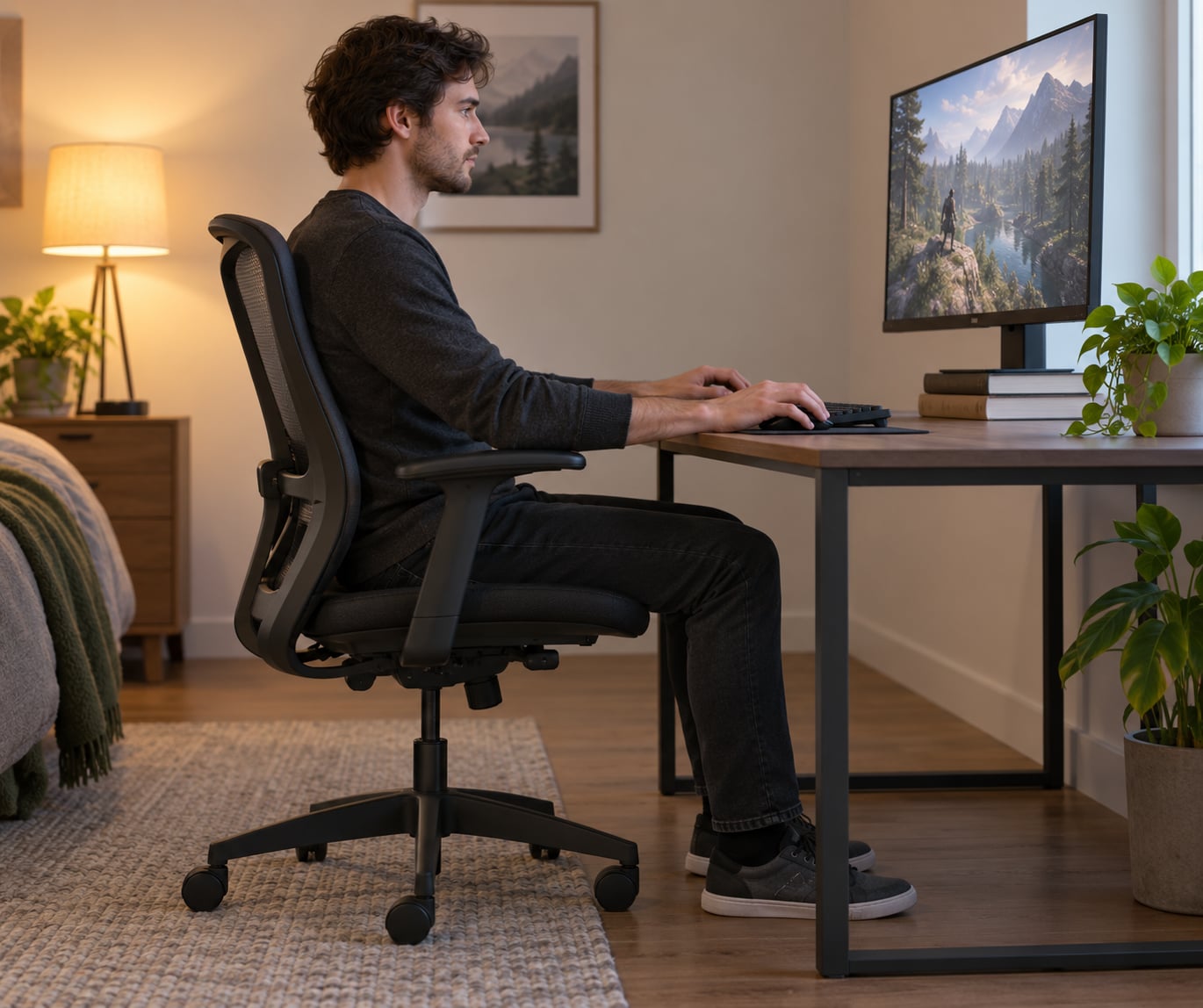
Sit with your feet flat on the floor, knees bent near 90 degrees, lower back supported so your spine keeps its natural curve, elbows close to your body at roughly 90 degrees, wrists straight, and your head stacked over your shoulders with the monitor at eye level an arm’s length away.
That is the whole answer, and it takes about 30 seconds to set up. The harder part is that gaming pins you into one position far longer than most other seated work, with a fixed focal point and no natural reason to move, so the setup has to survive three hours rather than twenty minutes.
If you only change one thing, raise your monitor until the top of the screen is level with your eyes. Slumped, head-forward posture is the most common complaint players report after a long night, and it is the cheapest thing on this list to fix.
Table of Contents
- 1What You Need: How to Sit Properly During Long Gaming Sessions
- 2The numbers worth memorizing
- 3Step-by-Step
- 41. Set Up How to Sit Properly During Long Gaming Sessions
- 52. Support the Lower Back and Hips
- 63. Position the Monitor at Eye Level
- 74. Keep the Keyboard and Mouse Within Easy Reach
- 85. Relax the Shoulders, Jaw, and Hands
- 96. Change Position During the Session
- 107. Take Scheduled Movement Breaks
- 11Common Mistakes
- 12Frequently Asked Questions
- 13What is the 90-90-90 rule for sitting at a gaming desk?
- 14How far should I sit from my monitor and how high should it be?
- 15Should my elbows be at 90 degrees when using a mouse?
- 16How long should I sit before taking a break during long gaming sessions?
- 17When does pain after gaming mean I should see a professional?
- 18Conclusion
What You Need: How to Sit Properly During Long Gaming Sessions
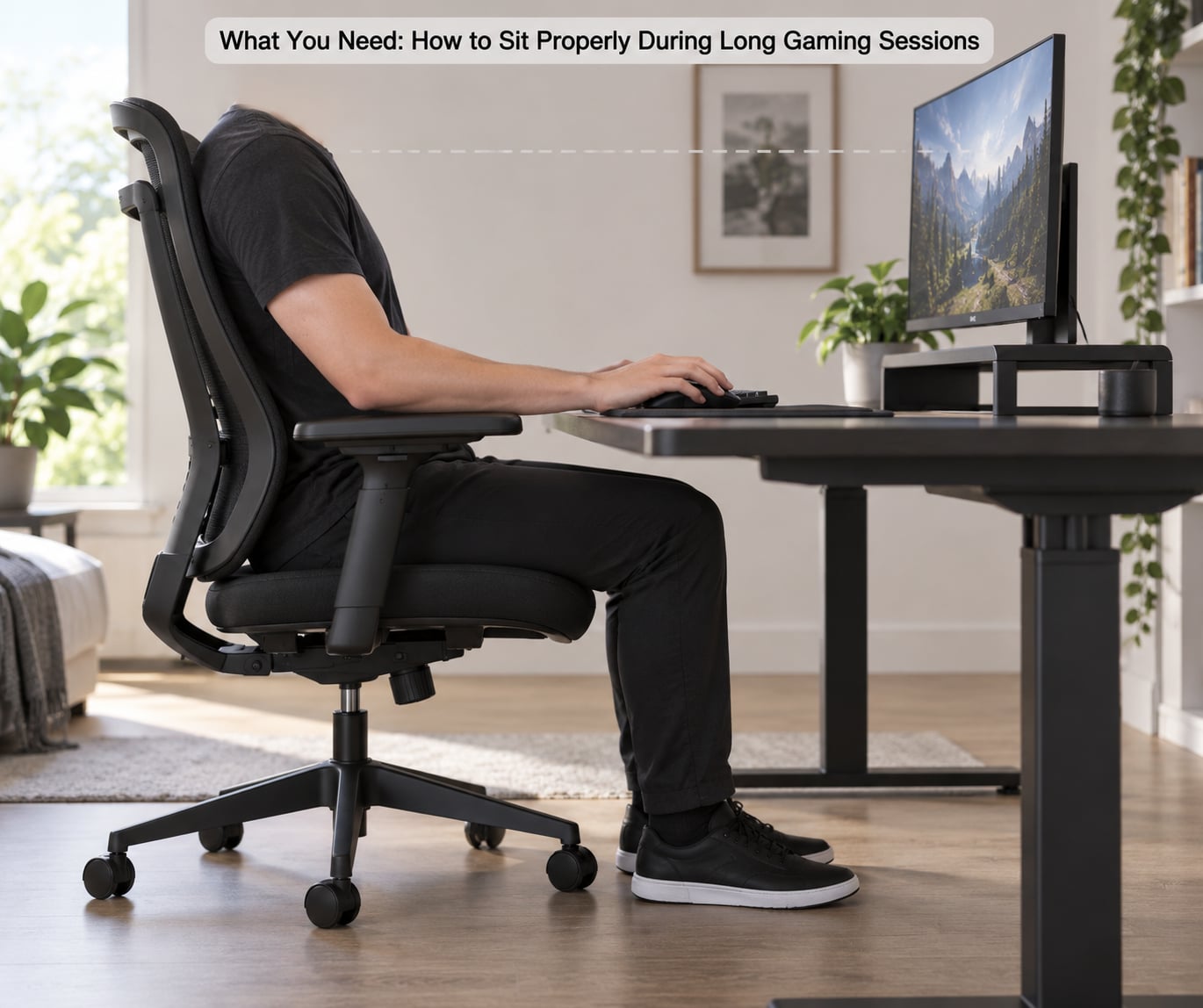
You need less than chair marketing suggests. Most players already own the four things that matter, and the rest are things you can improvise this weekend for free.
- A chair that adjusts. A working gas lift, a backrest that moves, and height-adjustable armrests. A decent adjustable office chair usually beats a cheap gaming chair, a point forum players keep making.
- A desk you can get close to. If you have to lean forward to reach the keyboard, the desk is too far or too high.
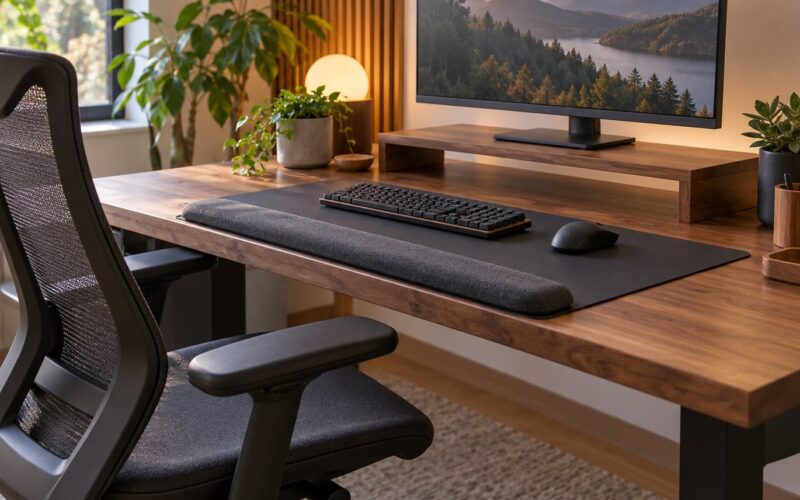
- A monitor riser or arm. Two thick books and a piece of cardboard do the same job as a purpose-built stand.
- Input devices within arm’s reach. A full-size keyboard and a mouse that sit close, not pushed to the far corners of a 60-inch desk.
- Side lighting. A lamp or window off to one side, so you are not craning toward a bright screen in a dark room.
- Optional: a lumbar cushion, a footrest, or a sit-stand desk. All three help, none of them replace adjusting the chair you already have.
What you can skip: gel seat pads, standalone back cushions marketed as posture fixes, neck pillows, and anything shaped like a racing seat that locks you into one reclined angle. Fixing chair adjustment first costs nothing and works better than adding a cushion to fix a chair set up wrong.
The numbers worth memorizing
| Body or screen checkpoint | Target value | How to check it |
|---|---|---|
| Seat height | 16 to 21 inches, or whatever puts thighs parallel to the floor | Both feet fully flat, knees at or just below hip level |
| Knee angle | 90 to 100 degrees | Feet flat, knees slightly ahead of hips |
| Hip angle | 90 to 100 degrees, hips level or slightly higher than knees | No pinching at the front of the hips |
| Elbow angle | 90 to 100 degrees | Upper arms hang close to your sides |
| Wrist | Straight, in line with the forearm | Not bent up, out, or sharply to the side |
| Screen distance | 18 to 36 inches, roughly an arm’s length | Full arm stretched out to the screen |
| Screen height | Top of the screen at or slightly below eye level | Gaze falls slightly downward, not up |
| Monitor tilt | 10 to 20 degrees | You are not looking up at the top edge |
| Micro-break | Every 30 to 60 minutes | 2 to 3 minutes of standing or stretching |
The 90-90-90 rule is the compressed version most people have heard: hips at 90 degrees, knees at 90 degrees, ankles at 90 degrees. It is a decent starting point, but it only covers the lower body, which is where a lot of gaming strain does not come from.
Step-by-Step
1. Set Up How to Sit Properly During Long Gaming Sessions
Start with the chair and the desk, in that order. Set seat height first: raise or lower the lever until both feet sit flat on the floor with thighs roughly parallel to it and knees bent between 90 and 100 degrees.
If your feet dangle, the seat is too high and your hips take the load. If your knees are pushed up past hip level and your feet barely touch, drop it.
Then pull the chair in until your belly is a hand’s width from the desk edge, and place the monitor straight ahead rather than angled to the side. Your shoulders should be able to hang relaxed with nothing to support them.
You know it worked when you can sit back fully, put both hands on the desk without leaning, and stay that way for ten minutes without noticing you’re doing it.
2. Support the Lower Back and Hips
Your lower back has a natural inward curve, and it needs something behind it to hold that curve rather than letting you round flat. Set the chair’s lumbar support so it meets the small of your back, or roll a folded towel and wedge it there if your chair has no adjustment.
Keep your whole back against the seat, including the shoulders. Sliding forward onto the front edge of the seat takes the curve out of your lower back and pushes all the work into your arms, and you probably do it without noticing when you get into a match.
Two feet flat, or both feet on a footrest. Crossing one leg over the other, or tucking one foot under you to reach a keyboard shortcut, cuts off circulation to that leg and tilts your pelvis out of alignment.
The check: press your lower back against the chair back. If you can slide your hand in more than an inch, the lumbar support is too low or too soft.
3. Position the Monitor at Eye Level
Sit 18 to 36 inches back, about a stretched arm’s length, and raise the screen until the top edge is level with your eyes or slightly below. With the screen there, your gaze lands a little downward, which is the angle your neck was built to hold for hours.
Tilt the panel back 10 to 20 degrees. If the top edge catches your attention and pulls your chin up, you will feel it in the base of your skull within an hour. That forward-head position is what most people call tech neck, and it is the symptom players mention first.
Laptops need a different fix because the screen and keyboard are attached. Raise the laptop onto a stand so the top of the screen is at eye level, then use an external keyboard and mouse so your hands are not up in the air. A laptop used flat on a desk for three hours is a neck and wrist problem waiting to happen.
If you use a TV from a couch, the useful number is the same. If you have to crane your neck upward to read it, the TV is too high or too far.
4. Keep the Keyboard and Mouse Within Easy Reach
Bring the keyboard and mouse in until your elbows hang beside your torso at 90 to 100 degrees, not flared out to the sides. If you can hold your elbows up at shoulder height while gaming, they are too far away or the desk is too wide.
Keep your wrists in line with your forearms. Extended wrist rests help between rounds, but resting your wrist on a hard desk edge while you are actively mousing presses on the carpal tunnel area. Rest during the pause, float during the fight.
Your hands should hover lightly over the keys. Most players grip a mouse harder than they need to during tense moments, and that forearm tension travels up into the shoulder and neck.
Height matters too: a mouse that sits too high forces the shoulder up, and one that sits too low forces you to reach down and forward. Set the desk or chair so the forearm is roughly level.
5. Relax the Shoulders, Jaw, and Hands
Players hold more tension than they realize, and it shows up in the three places that ache first: shoulders, jaw, and hands. Shoulders up by your ears, teeth clamped, white knuckles on the mouse.
Check in every few rounds. Let your shoulders drop, unclench your jaw so your teeth are slightly apart, and loosen your grip on the mouse and controller until you are holding them rather than squeezing them.
Slow breathing helps more than it sounds. A few slow exhales, longer out than in, drop the shoulder tension that builds during a tense stretch of play, and it costs you nothing between rounds.
You can test it: before you look back at the screen, notice whether your jaw was closed. If it was, you were bracing.
6. Change Position During the Session
No single posture works for three hours, even a textbook-perfect one. Holding any position without moving, however correct, is what loads muscles into discomfort. Movement is the actual fix, and small unconscious shifts count.
Between rounds, shift your weight, roll your shoulders, lean back into the chair, or cross one ankle over the other and uncross it. Recline a few degrees if your chair allows it, then come back up.
If you notice you have been locked in one position for twenty minutes and cannot remember settling into it, that is your cue to move. Setting your posture deliberately again takes ten seconds, which is cheaper than trying to undo three hours of it later.
Leaning forward in intense moments is normal and mostly harmless for a few seconds. The problem is never returning. The fix is awareness plus breaks, not willpower.
7. Take Scheduled Movement Breaks
Aim for a micro-break every 30 to 60 minutes: two or three minutes of standing, walking, or stretching, plus looking at something far away to rest your eyes. Then take a longer break, five to ten minutes, every two to three hours.
A routine that fits between matches:
- Neck tilt: ear toward shoulder, hold 20 to 30 seconds each side, no bouncing.
- Shoulder rolls: slow backward circles, 10 each way, letting the shoulder blades spread.
- Wrist flexor stretch: arm straight out, palm up, gently draw the fingers down and back, 20 seconds per side.
- Seated spinal twist: rotate toward the chair back for 20 seconds per side to undo hours of twisting toward a side screen.
- Hip flexor stretch: half-kneel or step one foot back, tuck the pelvis, hold 30 seconds per side. This is the one that matters most for people who sit eight hours a day.
- Stand and walk a few minutes, ideally somewhere without a screen.
The honest part: breaks are hardest during ranked or high-stakes matches, and almost everyone skips them then. Anchor breaks to the game’s own rhythm instead. Between rounds, after every match, at every death, after queue times.
Players with long careers report that standing and walking breaks were the thing that let them keep playing, and that fixing posture took a couple of weeks with mild soreness before it felt normal. That sore-first-fortnight feeling is expected, not a sign something is wrong.
Common Mistakes
Almost every persistent ache players report traces back to one of these, and all of them are free to fix.
| Mistake | Why it hurts | Fix |
|---|---|---|
| Sliding forward onto the front edge of the seat | Rounds the lower back and moves the load into your arms | Re-set your back against the chair every 30 minutes |
| Feet dangling or legs crossed | No leg support, reduced circulation, pelvis tilted | Lower the seat or add a footrest |
| Monitor too low or too far | Neck cranes forward and down, the classic tech neck | Raise it to eye level and pull it to an arm’s length |
| Chair turned toward a second screen | Constant spinal rotation and one shoulder held forward | Center the main screen, put the second one directly beside it |
| Wrists planted on a hard desk edge | Pressure on the wrist while the forearm bears weight | Float the wrist during play, rest it between rounds |
| Locked jaw and death grip under pressure | Tension spreads to shoulders, neck and forearms | Exhale slowly, drop the shoulders, loosen the grip |
| Holding one perfect posture for three hours | Static loading causes fatigue even when the position is correct | Change position and move on a schedule |
One symptom often gets blamed on the wrong thing. Lower back pain that shows up after gaming but not after eight hours of desk work is usually not your chair. Gaming holds one posture under sustained focus with no natural position changes, and tight hip flexors from long sitting are the common root cause players on flexibility forums point to.
Quick maintenance for your usual station: check that all the levers still move properly once a month, re-do the full setup after any desk or chair change, keep cables and gear out from under your feet, and re-check the monitor height after you get new glasses or change where you sit.
If you play away from a desk, adapt rather than abandon. On a couch, sit forward into the corner rather than slouching back into the middle, and put a cushion behind your lower back. In bed, skip it. Handheld play is the one case where neck angle is unavoidable, so prop your elbows and keep the screen close rather than craning down at it.
Frequently Asked Questions
What is the 90-90-90 rule for sitting at a gaming desk?
The 90-90-90 rule means keeping your hips, knees and ankles all bent at about 90 degrees, so your thighs are parallel to the floor and your feet rest flat. It is a quick way to set seat height before anything else. It does not cover your back, elbows or screen, so treat it as the first checkpoint in a longer setup rather than the whole answer.
How far should I sit from my monitor and how high should it be?
Sit 18 to 36 inches back, roughly a stretched arm’s length, with the top of the screen at or slightly below eye level and the panel tilted back 10 to 20 degrees. If you catch yourself looking up at the top edge or leaning forward to read, the screen is too low or too far. Two thick books under the monitor fix the height for free.
Should my elbows be at 90 degrees when using a mouse?
Aim for 90 to 100 degrees with your upper arms hanging close to your sides rather than flared out. Elbows much wider than that means your desk is too wide or your mouse is too far away, and it loads the shoulder. Keep the wrist in line with the forearm too, and float it rather than resting on a hard edge while you are actively clicking.
How long should I sit before taking a break during long gaming sessions?
Take a two to three minute micro-break every 30 to 60 minutes, and a longer five to ten minute break every two to three hours. Stand, walk, stretch your hip flexors and neck, and look at something distant to rest your eyes. If ranked play makes breaks impossible, anchor them to the game’s rhythm instead, such as between rounds or after every match.
When does pain after gaming mean I should see a professional?
Posture changes help with discomfort caused by positioning, but they cannot repair an existing injury. See a doctor, physiotherapist or qualified clinician if pain persists after a week of better setup and regular breaks, if it wakes you at night, or if you notice numbness, tingling, weakness or loss of grip. This guide is general information and not individual medical advice.
Conclusion
Four things to do before your next session, in order. Set seat height so your feet are flat and your thighs are parallel, then push the lumbar support into the small of your back. Raise the monitor to eye level at an arm’s length. Pull the mouse and keyboard close enough that your elbows hang beside you with straight wrists. Then set a timer for a two-minute movement break every half hour.
Change position and move on a schedule, even when the posture feels fine, because knowing how to sit properly during long gaming sessions is only half of it. The other half is not sitting still for three hours. Setup takes ten minutes and it holds up for 2026 and every year after, as long as you keep moving in it.