To remap controls for better gameplay, open the game’s own settings first — most browser titles ship a Controls or Keybinds screen — and reassign each action to the input your hands actually use. Whatever the game doesn’t expose, you fix at the keyboard layer, through a Steam Input profile, or with a gamepad mapper. Ten minutes and two changed keys is a realistic session.
Remapping is not a cheat and it is not for experts. It means rewriting the table that connects a physical input to an in-game action, so “reload” sits under your ring finger instead of a button you have to look down for. Players who return to the same shooters for years tend to move one action at a time, drill it, then stop.
This guide covers browser games specifically: games that run in a tab, through a launcher, or inside Steam’s browser, where the developer gives you fewer options than a console title would. Where a system-level remap helps, I’ll say so, and where it causes more trouble than it solves, I’ll say that too. Menu paths below reflect current console firmware and current browser behaviour; check yours, because stores update quietly.
Table of Contents
- 1What You Need
- 2Step-by-Step: How to Remap Controls for Better Gameplay
- 3Choose a Comfortable Control Layout
- 4Test the New Layout in a Safe Practice Area
- 5Common Mistakes
- 6Frequently Asked Questions
- 7How do I remap controls in a browser game?
- 8Can you remap buttons on a controller for a browser game?
- 9How do I reset button mapping back to default?
- 10Why is my remap not working in a browser game?
- 11How do I remap a controller to keyboard and mouse?
- 12What are the best keybinds for FPS games in a browser?
- 13Conclusion
What You Need
You need four things, and three of them are already on your desk. The first is the game running where you actually play it — the same browser, the same profile, the same tab. The second is your real input device: keyboard, mouse, controller, or all three at once.
The third is access to the game’s settings. Look for Controls, Keybinds, Gameplay, or Accessibility inside the pause menu, and expect to find it there rather than in the browser. Some browser games hide rebinding behind a “Hold to press any key” dialog that only appears when you click an action row.
Optional extras, depending on how far you want to go:
- Steam Input, if you play browser or PC builds through Steam and want one layout that follows you into every game.
- A screenshot or note of your current layout, taken before you change anything. This is your undo.
- A gamepad mapper — Joystick Mapper on Windows, Mantis Gamepad for profile-heavy setups, or reWASD if you want controller input to drive keyboard and mouse.
- The game’s config file, which on PC games often sits in a folder under AppData or the install directory and stores your keybinds as plain text.
- A private test area — free-roam, a training range, or a throwaway save you don’t mind breaking.
Note the browser itself is not the place to remap. Browsers capture keys for scrolling, quick-find, tab switching and fullscreen, and those shortcuts win. Games ask the page for key events, and if a browser grabs one first, the rebind looks broken when it isn’t.
Step-by-Step: How to Remap Controls for Better Gameplay
The same six steps work on every platform, whether you’re on a console, a handheld or a desktop browser. The only part that changes is where the menu lives.
- Open the control screen. Start the game, enter a menu where enemies cannot reach you, then open Settings and look for Controls, Keybinds, or Accessibility.
- Save the current layout first. Screenshot it. If the game has an “export” or “copy scheme” button, use it. Most binding screens also have a “reset to default” link that does not ask before it acts.
- Rebind the four actions you use constantly. Movement, your primary attack or interaction, an ability, and one menu or inventory key. Leave everything else alone.
- Assign, then verify, one action at a time. Click the row, press the new input, confirm. Some games want a release before they register the key, and some want a click followed by a hold.
- Test in a safe area before you commit to a session, and reload the page or restart the game to confirm the layout persisted.
- Tune the surrounding settings. Adjust sensitivity, deadzone, aim response and toggle-versus-hold behaviour only after the buttons stop surprising you.
| Where you play | Path to remapping | What it can change |
|---|---|---|
| Browser game settings | Pause menu > Settings > Controls or Keybinds | Every action the developer exposed |
| Steam (Big Picture / Input settings) | Library > right-click game > Controller Configuration, or Steam > Settings > Controller > Big Picture Layout | Bindings, deadzone, gyro, per-game profiles |
| PC gamepad mapping | Joystick Mapper, Mantis Gamepad, reWASD | Any button, triggers, chords, layer switching |
| PlayStation 5 | Settings > Accessibility > Controllers > Custom Button Assignments | Per-game and preset profiles, single button per function |
| PlayStation 4 | Settings > Accessibility > Customize Button Assignments | Preset and per-game custom profiles |
| Xbox Series X|S and Xbox One | Settings > General > Accessibility > Controller > Button mapping | Single-button assignments, left-handed layouts |
| Nintendo Switch and Switch 2 | System Settings > Controllers and Sensors > Change Button Mapping | Swaps face buttons for the whole system, plus primary and secondary actions |
| Keyboard layer (any browser) | reWASD, or a driver-level remapper on Windows | Layer switching, controller to keyboard and mouse, per-app profiles |
One rule separates a system-level remap from an in-game one: a system remap changes what the console sends to the game, so the game still displays its own on-screen prompts. Tutorial text may tell you to press a button that no longer does anything. If prompt accuracy matters to you, remap inside the game whenever the game allows it.
Choose a Comfortable Control Layout
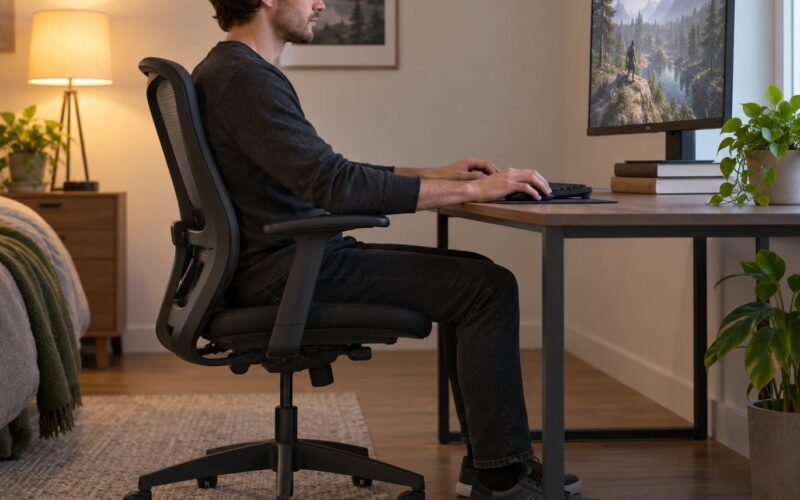
A good layout is the one your hands do not argue with. It puts the most frequent actions under the fingers that are already moving, keeps the two most-used inputs as far apart as the device allows, and puts anything you press deliberately on a control you can find without looking.
On a keyboard, that usually means the movement keys sit under the left hand at the home position and everything you press mid-fight sits on the left side of the keyboard where the hand already is. The reach zones are simple: home position and the keys directly around it are cheap, one row over is a small move, and stretching to the top-right corner is a hand lift you will pay for under pressure. That is the argument behind most modern keybind advice — proximity costs milliseconds — and it holds up in practice for movement keys.
On a controller, the trade is different. Face buttons sit under your index fingers, bumpers under the middle fingers, and the D-pad is the easiest thing on the pad to hit by feel. Anything you press several times a minute belongs on a face button or a bumper. Anything you press deliberately, like opening a map, belongs somewhere slow to press by accident.
Starting points by genre, all of them easy to adjust:
- Shooter or battle royale: movement and crouch on the same side as your trigger hand, reload and use-ability on the two face buttons under your middle fingers, jump and melee on the bumpers, inventory on a face button you never hit during a fight.
- MOBA or MMO: ability 1 to 4 on a diagonal of face buttons so each key has a finger, item bar on the bumpers, ping or target-lock on the D-pad, everything chat-related on a modifier plus a key.
- Platformer: jump and dash on buttons reachable from a resting thumb, attack and interact on the primary face buttons, camera or map behind the left bumper.
- Racing: throttle and brake on the triggers, shifting on the face buttons, look-behind on a bumper, camera modes on the D-pad.
- Co-op and survival: everything you need mid-combat within one hand’s reach, with inventory and crafting deliberately placed away from the fight inputs so a panic press does not open a menu.
Two habits beat cleverness. First, standardise one action on one input across your whole library: same crouch, same reload, same jump, everywhere. Players who run a shooter-heavy collection report losing far less time than the people who relearn every title. Second, treat the console symbol mismatch as a solvable problem — Nintendo and Xbox place the same letters on mirrored positions, so decide once which button means confirm on your system and remap to match every other device you touch.
Test the New Layout in a Safe Practice Area
Test where a death costs you nothing. That means a training range, a free-roam field, a repeatable dungeon, or a throwaway save. In a competitive or story mission, a half-finished rebind is how you lose an item or a boss attempt to a key you forgot.
Run a fixed routine rather than free play. Walk, sprint, crouch, jump, turn, aim, fire, reload, use one ability, open and close the menu, cancel, and open the map. Do that three times in a row. The third run is the one that matters, because the first two are you reading the screen.
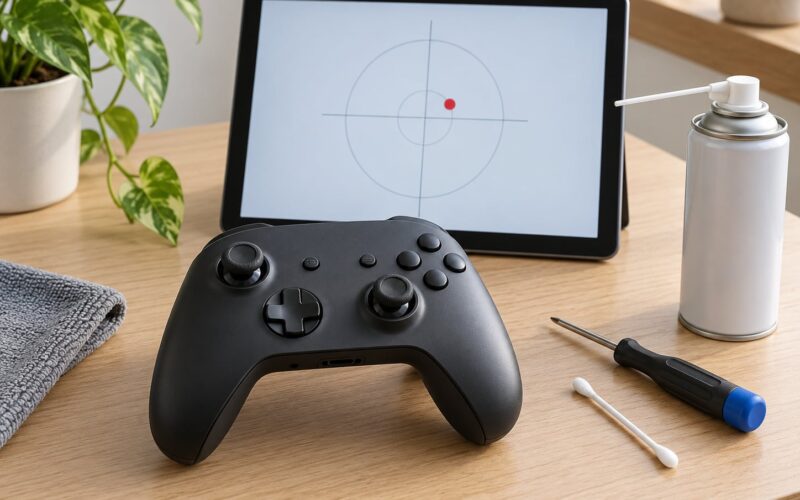
Then check the things that hide. Load the game again from a cold start to see whether the layout saved. Open the game’s own control screen and confirm it shows your new input rather than reverting to the default. Watch for dropped or doubled inputs, which usually means two actions are bound to the same key or a modifier is being held. If the game printed the wrong button symbol anywhere, that is prompt desync, not a failed remap — the binding is working, the label is not.
Give a rebind a few sessions before you judge it. Muscle memory rebuilds faster than most people expect, and the awkwardness that feels terrible on day one is usually invisible by the third or fourth session of normal play.
Common Mistakes
Binding the same input to two actions. It looks harmless until one key fires a weapon and opens a menu at the same time. Scroll the binding list before you start and look for duplicates.
Browser shortcuts stealing keys. Keys the browser claims — F for find, F11 for fullscreen, Ctrl-based combinations, space to scroll, arrow keys for scrolling — often never reach the game. Tab out of the page once, press the key alone, and confirm the browser is not reacting, then rebind.
Changing everything in one session. This is the most reported regret in the forums. A full layout swap replaces one thing you have not built yet with another one you have not built yet, and the game feels worse for weeks. Two keys per session, and drill them before adding more.
Settings that reset after an update. Some browser games store keybinds in local storage and clear it, some write to a config file that the patch overwrites. Save a screenshot or a copy of the config file, and expect to reapply after major updates.
Systems that ignore your remap entirely. Games with no binding menu and games with anti-cheat input validation will not accept a system-level override. In that case the only real fix is a gamepad mapper on the PC, or accepting the developer’s layout.
A layout that is valid but uncomfortable. If your index finger has to leave the trigger to hit a D-pad direction during a fight, the layout is technically working and practically costing you. Watch your own hand for one session and rebind whatever you can see yourself reaching for.
Forgetting your own binds after a break. Coming back to a game months later and reaching for the old key is normal. Keep the layout written down somewhere, or pick binds you can re-derive from memory, because a layout you cannot remember is a layout that will lose you a run.
Frequently Asked Questions
How do I remap controls in a browser game?
Open the pause menu, go to Settings, and look for Controls, Keybinds, or Accessibility. Most browser games put rebinding right there, and you click a row, press the new key, then confirm. If the row only responds to a click-and-hold, hold the key until the game registers it. Take a screenshot of your old layout before you start, since reset often happens without a warning.
Can you remap buttons on a controller for a browser game?
Only if the game asks the browser for controller input. Browsers expose gamepads as a standard API, so most browser games read a controller, but the game itself usually decides which button does what. Your reliable options are the game’s own control screen, a gamepad mapper such as Joystick Mapper or reWASD on PC, or the console’s system remapping. System remaps work, but the game keeps printing its own button prompts.
How do I reset button mapping back to default?
Almost every binding screen has a reset link, often at the bottom of the list or behind a small icon. On consoles, the same exists at the system level: preset profiles can be restored in the controller settings for PlayStation, Xbox and Switch. If a game has no reset option, closing the game and deleting its config file usually restores defaults, but check your cloud save first so you do not lose progress.
Why is my remap not working in a browser game?
Three causes account for most of it. The browser is capturing the key before the game sees it, which happens with find, fullscreen, refresh and space-to-scroll. The game stores bindings per session and does not persist them. Or the action is already bound to another input, so the new key fires two things. Test the raw key outside the game tab, then reload the page before assuming the rebind failed.
How do I remap a controller to keyboard and mouse?
Use a translation layer rather than the game. reWASD is the common choice on Windows: it converts controller input into keyboard and mouse actions, and can switch layers when you press a button so the same stick moves your character and your camera. Steam Input does something similar per game from the controller configuration screen. Both need a set profile after each change, and neither helps in games that block input from software.
What are the best keybinds for FPS games in a browser?
Keep movement under your left hand at the home position, put your most frequent actions on the keys immediately around it, and leave the top row for things you press deliberately. Swap WASD for ESDF only if your pinky already rests on the movement keys and you find the reach comfortable. Most players do better changing two keys and drilling them for a week than rebuilding a whole layout in one evening.
Conclusion
Open the game’s controls menu, change one action you press constantly, and take it into a practice area. Screenshot the layout before you touch anything, test it three times, and give it two or three sessions before adding a second change.
That is the whole job. Two keys, one afternoon, and a layout that stays yours.