If your teammates can hear your keyboard clicks, your case fans, or the TV in the next room, the fix is usually closer than you think. Learning how to reduce background noise on voice chat comes down to three things: a cleaner signal out of the microphone, one noise filter set to a sensible level, and a test you actually listen to. The whole job takes about ten minutes and needs no new hardware.
The short version:
- Move the microphone closer and point it at your mouth instead of across the desk.
- Select the correct input in Windows sound settings and set the level so your voice peaks without clipping.
- Turn on noise suppression in Windows, then in your voice chat app.
- Check the game audio menu for its own voice filter and sensitivity controls.
- Record a voice message, listen to it, and mute one thing at a time to find whatever is left.
Order matters more than effort here. Most of the noise problem disappears before you touch a filter at all, and the filters you do turn on work far better once the raw signal is clean.
Table of Contents
- 1What You Need
- 2Step-by-Step
- 3How to Reduce Background Noise on Voice Chat: Fix Your Setup
- 4Choose the Right Microphone Input
- 5Enable Noise Suppression in Windows
- 6Turn On Noise Reduction in Your Voice-Chat App
- 7Adjust Voice Settings in the Game
- 8Test the Result and Isolate the Remaining Noise
- 9Common Setup Mistakes to Avoid
- 10Test With a Voice Recording
- 11Common Mistakes: Why Background Noise on Voice Chat Survives
- 12Frequently Asked Questions
- 13How do I reduce background noise in Discord?
- 14Why can I still hear background noise on voice chat after enabling noise suppression?
- 15Should I use Bluetooth or a wired headset for the clearest voice?
- 16How do I stop keyboard and fan noise on my microphone?
- 17When is a noise-cancelling microphone worth buying?
- 18Conclusion
What You Need
You do not need much, and none of it is optional if you want to judge the result honestly.
- A headset or a separate microphone you can move. A laptop’s built-in microphone works, but it sits a foot from your mouth and picks up whatever is nearest the desk.
- Access to Windows sound settings. On Windows 11: Settings > System > Sound, plus the Microphone privacy switches under Settings > Privacy & security > Microphone.
- The voice chat app your game actually uses. Most multiplayer titles route voice through Discord or TeamSpeak even when the game has its own menu.
- The game’s audio settings screen, so you can match the in-game input to the one you selected in Windows.
- A way to check the result: a second person in voice, or a voice recorder app on the same machine.
You can do all of this with what is already plugged in. That is the point: fix placement and settings first, then decide whether hardware is even the problem.
Step-by-Step
How to Reduce Background Noise on Voice Chat: Fix Your Setup
Noise suppression can only remove noise it hears clearly. If your microphone is across the desk under a desk lamp, the filter is guessing.
Move the microphone to about a hand’s width from your mouth, slightly off to one side rather than directly in front of your nose, and angle it toward the corner of your mouth. That single change does more than any setting in any app.
Then push back the loud stuff. Aim the capsule away from case fans, desk fans, speakers, and window glass, since a fan sits right where most players put their mic. If your headset has an inline mute or a boom arm, use one of them instead of leaning.
If you are on a laptop with no headset, stop here and buy nothing yet, but at least move to a quiet corner and shut the browser tab that is playing a video. Record ten seconds of yourself talking and listen back. If the fan noise is still there, keep going to the next step.
Choose the Right Microphone Input
Most “my mic is broken” reports are a wrong-device problem. Windows picks one input and the game picks another.
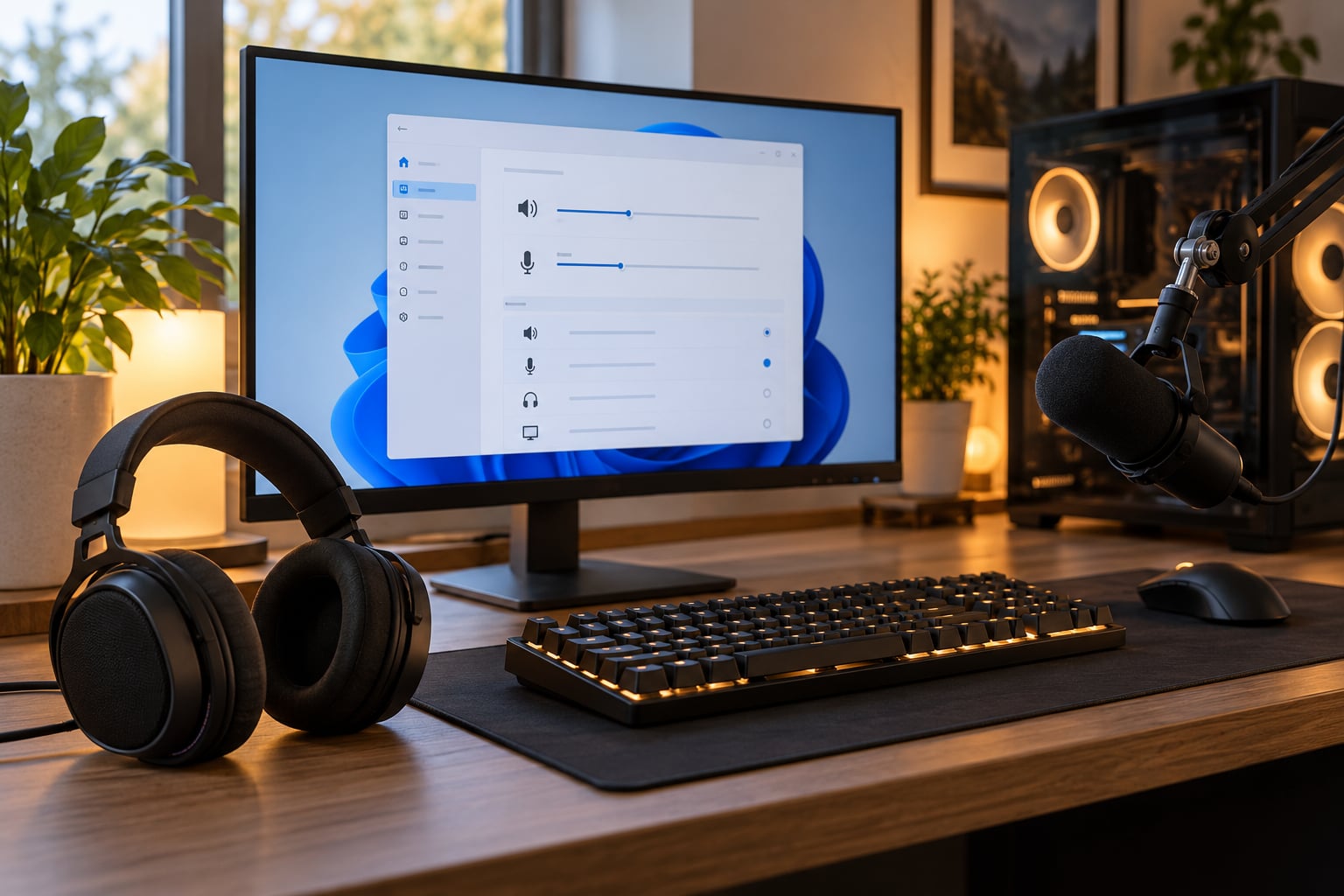
On Windows 11, open Settings > System > Sound and scroll to the Input section. Choose your headset microphone from the drop-down, then set the input volume somewhere around 70. Click the device’s Properties, go to the Levels tab, and raise Microphone boost only if you still have to lean in. Boosts past about 20 dB amplify fan hiss along with your voice.
Watch the level meter as you speak at normal volume. The green bar should bounce into the yellow zone occasionally and never pin at the far right, because a pinned meter is a clipped, crunchy signal that suppression cannot repair.
To confirm the selected input is the live one, talk and watch the meter move. A meter that never moves means the wrong device is selected or the privacy switch under Settings > Privacy & security > Microphone is off for desktop apps.
Enable Noise Suppression in Windows
Windows has its own noise filter, and turning it on is free. On Windows 11 the path is Settings > System > Sound > Audio enhancements, then pick your microphone from the list and set Microsoft Audio Noise Cancellation to On. In some builds the same control appears under Noise Suppression, and a High setting exists for genuinely noisy rooms.
If you do not see an audio enhancements section, use the older route: Control Panel > Sound > More sound settings > the Recording tab > double-click your microphone > Audio enhancements. On laptops with Realtek chips you may find the same switch inside Realtek Audio Console under Microphone Effects, and a setting called Multi-presenter conference call is worth switching off when it treats music or an instrument as background noise.
Turn it on, speak normally, and check the meter still shows a healthy level. If your voice suddenly sounds underwater, drop the Windows level to Off and let the app handle filtering instead. Running both at full strength is a common cause of the muffled, chopped-up voice players complain about in Discord.
Turn On Noise Reduction in Your Voice-Chat App
Windows filtering is generic. The app knows what a voice conversation sounds like, so it usually does a better job.
In Discord, go to User Settings > Voice & Video. Set the Input Device to the same microphone you chose in Windows, turn on Noise Suppression (Krisp) for the strongest filtering, or Noise Reduction for a lighter touch that leaves music and instruments more intact. Under Voice Activity, set Input Sensitivity high enough to pick you up at your normal speaking volume but not so high that your desk triggers it.
TeamSpeak 3 keeps its controls under Settings > Options > Voice, where you pick the capture device and can adjust the input sensitivity and voice activity level. Steam Voice is simpler: Settings > Voice holds the input device and a push-to-talk option, so lean on the game’s own filtering there.
Mobile chat apps have almost nothing to expose. iPhone and Android handle noise reduction inside the call itself, and in-game voice on mobile often has its own toggle in the game’s audio options.
Adjust Voice Settings in the Game
Games keep their own voice pipeline, and it sits between the app and your teammates. Open the audio or voice menu in-game and check four things: the input device, the microphone volume, whether voice chat uses push-to-talk or open mic, and the voice activity or sensitivity threshold.
Push-to-talk beats open mic for noise control because your microphone is only live while you hold a key. If your game also offers an in-game noise filter, enable it at a low or medium setting rather than maximum, since the app is already filtering.
Exact menu names differ by title, so look for something along the lines of Audio, Sound, Voice, or Communication in the game’s settings and treat the names as equivalent rather than identical.
Test the Result and Isolate the Remaining Noise
Record a ten-second voice message, or ask a teammate to repeat what they heard. Then work backwards: mute the fans, play nothing else, close the browser tabs, and see what is still there.
That isolates the source quickly. Fan noise that survives every filter is usually a placement problem, not a software problem. A constant hum or buzz that appears even when you say nothing is often electrical, coming from a USB port or a cable touching a power supply, and moving the mic to the front panel port or a different port fixes it more often than not.
Here is the short decision path. Clipping or crackling means the input level is too high. Silence on everyone else’s end but not yours means a mute button or the wrong device. Echo means open mic plus speakers, so use headphones. Audio that is fine for you and thin for others usually means you are hearing your own processed voice rather than what you actually sent.
Common Setup Mistakes to Avoid
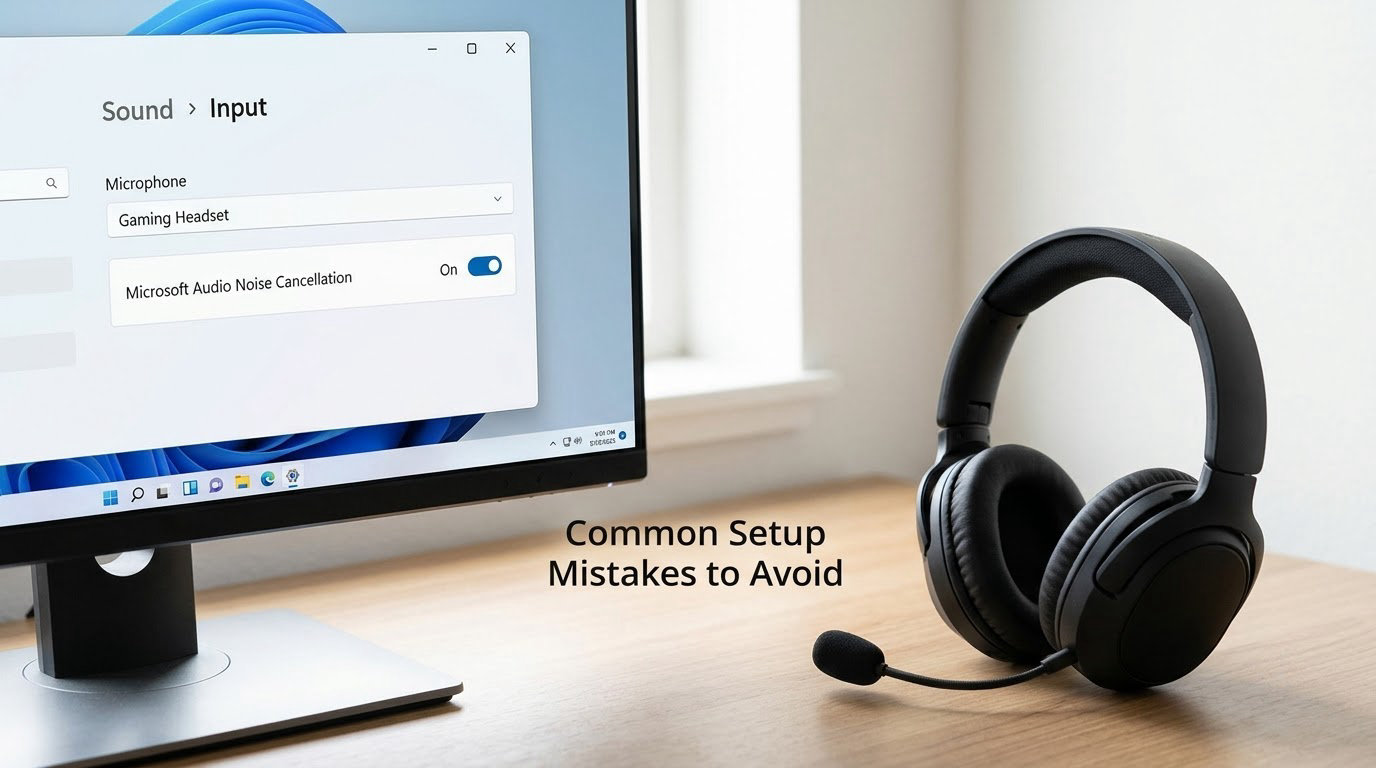
Six mistakes account for most of the cases where background noise on voice chat survives a full settings pass.
The first is cranking input gain to fix quietness. Gain does not make a quiet microphone clearer, it makes the fan louder too. The second is leaving automatic voice activity sensitivity on, so a stray conversation in the same room triggers your mic. The third is talking to a laptop microphone from normal sitting distance.
The fourth is stacking three aggressive filters, Windows, Discord, and the game all on maximum, which produces the muffled robo-voice that makes players turn everything off. The fifth is selecting the wrong device after plugging in a second headset or controller mic. The sixth is leaving unused virtual microphones active, since a disabled-but-present device can still be grabbed by the app.
Test With a Voice Recording
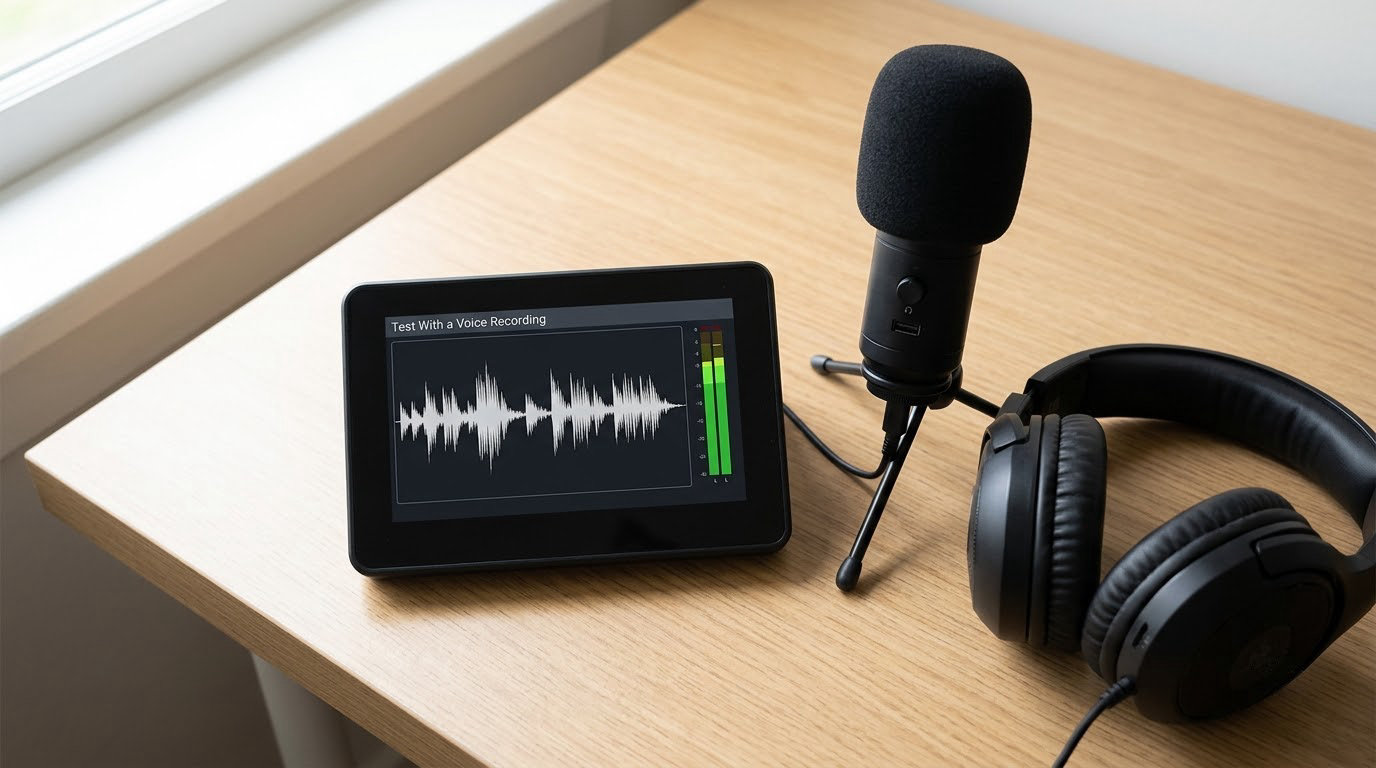
Voice chat is hard to judge from your own end because you hear your processed audio, not what you sent. A recording closes that gap.
Record yourself reading a paragraph in your normal speaking voice, then play it back with headphones on. Listen for three things: steady background noise between words, any clipping on the loudest syllable, and whether the beginning and end of sentences survive intact.
If a noise gate or aggressive filter is in the chain, the giveaway is a word that gets clipped at the start or the tail of a sentence fading out. Lower the sensitivity or relax the threshold rather than switching filters off completely.
Common Mistakes: Why Background Noise on Voice Chat Survives
Boosting the microphone because you sound quiet is the most common error, and the fix is the opposite one: pull the microphone closer, lower the gain, and let the app normalize the level. Distance is free, gain is not.
Automatic sensitivity is the second. It assumes an open room and a quiet desk, so a mechanical keyboard, a mouse click, or a roommate walks straight into your channel. Set the threshold by hand, in the app, using a voice activity meter if it has one.
Using a laptop microphone from normal sitting distance is the third. It sits far from your mouth and close to your fans, which is the worst possible arrangement. A cheap clip-on headset microphone placed at the corner of your mouth beats a laptop’s built-in array almost every time.
Stacking filters is the fourth. Pick one owner for noise suppression, either Windows or the voice app, keep the game’s own filter on a low setting, and add a noise gate only if you still hear a constant hiss between sentences.
Picking the wrong device and leaving unused virtual microphones enabled are the fifth and sixth. Re-select the input after every hardware change, and check the Recording tab for disabled devices that an app might still grab.
Two tips that finish the job. If your game supports it, use a separate app-level push-to-talk key rather than the game’s, because it works in every title you play. And if you are in a shared room, software gets you part of the way only, since other people are the noise source, so headphones plus a close mic plus one filter is the honest best you can do without treating the room.
Frequently Asked Questions
How do I reduce background noise in Discord?
Open User Settings, choose Voice and Video, confirm the Input Device matches what you selected in Windows, then switch on Noise Suppression for the strongest filtering or Noise Reduction for a lighter touch. Tune the Input Sensitivity so it triggers at your normal speaking volume, and keep push-to-talk on if the game allows it outside Discord.
Why can I still hear background noise on voice chat after enabling noise suppression?
Usually because the noise is too loud relative to your voice, so the filter has nothing to separate. Fan noise, a nearby TV, or another person talking all sit above the level suppression can cleanly remove. Move the microphone closer, turn the fans down, and confirm you selected the right input device, then re-test. If it persists, a directional microphone is the next step.
Should I use Bluetooth or a wired headset for the clearest voice?
Wired is the safer choice for voice chat. Bluetooth headsets add wireless codec compression and often switch microphones or profiles mid-session, which shows up as thin or inconsistent audio. If you prefer wireless, keep the dongle close to the headset rather than across the room, confirm the connection type is set to Hands-Free only when nothing else works, and expect slightly higher background pickup.
How do I stop keyboard and fan noise on my microphone?
Angle the microphone away from the desk surface so it no longer sits beside the switches, use the boom arm to lift it near your mouth, and move it away from any case or desk fan. Add a soft mechanical switch mod or a foam windscreen if clicks are the main problem. Then run one noise filter, not three, at a moderate setting to catch the residue.
When is a noise-cancelling microphone worth buying?
When software has already done its part and the noise is a steady physical source in your room, such as traffic, an air conditioner, or a shared space with other people. A directional or cardioid microphone aimed at your mouth rejects most off-axis sound and fixes it before any filter sees it. Buy only after the placement and settings steps fail, since a better microphone in a bad position gains you nothing.
Conclusion
Start with the microphone: move it to a hand’s width from your mouth, point it at the corner of your mouth, and turn it away from fans. That one change solves most of what people try to fix with software.
If noise remains, work in this order. Select the correct input in Windows and set the level without clipping, turn on noise suppression in Windows or your voice app but not both, match the device in the game’s audio menu, then record a voice message and listen back. Persistent or distorted background noise on voice chat almost always traces back to placement or gain, not to a missing filter.