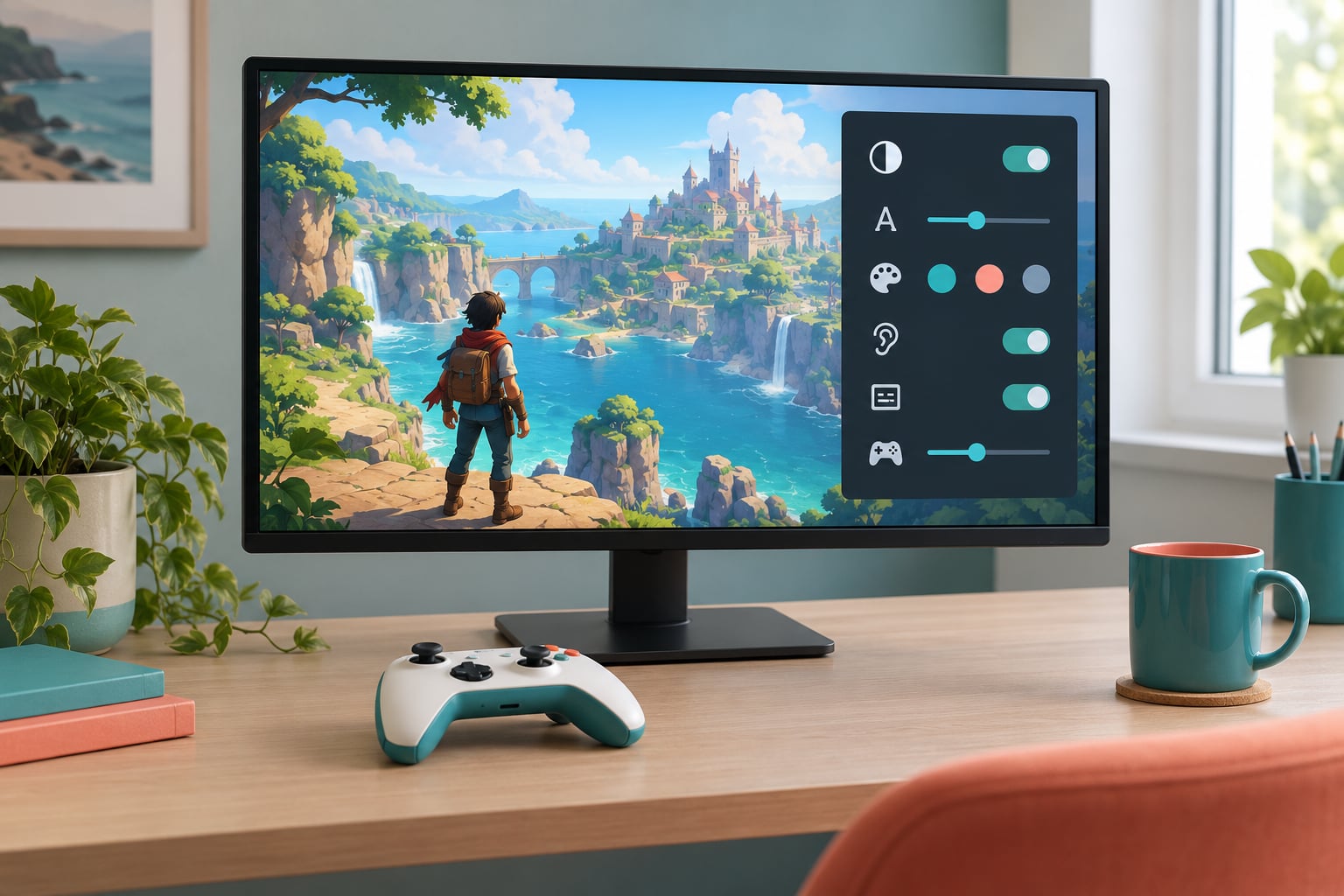
Accessibility options are the in-game and console settings that change how a game looks, sounds, responds to your inputs and scales its difficulty, so that more people can read it, hear it, and finish it. They are the reason a colorblind mode, a subtitle slider or a remappable button exists at all, and the honest answer to how accessibility options help all players is: far more than most players assume.
I have spent years turning these menus on for reasons that have nothing to do with a disability. Glare off a window, a shared apartment, a controller that is starting to slip, a co-op night with a seven-year-old. Each time, the setting I needed was sitting there in a menu I had never opened.
This guide walks through the option categories that actually change daily play in online and browser games, who each one serves, and when it is worth switching it on. No advocacy lecture, no pity, just the settings and where to find them.
Table of Contents
- 1How Accessibility Options Help All Players
- 2Which Accessibility Options Matter Most in Online Games?
- 3Visual Accessibility Options for Better Clarity
- 4Motor, Keyboard, and Controller Accessibility
- 5Audio, Communication, and Social Accessibility
- 6Cognitive and Sensory-Friendly Options
- 7How to Find and Test Accessibility Options
- 8How Games Can Make Accessibility More Effective
- 9Frequently Asked Questions
- 10What are accessibility options in online games?
- 11Do accessibility options only help players with disabilities?
- 12Can accessibility settings give an unfair advantage in multiplayer games?
- 13What should I do if an online game does not have accessibility options?
- 14Are accessibility options available in browser-based games?
- 15How can players report missing accessibility features?
- 16Conclusion
How Accessibility Options Help All Players
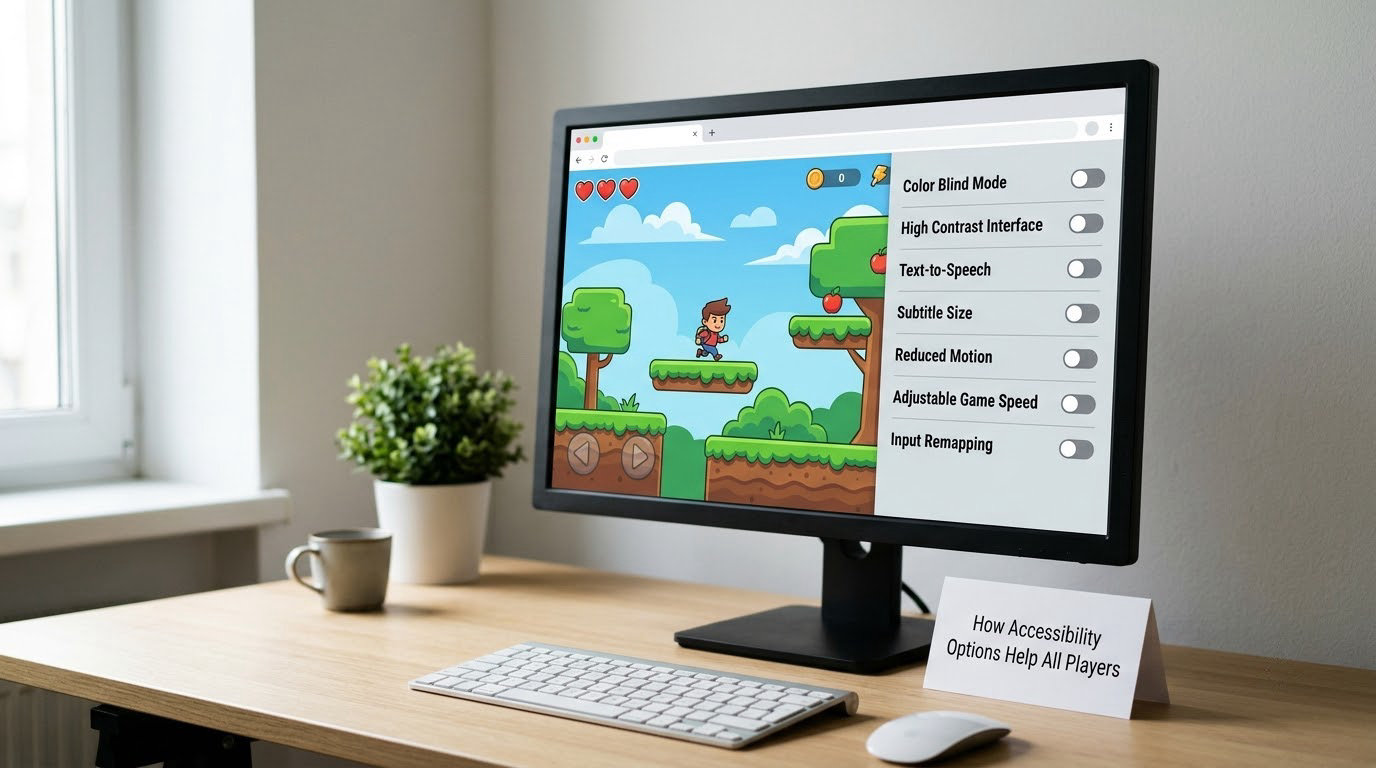
Game accessibility covers four broad areas, and once you know them the settings stop being a random list of checkboxes. Visual accessibility deals with what you can see: contrast, colorblind filters, text size, screen readers. Hearing accessibility covers subtitles, captions, speaker labels and audio cues. Motor accessibility is about input: remappable buttons, adjustable timing, one-handed layouts. Cognitive accessibility handles flashing, motion, warning intensity, and how much is happening on screen at once.
Every option in those four areas adjusts a layer of the game rather than swapping in a different version. The story, the maps and the progression stay identical, which is the point. A setting that changes how the game is presented is not the same thing as a setting that changes how hard it is, and confusing those two is the most common misunderstanding in this whole topic.
Designers call the spillover the curb-cut effect, named after the ramps cut into pavements for wheelchairs that later got used by parents with prams, delivery workers and anyone with a suitcase. A game that must work for a player who cannot hear a direction cue has to make that cue visible, so it ends up readable for everyone playing on a bad speaker. A game that must work one-handed has to be legible with a smaller interface, so the interface gets cleaner. Nobody loses anything by it.
There is a second, smaller reason to care if you are not disabled at all. Every session where you read an objective faster, heard a direction cue you would have missed, or stopped fighting the controls is a session that lasts longer and hurts less. Comfort is not a side benefit here. It is how people stay in games for years.
Which Accessibility Options Matter Most in Online Games?
The table below maps the categories that do the most work in multiplayer, who they help, and the situation where you would actually switch them on. Support varies from game to game, so treat it as what to look for rather than what every title offers.
| Option category | Who it helps | When to turn it on |
|---|---|---|
| Subtitles, captions and speaker labels | Deaf and hard-of-hearing players, plus anyone in a noisy room | Always on if you play without headphones or on a shared TV |
| Colorblind filters and high contrast | Colorblind players, players with low vision, players on washed-out monitors | Bright sunlight, cheap laptop panels, dark rooms |
| Text size, UI scaling and high contrast UI | Low-vision players, older players, anyone squinting at a small screen | TV at three meters, handheld mode, streaming captures |
| Remappable buttons and alternate input | Players with motor disabilities, injuries and painful hands | Controller wear, one hand free, unusual controller layouts |
| Timing assists such as hold-to-press and slow motion | Players with tremor, pain conditions, or limited dexterity | Long sessions, quick-time events, repetitive button mashing |
| Text chat, pings and voice-to-text | Deaf players, players with speech differences, muted microphones | Any voice-chat lobby where communication is required |
| Damage multipliers and aim assists | Players managing fatigue, pain or a long-term condition | Long campaign runs, playing on painkillers, co-op with kids |
| Reduced flashing, motion reduction, simplified UI | Players with sensory sensitivities or cognitive load limits | Late nights, long sessions, photosensitive history |
What separates an accessibility option from a difficulty setting is simple. Difficulty changes the challenge the game poses. Accessibility changes the interface through which you meet that challenge, and often makes the game playable at all rather than merely easier.
Players push back on blanket easy modes for good reason, and the forum chatter on r/accessiblegaming and r/disabledgamers repeats the same complaint: an undifferentiated easy mode strips out everything interesting, while granular options let you keep the game intact. Damage multipliers, slow motion, auto-aim and hold-to-press substitutes are the options that get asked for, because you can take one and leave the rest alone.
Visual Accessibility Options for Better Clarity
Subtitles and captions are the most basic and the most often done badly. A subtitle that sits in the same shade as a bright background, or one that shows speaker audio without identifying who said it, is barely worth turning on. Look for games with background opacity controls, a size slider, and speaker name labels. A closed-caption track goes further and carries sound effects and ambient noise as text, which turns an audio clue into a visual one.
Colorblind filters come in a few types. Protanopia and deuteranopia filters remove red and green confusion, tritanopia filters handle blue and yellow. The common complaint from players is that filters recolor the heads-up display but leave the world untouched, so a friendly-looking enemy still reads as dangerous to someone with protanopia. Good implementations recolor the whole palette, including enemy outlines and loot rarity markers.
High contrast mode, grayscale and color inversion are cheaper to build and just as useful. Grayscale alone fixes a surprising number of readability complaints, because low-contrast interface elements that look fine in color become obvious the moment hue is removed. Invert does the opposite and is easier on players sensitive to bright white areas.
Text size and UI scaling matter more than most players expect. A lot of games ship with a fixed interface size that assumes a monitor a foot from your face, which is wrong on a handheld, wrong on a television across the room, and wrong on a capture card that scales your feed down. If your game offers a slider, push it up two notches and see whether the layout still holds together.
Smaller visual options are worth checking too: minimap contrast, off-screen enemy indicators, toggleable HUD elements, damage direction indicators, and outlines that separate your character from the background. Games with a lot of visual noise let you strip the noise back, which helps you in a bright room more than any color filter will.
Motor, Keyboard, and Controller Accessibility
Remappable controls, sometimes called rebinding, are the single most requested accessibility feature in gaming communities and still the most commonly missing. If a game lets you put interact on the face button and jump on the shoulder trigger, you can build a layout that suits your hands, your controller, or the specific grip you have after a long day. Players with tremor, arthritis and nerve conditions rely on this far more often than the average player realises.
Timing options cover the rest. Hold-to-press substitutes replace rapid press sequences in quick-time events with a single press, slow motion shortens the window in which you must react, and adjustable input delay stops the game from misreading a tap as a hold. The community has long asked for a toggle rather than a hold for sprinting, crouching and aiming, because holding a button for a long session is a small but constant strain on a thumb.
One-handed and low-effort layouts deserve their own mention. Single-stick character movement, simultaneous action buttons on one side of the controller, and left-side play with a single hand all exist in enough games to be worth searching for. Console-level options also help, like setting a controller to work as a single input, or using an adaptive controller that accepts switches, buttons and a mouthpiece.
Sticky and alternative movement options fall in the same bucket. Teleporting instead of walking, slower turn rates, automatic vaults and edges, and aim assist that widens the lock-on cone all reduce the physical cost of a session. That cost is not evenly distributed, and it is the reason assists belong under accessibility and not just under difficulty.
Audio, Communication, and Social Accessibility
Communication is where accessibility decides whether a player is in a match or spectating one. Text chat, quick-chat wheels, pings on the ground, and emotes let a player communicate without a microphone. Voice-to-text and live captions cover the reverse case, letting a deaf or hard-of-hearing player read what teammates are saying in a voice channel they cannot hear.
Separating game audio into channels, with independent sliders for dialogue, effects and music, is a small setting that changes everything in a loud room. Turning effects down to 40 percent while leaving dialogue alone is how I play in an office with an open floor plan. Directional audio cues and speaker labels do the same job for players who cannot rely on sound at all, by putting the information somewhere visible.
Notification controls belong here too, because an unexpected sound cue is an accessibility problem in a hearing-sensitive household. Games that let you set alert volume independently, or choose between a sound, a visual flash, an on-screen icon, or haptics, let everyone pick the least intrusive alert that still works.
The social side is straightforward: adjustable voice chat volume per player, push-to-talk instead of open mic, options to disable voice transmission entirely, and clear indicator for who is speaking. Each of these lowers the odds that a player gets muted, ignored or kicked for a reason they could not see coming.
Cognitive and Sensory-Friendly Options
Some barriers are not about seeing or hearing but about how much is happening at once. Reduced flashing mode caps the brightness and frequency of strobe effects, photo sensitivity mode strips them out entirely, and motion reduction limits camera shake, head bob and field-of-view swings. These are not edge cases; a lot of players get headaches after a long session and simply stop playing without knowing why.
Simplified interface options reduce the number of elements competing for attention: fewer icons on screen, persistent objective markers, a calmer HUD, longer hold times before prompts disappear, and the ability to disable pop-up tutorials. Notification settings let you cap the interruptions, and gameplay intensity settings sometimes let you turn down enemy aggression, surprise attacks or the frequency of sudden events.
Objective markers deserve a special mention. A persistent arrow that points to the next goal removes a lot of mental load, and it helps the player who is tired, distracted, or new to the genre just as much as it helps anyone else.
How to Find and Test Accessibility Options
Test options before you queue, not during a match. The order that works for me: open the settings, change one thing, play ten minutes of ordinary content, then decide whether to keep it. Test in a low-risk area such as a hub, a practice range or a story section you have already finished, so a bad setting does not cost you a run.
Platform-level menus are where the options nobody remembers exist tend to live.
- PlayStation 5: Settings, then Accessibility, covers screen reader, magnification, text size, high contrast, audio descriptions and button assignment for the system itself. In-game accessibility lives under the game’s own options or a gear icon in the pause menu.
- Xbox Series X and S: System, then Ease of Access, holds narrator, magnifier, high contrast, text size and color filters for the console interface. Games expose their own accessibility menus, often including an accessibility chapter alongside graphics, audio and controls.
- Nintendo Switch: System Settings, then Accessibility, includes magnifier, text size, high contrast mode, grayscale, inverted colors and auto-sleep. Many Switch games also offer individual remapping or a dedicated assist mode.
- PC and Steam: Windows exposes narrator, magnifier and color filters under Settings, then Accessibility, while macOS keeps its equivalents under Accessibility in System Settings. In Steam, open your profile and look for the accessibility features tag on a game’s store page before you buy.
Storefront tags are the most underrated discovery tool here. Xbox accessibility features tags, the Play equivalents, and the Steam tag let you filter a store by what the game actually implements, rather than reading a marketing line. Filter by subtitle support and text scaling first, and you will find a very different shelf from the one most players browse.
Then adjust during real play. A subtitle size that feels oversized at the menu is often right in motion, and a camera shake setting that seems mild in a hub can be brutal in a fight. Keep a screenshot of the settings page so you can get back to them quickly.
How Games Can Make Accessibility More Effective
Options buried four menus deep, behind a symbol nobody recognises, do not help the player who never found them. A dedicated accessibility chapter in the main settings list, with human-readable names instead of acronyms, is the difference between a feature existing and a feature being used. The complaint that appears most often in player discussions is not that settings are missing, it is that they are invisible.
Availability at launch matters just as much. Options that arrive two years into a game’s life help nobody who stopped playing, and a one-year-old save file may not survive the patch that adds remapping. Persistent settings matter too: a setting that resets every time you launch pushes people back to the default, which defeats the purpose.
Testing is where the real work shows. The community is blunt about the difference between a game that has an accessibility menu and a game that has been played by disabled players from the first playable build. A setting nobody ever tried in a live match is a guess, and the gap between a listed feature and a usable one is where most disappointment comes from.
Multiplayer adds a further wrinkle that single-player games can ignore: assists often do not carry into the competitive modes. Damage multipliers, extra health, aim assist and longer timers frequently disappear in the version of the game played with other people, which means a player can finish the campaign and still be unable to join their friends in the mode they care about. Granular options travel better than blanket easy modes for exactly this reason.
Frequently Asked Questions
What are accessibility options in online games?
Accessibility options are settings that change how a game presents itself: colorblind filters, subtitle size and speaker labels, remappable buttons, adjustable timing, text scaling, reduced flashing, and damage multipliers. They are found in the game’s own settings menu, in a dedicated accessibility chapter, or in the console’s system accessibility menu. They alter presentation and input rather than adding content, so everyone plays the same game.
Do accessibility options only help players with disabilities?
No, and that is the most common misreading of the topic. Players use them for glare from a window, a noisy flat, a tired thumb after a long shift, playing with a young child on couch co-op, streaming on a low-light camera feed, or simply wanting to finish a story game without grinding. Once a feature exists for an edge case, it usually makes the default experience cleaner for everyone.
Can accessibility settings give an unfair advantage in multiplayer games?
In most competitive titles, no, because the settings that matter competitively are locked by ranked rules. Damage multipliers, extra aim assist and slower timers usually apply to campaign and co-op modes and are stripped from ranked play. Single-player assists like larger text or reduced camera shake cannot improve your mechanical performance. The argument in the community is not about cheating but about whether a mode that excludes players should be considered fair at all.
What should I do if an online game does not have accessibility options?
Check the platform first, because color filters, text scaling, high contrast and narrator often exist at the system level even when the game offers nothing. Some players use remapping software that runs below the game and rebinds inputs without touching the game itself. If neither helps, send feedback to the developer through the in-game option or store page, and say which setting you need and what it blocks, because specific reports get logged and vague ones do not.
Are accessibility options available in browser-based games?
Usually a smaller set than on console. Browser games are more limited by the browser and the display than by the console, so you will often find adjustable text size, mute and volume controls, and maybe color filters or a grayscale option, but rarely remapping, screen reader support or timing assists. Treat your operating system’s accessibility settings and your browser’s zoom as the backstop, and check whether the game has a native version elsewhere before assuming that is all there is.
How can players report missing accessibility features?
Report it where the developer will see it: the feedback option inside the game, the store page review, or a public forum for that title, where other players can confirm the problem. Include the platform, the input method, and the exact mechanic that blocks you, such as a required wall-jump or a quick-time event. Specialist review sites and community forums exist for this, and a cluster of identical reports from named groups is what moves a feature into a patch.
Conclusion
Before your next session, open your console’s accessibility menu and your game’s settings once, and look at five things: subtitle size and background opacity, text scaling, audio channel sliders, remappable buttons, and any flashing or motion reduction. Most players who switch on even two of them report a more comfortable run, and that is how accessibility options help all players, not as a special accommodation but as a better default.