Yes, you can play on servers in other regions, and the answer to how to play on servers in other regions is simpler than it sounds: on most browser games it is three checks and about five minutes. Confirm the remote server is actually running, clear any region filter in the server browser, then check the ping before you queue. The catch is that plenty of titles tie region to your account or have removed the option entirely, and no browser setting fixes that.
This guide covers the whole chain in order, from checking that a foreign server still has players to allowing the game through your firewall. It is written for browser games in general, so menu names shift between titles, and where they do I say so.
Table of Contents
- 1What a server region actually is
- 2What You Need
- 3How to Play on Servers in Other Regions Step by Step
- 41. Confirm the game and remote servers are still active
- 52. Open the in-game server browser
- 63. Change the region filter and inspect latency
- 74. Test the remote connection before joining
- 85. Allow the browser, game, and required ports
- 96. Join, verify the region, and troubleshoot play
- 10Common Mistakes
- 11Frequently Asked Questions
- 12Why can I not see servers in another region?
- 13Can I use a VPN to join a game server in another country?
- 14What ping is acceptable for a browser-based multiplayer game?
- 15Why does a remote server disconnect me after I log in?
- 16Does changing my computer region or language unlock a server?
- 17How can I tell whether a game has shut down permanently?
- 18Conclusion
What a server region actually is
A server region is a cluster of data centres your game client connects to, labelled something like EU-West, NA-East, OCE or SEA. Your game client, launcher or platform account decides which one you land on, and your physical location only influences the choice indirectly through latency.
Three related terms cause most of the confusion:
- Region lock — the server refuses your account because of where the account was created or licensed, not because of your network.
- Licence region vs connection region — an account bought on a US storefront tends to be tied to US servers, and players on gaming forums describe this plainly: a US licence means US servers, though you can still connect from anywhere in the world.
- Latency (ping) — the round-trip time in milliseconds between you and the server. Packet loss and jitter matter too, because a steady 120 ms often plays better than a jumpy 60 ms.
What You Need
Before touching any settings, line these up. Nothing on the list is expensive, but two of them are easy to forget.
- A browser the game actually supports, updated within the last few versions. Very old builds get quietly dropped from compatibility.
- A stable connection. Wired beats Wi-Fi by a wide margin, and a jittery wireless link is the single biggest cause of mid-match drops.
- The game’s current server information: official support pages, patch notes or a maintenance announcement feed.
- An account that is eligible for the target region. Check the store page before you spend an evening troubleshooting the wrong thing.
- Administrator permission if you intend to change firewall rules.
- A second device or network to test on, so you can tell the game apart from your own setup.
A VPN is optional and, in most cases, unnecessary. It only helps when the game has no region selector and no region lock, which is rarer than people assume.
One limit worth stating plainly: an archived or permanently closed game cannot be made playable through connection troubleshooting. If the service is gone, every fix below is wasted effort.
How to Play on Servers in Other Regions Step by Step
Work through these in order rather than jumping to the network fixes. Skipping step 1 sends people to firewall menus for a server that has been offline for months.
1. Confirm the game and remote servers are still active
Check three things: a recent maintenance or patch announcement, a login page that actually authenticates, and a foreign-region server list with players in it. A live game with a dead region looks identical to a closed game until you read the notices.
How to play on servers in other regions only matters after you know the destination is reachable. If the login page loads but every server shows zero players and an old maintenance date, that region has been decommissioned.
A closed game and a local network fault look similar from the outside, so separate them early. If your local server loads fine and the distant one does not, it is a region or network issue rather than your machine.
2. Open the in-game server browser
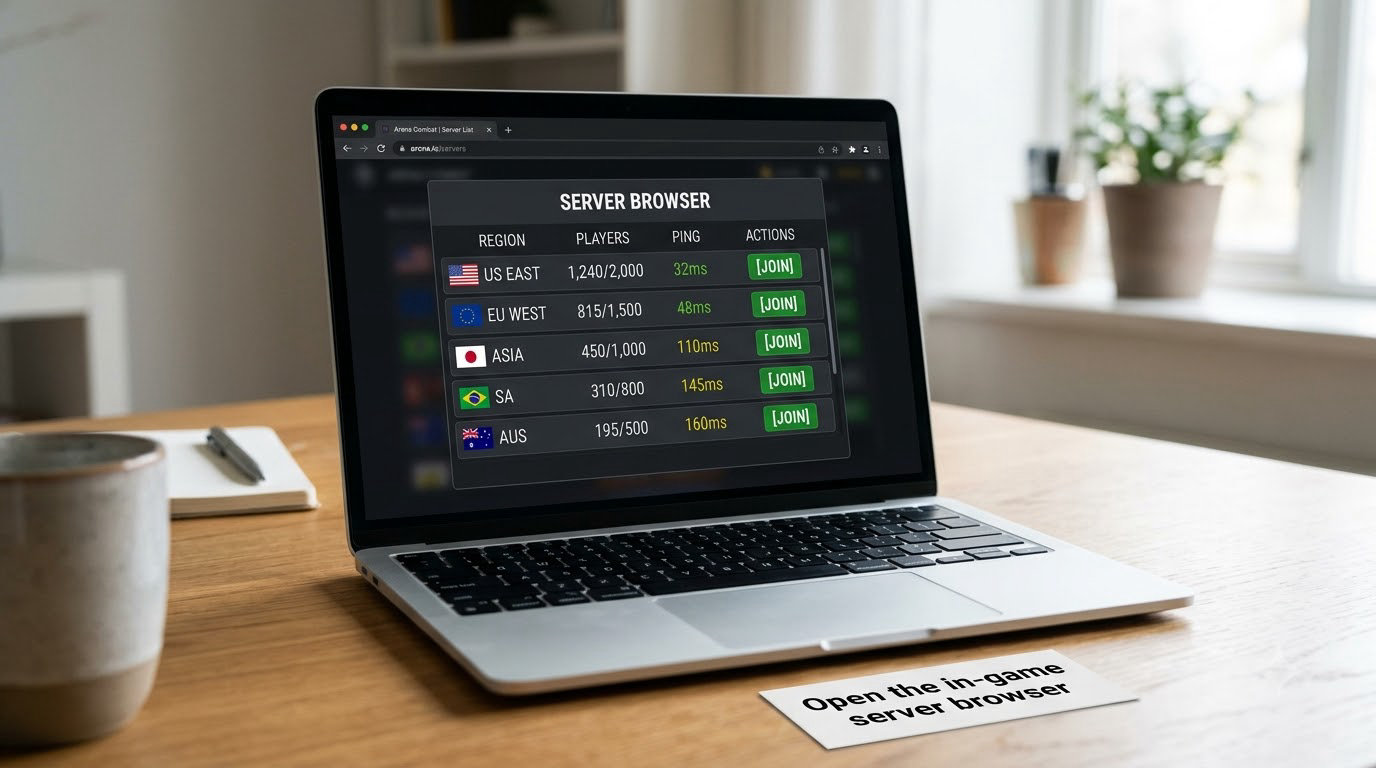
Launch the game, open its play or multiplayer menu, and choose the server browser or server-selection screen. Browser games label this inconsistently: some use Play then Select Server, others put Servers under Settings or Gameplay, and a few bury it under a globe icon in the top bar.
If you cannot find it, press the game’s keybind overlay and look for anything described as server, shard, realm, world or instance. Those five words cover most of the naming I have seen. Controls differ by platform, so on a console the same list usually sits under a Settings or Network submenu instead.
Success here is simple: a scrollable list of named servers with a player count each.
3. Change the region filter and inspect latency
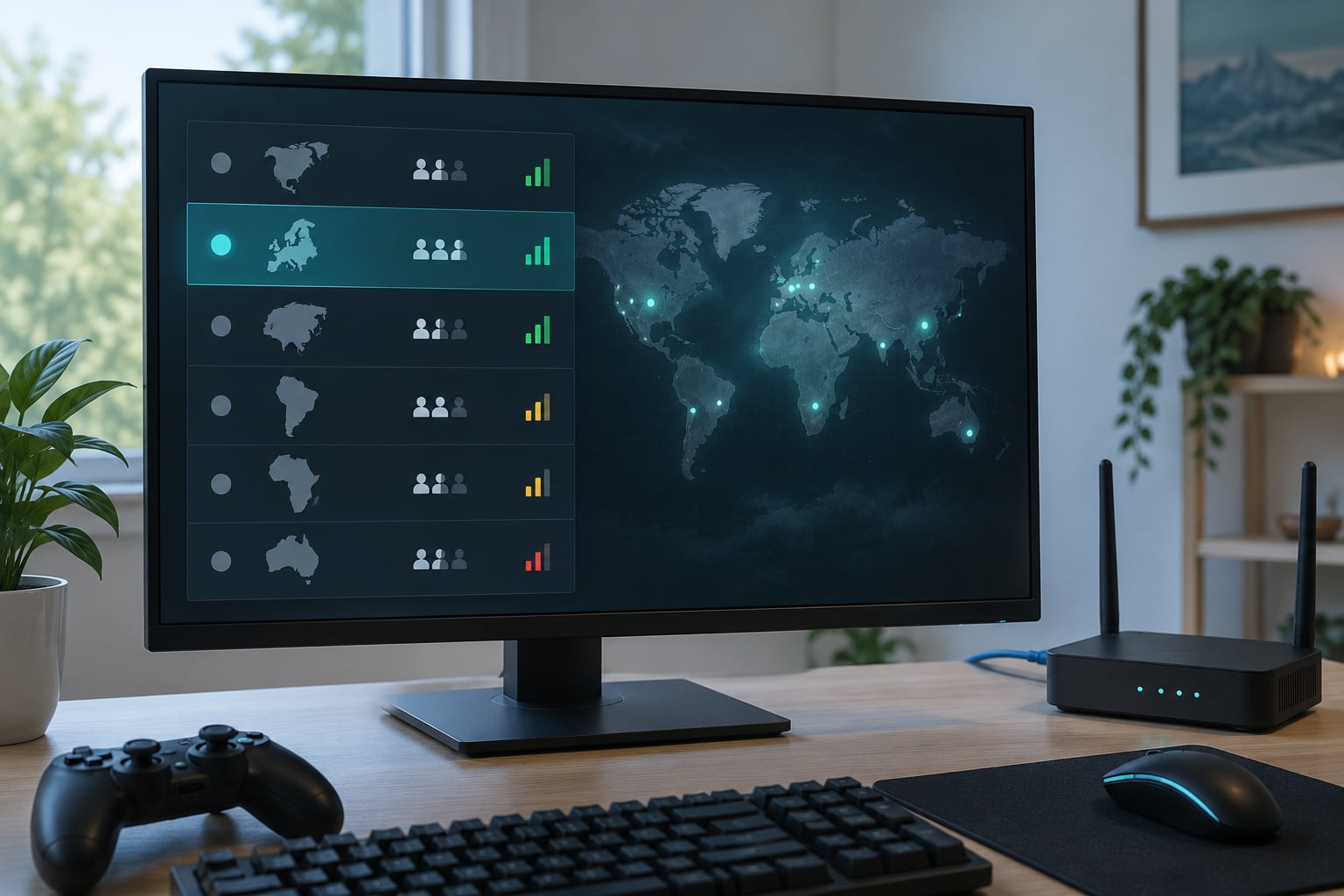
Most server browsers default to your nearest region or your account’s region. Switch that filter to All Regions, or pick the specific area you want, and the list refreshes.
Then read each row instead of joining the first one. You are comparing four things: player count, maintenance notices, language availability and the estimated ping the game displays. A server with 2,000 players and 180 ms is usually worse than one with 400 players and 60 ms.
How to play on servers in other regions without misreading the queue matters more than the click. A long queue is a population problem, not a network fault, and a server that hides your region may simply be locked to accounts from a particular country.
4. Test the remote connection before joining
Run a quick pre-join test. Use the game’s own connection checker if it has one, then open the browser developer console and look for failed or slow requests, and run an online latency test to a server in that country. If you have a second network, such as a phone hotspot, test there too — a clean result on both narrows the problem to the game.
Concrete thresholds, as a starting point:
- Under 80 ms round trip is usually comfortable for most genres.
- 80 to 150 ms is often playable, especially in strategy, MMO and card games.
- Above 150 ms makes real-time actions genuinely hard, and players in shooters describe it as unplayable long before that.
The game’s own ping display takes priority over any of these, since it measures the actual data centre rather than a nearby host. For scale, one player on r/DarkTide reports 2 to 35 ms on SA servers and 67 to 120 ms on NA, which they still consider playable with tolerance — that gap is typical of cross-region play.
5. Allow the browser, game, and required ports
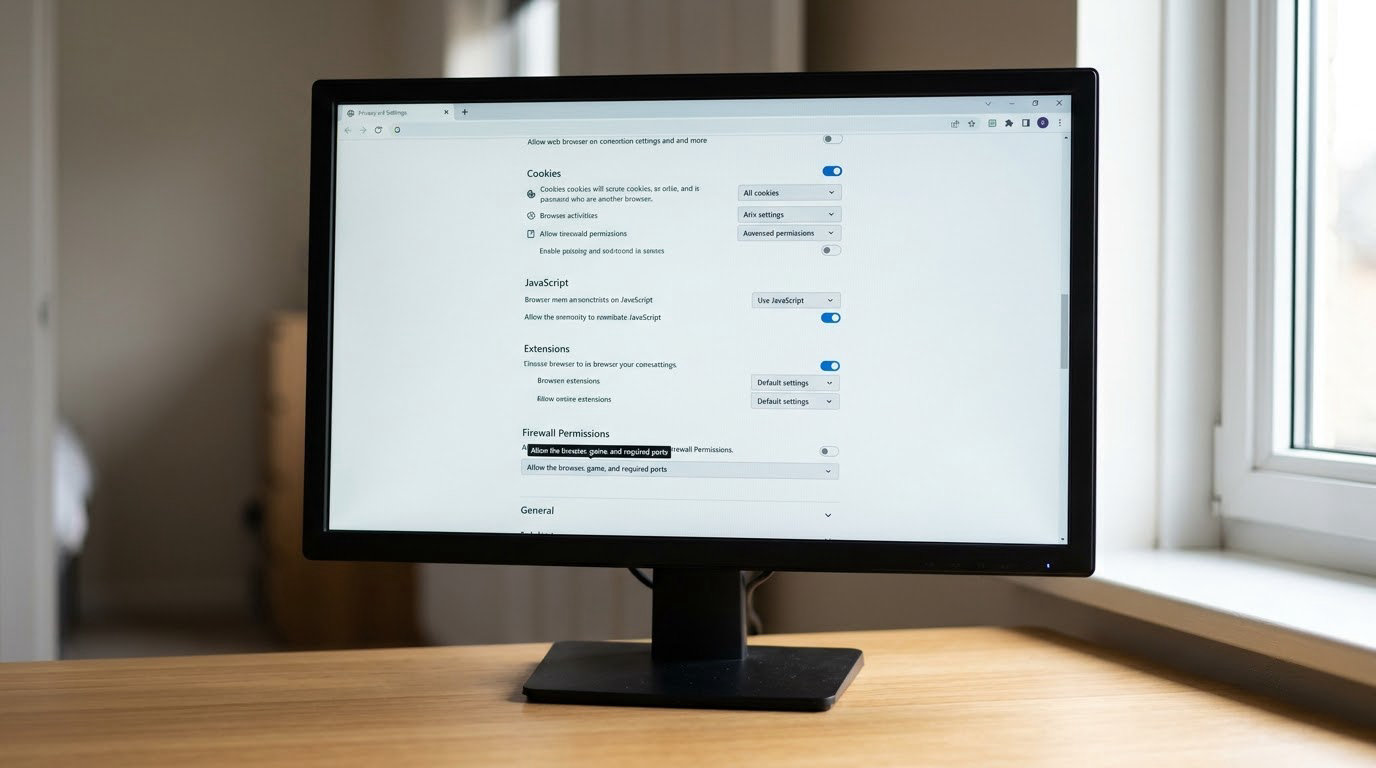
Most blocked connections are permissions, not physics. Confirm JavaScript and cookies are enabled for the game’s domain, remove ad blockers and privacy extensions that break game canvases, and allow pop-ups for the game if it opens a chat or voice window.
Then handle the firewall. When Windows or macOS asks whether to allow the game on private or public networks, allow it on both, and check the inbound rules if a prompt was previously clicked through. Use only the port numbers the game documents in its official support material — inventing them causes more breakage than it fixes, because a wrong rule can block the launcher entirely.
Signs that permissions are the issue: the page loads but the game canvas stays blank, login spins forever, or the server list appears and then empties.
6. Join, verify the region, and troubleshoot play
Enter your credentials, complete any region-eligibility check, and select the server you identified in step 3. Then confirm from the server name in the HUD or the status indicator that the region you intended actually loaded, because a stale filter will silently hand you a local one.
Four failures cover most of it. If you disconnect right after logging in, it is usually a region lock or a time mismatch on your machine. If you sit in queue forever, the region is underpopulated or your account cannot enter it. If the server loads but your character is missing, you are on a different shard than the one holding your data. If actions do not respond, packet loss is the leading suspect, so test on a second network before changing anything else.
Common Mistakes
Nearly every report of “my region is missing” is one of these nine.
The region filter is hidden. A filter left on your own region hides everything else without warning. Set it to All Regions, then re-check the list.
The game or that region has closed. An archived game cannot be repaired by any setting. Look for shutdown notices and the absence of recent patch notes.
Ping is above what the genre allows. Nothing you change will lower it beyond routing quality. Wired connection, off-peak hours and restarting the router are the honest fixes; a paid tool claiming otherwise is selling something.
A VPN is routing badly. Many free VPNs have no server in the country you need, and the detour can add more latency than the distance saved. Check the exit location before blaming the game.
Cookies or scripts are blocked. The server list renders but joining silently fails. Enable cookies and JavaScript for the game’s domain.
A firewall prompt was dismissed. Re-check the game’s permissions in your operating system’s firewall settings and allow it on both network types.
The server is full. A full server shows a queue, not an error. Off-peak hours or a neighbouring region with a smaller population are the practical answers.
Your clock has drifted. Auto-sync under date and time settings. Authentication and session checks fail on a skewed clock in a way that looks exactly like a network fault.
Your account is region-locked. This is the one no amount of browser work fixes. If the store page or support documentation ties your account to a country, that decides your servers.
Prevention is dull and effective: keep the browser current, run auto-sync on, stay on Ethernet, and read patch notes before a big expansion, since region lists often change with them.
Frequently Asked Questions
Why can I not see servers in another region?
Usually one of three things. A region filter is still set to your own area, so open it and choose All Regions. The title applies a region lock tied to your account or licence country, which no setting bypasses. Or the region itself has been decommissioned and the remaining servers are empty. Check the game’s recent patch notes and support pages to tell the last case apart from the first.
Can I use a VPN to join a game server in another country?
Sometimes, but it is the weakest option. A VPN only helps if the game has no region selector and no account lock, and many titles check the account region rather than the connection. It also adds a routing hop that can increase ping. If you try it, use a paid service with a server in the country you need, and read the game’s terms of service first, because some publishers treat third-party routing as a violation.
What ping is acceptable for a browser-based multiplayer game?
Under 80 ms round trip is comfortable for most genres, 80 to 150 ms is often playable for strategy and MMO titles, and above 150 ms makes real-time actions difficult. Shooters suffer first at the higher end. Use the game’s own ping display rather than a generic speed test, since it measures the actual data centre. For reference, players report 67 to 120 ms being playable cross-region when the alternative is no match at all.
Why does a remote server disconnect me after I log in?
The connection opens and then drops, which points at four things: a region lock rejecting the account after authentication, a time mismatch on your machine failing the session check, packet loss on your network, or a firewall rule that allows the handshake but blocks the sustained connection. Turn on automatic date and time synchronisation first, then test the same server on a second network to separate the game from your setup.
Does changing my computer region or language unlock a server?
Rarely on its own. Your operating system language and region affect some launchers, which is worth trying, but most games read the region stored on your account or storefront licence. Changing Windows display language will not move a US-purchased account onto EU servers. If a launcher has its own download region or language setting, that one can matter, so check the launcher’s settings before assuming the whole problem is account-side.
How can I tell whether a game has shut down permanently?
Look for the combination, not any single sign. Shutdown usually means no patch notes for months, an official announcement or store page marked as ending service, servers that stay empty outside peak hours, and a community that has moved to a different title. A network fault looks different: your local region works fine while only the distant one fails. If the store page is gone and the login endpoint errors out, no browser or firewall change will bring it back.
Conclusion
Start by proving the destination exists: live announcements, a working login and a foreign-region list with players in it. Then open the server browser, set the filter to All Regions and pick by ping and player count rather than by name.
That is the whole answer to how to play on servers in other regions: prove the server exists, pick it by ping, and only then touch the network settings. Permissions and firewall rules are quick to check and quick to undo. And keep the honest limit in mind — a permanently closed service cannot be restored by changing your browser, your firewall or a VPN, and a region-locked account will not move no matter how good your connection is.