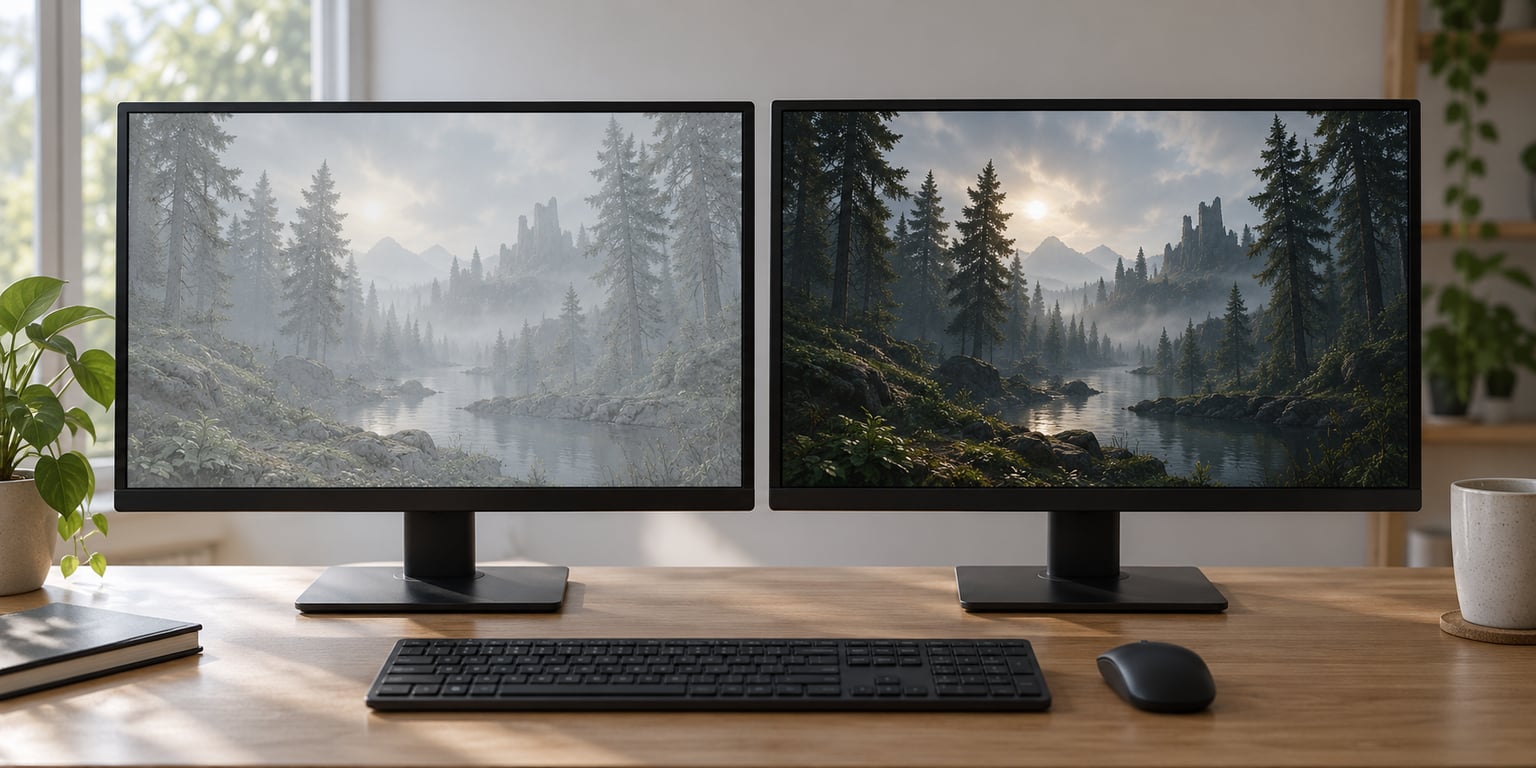
Some games look washed out because the picture has too little contrast between its darkest and brightest areas, so shadows turn grey and colours lose their punch. It usually comes down to a display setting, an HDR mismatch, or a slider inside the game itself, not a broken graphics card.
That is the short answer. The longer version is that washed-out visuals are one of the most common complaints in PC and console gaming, and the cause changes depending on which machine you are on and which game you launched. This guide walks through what the term actually means, the technical reasons behind it, and the fastest fixes for each platform.
Written and updated for 2026.
Table of Contents
- 1What Does It Mean When Games Look Washed Out?
- 2Why Some Games Look Washed Out
- 31. Display brightness and contrast are set for the wrong room
- 42. Gamma is set too low
- 53. HDR is mapping SDR content badly
- 64. The monitor is running a default colour profile
- 75. Viewers are diagnosing the problem wrong
- 86. Graphics settings flatten the image
- 97. Low-resolution texture streaming and sharpening
- 108. Rendering scale and upscaling
- 11How to Tell Whether the Problem Is Your Game or Your Display
- 12How to Fix Washed-Out Game Colors
- 13On Windows PC
- 14On Xbox Series X and S
- 15On PlayStation 5
- 16In-game settings that help
- 17Why HDR Games Can Look Washed Out
- 18Which Graphics Settings Can Make a Game Look Washed Out?
- 19When a Game’s Art Style Is Intentionally Washed Out
- 20Frequently Asked Questions
- 21Is HDR supposed to look washed out?
- 22Why does HDR content look grey on Windows 11?
- 23Why does my PS5 screen look grey when I use HDR?
- 24Why do some games look washed out but not others?
- 25Why does changing the volume slider fix washed out colors?
- 26Should I disable HDR to fix washed-out colors?
- 27What to Do First
What Does It Mean When Games Look Washed Out?
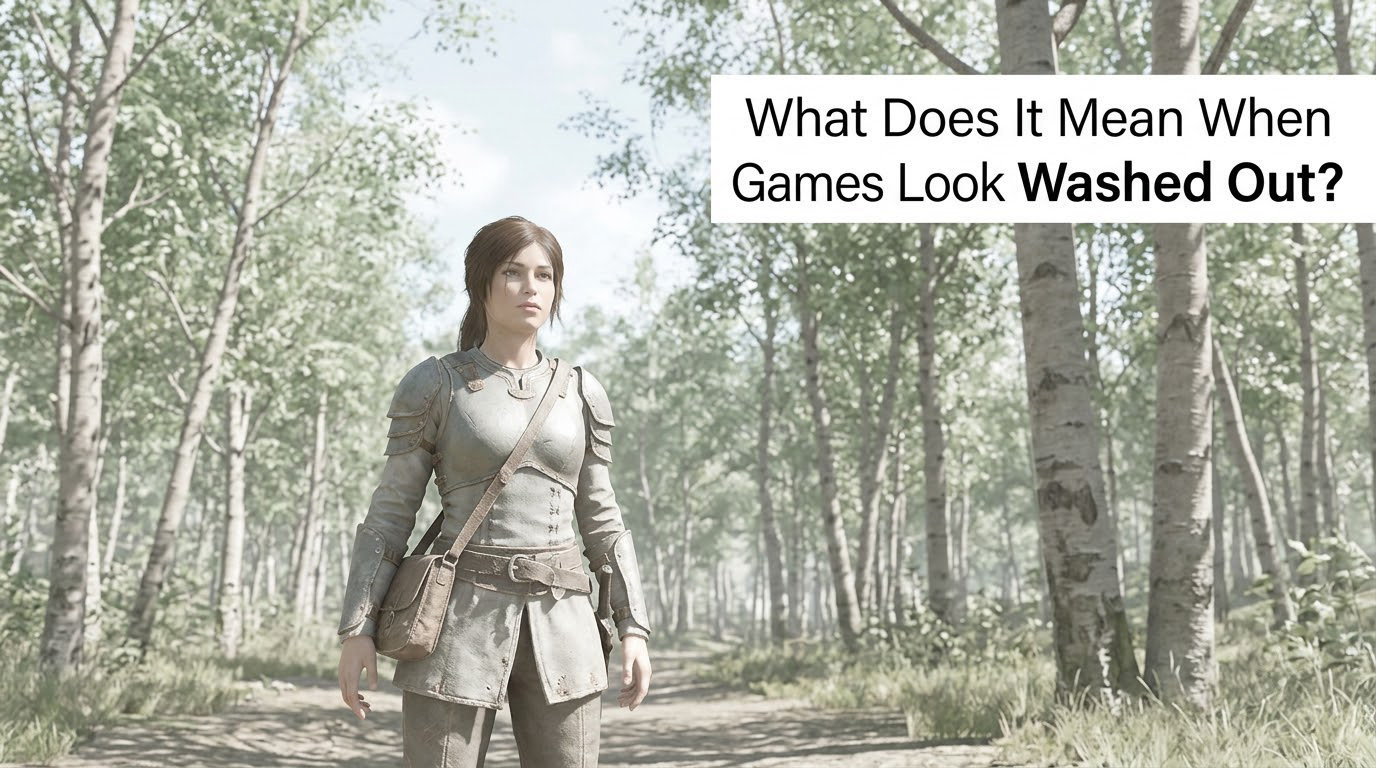
Washed out means the image is flat. Blacks sit closer to grey, highlights stop short of white, and colours look chalky rather than rich. It is the opposite of the punchy, high-contrast look most players assume a game should have.
It is also not the same thing as a game being blurry or low resolution. A blurry image is soft at the edges. A washed-out image is soft in its tonality, as if a layer of fog were sitting between you and the screen.
The symptoms show up in predictable places. Players usually notice lifted blacks in dark interiors, skies that read as pale grey instead of blue, skin tones that lose their warmth, and highlights that never quite hit white. If a menu screen and your desktop wallpaper look equally flat, the problem is almost certainly at the display or system level rather than in the game.
The opposite problem, by the way, is over-contrast. Some games look too harsh, with crushed shadows and glowing highlights. That gets described as HDR washout too, but the cause and the fix are different.
| What you see | What it is | Where it usually starts |
|---|---|---|
| Greys instead of blacks in dark scenes | Black level raised or local dimming off | Monitor OSD or game brightness slider |
| Pale, low-contrast colours overall | Gamma or contrast set low, or washed-out colour grading | In-game display menu |
| Colours dull only when HDR is on | Colour volume or tone mapping issue | System HDR settings |
| Glowing edges and halos around lights | Bloom, which is a different effect | In-game post-processing |
| Colours fine in one game, dull in another | Per-game HDR implementation quality | The game itself |
Why Some Games Look Washed Out
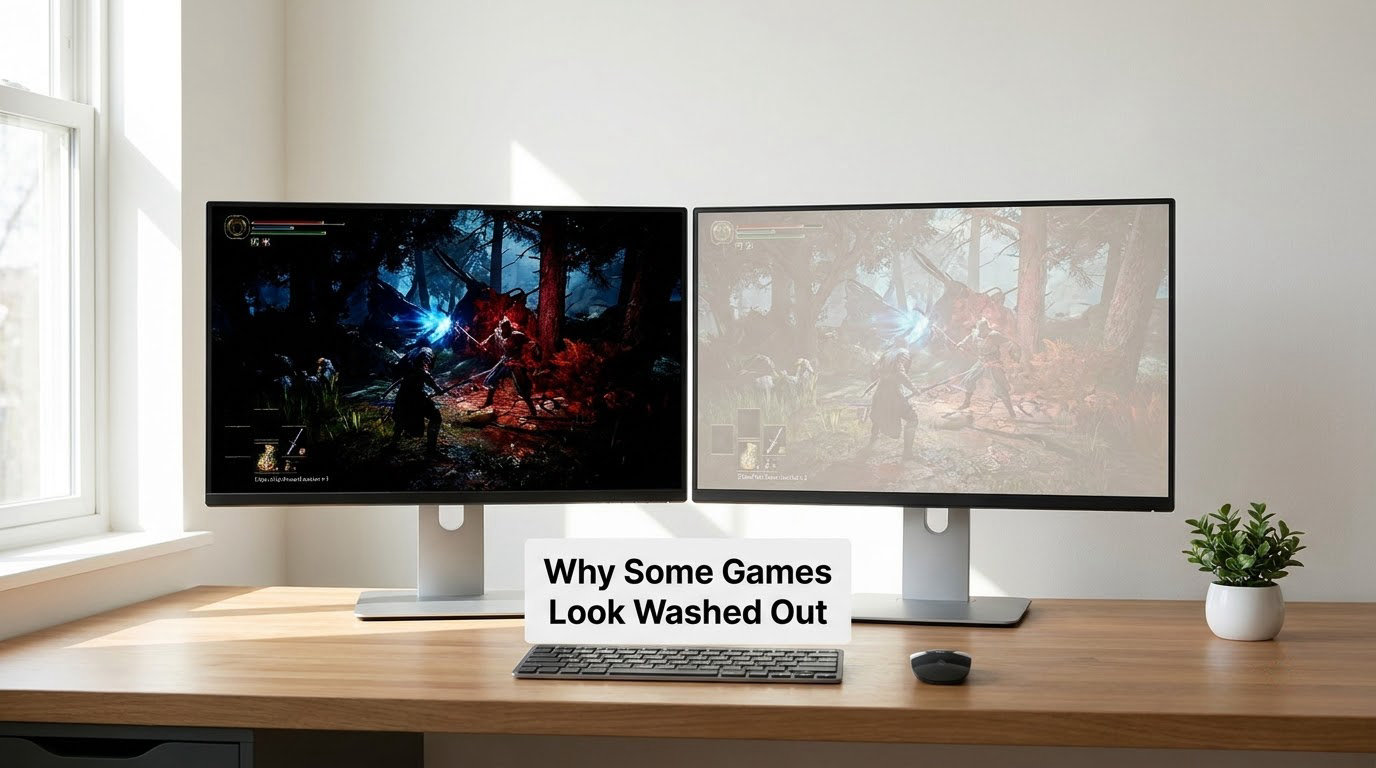
Once you know the symptom is real and not intended art direction, there are a handful of causes that account for nearly every case. Here they are in roughly the order they are worth checking.
1. Display brightness and contrast are set for the wrong room
Monitors and TVs ship with brightness set high so they look acceptable in a bright shop. In a dim room at night, that setting lifts the black floor and everything looks milky. Dropping brightness and raising contrast is usually the first thing worth trying.
2. Gamma is set too low
Gamma controls how quickly the image climbs from black to white. Set it low and midtones get pushed up, which flattens the picture. A lot of games default to a gamma value that looks washed out on a wide-gamut panel in HDR.
3. HDR is mapping SDR content badly
When HDR mode is on and a game has no real HDR support, the system tries to tone-map ordinary sRGB content into a high dynamic range pipeline. Done badly, that flattens contrast and desaturates colour. On PC this happens more often than on console because the display profile chain is under your control.
4. The monitor is running a default colour profile
Out of the box, many monitors ship with a generic profile that overshoots brightness and undercuts saturation. Community troubleshooting on display forums keeps circling the same point: factory colour profiles are a starting point, not a finished setup. Resetting to a proper profile or running the Windows HDR Calibration app changes more than any in-game slider.
5. Viewers are diagnosing the problem wrong
A dim room makes a well-exposed screen look bright and washed. A bright window behind you pushes perceived contrast in the other direction. Before changing a single setting, move to neutral lighting and turn off reflections.
6. Graphics settings flatten the image
Anti-aliasing, motion blur, depth of field and bloom all change perceived contrast. Heavy anti-aliasing smears fine detail into a haze, and depth of field blurs large areas of the frame at once. Both read as washed out even though the colour values are technically correct.
7. Low-resolution texture streaming and sharpening
When texture quality drops, distant surfaces arrive blurry and low contrast. With aggressive sharpening they arrive crunchy instead. Neither is a colour problem, but players frequently report the result as washed-out visuals.
8. Rendering scale and upscaling
Rendering below native resolution and letting the display or driver upscale softens everything. It is a common trade for frame rate, and it hits contrast hard because the dark areas lose their separation.
The colour space underneath all of this is worth understanding at least once. The key terms are short, and they explain most of the forum arguments you will read.
| Colour space | Common use | Typical reach |
|---|---|---|
| sRGB / Rec.709 | Standard PC and console SDR | The baseline most people judge against |
| Display P3 | Most modern wide-gamut monitors and Apple displays | Noticeably wider than sRGB |
| DCI-P3 | Cinema and some gaming panels | Wide, slightly different green handling |
| Rec.2020 | UHDTV and HDR mastering | Very wide, rarely shown fully |
When a monitor can show DCI-P3 but is driven as though it were sRGB, colours land inside the wrong triangle and the result is dull. That mismatch is the technical core of why some games look washed out on one screen and punchy on the one next door.
How to Tell Whether the Problem Is Your Game or Your Display
Run this sequence before you touch any settings. It takes about two minutes and tells you where to look.
First, look at your desktop wallpaper and a file folder window in full screen. If those look flat, the problem is the display or the system profile, not the game. Second, open a console home screen or the Xbox guide. If those look correct and only the game looks pale, the game owns the problem.
Third, launch a different game. Two titles looking different tells you it is not your monitor.
Fourth, toggle between fullscreen and windowed or borderless. Switching the display mode is the single most common fix players report, because it forces the game to re-read the active colour profile.
Fifth, check the cable and the input. A cable running at a lower bandwidth or a TV input set to the wrong mode can limit range or chroma, which reads exactly like a colour problem.
If desktop and menus look right and every game looks dull, suspect the monitor profile. If desktop looks dull too, start with the display and the operating system HDR settings.
How to Fix Washed-Out Game Colors
Work top to bottom and stop as soon as the look improves. Changing five sliders at once makes it impossible to tell which one helped.
On Windows PC
- Open Settings, then System, then Display, and confirm the monitor you are adjusting is selected at the top.
- Set HDR to Off, then play for ten minutes and look at the same scene. If the game improves, the HDR pipeline is the cause.
- If you want HDR on, turn it back on and adjust the HDR and SDR brightness balance slider. This controls how bright ordinary content appears next to HDR content.
- Run the Windows HDR Calibration app from the Microsoft Store and set the balance with your monitor in its normal position, at normal room lighting.
- In your GPU control panel, NVIDIA Control Panel or AMD Radeon Software, check that no colour profile override is forcing a custom ICC file.
- Confirm Auto HDR is off unless the game has no native HDR mode. Auto HDR applies tone mapping to SDR games, and players on gaming subreddits report it looking worse than native HDR in the titles that already support it.
On Xbox Series X and S
- Open Settings, then Display and TV, then Video Calibration.
- Run the calibration in a dim room and keep the TV on its normal picture mode, not a shop mode.
- Leave HDR on for games that support it. For HDR games, raise brightness in small steps only, and never so far that the room lights are visible on screen.
- If a game still looks dull, use the Switch Broadcast and Capture area to check the format is outputting RGB range full rather than limited.
On PlayStation 5
- Go to Settings, then Screen, then Video Output.
- Set the output to Automatic unless your TV has a specific matching setting.
- Under Picture and Video, check that HDR is on and that the console is not forced into a low-range output.
- Set the TV picture mode to Cinema or Custom instead of whatever the room looks best on in the shop.
In-game settings that help
Raise contrast first, then gamma, then saturation. Move each in small steps. Many titles also have a separate calibration screen with grey bars for black point and white point, and setting those correctly fixes more than any single slider.
One widely used workaround: nudge the system volume slider up and down. Players report that this refreshes the colour state and the picture snaps back to normal for a while. It is a refresh trick, not a fix, so treat it as a clue that the pipeline is stuck rather than something to live on.
Check accessibility settings too. A colour filter or colour blind mode left enabled by accident desaturates everything and would explain a permanently pale image.
Why HDR Games Can Look Washed Out
HDR widens two things at once: the brightness range and the colour volume. Brightness is easy to understand. Colour volume is the part people trip on.
Colour volume is brightness times colour range. A bright SDR image with a modest colour range sits in a small volume. An HDR image puts those same colours at a much higher luminance, which in a well-behaved pipeline lets the display spread them out and keep them saturated. When a game does not carry HDR metadata, the system has to guess the mastering intent, and guessed output usually comes back flatter than the SDR original.
Panel type matters more here than most people expect. An OLED has near-black pixels, so its contrast comes almost entirely from the panel and stays stable at high brightness. An LCD relies on backlight and local dimming. On many LCDs, pushing brightness up to show HDR lifts the black floor across the whole panel, which is precisely the grey haze players call washed out. On cheaper VA panels without local dimming the effect is stronger still.
That difference explains the OLED-versus-LCD conversation that shows up constantly on gaming display forums. It is not a preference argument. The panels are failing in different ways under the same HDR signal.
So is HDR supposed to look washed out? No. A correctly implemented HDR game on a capable display should give you brighter highlights, deeper blacks and colour that holds up at high luminance. If it does not, something in the chain is off.
Which Graphics Settings Can Make a Game Look Washed Out?
These are the options most worth a look, in the order I would change them.
- Brightness and contrast. The obvious pair. Contrast too low is the single most common cause.
- Gamma. Low gamma lifts midtones and flattens the image.
- Saturation or vibrance. Some games default to a low saturation slider for a more neutral look.
- HDR toggle. Turning it off on a game that looks worse with it on is legitimate.
- Anti-aliasing. Heavy TAA or high MSAA softens detail into a haze.
- Depth of field. Blurs large areas of the frame and kills contrast across the board.
- Bloom. Adds halos and veiling glare. This is the opposite of washed out, but players confuse the two constantly because both look hazy.
- Motion blur. Smears contrast when the camera moves.
- Film grain and colour grading. A pale grade will wash out a technically correct render.
- Resolution scaling. Below-native rendering plus upscaling softens dark detail.
- Frame generation. Occasionally changes perceived sharpness after a driver update, though it is not a colour setting.
Bloom deserves its own warning. If the glow around lights is the thing bothering you, the fix is bloom, not contrast. Turning contrast up to fix bloom usually makes shadows worse.
When a Game’s Art Style Is Intentionally Washed Out
Not every pale image is a fault. Some games are built around fog, haze and desaturated palettes on purpose. A survival horror set in a dust storm, a post-apocalyptic game built on bleached colour, or a dream sequence that deliberately flattens contrast are all art direction, not bugs.
There is a simple test. If the palette stays consistent across menus, cutscenes and gameplay, and the game never once delivers a deep saturated colour anywhere, that is a style. If one scene is grey while another has rich reds and blacks, you have a settings or rendering problem.
Players have argued about this for years on hardware forums, and the 2011-era thread on HDR lighting in older titles still reads well today. The complaint then was that everything looked overbright, which is the mirror image of the current one, and the conclusion was the same: some of it is the engine, some of it is the panel, and some of it is the artist.
So before you start changing settings, watch ten minutes of the game. You will usually know within a minute whether you are looking at a broken image or a deliberate one.
Frequently Asked Questions
Is HDR supposed to look washed out?
No. A correctly implemented HDR game on a capable display should give you brighter highlights, deeper blacks and colour that holds together at high brightness. A grey, milky image usually means tone mapping is guessing, the brightness slider is too high, or an LCD panel has lifted its black floor. Turning HDR off and comparing the same scene is the fastest way to confirm which one it is.
Why does HDR content look grey on Windows 11?
Because SDR content is being tone-mapped into an HDR pipeline, and the mapping is not matching the display profile. Check the HDR and SDR brightness balance slider in Windows display settings, run the Windows HDR Calibration app, and confirm your GPU control panel is not overriding the active colour profile. Turning Auto HDR off also helps, since it adds a second mapping step to games that already have an HDR mode.
Why does my PS5 screen look grey when I use HDR?
Usually the TV picture mode. Shop and vivid modes crush the image in a way that reads as grey once HDR raises the peak brightness. Set the console to automatic output under Video Output, switch the TV to Cinema or Custom, and check that HDR is enabled under Picture and Video. Then use the TV’s own calibration or a test pattern rather than in-game sliders.
Why do some games look washed out but not others?
Each title ships its own colour grading and its own HDR implementation, and the quality varies a lot. A game with no native HDR support relies on whatever the system does with its SDR image, which is where the flattening appears. Also test fullscreen versus windowed: a display mode switch often forces the game to reload the correct colour profile and the picture snaps back.
Why does changing the volume slider fix washed out colors?
Moving the volume slider refreshes part of the audio and display pipeline, and on some systems that forces the colour state to update, so the picture returns to normal for a while. It is a refresh trick rather than a correction, which is why the effect fades. Treat it as a clue that the profile or HDR state is stuck, and fix that properly instead.
Should I disable HDR to fix washed-out colors?
Often, yes, and it costs you nothing to test. Turn HDR off, play the same scene for ten minutes, and compare. If the game looks better, either leave it off or calibrate properly with the HDR and SDR brightness balance slider and the Windows HDR Calibration app. Disabling HDR is a reasonable permanent choice for a display you never calibrated.
What to Do First
Start with the two-minute test: look at your desktop, then a console home screen, then the same game in windowed and fullscreen. If everything is flat, fix the display profile and the HDR brightness balance before touching any in-game slider.
Then raise contrast before gamma, and before saturation. If ten minutes of watching shows a consistent pale palette across every scene, stop adjusting and check whether the game simply looks like that on purpose.