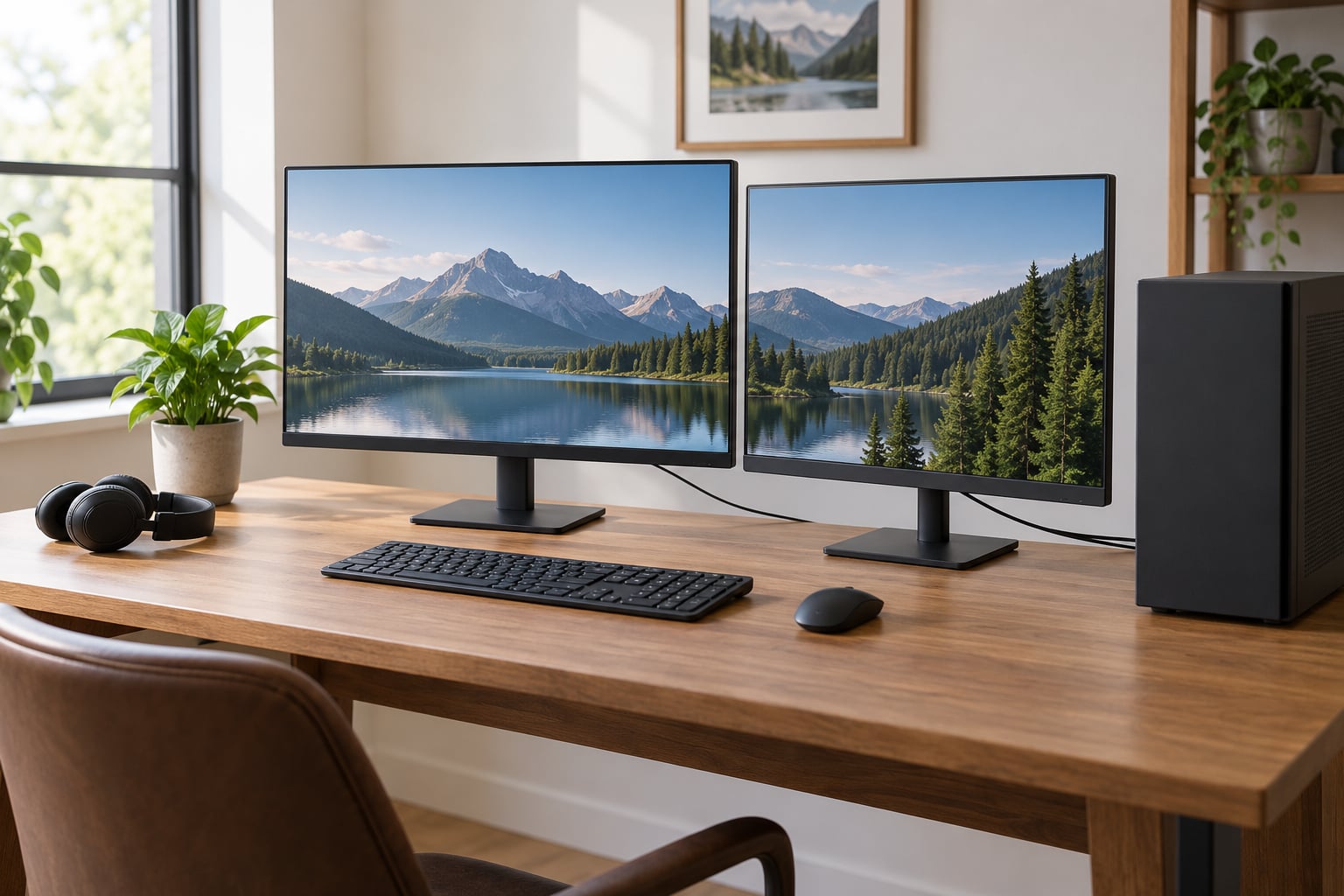
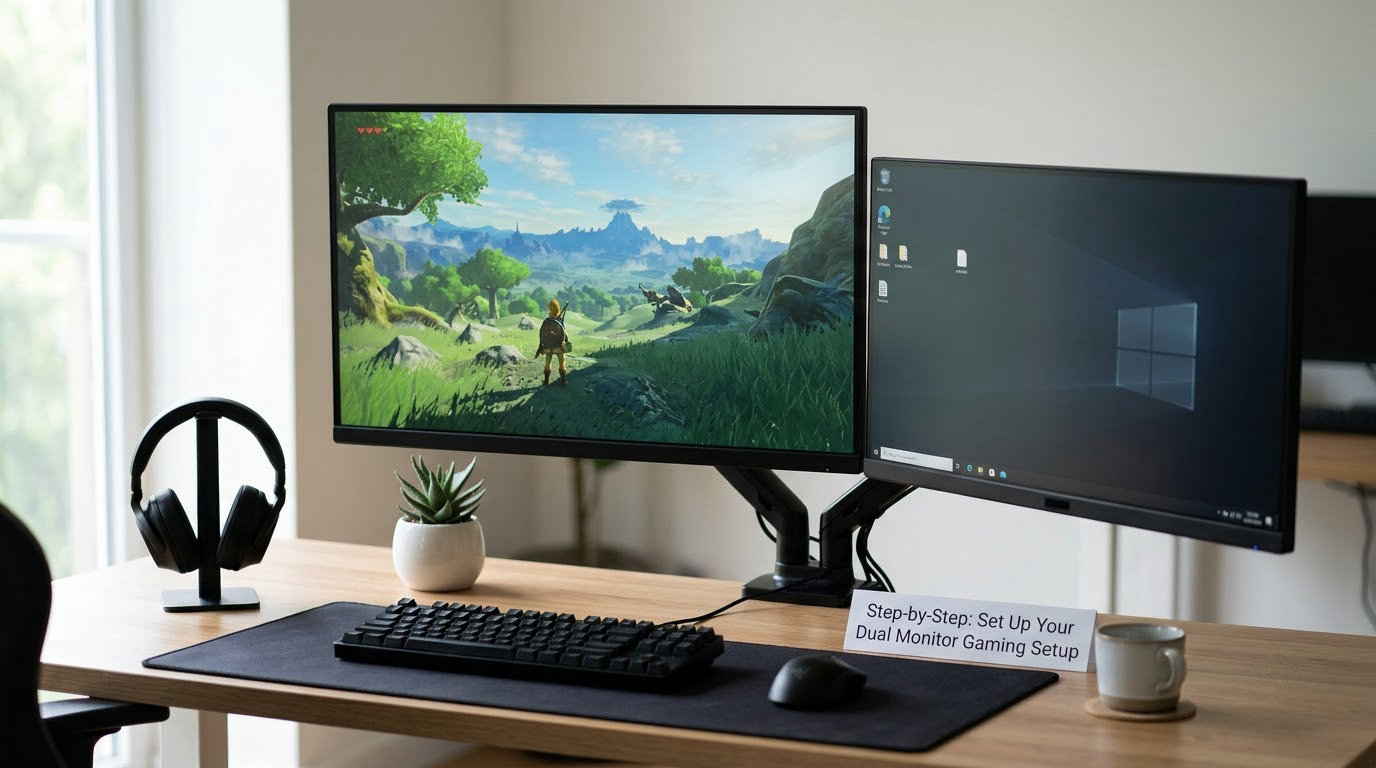
Learning how to set up a dual monitor gaming setup takes about 20 minutes once the hardware is on the desk. You connect each display to a separate video output on your graphics card, tell Windows to extend these displays instead of duplicating them, then set the gaming panel as the main display at its native resolution and highest stable refresh rate. Everything else is moving chat, guides and streaming tools onto the second screen.
The part that trips people up is not the wiring. It is what happens after the second screen lights up and everything still looks wrong: the game opens on the wrong panel, the text on one monitor is blurry, the cursor keeps getting trapped, or the picture drops to 60Hz. Those are all settings problems, and each one has a fix.
This guide covers Windows 11 first, with the Windows 10 differences called out where they exist. It also covers the parts most walkthroughs skip: running two monitors from a single port, using two different resolutions side by side, spanning one game across both panels with NVIDIA Surround or AMD Eyefinity, and what happens on a PS5 or PS4.
Table of Contents
- 1What You Need for a Dual Monitor Gaming Setup
- 2Can you run two monitors from one port?
- 3Step-by-Step: Set Up Your Dual Monitor Gaming Setup
- 41. Check your PC, GPU, and monitor ports
- 52. Choose the main gaming monitor
- 63. Connect both monitors and arrange the desk
- 74. Set the display resolution and refresh rate
- 85. Configure the GPU and game display output
- 96. Move chat, guides and streaming tools to the second screen
- 107. Test games, audio and input lag
- 11Using Different Resolutions and Refresh Rates on Two Monitors
- 12Spanning One Game Across Both Monitors
- 13Common Mistakes When Setting Up Dual Monitor Gaming
- 14Frequently Asked Questions
- 15Do I need a primary monitor for a dual monitor gaming setup?
- 16Can I run two monitors from one HDMI port?
- 17Can two monitors have different resolutions and refresh rates?
- 18Does a second monitor cost me frames while gaming?
- 19Why does my game shrink to a small window when I alt-tab?
- 20What is the best layout for two gaming monitors?
- 21Conclusion
What You Need for a Dual Monitor Gaming Setup
Two displays, one PC, and the right cable for each. Before you unbox anything, confirm these six things.
- A second monitor. It does not have to match your gaming panel. A smaller 1080p screen for Discord and guides works fine next to a 1440p gaming display.
- A video output on the graphics card. Modern GPUs usually have three DisplayPort connectors plus one HDMI port. Older office PCs may only have one HDMI and one VGA jack.
- One cable per monitor. Match the connector on each end. A DisplayPort-to-HDMI cable works in one direction only, and only on some adapters.
- Windows 10 or Windows 11. Both handle extended displays the same way; the menu names moved slightly in Windows 11.
- Some desk depth. Two 27-inch panels need real desk width. Measure before you unbox, not after.
- A docking station or adapter if your PC is short on ports. USB-C docks are the usual fix for laptops and small-form-factor PCs.
Check your GPU ports in Device Manager while the PC is open. Expand Display adapters, right-click your graphics card, and look at the physical connectors on the card itself rather than guessing from the model name.
Can you run two monitors from one port?
Sometimes, yes. DisplayPort supports Multi-Stream Transport, or MST, which lets one DisplayPort output drive two monitors that support daisy chaining. The second monitor needs a DisplayPort output of its own, and often a cable that is MST-capable, which is why a plain certified cable is a safer bet than a random one.
HDMI does not work that way in the same way. A single HDMI port cannot drive two monitors directly, so you need an HDMI splitter, and a splitter mirrors the same image to both screens rather than extending them. That is fine for a party setup where you want the same game visible on a TV. For a real extended desktop, use the two separate outputs on your GPU or a USB-C dock with multiple video outputs.
Step-by-Step: Set Up Your Dual Monitor Gaming Setup
1. Check your PC, GPU, and monitor ports
Look at the back of your graphics card and note which connectors are free. Then look at the input row on the back of each monitor. DisplayPort is the better choice for gaming where you can get it, because it carries high refresh rates and adaptive sync cleanly. HDMI works fine at 1440p and 60 to 144Hz on most panels. You will know this worked once both monitors show a signal during step 3.
2. Choose the main gaming monitor
Decide which panel runs your games before you cable anything. Look for a higher refresh rate and a lower input lag rating on that one, since it sits directly in your line of sight. The second display can be higher resolution, lower resolution, or a different aspect ratio; it mostly handles reference material. If your two panels are very different in size, expect the desktop to look inconsistent until you tune scaling, which we cover later.
3. Connect both monitors and arrange the desk
Shut the PC down before you plug anything in, which avoids forcing a hot-plug connection into an older port. Connect each monitor to its own output on the graphics card rather than one on the motherboard, because motherboard outputs often run through the integrated GPU. Then position the gaming monitor directly in front of you and put the second one to the side, angled inward, so it does not push your keyboard or mouse off the desk.
4. Set the display resolution and refresh rate
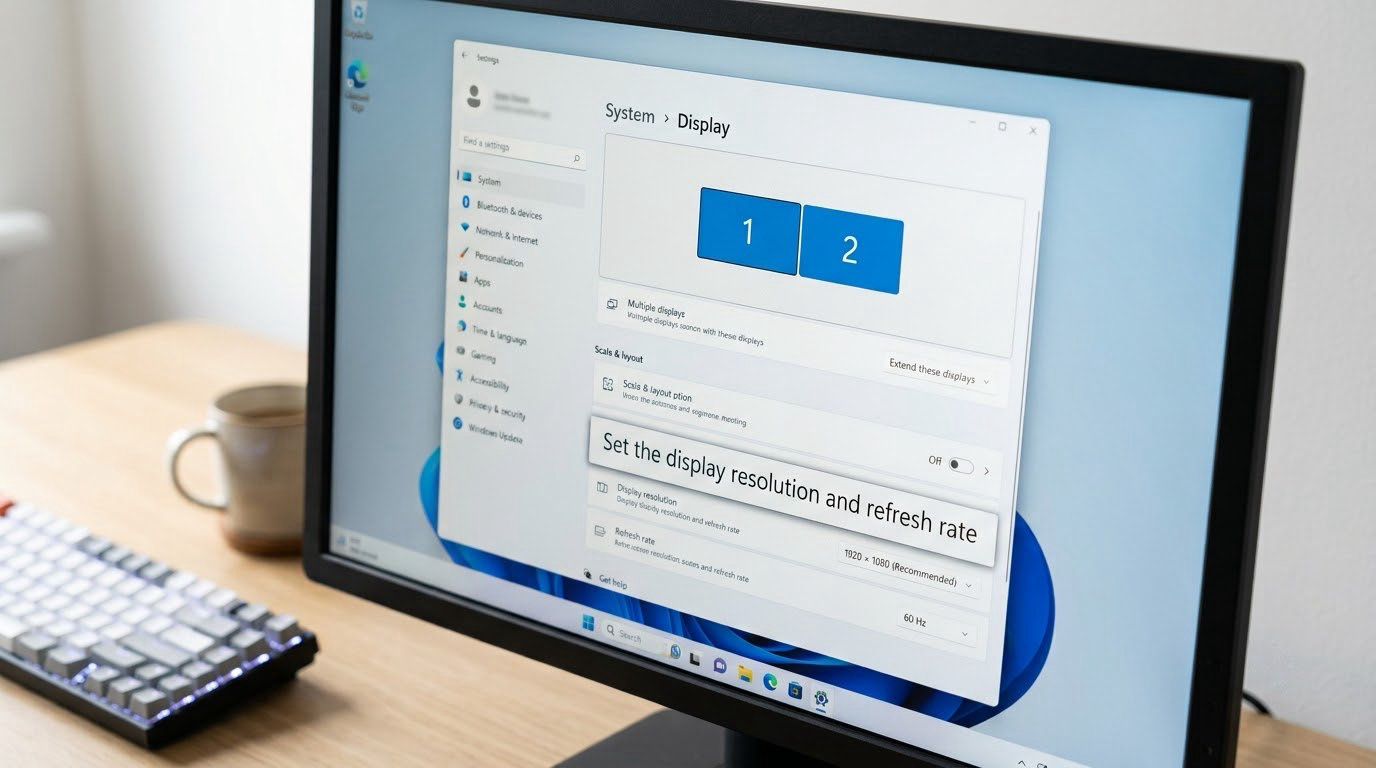
This is where most setups end up wrong, so give it time. Press Windows + P and choose Extend. If you are on Windows 11, right-click the desktop and pick Display settings, then click each display thumbnail in turn. Set each one to its recommended resolution, then open Advanced display settings and pick the highest refresh rate the panel actually supports. New monitors often ship set to 60Hz, which is why a good display can feel sluggish until you change this.
While you are in there, click Make this my main display on the gaming monitor. Games launch on the main display, and so do some overlays and fullscreen transitions, so this one click fixes a surprising number of complaints.
5. Configure the GPU and game display output
Open your GPU control panel: NVIDIA Control Panel from the desktop right-click menu, or AMD Software on a Radeon card. Two settings matter here. In the display section, confirm the game output targets the gaming monitor rather than the secondary, and check the scaling mode is set to the panel’s native aspect ratio rather than the GPU’s default. If a game runs on the wrong screen, most titles have their own display selector under Settings, Video or Display, where you pick the monitor and choose fullscreen, borderless windowed or windowed.
6. Move chat, guides and streaming tools to the second screen
Drag Discord, your browser or a walkthrough onto the secondary display and it will stay there between sessions. Windows + Shift + Left or Right moves the focused window between monitors, and Windows snap layouts will park a window in half or a quarter of a screen with a couple of clicks. Once a tool is where you want it, right-click its taskbar icon and choose Pin, or in Windows 11 hover its taskbar icon and pin the window separately, so it always reopens on the right panel.
7. Test games, audio and input lag
Launch a game you know well and check four things: it opens on the gaming monitor, it fills the screen rather than letterboxing, the refresh rate shows your target number in the game’s own settings, and sound comes out the right way. If the cursor gets stuck at the edge between screens, drag it across more decisively while holding the mouse button. If a display flickers at high refresh rates, try a different cable before you change any settings, since bad cables fail under the bandwidth of 144Hz.
For the most accurate frame-time and lag figures, Windows now reports a live frame rate in the game bar, and a refresh-rate overlay in the game’s own settings is usually more trustworthy than any general-purpose benchmark tool.
Using Different Resolutions and Refresh Rates on Two Monitors
Two panels do not have to match, and mixing them is the most common real-world arrangement. Windows scales each display independently, so a 2560×1440 gaming monitor and a 1920×1080 secondary can sit side by side without problems, as long as you set each one correctly.
| Setting | 2560×1440 gaming monitor at 165Hz | 1920×1080 secondary at 144Hz |
|---|---|---|
| Recommended resolution | 2560×1440, native, 100% scaling | 1920×1080, native, 100% scaling |
| Refresh rate | Highest stable value the panel lists | Match the gaming monitor where possible |
| Colour depth | 8-bit or 10-bit if HDR is enabled | 8-bit is plenty for text and video |
| Best use | The game, full screen | Discord, guides, chat, stream metrics |
| Watch out for | Dropped frames if the GPU is stretched | Blurry text if you scale above native |
Adaptive sync is the exception. G-Sync and FreeSync apply to the display the game is running on, and when your two panels have different refresh rates, the one running the game still behaves correctly. The problem shows up when you alt-tab: the inactive display can flash or judder because it is being driven at a rate the game no longer expects. Disabling variable refresh rate while the game has focus usually settles it.
If your monitors share a resolution but not a physical size, the two desktops will show windows at different sizes. Adjust scaling per monitor in Windows display settings rather than assuming something is broken.
Spanning One Game Across Both Monitors
You can treat two panels as one wide screen, which widens your field of view instead of giving you a side panel. On an NVIDIA card, open NVIDIA Control Panel, go to Configure Surround, tick the spanning option and choose 2 displays. On an AMD card, the equivalent is Display > AMD Eyefinity > Multi-display setup, where you tick the spanning box and arrange the displays with the numbered tiles.
Then set the spanning resolution in the GPU panel, usually 3840×1080 for two 1080p panels side by side. A bezel correction utility can shrink the image slightly so the gap between the two screens is less obvious. Games that support multi-monitor mode add their own bezel correction slider in the video settings, and it is worth nudging it until the two halves line up.
Be honest about the tradeoff, though. Players in the r/nvidia community commonly angle the outer monitors inward and still find the seam bothersome, which is why many end up abandoning spanning and go back to using the second screen for reference material instead. Sim racers and flight sim players tend to keep it, because extra instrumentation is genuinely useful there. Spanning also complicates overlays, alt-tabbing and some taskbar utilities, since the driver now presents one large combined display to Windows.
Common Mistakes When Setting Up Dual Monitor Gaming
| Symptom | Likely cause | Fix |
|---|---|---|
| Both screens show the same desktop | Windows is set to duplicate | Press Windows + P and choose Extend |
| Second monitor stays black with “no signal” | Cable in the wrong port, or plugged into the motherboard | Move the cable to a port on the graphics card, then press Windows + P and Extend |
| Everything looks blurry on one panel | Resolution is not native, or scaling is above 100% | Set the display to its recommended resolution and reset scaling |
| Game feels laggy but the monitor is new | Still running at 60Hz | Advanced display settings, then choose the highest refresh rate listed |
| Game opens on the wrong screen | That monitor is the main display | Click Make this my main display on the gaming monitor |
| Window shrinks to a corner when you alt-tab | Exclusive fullscreen mode | Switch the game to borderless windowed, usually under Settings, Video or Display |
| Cursor freezes at the screen edge | Desktop boundary drag | Push the cursor across the gap with the mouse button held |
| Screen flickers or drops signal at high refresh | Marginal cable or adapter | Swap to a certified cable, remove any adapter, reseat both ends |
| HDR looks washed out or colours look wrong | HDR enabled on one panel only | Match HDR on or off across both displays in display settings |
| Taskbar appears on both screens | Taskbar setting | Taskbar settings, then uncheck Show my taskbar on all displays |
| No sound after connecting | Output switched to the wrong display | Sound settings, then choose your headphones or speakers as the output |
On a console the rules change. A PS5 has a single HDMI output, so a second display needs an HDMI splitter, which mirrors the image instead of extending it. A PS4 or Xbox One with two HDMI ports can send a separate picture to each screen, though the console’s own settings decide how that is handled. If you play on PC and stream the same session to people on a console, keep the extended desktop setup on the PC and let the splitter handle the console side.
Frequently Asked Questions
Do I need a primary monitor for a dual monitor gaming setup?
Yes. Windows always treats one display as the main display, and games, startup windows and some overlays open there by default. Set the gaming panel as main under Windows + P, then Display settings, and every game will launch in the right place.
Can I run two monitors from one HDMI port?
Not for an extended desktop. HDMI cannot daisy chain, so a single HDMI port drives one monitor. A splitter mirrors the same image to both screens, which suits watching a game on a TV. For a real second desktop, use the separate outputs on your graphics card or a USB-C dock.
Can two monitors have different resolutions and refresh rates?
Yes, and most mixed setups work well. Windows scales each display independently, so set the gaming monitor to its native resolution and highest stable refresh rate, then set the secondary to its own recommended values. Adaptive sync follows whichever display the game is running on.
Does a second monitor cost me frames while gaming?
Barely, as long as the second display is not running something heavy. An idle 144Hz monitor costs very little, but a game running on the second screen, or an active OBS capture, will draw on the same GPU. Close what you do not need before a match.
Why does my game shrink to a small window when I alt-tab?
That is exclusive fullscreen behaviour. Switch the game to borderless windowed mode, usually under Settings, Video or Display, and it will keep its size while you switch to Discord. Borderless also removes the resolution switch that causes a short hitch every time you return.
What is the best layout for two gaming monitors?
Put the gaming monitor centred in front of you and angle the second one inward from the side, with both top edges close to the same height. Keep the pair about an arm’s length away. If your desk is too shallow for two wide panels, use a monitor arm to free up space.
Conclusion
Connect both displays to separate outputs on the graphics card, press Windows + P and choose Extend, then set the gaming monitor as the main display. Give that monitor its native resolution and the highest refresh rate it lists, give the second one its own recommended values, and move Discord, guides and streaming tools across. Everything after that is preference.
If you want to know how to set up a dual monitor gaming setup well, remember this: the picture on screen is correct the moment each monitor runs at its own recommended resolution and refresh rate, and your game is in the right place the moment the main display is set. Those two fixes solve most of what people run into on day one.