Straight answer on how game launchers affect performance: barely at all once you are inside the game. What they really cost is memory and background work — idle RAM, a slice of CPU, occasional GPU use from GPU-accelerated launcher windows, disk activity during updates, and shader compilation on first launch. On a modern PC with 16GB of RAM or more, none of that shows up as a frame rate problem. It shows up as slow boot, slow launch times, and a system that feels sluggish when you alt-tab out.
That distinction matters because the question has three separate answers hiding inside it. Steady-state FPS, load-time and shader-compile cost, and download contention behave nothing alike, and only one of them is usually what people mean when they say a launcher is slowing them down.
Table of Contents
- 1What Is a Game Launcher?
- 2How Game Launchers Affect Performance
- 3Does a Launcher Make a Game Run Slower?
- 4What Can Launchers Change at Startup?
- 5Do Launchers Cause Lag, Stutter, or Lower FPS?
- 6How Much CPU, RAM, and Storage Do Launchers Use?
- 7How Do Overlays and Background Apps Affect Games?
- 8Does Downloading Games in the Background Reduce Performance?
- 9Do Game Launchers Change Graphics Settings?
- 10How to Test Whether Your Launcher Is Affecting Performance
- 11how game launchers affect performance on different platforms
- 12Quick Settings to Test First
- 13When the Problem Is Not the Launcher
- 14Frequently Asked Questions
- 15Do game launchers reduce FPS?
- 16Are game launchers using a lot of RAM?
- 17Should I turn off my Steam overlay?
- 18Why does my game stutter when it launches?
- 19Can launching a game through a store make it slower?
- 20Does uninstalling a game launcher improve PC performance?
- 21Conclusion
What Is a Game Launcher?
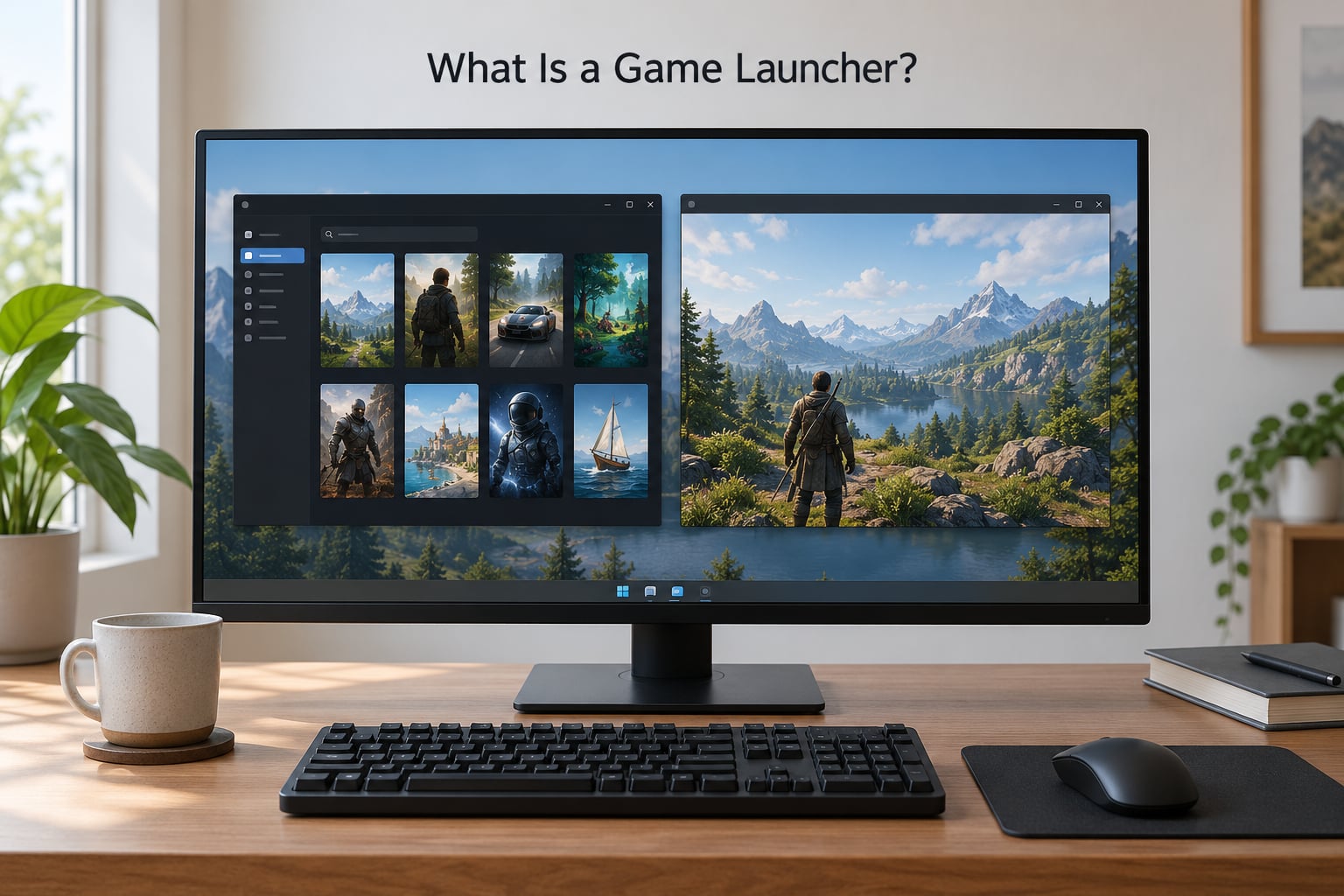
A game launcher is the desktop client for a store or library manager. It is a separate program from the game itself, and the game keeps running even if you close the launcher window.
That separation is the first thing people get wrong. The launcher is not the engine. It is the piece that handles everything around the engine:
- Authentication — proving you own the game or have an active subscription, sometimes through a separate anti-cheat or DRM service that starts alongside it.
- Updates and patching — checking for new builds, downloading them, and verifying local files.
- Version selection — letting you launch an older branch when a new one broke something.
- Cloud saves — syncing save files between machines, both uploading and downloading.
- Overlays — an in-game layer for friends lists, chat, achievements, and screenshots.
- The launch itself — passing command-line arguments to the game executable and monitoring when it exits.
Some of those jobs are continuous. Others run for ten seconds and go quiet. Knowing which is which tells you whether a launcher sitting in your system tray is costing you anything right now.
How Game Launchers Affect Performance
Direct answer: launchers do not meaningfully reduce your frame rate. They consume idle RAM, a low single-digit percentage of CPU while running, and in some cases a small amount of GPU time while their interface is open. The effects you are most likely to feel are longer launch times, stutter during the first minutes of a session, and slower behavior when memory runs short.
Five things are worth measuring separately, because they have different fixes:
- Idle RAM — held constantly while the launcher sits in the tray. Published measurements of the major clients range from roughly 80MB to 570MB each, depending on version and what you have installed.
- Background CPU — update checks, library scans, and telemetry. Usually a fraction of a percent, but not always.
- GPU usage from the launcher UI — Epic, the EA app, and GOG Galaxy render hardware-accelerated interfaces, so they show activity on the GPU even when nothing is happening.
- Disk and network activity — downloads, verification passes, and cloud sync, all of which compete with the game for I/O.
- Shader compilation at startup — the launcher often kicks off pre-caching, which borrows CPU and disk time during your first few minutes.
If you run five or six store clients at once, the first item on that list is the one that adds up. Roughly 1GB to 2GB of RAM is a plausible total for a multi-store setup, and that is memory the game cannot use.
Does a Launcher Make a Game Run Slower?
Not in the way most people mean it. A closed, idle launcher window costs a fixed amount of memory and almost no CPU. Your game does not compete with it for the GPU, because the launcher is not rendering anything.
Once the launcher is doing work, the picture changes. A verification pass reads a lot of files. An update downloads and writes. A library scan hashes game directories. Any of those can interfere with load times and, on a slower drive, produce visible hitching.
Users on r/Amd have reported the Epic Games client holding around 3-4% CPU and a noticeable share of system memory while simply running, along with claims of higher idle CPU temperatures on some Ryzen systems. Forum threads on TechPowerUp describe the Epic interface itself rendering at 30 FPS or below and taking a long time to load components. Those are reports from specific builds on specific machines, and they describe UI rendering rather than in-game performance.
The useful distinction: a launcher can make your machine feel slow without costing a single frame in the game. Nobody is dropping from 60 to 50 because a client is in the tray. They are running out of memory, or the drive is busy, or a background process is stealing a core the game wanted.
What Can Launchers Change at Startup?
Startup is where launchers do their heaviest work. A cold start can mean a different result from launching the same game later in the day, and the difference is usually the launcher, not the game.
Typical startup sequence:
- Client boot — the launcher process starts, restores its window state, and may load a web-rendered interface.
- Login and licence check — a network round trip that occasionally holds up the game launch.
- Update and file verification — the launcher can decide to verify local files before starting, which reads a large portion of the install.
- Anti-cheat or DRM service start — a separate service that often runs continuously and can be confused with the launcher in Task Manager.
- Shader pre-caching — background compilation that continues for several minutes after the game window appears.
- Overlay hooks — an injected layer that attaches to the rendering pipeline once the game is up.
That last pair is why the first ten minutes of a session often feel worse than the fortieth. Shaders compile once, then get cached. Second launch, no hitch.
Do Launchers Cause Lag, Stutter, or Lower FPS?
They can cause stutter, but almost never a lower average frame rate. Matching your symptom to the real cause saves hours of pointless tinkering.
Average FPS drops, everything feels uniformly slower — this is usually not the launcher. Look at CPU and GPU utilization, thermal throttling, or in-game settings first.
Periodic hitches in the first minutes, then smooth — shader compilation. The launcher may have started it, but the game engine does the compiling.
Input lag where the frame rate looks fine — look at frametime consistency and your 1% lows, which measure the worst frames in a run. An overlay capture hook or a background disk spike can wreck lows without moving the average.
Hitches that line up with disk activity — updates, cloud sync, or verification competing with the game’s own file reads. Most visible on a hard drive or a heavily fragmented SSD.
Stutter only when a specific client is open — that is worth taking seriously, and the fastest test is to close it and replay the same scene.
How Much CPU, RAM, and Storage Do Launchers Use?
Here is the comparison most readers are after. These figures come from a controlled test on an older rig (i9-9900K, RTX 3080, Windows 10), so the absolute numbers are dated even though the ranking has held up in community use since.
| Client | Idle RAM | RAM with window open | Noted behaviour |
|---|---|---|---|
| Bethesda.net launcher | about 550MB | about 565MB | Heaviest memory footprint in that test set |
| Steam | about 272MB | about 390MB | Scales with library size and background activity |
| Battle.net | about 173MB | about 489MB | Large jump once the window renders |
| Epic Games Launcher | about 178MB | about 313MB | GPU-accelerated UI; about 1.8% CPU and 4.5% GPU while active in that test |
| GOG Galaxy | low | moderate | GPU-accelerated interface, optional client |
Treat those as a shape rather than a promise. Client versions move, installs get bigger, and every launcher spawns more than one process, so Task Manager shows several rows per client. Sort by memory and add up the family.
How Do Overlays and Background Apps Affect Games?
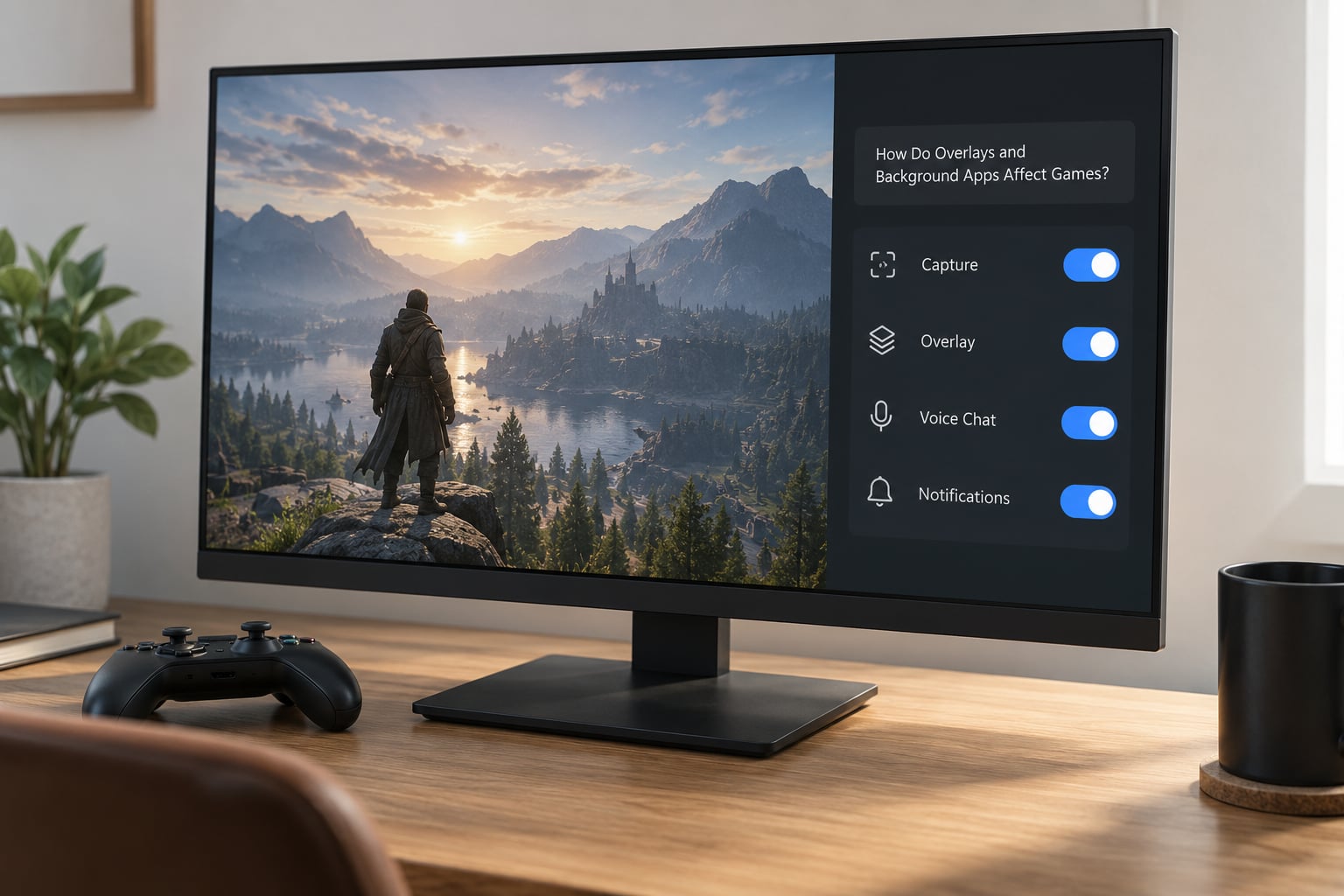
The overlay is the part of a launcher most likely to touch the game itself, because it injects into the rendering process and draws on top of your frames.
Overlays are also where background software piles up. An FPS counter, a capture tool, voice chat, a friends list widget, desktop notifications, and a browser-based launcher all want CPU time, memory, and in some cases a slice of the graphics pipeline at the same moment.
What each one tends to cost:
- FPS counter — the cheapest, though a poorly written one can still add a frame-time spike per update.
- Screenshot or capture hotkey — cheap until you press it, then it grabs the frame buffer.
- Full recording — the expensive one. Encoding competes for CPU or GPU encoder resources.
- Friends list and rich presence — periodic network calls that occasionally stall.
- Desktop notifications and browser launchers — small but frequent background work.
Settings worth testing, in the order I would try them: turn off the in-game overlay in the launcher settings, disable launch-time recording, mute overlay notifications, and exit capture apps entirely rather than leaving them minimized. Replay the same scene after each change. One at a time, or you learn nothing.
Does Downloading Games in the Background Reduce Performance?
Yes, more than most launchers do at idle. A download is three things at once: network saturation, constant disk writes, and some CPU for compression and verification.
The disk is the part that hurts. A game loading assets and an updater writing chunks to the same drive contend for the same queue, and load times stretch. On an SSD the effect is smaller but still real; on a hard drive it can be severe. A faster drive reduces the interruption, it does not remove it.
Pause downloads before you start a session if load times feel off. It is a two-click fix and it costs you nothing.
Do Game Launchers Change Graphics Settings?
Rarely in the way people assume. A launcher may store a configuration profile, offer launch options, or apply a compatibility mode. Resolution, shadow quality, texture filtering, frame caps, and upscaling almost always live in the game’s own menu.
Where to verify, since the paths differ and change between versions:
- Steam — the game is launched through the client, but graphics options are inside the game. Launch options live under the game’s Properties menu.
- Epic Games Launcher — manage the install under your library, then adjust options in-game.
- GOG Galaxy — installation and version settings live on the game’s page; display options stay in-game.
- EA app — manage the install and launch options from the library entry.
- Ubisoft Connect — install properties and launch options sit under the game’s page in the library.
If a setting looks like it reset itself after a patch, the launcher may be pushing a stored profile over the top. Check the game’s own config file too, which is the real source of truth for most engines.
How to Test Whether Your Launcher Is Affecting Performance
Do this in order and you will get a real answer instead of a feeling. The whole process takes about twenty minutes.
- Set a baseline. Open Task Manager, go to Processes, and note memory used, CPU, and disk activity with everything closed. Sort by memory and expand each launcher’s process family.
- Note GPU usage in Task Manager’s Performance tab with the launcher window open versus minimized to tray. Clients with hardware-accelerated interfaces will show a difference.
- Close overlays and companion apps. Disable the in-game overlay, quit any capture tool, and exit voice chat.
- Pause updates in every client, and let any in-progress download or verification finish first.
- Launch the game directly where you can — bypassing the client entirely, or launching the executable yourself.
- Repeat the same scene. Same route, same time of session, same graphics preset. Watch average FPS and frametime consistency.
- Restore one setting at a time and replay. Change two things and you cannot tell which one mattered.
Record averages, frame times, memory used, and disk busy time. Averages alone will hide a 1% lows problem that feels awful in a shooter.
how game launchers affect performance on different platforms
The mechanism is the same everywhere; the budget is not. On Windows, launchers start as background processes and several can accumulate. On macOS, the memory pressure and unified memory situation makes background RAM use more visible, and activity that Windows keeps in page cache may be held differently.
Console-style storefront environments on a PC, where a client sits in front of a title you own elsewhere, add another layer without replacing the store client, so you pay twice. Handheld and Steam Deck-style devices have less RAM headroom, which makes the RAM question matter far more than it does on a desktop.
Whatever the platform, the measurement habits are identical: close background capture tools, pause downloads, and compare like for like. The name of the store barely matters.
Quick Settings to Test First
- Pause automatic downloads before a play session.
- Turn off launch-time recording or screenshots in the launcher overlay.
- Disable the in-game overlay entirely for one test run.
- Skip voice chat and any second overlay such as a Discord or NVIDIA overlay for the same run.
- Skip file verification on launch if your client offers the option.
- Check cloud sync conflicts — a stalled sync can retry in the background repeatedly.
- Disable launcher start-with-Windows for anything you open once a week.
When the Problem Is Not the Launcher
If you have done the above and nothing moved, the cause is probably somewhere else. These come up far more often than launcher overhead:
- Thermal throttling, which shows up as a slow FPS decline after a few minutes.
- Outdated drivers, a common cause of frametime instability.
- Shader compilation from a new patch, which happens regardless of which client you used.
- Background Windows processes like indexing, Defender scans, and backup tools.
- Antivirus real-time scanning on the game folder.
- Not enough VRAM, forcing the game to spill into system memory.
- Storage pressure, when the drive is nearly full and game writes slow down.
- In-game settings that were never tuned for your hardware.
On a modern GPU-bound game, closing background apps often produces no measurable change. That is a real result, not a failed test, and it saves you an afternoon of disabling services for nothing.
Frequently Asked Questions
Do game launchers reduce FPS?
On a modern PC with 16GB of RAM or more, a launcher sitting in the system tray does not measurably reduce in-game frame rate. The cost shows up elsewhere: idle memory, occasional CPU and GPU activity from hardware-accelerated launcher windows, disk contention during updates, and shader compilation in the first minutes after launch. If your average FPS is low, the cause is usually thermal throttling, outdated drivers, or in-game settings rather than the client you launched from.
Are game launchers using a lot of RAM?
Each client holds a fixed chunk of memory while running, and published measurements on an older test rig ranged from roughly 80MB to around 570MB per client, with more once the window is open. Run five or six together and you can easily hold 1-2GB. On a 32GB system that is irrelevant. On an 8GB system it is the single most common reason a machine with six store clients feels slow.
Should I turn off my Steam overlay?
Worth testing if you notice frametime spikes or input lag, because the overlay injects into the rendering process and draws over your frames. Turning it off costs you the friends list, chat, achievement popups, and screenshots. Some players disable it permanently; others only turn it off for competitive matches where consistency matters more than convenience. Test it over the same scene before deciding.
Why does my game stutter when it launches?
The first few minutes after launch are usually shader compilation. The game builds a cache of graphics pipelines on first run, and the launcher often starts pre-caching in the background at the same time. Both borrow CPU and disk time, so a disk-heavy update or verification pass makes it worse. The hitching usually settles after the cache is built, and a second session on the same machine feels noticeably smoother.
Can launching a game through a store make it slower?
It can add to your launch time, because the client boots, logs in, checks for updates, and possibly verifies files before the game executable starts. None of that changes in-game performance once the session is running. If your launch feels slow, check whether verification is enabled, pause any download in progress, and try launching the executable directly to see the difference.
Does uninstalling a game launcher improve PC performance?
Only if you were actually running it. Uninstalling a client you never open changes nothing measurable. Uninstalling one that ran at every boot frees its startup services and its share of RAM, which can matter on an 8GB system. Uninstalling a client you need will just break authentication or updates, so disable start-with-Windows and auto-updates first and keep the client installed.
Conclusion
Launchers rarely decide your in-game FPS. What they decide is how much memory sits idle, how much work your drive does at launch, and how busy your CPU is during the first minutes of a session.
So if you only remember one answer to how game launchers affect performance, use this one: start by pausing downloads and disabling the overlay, then replay the same scene. If nothing changes, you have your answer, and it is time to look at drivers, thermals, and in-game settings instead of reinstalling anything.