Last updated: October 2026
Voice chat not working in games usually comes down to three things: the game is reading the wrong default microphone, the microphone is muted or set too low, or an operating system privacy setting is blocking it. Fix those three first and most problems disappear in under a minute.
The rest of this guide walks the chain in order. Microphone, then input device, then game settings, then the voice platform, then the network. Stop the moment your voice comes back — nobody needs to run all eight fixes when fix two does the job.
It works the same whether you play on a Windows PC, a Mac, a Steam Deck, PS5, Xbox or a phone. Only the menu names change, and I call out where they do.
Table of Contents
- 1What You Need
- 2Step-by-Step
- 31. Check Microphone Permissions
- 42. Confirm the Right Microphone and Output Device
- 53. Test Voice Chat Outside the Game
- 64. Reset the Game’s Voice and Audio Settings
- 75. Check the Voice-Chat Platform
- 86. Repair Network and Service Problems
- 97. Remove Interference From Other Apps
- 108. Update Drivers and Reinstall Software That Stopped Detecting Audio
- 11Common Mistakes
- 12Frequently Asked Questions
- 13Why can I hear other players but they cannot hear me?
- 14How do I fix voice chat in a browser-based game?
- 15Does voice chat work in single-player games?
- 16Should I use Discord voice or the game’s built-in voice chat?
- 17Why does my Bluetooth headset microphone stop working during a game?
- 18Start With the Quickest Fix
What You Need
Nothing exotic. You need access to the machine you play on, the account you signed into the game with, and about ten quiet minutes. Everything below is reversible, so you can stop at any point.
Gather this before you start:
- The exact game, and whether it is the in-game voice or a third-party app like Discord.
- Your headset or microphone, plus the port or wireless dongle it uses.
- Your operating system login, since default device and privacy settings sit behind it.
- A second voice option for testing: a phone call to a friend, or the system voice recorder.
Browser games need one extra thing: a supported browser such as current Chrome, Edge, Firefox or Safari, and permission for that site to use your microphone. Mobile adds the operating system microphone toggle on top of the in-game one, and both have to be on.
Step-by-Step
1. Check Microphone Permissions
On Windows 11, open Settings, then Privacy & security, then Microphone. Turn on Microphone access and Allow apps and websites to access your microphone. Scroll down the app list and check that desktop apps are permitted, or use Change which apps can access your microphone to set the game or voice app to Allow.
On macOS, open System Settings, then Privacy & Security, then Microphone. Your game and your browser both need a tick here. macOS also asks a second time the first time an app requests the mic, and that prompt is easy to dismiss without noticing.
On iPhone and Android, the microphone switch sits in the control centre or quick settings, and each app needs its own permission. Check the game, not just the system.
In Discord, Steam and browsers, the same check exists inside the app: Discord has Voice & Video with an Input Device list and a permissions prompt, Steam has In-game voice under Settings, and every browser has the padlock or camera icon beside the address bar.
How to confirm it worked: grant the permission, then fully quit the game — not just close the window — and start it again. Permissions are read once at launch, so a restart is not optional.
2. Confirm the Right Microphone and Output Device
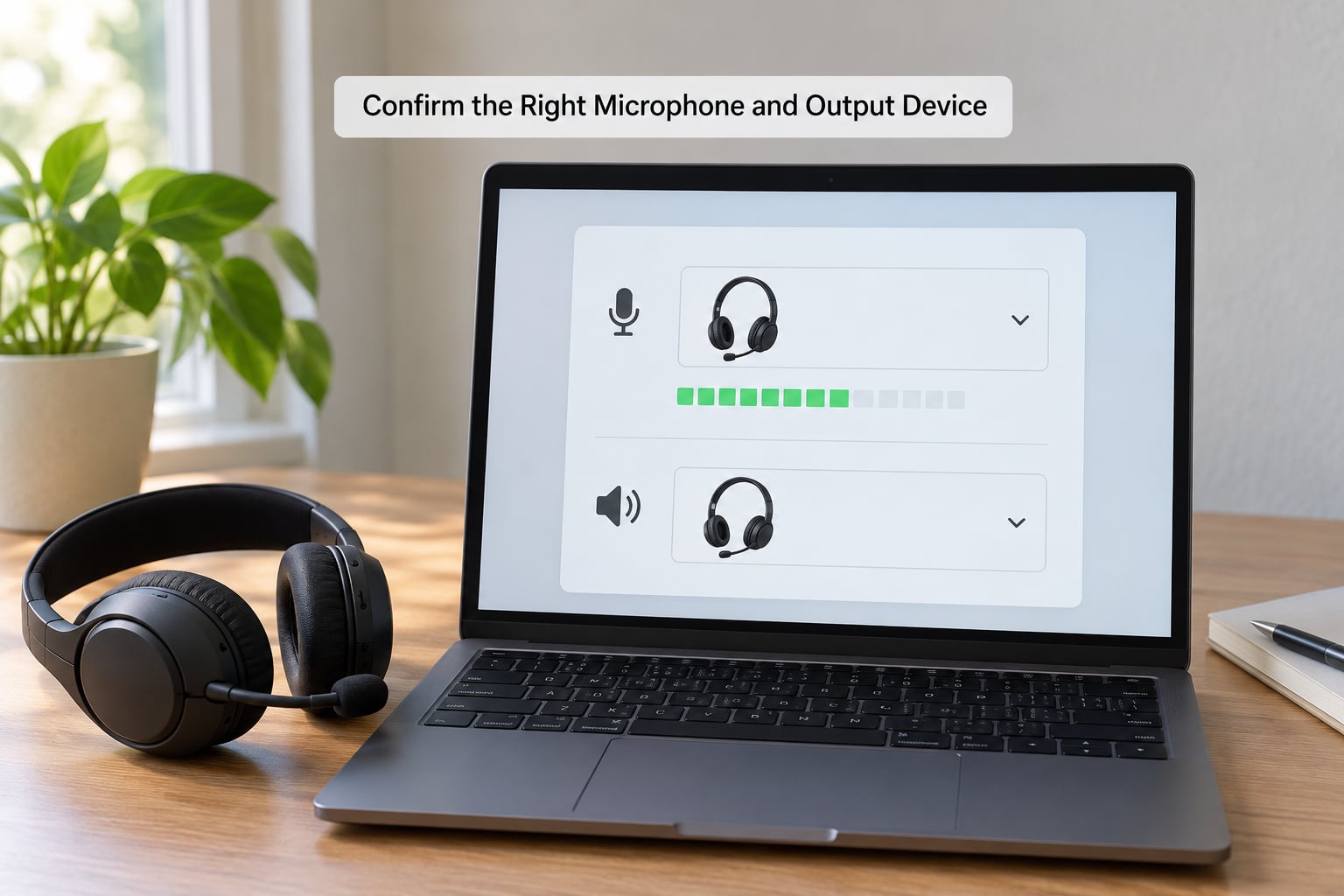
This is the single most common cause. Your mic works, the game just grabs the wrong one, usually because a controller, a Bluetooth speaker or a virtual cable has taken priority.
On Windows, open Settings, then System, then Sound, then scroll to the Input section and click your microphone in the Choose your input device list. Go to the Output section and do the same for your headphones. Then open Control Panel, then Sound, then the Communications tab and set it to Do nothing. That tab tells Windows to stop rerouting voice traffic to a default device when a call comes in, and it is the setting most guides forget.
macOS users want System Settings, then Sound, then Input and Output. Set both the input and output from the dropdowns, and check the Input volume slider is up near 80% or higher.
Whatever device you pick, set it as both the Default Device and the Default Communication Device in the Playback and Recording tabs of the classic Sound dialog. Games use different ones, which is why a mic can work in a browser and fail in a launcher.
How to confirm it worked: speak and watch the input level meter. It should jump with your voice, not sit flat. Then ask someone on the other end to confirm, because the meter proves the mic is live, not that the game is listening.
3. Test Voice Chat Outside the Game
This step tells you whether you are chasing software or holding a broken microphone, and it takes two minutes.
On Windows, search for Sound Recorder in the Start menu, record ten seconds of yourself, then play it back. If you can hear yourself clearly, the microphone and its driver are fine. On Mac, use QuickTime Player, choose New Audio Recording, and do the same.
A loopback test goes one step further and catches half-working hardware: play audio from your speakers while the recorder is running. If the recording contains that audio, the input path is fully healthy. Reddit troubleshooting threads in the shooter and survival communities come back to this test again and again once reinstalls stop helping, and it is the fastest way to rule out a dead mic.
If the recording is silent, try the mic on another port, another device, or on a phone. No audio anywhere points at hardware or a driver, not at the game.
4. Reset the Game’s Voice and Audio Settings
Every game ships with voice options buried somewhere different, but they cluster into the same four: push-to-talk or open mic, input device, voice activation level, and which channel you are transmitting on.
Start with the channel. Most games separate team voice, party voice and proximity chat, and a squad that is not your team is not a microphone problem at all. Join the right group, check you are not muted by the party leader, and confirm the game is not muting you globally.
Next, open the input device dropdown inside the game and pick your headset by name rather than relying on the default. Then test push-to-talk: bind it to a key that no overlay, streaming app or macro tool also uses. Many keybinds get swallowed by an overlay, which makes it look like the microphone is dead.
If you prefer open mic, set the voice activation level to 40 to 60 and turn input noise suppression down until your normal speaking volume clears the threshold. Whisper-quiet players usually have it set far too high.
On PS5 and Xbox, the same four settings live in the game’s own options menu and in the console’s party settings. Xbox users check the microphone on the controller is set to on, not off or on a full press. PS5 users should also check that the DualSense microphone is not muted with the small button on the side of the controller.
How to confirm it worked: use the in-game voice test if the title has one, or watch the game’s own mic indicator while you talk. It should light up regardless of whether you are actually transmitting.
5. Check the Voice-Chat Platform
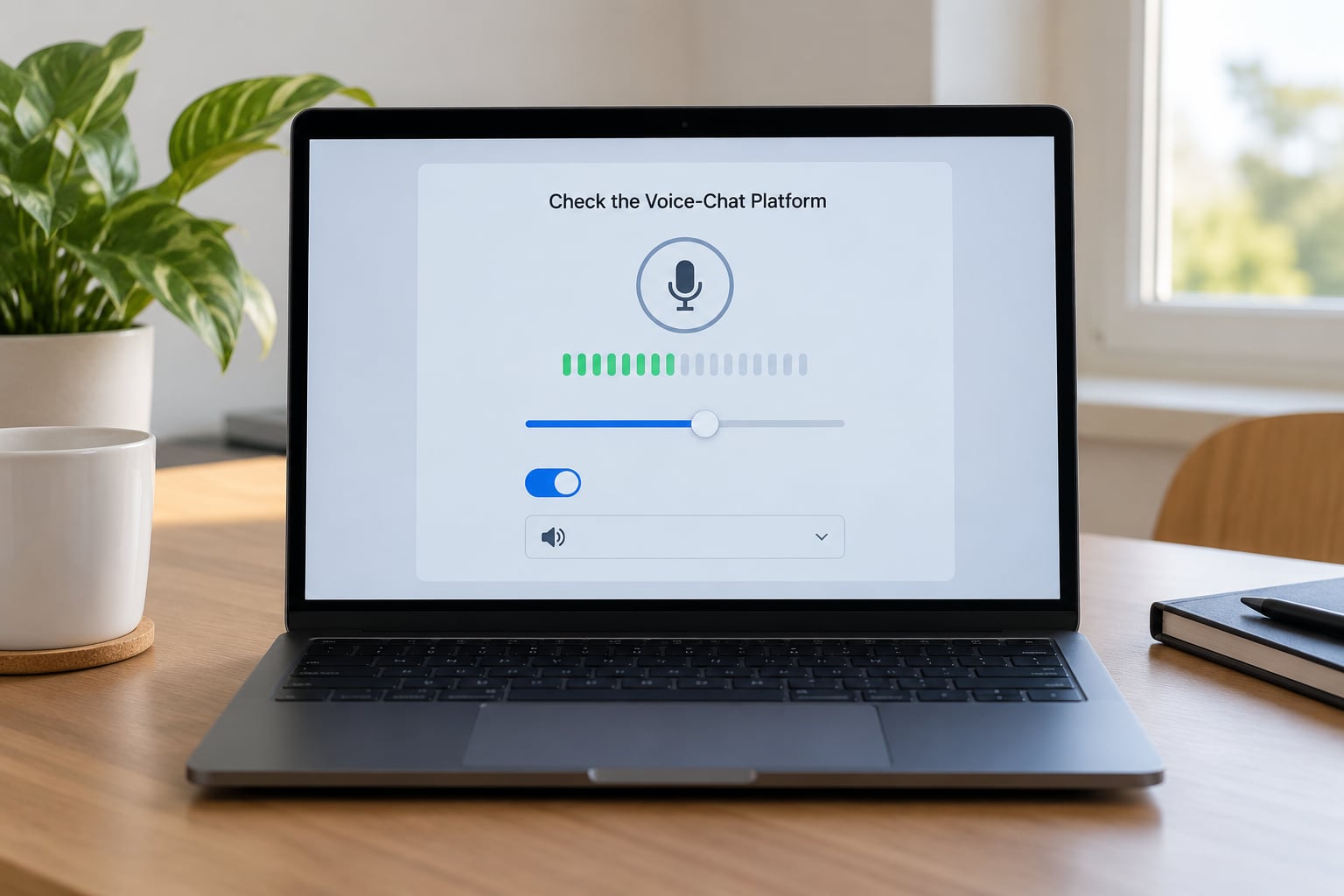
If you talk through Discord, Steam, or the PlayStation or Xbox party app rather than the game itself, the problem usually sits there. The mic works in Windows, the game looks correct, and the voice app is still sending silence.
Open Voice & Video in Discord. Check the Input Device is your headset and not a duplicate created by another program, set Input Sensitivity to about 50%, and turn Voice Activity on with a threshold you can actually reach. Then look at your channel: a muted server, a muted channel or a muted user all block your voice without touching the microphone.
Steam’s overlay voice has the same traps. Open Settings, then In-game voice, and check the input device and the voice activation level there, along with any per-game override. Players on Steam Deck should also check the game launch option that forces the controller layout, since some titles disable onboard chat while a controller is connected.
If the app shows a disconnect message or the mic icon stays greyed out, leave the voice channel completely, then rejoin. Repeated leave-and-rejoin is unglamorous but it forces a fresh session, and it fixes a surprising share of mid-match dropouts.
How to confirm it worked: have someone in the channel talk back. A green mic indicator only proves the app is reading audio, not that it is transmitting it.
6. Repair Network and Service Problems
If both sides of a call can hear each other fine but the connection keeps cutting out, the chain is intact and the problem sits on the network or in a service outage.
Run a ping test and a packet-loss check while the game is idle. Steady latency with zero loss points away from your connection, and a sudden spike during a match points straight at it. Restart the router first; it takes two minutes and clears a surprising number of stuck sessions.
Check whether a voice service has an active outage before you start changing settings. When thousands of players report the same problem at once, no local change will help.
Firewalls and VPNs cause more trouble than people expect. If you use a VPN, turn it off for one match and test again. Third-party firewall software with per-application rules has blocked game voice traffic before, so adding an explicit allow rule for the game and the voice app is a reasonable test.
Gamers often ask whether ports need forwarding. Try the game without touching your router first. Forwarding is only relevant to connection quality on a restrictive network, and it is not a fix for a silent microphone.
One more old trick: if everything else failed, disabling IPv6 on your network adapter has solved voice chat for a small number of players. Treat it as a last resort, not a first move.
7. Remove Interference From Other Apps
Voice software creates duplicate input devices, and games sometimes bind to the wrong one. Discord, Voicemeeter, SteelSeries GG, NVIDIA Broadcast, OBS, and voice-mod apps all sit in this category, and each adds an extra entry to your input list.
Open your sound settings and count how many microphone entries appear. Three entries for one headset means something is duplicating it. Quit the extras from the system tray — not just close the window — and restart the game, then check whether the input list is shorter and your voice comes through.
Disable one background noise suppression feature at a time rather than all at once. A double-suppression chain, one in the game and one in the headset software, can eat a quiet voice completely. Hardware-accelerated effects in Discord and NVIDIA Broadcast’s voice effect are the usual culprits.
If something still gets through, a clean boot isolates it. Run msconfig, choose the Boot tab, tick Clear all boot checkboxes under Diagnostic boot, restart, then test voice with only essential services running. If it works there, re-enable services in halves until the offender shows up.
8. Update Drivers and Reinstall Software That Stopped Detecting Audio
Last on the ladder because it takes longest and it is the step most people jump to first. Work down the list in order.
Update your audio driver from the headset or onboard audio manufacturer’s site. Uninstall the old driver, restart, install the new one, and restart again. Skip third-party driver utilities that push a paid tier — they are the least trustworthy recommendation in this whole guide.
For a suspected exclusive-mode conflict, open the Playback tab, right-click your headset, choose Properties, tick the Uncheck allow applications to take exclusive control of this device box, and apply it to both playback and recording.
Repair the game files. On Steam, right-click the game, Properties, Installed Files, Verify Integrity of Game Files. On Epic, Library, the game’s dots, Manage, Verify. A corrupted audio file shows up as silence with a perfectly working microphone.
Finally, fully reinstall the voice client itself — quit it from the tray, uninstall, clear its config folder, reinstall, and sign back in. If your account authentication is the problem, this is the step that clears it.
How to confirm it worked: run the recorder test from step three again, then make a live call with a friend while the game runs in the background. If that holds, the fix is solid.
Common Mistakes
Most failed repair attempts share one of these causes. They run through the support threads constantly.
Turning up the volume on the wrong device. Raising your speaker volume changes nothing when the microphone is the problem. Check the input level meter first, then change the mic’s own level.
Forgetting to restart the game after granting permission. Applications read permissions at launch. Grant access, quit the game completely, open it again.
Running an old browser on a browser game. Outdated builds quietly break microphone capture. Update the browser and reload the page without a cached tab.
Mistaking a party mute for a hardware fault. A muted party channel shows a muted icon, not a dead mic. Unmute in the party panel, not in your sound settings.
Joining the wrong voice channel. Team, squad, party and proximity are separate systems. If nobody on your team hears you but your friends do, you are on the wrong one.
Installing a virtual mixer to fix a working mic. Voicemeeter and similar tools sometimes help and sometimes add another layer of confusion. If you do not already run one, do not add one mid-troubleshooting.
Never testing outside the game. Without the recorder test you cannot tell a broken microphone from a wrong setting, and you will keep replacing things that were never the problem.
Frequently Asked Questions
Why can I hear other players but they cannot hear me?
Your output path works, so the problem sits on the transmit side. Check that your microphone is the Default Device and the Default Communication Device, confirm the input level meter moves when you talk, and make sure you are not muted in the party channel. If Discord works but the game does not, the game is reading a different input device or you are transmitting on the wrong channel.
How do I fix voice chat in a browser-based game?
Update your browser first, then click the padlock or camera icon beside the address bar and set the microphone to Allow. In Windows, also confirm Microphone access is on under Privacy and security, then Microphone, and that Allow desktop apps to access your microphone is enabled. Reload the page after granting access, because the browser and the game both read permission at load.
Does voice chat work in single-player games?
It depends entirely on the game. Most single-player titles ship without multiplayer voice, so there is nothing to enable and no channel to join. Games with a co-op, survival or community mode usually do include voice for those sessions, and the same fixes apply there. If you want voice with friends while playing a strictly single-player game, a separate app such as Discord is the usual route.
Should I use Discord voice or the game’s built-in voice chat?
Use the game’s own voice chat when it is stable and your friends are already in that channel, because it adds no extra setup and no second permission prompt. Use Discord when the game voice is unreliable, when you play across different games, or when you want noise suppression and per-server control. Running both at once is fine, but mute one so you do not talk twice.
Why does my Bluetooth headset microphone stop working during a game?
Bluetooth switches between the game and your phone or another paired device, and the handoff often mutes the headset microphone without warning. Disconnect the headset from the second device, remove it from the Bluetooth list and pair it again, then set it as the default communication device. If it keeps dropping, a 2.4GHz wireless dongle avoids the handover entirely.
Start With the Quickest Fix
If you only do one thing, open your sound settings and set your microphone as both the Default Device and the Default Communication Device, then set the Communications tab to Do nothing. That single change solves more broken voice chats than any other fix on this list.
After that, work in order: permissions first and restart the game, then confirm the right input device, then run the recorder test to know whether you are dealing with hardware or software. Only once those three are clean do the in-game settings, the voice app, the network and the driver updates deserve your time.
Fix the first thing that works. If you reach the end of the ladder with nothing changed, the microphone itself is the likely culprit, and no setting in any game will bring it back.