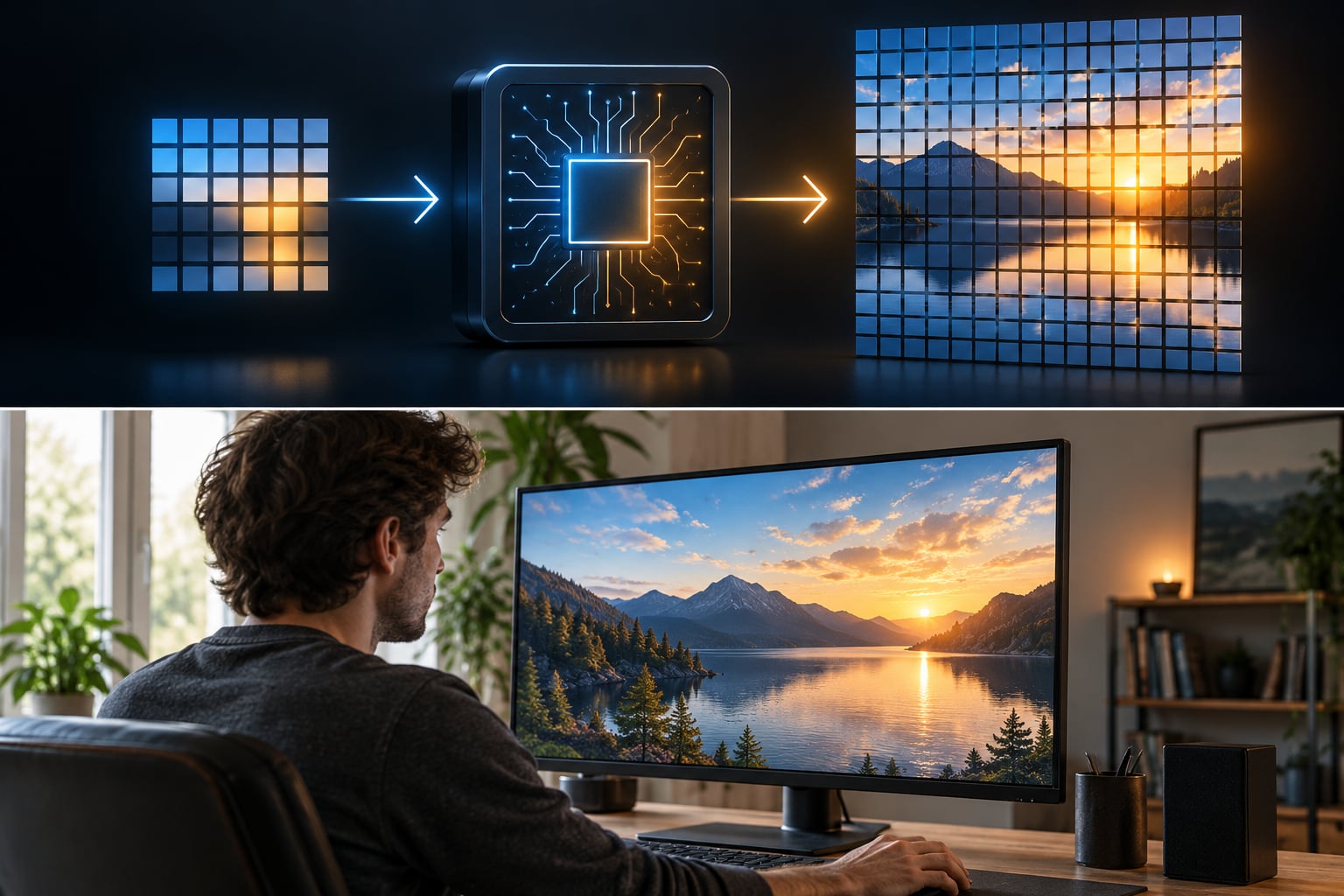
Upscaling in games works by rendering a frame at a lower internal resolution than your monitor and then reconstructing it back up to the display’s native resolution before it reaches the screen. Because the expensive part of a frame is shading every pixel, rendering a quarter of them and rebuilding the image costs a fraction of the GPU time. That trade is why DLSS, FSR, XeSS and TSR exist at all.
The catch is that the reconstruction step is an estimate, not recovered truth. It works remarkably well on big shapes and flat surfaces, and it struggles with fine fences, hair, foliage and text. Once you accept that every pixel in an upscaled frame was inferred rather than drawn, the rest of this guide falls into place.
Table of Contents
- 1Key Takeaways
- 2What Is Upscaling in Games?
- 3Why Do Games Use Upscaling?
- 4How Does the Rendering Pipeline Create a Low-Resolution Image?
- 5The seven stages of an upscaled frame
- 6What Is Spatial Upscaling?
- 7How Do Temporal Upscaling Techniques Work?
- 8How Does AI Upscaling Work in Games?
- 9How Upscaling Technologies Work in Games: Spatial, Temporal, and AI Compared
- 10What Is the Difference Between Upscaling and Frame Generation?
- 11What Trade-Offs Do Upscaling Modes Create?
- 12How Can Players Choose the Best Upscaling Setting?
- 13Frequently Asked Questions
- 14Is upscaling better than native resolution?
- 15Does AI upscaling add real detail?
- 16Why do games look soft or blurry with upscaling?
- 17What causes shimmering and ghosting in upscaled games?
- 18Is frame generation the same as upscaling?
- 19Should I choose quality or performance mode?
- 20Conclusion
Key Takeaways
- Upscaling renders below native resolution and reconstructs a larger image, so the GPU shades fewer pixels per frame.
- Spatial upscalers use one frame only. Temporal upscalers borrow data from previous frames using motion vectors. AI upscalers add a trained neural network on top.
- The reconstruction step also handles anti-aliasing, which is why an extra TAA or MSAA layer is usually redundant.
- Upscaling raises the real frame rate. Frame generation invents frames between the ones the GPU actually rendered, which is a different trick with a latency cost.
- Quality on a 4K panel usually beats native rendering on a 1080p panel, because the algorithm starts with more real information to work from.
- Quality mode is the safe default. Drop to Balanced or Performance only when your frame rate needs the headroom.
What Is Upscaling in Games?
Upscaling is a rendering technique where the game draws each frame at a lower internal resolution than your display, then an algorithm reconstructs and enlarges that low-resolution frame to fill the screen natively. The GPU pays for a smaller image plus a cheap reconstruction pass instead of shading every pixel at full size, and the difference in cost buys you a much higher frame rate or heavier effects.
Three terms get mixed up constantly, so it is worth fixing them now. Supersampling renders at a resolution above the display and downsamples, which is expensive and produces beautiful, stable edges. Upscaling runs the opposite way: render small, output large. Frame generation does not change resolution at all; it manufactures additional frames between the ones that were rendered.
The basic pipeline never changes. Render at a reduced internal resolution, analyse what was drawn, reconstruct a larger image from that analysis, and present it at your monitor’s native resolution. Everything else in this article is a variation on how step three is done.
Why Do Games Use Upscaling?
The starting point is arithmetic. Shading cost scales roughly with pixel count, so moving from 3840×2160 to 2560×1440 cuts the pixel work to about 44 percent. Let the upscaler rebuild the missing pixels and a mid-range card suddenly behaves like a much stronger one at the settings that matter.
There is a second reason, and it is the one developers care about most. Modern effects are expensive in ways that have little to do with raw resolution. Ray tracing, dense volumetrics and heavy particle systems scale badly, and a game that cannot hold its target frame rate at 4K native gets downgraded settings or a locked camera. Upscaling lets a studio keep the expensive effects and drop the pixel count, which players usually prefer.
Hardware variety pushes the same button. Handhelds, laptops and console hardware all need a way to hit a performance target on a 4K panel without a desktop-class GPU. Dynamic resolution takes it further and moves the internal resolution during play, dropping it when the frame budget slips and recovering when it does not.
The honest summary is a trade, not a free win. You give up some genuine detail in exchange for frame rate, stability and settings you could not otherwise afford.
How Does the Rendering Pipeline Create a Low-Resolution Image?
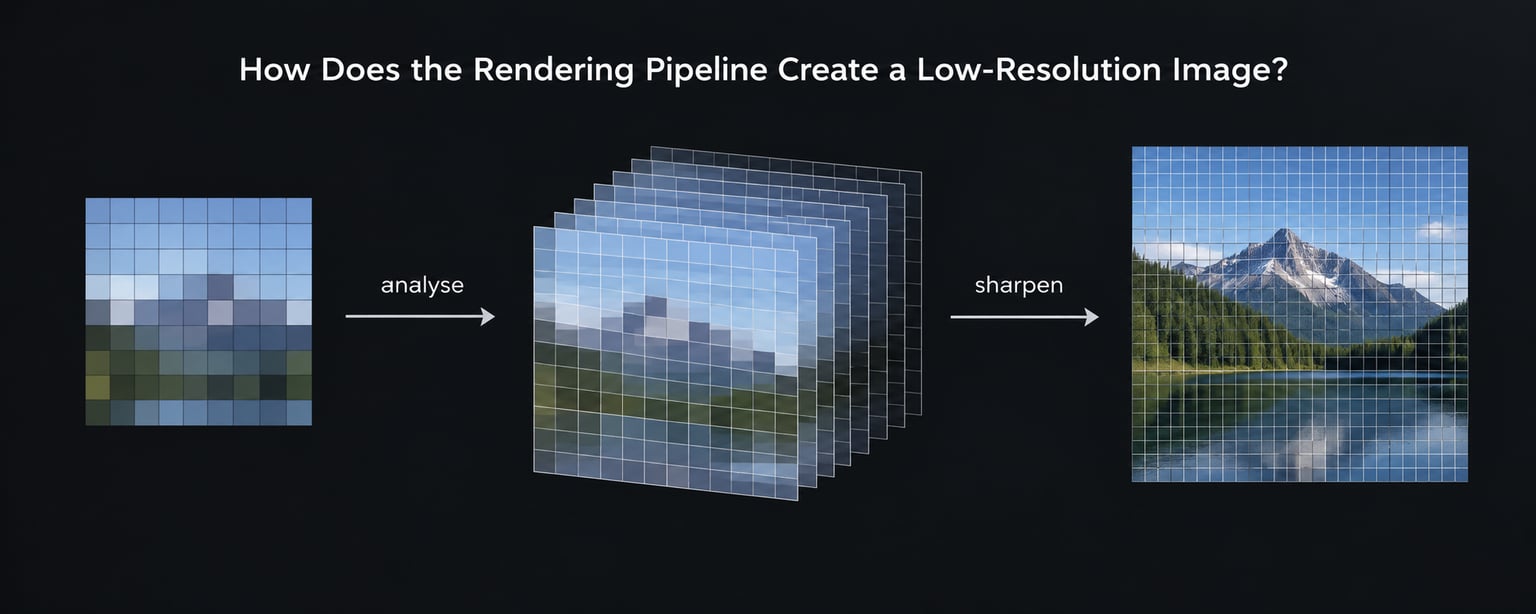
Walking a single frame through a modern engine shows exactly where upscaling sits and why it cannot invent what was never drawn.
The seven stages of an upscaled frame
- Game logic runs on the CPU. Physics, AI, animation and input are resolved. Nothing here is graphical, so resolution changes do not touch it. This is also why a CPU-bound game gains nothing from upscaling.
- The renderer builds the command list on the GPU. Geometry is transformed, draw calls are submitted and lighting is evaluated per pixel at the chosen internal resolution.
- Motion vectors are written. For each pixel the engine records where it came from in the previous frame. This is the bookkeeping that lets a temporal upscaler find the right data later.
- The sample pattern is jittered. The sub-pixel offset used for this frame shifts in a repeating pattern, so over several frames every pixel gets sampled at slightly different sub-pixel positions.
- The frame is reconstructed. The upscaler takes the low-resolution image, the motion vectors and the history buffer and produces an image at output resolution.
- The result is sharpened and stabilised. An edge-aware filter restores perceived contrast, and the accumulation across recent frames smooths out noise and sampling error.
- The frame is presented, and optionally interpolated. The image reaches the monitor at native resolution. Frame generation, if enabled, inserts additional synthesised frames at this last stage.
Steps three, four and six are where the real work happens, and they explain the artifacts you see later. Jitter means each individual frame is slightly wrong by design, and correction only appears once neighbouring frames are blended. That is the source of shimmer, and it is also the source of the stability that makes temporal methods look better than spatial ones.
The hard limit sits at step five. If the game never rendered the pixel, no algorithm can bring it back. Neighbouring frames help because a sub-pixel jitter means the missing information exists somewhere nearby in time, but information that falls outside the frame, behind an object, or beyond what a motion vector can find stays missing.
What Is Spatial Upscaling?
Spatial upscaling uses only the current frame. It is the oldest approach and the cheapest, running on any GPU of any vintage because it is a fixed-function filter rather than a model.
Take the simplest case: a 1280×720 image stretched to a 1920×1080 display. Each source pixel needs to cover a one-and-a-half by one-and-a-half block of output pixels, and since that does not land on whole numbers the filter has to blend neighbouring samples. Bilinear filtering does this with a weighted average of the four closest source pixels, weighted by distance. It is fast and it is smooth, and smooth is exactly the problem: high-frequency detail such as text edges, chain-link fence patterns and thin railings is averaged away.
Nearest-neighbour does the opposite and simply copies pixels into blocks, which preserves hard edges but leaves visible stair-stepping. Slightly better options treat the image like a signal and resample more intelligently, and most games then apply a sharpening filter to push contrast back into the edges the scale softened away.
Sharpening is worth understanding because it explains a common complaint. It makes an image look crisper without adding any information that was not already in the low-resolution source. It also amplifies what noise there is, which is why turning sharpness up too far produces crawling and halos on fine geometry.
Spatial upscaling runs everywhere. It is the default fallback in countless games, the mechanism console scalers rely on, and the reason a badly configured scale can look so soft compared to a good temporal one.
How Do Temporal Upscaling Techniques Work?
Temporal upscaling is the step change most people mean when they talk about DLSS or FSR. Instead of looking at one frame, it uses recent frames plus the motion vectors to reconstruct a sharper and more stable image than spatial filtering can.
The logic is this. The engine jitters the sampling pattern each frame, so over eight or sixteen frames a given output pixel has effectively been sampled at many different sub-pixel offsets. The upscaler reprojects the previous frame’s result into the current position using the motion vectors, blends it in, and discards samples it does not trust. What emerges is a higher-quality estimate of what a full-resolution render would have produced.
That blending is also the weakness. When the motion vector is wrong or missing, past data lands in the wrong place and you see a trail or smear behind moving objects. This is the ghosting players complain about most, and it is why motion vectors matter so much to the quality of the whole system.
Disocclusion is the related case where something new appears that was previously hidden. There is no valid history for those pixels at all, so the upscaler has nothing to blend and the area is reconstructed from scratch, usually with less detail. It is most visible at the edges of a character walking past a wall.
The whole method runs on one tension. More history means more sample data and a more stable image, but also more chance of smearing fast motion. Less history means a sharper response and more shimmer. Every preset that changes internal resolution shifts where you land on that curve.
How Does AI Upscaling Work in Games?
AI upscaling adds a trained neural network to the reconstruction step. NVIDIA’s Deep Learning Super Sampling runs on Tensor Cores, so the network can afford to examine many neighbouring pixels and infer edge structure and texture patterns rather than blending averages.
Conceptually the network receives the low-resolution image, the motion data and information about the current frame, then predicts a plausible high-resolution result. Earlier DLSS versions trained a separate model per game, which is why DLSS 1 needed per-title support. Generalised networks later decoupled it, so one model serves every title.
The payoff is clean edges and stable fine texture that a fixed-function filter cannot produce. The failure modes are equally predictable. Small text is the classic case, because the model is optimising for what games look like, not for what a HUD says. Rapid motion, particle effects and unusual camera movement give it less useful history to work from.
Keep one thing straight: the output is a prediction. It is usually indistinguishable from the real thing at a glance, and it is also not the ground truth. That is not a criticism so much as a definition. Neural upscaling produces an image that is plausible and stable, and it cannot verify that every reconstructed edge matches what a native render would have drawn.
How Upscaling Technologies Work in Games: Spatial, Temporal, and AI Compared
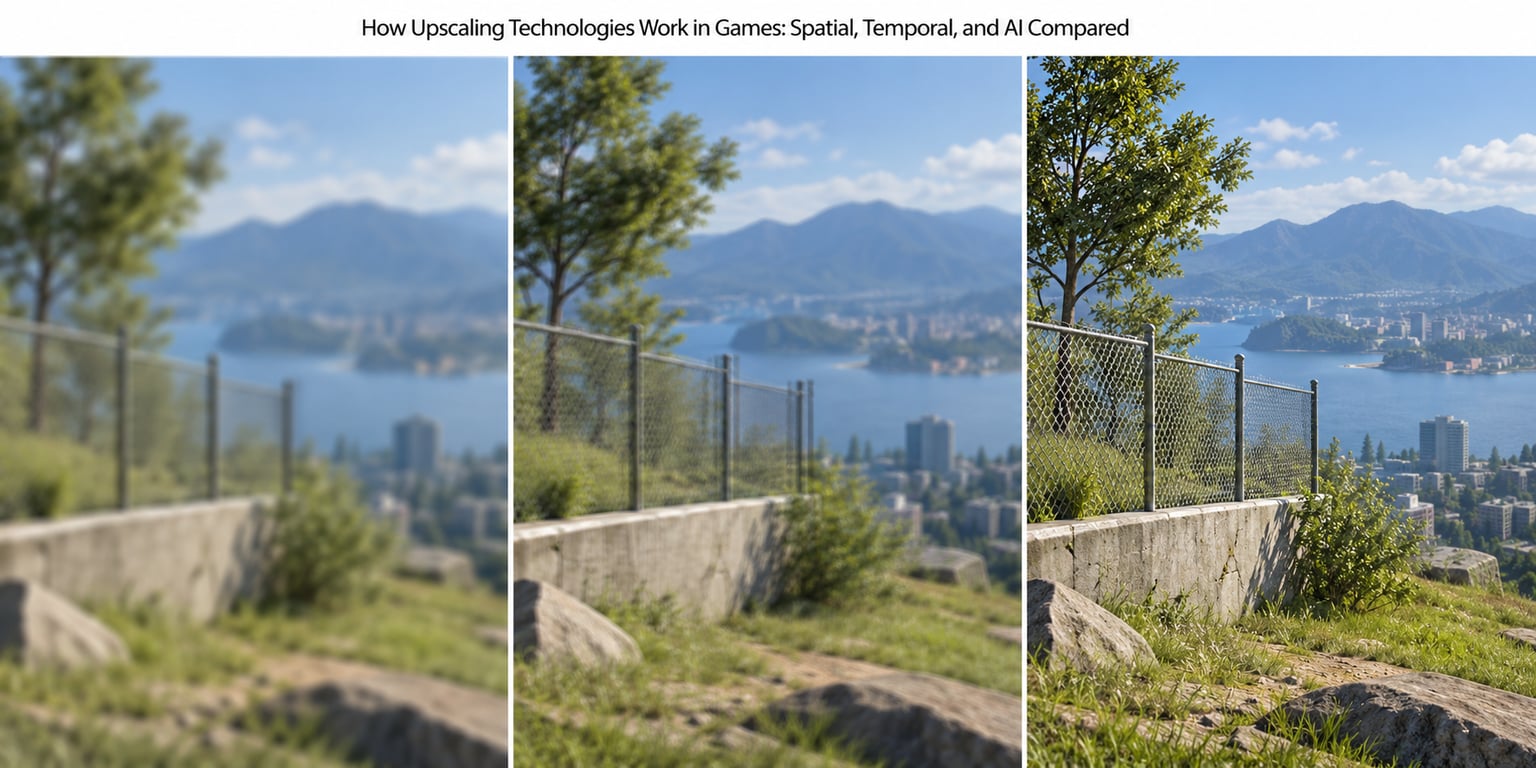
Here is the central distinction of how upscaling technologies work in games, laid out method by method.
| Method | Information used | Edge quality | Stability in motion | Cost | Typical use |
|---|---|---|---|---|---|
| Native rendering | Nothing to reconstruct; every pixel drawn | Best possible | Best possible | Highest | Light games, fast GPUs, competitive play |
| Spatial scaling | Current frame only | Soft or stair-stepped | Stable | Negligible | Consoles, fallback path, very old hardware |
| Temporal upscaling | Several past frames, motion vectors, depth | Sharp once accumulated | Can shimmer or ghost | Low to moderate | Most modern PC upscalers |
| AI upscaling | Past frames, motion data, plus a trained model | Sharpest reconstruction | Best in motion, fails on text and particles | Moderate, needs capable hardware | RTX cards, modern consoles and handhelds |
The four upscalers you will actually meet in a game menu differ mainly in how they get the reconstruction done and what hardware they demand.
| Technology | Type | Hardware requirement | Typical modes | Where it shines |
|---|---|---|---|---|
| NVIDIA DLSS | AI, with temporal fallback | NVIDIA RTX or supported GTX cards | Quality, Balanced, Performance, plus frame generation | 1440p and 4K where detail and stability matter |
| AMD FSR | Spatial in early versions, temporal from 2.0 | Broad, runs on older cards | Quality, Balanced, Performance, plus frame generation | Getting a playable frame rate on mid-range or older hardware |
| Intel XeSS | Temporal, hardware-accelerated where available | Intel Arc benefits most; works elsewhere | Quality, Balanced, Performance | Arc cards and low-power systems |
| Bevy TSR | Temporal, built into the engine | Any GPU | Configurable render scale percentage | Unreal Engine titles, especially on consoles and Deck |
Player consensus, gathered across r/pcmasterrace and r/TechHardware threads, holds that DLSS generally looks better at low internal resolutions, while FSR is far more accessible and reaches older hardware. At 4K with Quality mode the gap narrows considerably, because both upscalers start with enough information to work from.
What Is the Difference Between Upscaling and Frame Generation?
Upscaling raises the pixel count of a frame that was rendered. Frame generation increases the number of frames, leaving the resolution untouched. DLSS Quality mode is upscaling; DLSS Frame Generation is a separate toggle that takes the two rendered frames, estimates motion between them, and synthesises the frames in between.
That is why a game can run at an internal resolution low enough to look soft and still report a very high frame rate. The base render might be 40 frames per second and frame generation reports 120. You gained frames, not detail.
Frame generation also does not add viewpoint information. A reconstructed frame between two rendered frames is an interpolation of what was already there. When the camera swings quickly or geometry moves unpredictably, the estimate fails and you see doubled or overlapping images, which is one of the most common support threads on any forum.
The two combine cleanly, though. Upscaling first buys a solid real frame rate, and frame generation then multiplies it. Reversing that order on a game that is GPU-bound can leave the real frame rate too low for frame generation to produce anything clean.
What Trade-Offs Do Upscaling Modes Create?
Most presets are the same idea at different settings. A 4K output typically renders around 2560×1440 in Quality, 1920×1080 in Balanced and 1280×720 in Performance, which is roughly 56 percent, 44 percent and 22 percent of the pixel workload. The gap between Quality and Performance is large enough that you will see it in motion, not just in a screenshot.
The artifacts have recognisable causes, and each one points at a specific fix.
| Artifact | What you see | Cause | What usually helps |
|---|---|---|---|
| Shimmer | Fine detail crawls or sparkles, most visible on fences and grass | Sub-pixel jitter plus weak reconstruction of high-frequency detail | Use Quality mode, or enable a higher sharpening setting |
| Ghosting | A faint trail or smear behind fast-moving objects | Incorrect or missing motion vectors, so past frames blend in the wrong place | Drop one preset step so more real frames are rendered |
| Crawl | Text and thin structures wobble between frames | Edges reconstructed slightly differently each frame | Sharpen more, or move up to Quality |
| Blur | The whole image looks soft | An aggressive internal scale, often combined with over-sharpening | Raise the internal resolution or reduce the sharpness slider |
| Doubled frames | Fast motion looks like two overlapping images | Frame generation losing track of motion | Turn frame generation off in fast scenes, raise the base frame rate |
Anti-aliasing deserves its own note because it comes up in almost every discussion. Upscalers already perform temporal anti-aliasing, so leaving in-game TAA or MSAA enabled usually costs frame rate and softens the image again. Turn the game’s own AA off, or leave it as a fallback for modes you have not upscaled yet.
Latency is the other trade. Upscaling by itself actually reduces input latency, because the GPU is working through a smaller image each frame. Frame generation adds it, because the displayed frame was predicted rather than rendered after your input. NVIDIA Reflex and AMD Anti-Lag exist to cut that cost back down by tightening the CPU-to-GPU frame pacing, and enabling one is close to mandatory if you pair frame generation with competitive play.
Consoles run the same ideas in reverse. The PlayStation 5 and Xbox Series X|S can output to a 4K panel while rendering below 4K internally, adjusting the internal resolution frame by frame to protect the target frame rate. The television then scales that image to its own native size, which adds a second scaling step you do not control at all.
How Can Players Choose the Best Upscaling Setting?
Start from your display and your GPU, not from a guide. A 1080p panel asked to output 1080p from a 720p render gives the algorithm almost nothing to work with, and most players find native 1080p cleaner. On a 1440p or 4K panel, upscaled output usually wins comfortably.
From there, work through this order.
- Pick the vendor preset the game ships with, or Quality mode if the options are plain. Do not start anywhere else.
- Test in motion, not in a still. Rotate the camera in a scene with grass, fences or scaffolding. That is where shimmer shows up, and it is invisible in a static screenshot.
- Check the frame pacing and the HUD latency number, not just the frame rate counter. A steady rate with sane pacing beats a higher number that swings wildly.
- Move one preset step only if the frame rate genuinely fails your target. Balanced is the usual landing spot when Performance looks too soft.
- Adjust internal resolution before touching sharpness. Most games expose a render scale percentage somewhere in the video settings, and moving it a few points fixes softness more honestly than a sharpening slider does.
- Verify it is actually running. Turn the in-game frame rate counter on, check that the upscaling option shows in the game’s video menu, and watch the GPU load and effective resolution in your driver’s overlay. Steam users can check the frame time graph for irregular spikes, and if the resolution readout never changes with the preset you have probably not enabled it.
Stay native when latency matters more than image quality, when you are on a 1080p panel, when you are playing a retro title that already renders below native, or when you want to capture clean screenshots.
Frequently Asked Questions
Is upscaling better than native resolution?
Usually yes on a 1440p or 4K display, and usually no on a 1080p one. At 4K, a 2560×1440 internal render upscaled to native frequently looks sharper than a 1080p native image, because more real information feeds the reconstruction. At 1080p the algorithm has too little to work from, so native rendering wins. For competitive shooters, stay native regardless of screen size, since the priority there is latency and clean motion.
Does AI upscaling add real detail?
No, it adds plausible detail. A neural upscaler predicts what high-frequency detail probably belongs in each pixel based on surrounding samples, and the prediction is often indistinguishable from a native render at a glance. It is still a model output rather than measured truth, which is why small text and fast-moving particles remain its weak spots. Judge it on whether the image looks clean and stable in motion, not on whether the pixels are technically original.
Why do games look soft or blurry with upscaling?
Two causes, and they need opposite fixes. If the internal resolution is too low, there simply is not much detail to rebuild, so raise the render scale or step up to Quality mode. If the internal resolution is reasonable but the image still looks soft, sharpening is usually set too low, so raise the sharpness slider instead. Overdoing the sharpness causes its own problems, including crawling and halos on fine geometry, so increase it in small steps while watching motion.
What causes shimmering and ghosting in upscaled games?
Shimmer comes from the per-frame jitter that temporal upscalers use to gather sub-pixel samples. Each frame is slightly mispositioned, and correction only appears once neighbouring frames are blended, so fine detail crawls between frames. Ghosting has a different cause: when motion vectors are wrong or absent, history from previous frames lands in the wrong place and trails behind moving objects. Quality mode fixes the first; dropping one preset step to render more real frames fixes the second.
Is frame generation the same as upscaling?
No, and they solve opposite problems. Upscaling increases the pixel count of frames the GPU actually rendered, using data from nearby pixels and past frames. Frame generation keeps the resolution and invents additional frames between rendered ones using motion estimation, which is why it adds input latency and can produce doubled images in fast motion. Many presets combine both, so a reported frame rate of 120 may come from 40 rendered frames plus generated ones.
Should I choose quality or performance mode?
Quality mode unless your frame rate genuinely misses your target. Quality renders at a higher internal resolution, so the image stays sharper and more stable in motion, which is what most players notice. Balanced is usually the better landing spot when Performance looks too soft, since the difference is smaller than the jump from Balanced to Performance. If you also turn on frame generation, treat Quality or Balanced as the floor, because frame generation needs a solid base frame rate to interpolate cleanly.
Conclusion
Every upscaler does the same job. It takes a smaller rendered image plus whatever history it can gather, then reconstructs a larger frame for your monitor, and the result is an informed estimate rather than original detail. How good that estimate looks comes down to the method, the amount of real information available, and how much time it has to accumulate samples.
Start with the game’s recommended preset, then watch it in motion rather than in a screenshot. Prioritise a stable frame rate over maximum image detail unless your screen is 1080p or smaller, and leave upscaling entirely out of competitive shooters if latency is what you are chasing.