If you are searching for how to use headphones for positional audio, the answer is short: connect them to your console or PC, pick one spatial audio engine in the system settings, and confirm it is actually enabled inside the game. That is the whole process, and it takes about ten minutes once you know which of the three possible layers to switch on.
The catch is that most people enable two of those layers at once. Run the console HRTF renderer and your headset’s own virtual 7.1 DSP together and the result is muddy, phase-cancelled audio that is harder to read than plain stereo. Get that one rule right and directional cues snap into place.
Table of Contents
- 1What You Need
- 2Step-by-Step: How to Use Headphones for Positional Audio
- 3Connect Your Headphones and Select the Right Output
- 4How to Use Headphones for Positional Audio in the Game
- 5Set Levels and Calibrate for Direction
- 6Test Direction and Movement in a Match
- 7Common Mistakes
- 8Common Mistakes
- 9Frequently Asked Questions
- 10Do I need surround-sound headphones for positional audio?
- 11Is spatial audio the same as surround sound?
- 12How can I tell whether my headphones are using the correct audio mode?
- 13Does Bluetooth cause noticeable problems for positional gaming audio?
- 14How should I test left and right audio channels and game direction cues?
- 15Can positional audio prevent hearing damage from long gaming sessions?
- 16Conclusion
What You Need
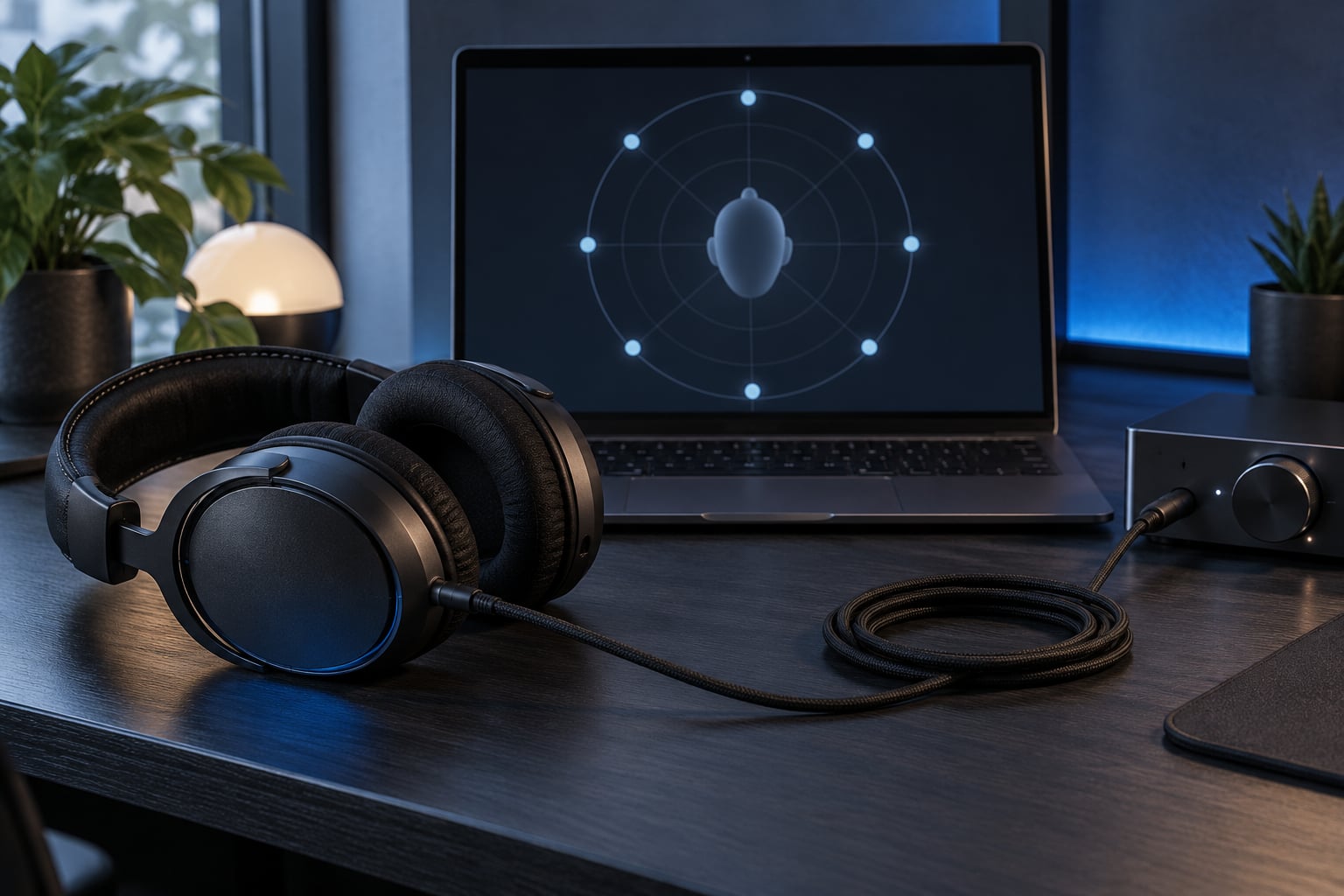
Any stereo headphones. That is the part most guides get wrong. Positional audio is rendered in software before the signal ever reaches your drivers, so an ordinary pair of wired headphones can produce convincing left, right, above and behind cues. You are not buying a special surround headset; you are turning on a renderer.
What varies is which layer does the rendering, and each platform puts it in a different place:
| Engine | Where it lives | Licence | Best for |
|---|---|---|---|
| Windows Sonic for Headphones | Windows sound settings, output device properties | Free on Windows 11 | PC players who want one toggle and nothing else |
| Dolby Atmos for Headphones | Dolby Access app on PC, built in on consoles | Free on PS5 and Xbox Series, paid app on PC | Games and films with height cues, such as vertical maps |
| DTS Headphone:X | DTS SoundUnbound app, or Xbox settings | Free on Xbox Series, paid app on PC | Hearing separation in busy firefights |
| PS5 3D Audio | PS5 Settings, Sound, 3D Audio | Free on the console | PS5 players with any headphones |
| Steam Audio | Steam launch options, per game | Free | Games built with Steam’s own renderer |
Two more things worth confirming before you start: the connection type, and whether your game ships its own surround toggle. If the game has one, it will appear only after the system layer is already on.
Step-by-Step: How to Use Headphones for Positional Audio
Connect Your Headphones and Select the Right Output
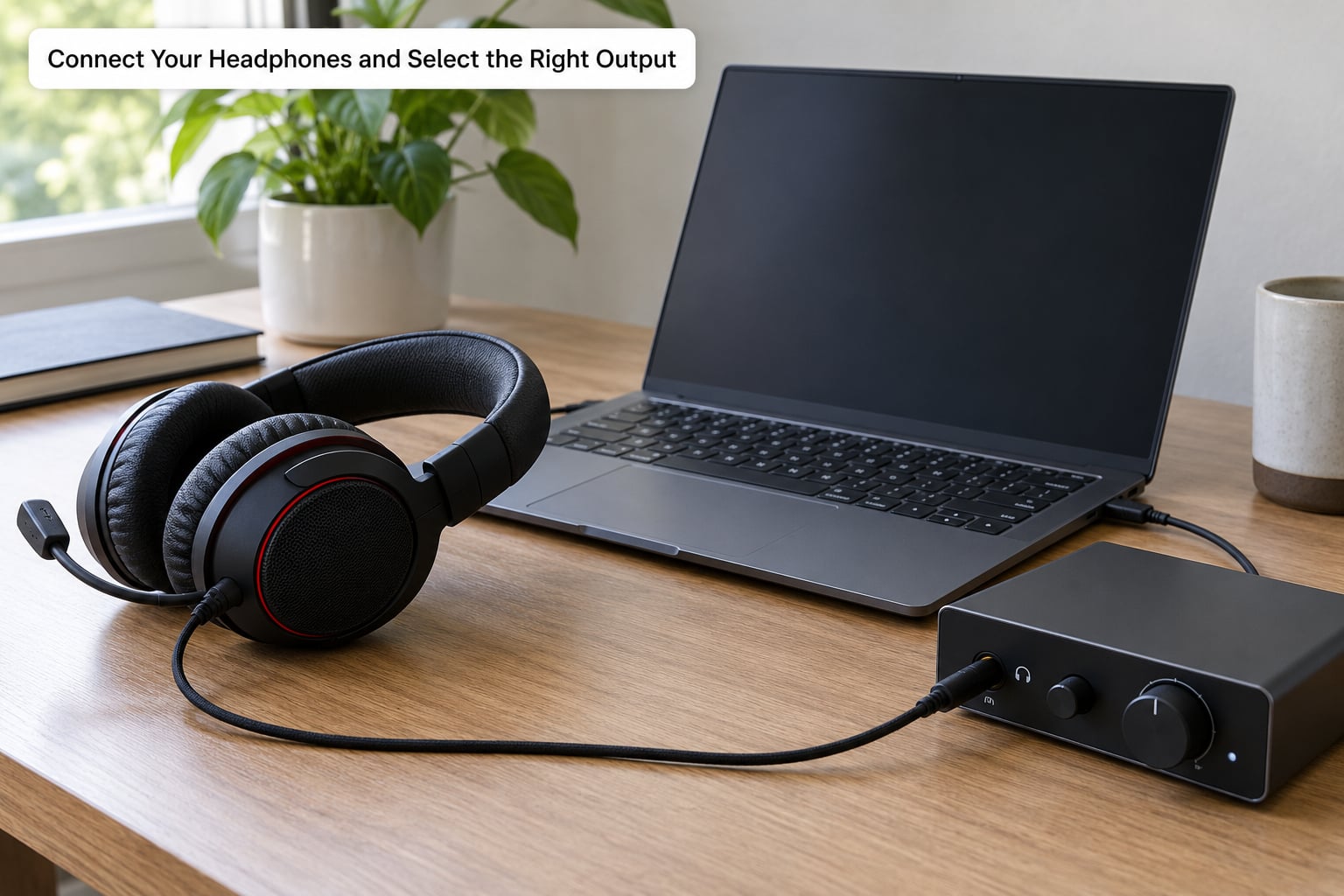
Wire is the simplest path. On PS5, plug into the 3.5mm jack on the controller, or into the front of the console itself. On Xbox Series X|S, the same controller jack works, and a USB-C or 3.5mm headset connects at the front of the console. On PC, back of the motherboard is fine.
Then select that device as the output, or the game keeps routing through your TV, monitor or speakers. On Windows, right-click the speaker icon in the taskbar, choose Sound settings, then your headset under Choose your output device. On PS5, the output choice lives in Settings, Sound, Audio Output, and switching between HDMI TV and Headphones changes which menu you are looking at. On Xbox, Settings, General and TV options, Audio and music, Speaker audio covers it.
| Connection | Latency feel | Notes for spatial audio |
|---|---|---|
| 3.5mm wired | None noticeable | Works everywhere; some TVs pass stereo through untouched, which can bypass 3D Audio |
| USB wired or dongle | None noticeable | Carries the full digital audio path, so 3D Audio and virtual surround renderers engage reliably |
| 2.4GHz dongle | Low | Same speed as wired for audio; move the dongle away from USB 3 ports and routers if sound cuts out |
| Bluetooth | Noticeable delay | Fine for music, wrong for competitive play where you pre-aim on a footstep |
If you use a USB dongle or a headset with its own DAC, let it be the only output. Two active outputs is another quiet cause of weird audio behaviour in chat apps.
How to Use Headphones for Positional Audio in the Game
Now turn on exactly one spatial layer. This is where people stack two engines and wonder why cues get worse.
On PS5, go to Settings, Sound, 3D Audio and choose 3D Audio or Tempest 3D AudioTech. On Xbox Series X|S, the path is Settings, Accessibility, Audio and Video, Spatial audio, then pick Windows Sonic or DTS Headphone:X. Dolby Atmos is not offered on Xbox hardware. On PC, right-click the taskbar volume icon, pick Spatial sound, and select Windows Sonic, Dolby Atmos or DTS Headphone:X.
On PC there is a second layer in the game itself. Launch the game from Steam, right-click it, Properties, Audio, and set the surround template to headphones, or to the matching spatial preset if the game offers one. Forum users on PC have reported that this in-game toggle simply does not appear until Windows spatial sound is switched on first, which is why the order matters.
While you are there, make sure your headset’s own 7.1 or surround button is off. On PC that means its companion app and any hardware button. On console, wireless headsets often ship their own chat and surround mixers that duplicate the console renderer.
Set Levels and Calibrate for Direction
Directional accuracy depends on being able to hear quiet cues over loud ones, so levels matter as much as the renderer. Pull the game volume and the voice chat volume into roughly the same range, then bring system effects and the device volume down to where you are comfortable without going to the extreme top of the dial.
Run a channel test next. Play a stereo test track or a game sound-test menu and confirm you hear it clearly in the left ear, then the right, with nothing landing in the centre or moving between them. A headset worn with the cable twisted to one side is a common cause of a shifted image, and so is a mismatch between the left and right channels in a Windows output configuration.
Equalisation is where people undo their own cues. A bass-heavy curve lifts explosions over the midrange band where footstep detail lives, so the footstep you need to hear is the first thing masked. If your headset app offers a competitive shooter preset, use it. Otherwise cut the lowest shelf by a few dB and lift the 2 to 5 kHz band slightly, then change one band at a time and keep the version you can localise fastest.
On PS5 there is an extra calibration step. Settings, Accessibility, 3D Audio System, 3D Audio Profile runs a short listening test where you confirm whether a test tone comes from above, in front, or behind. Completing it teaches the renderer your ear shape, and skipping it is why vertical cues feel flat on some setups.
Test Direction and Movement in a Match
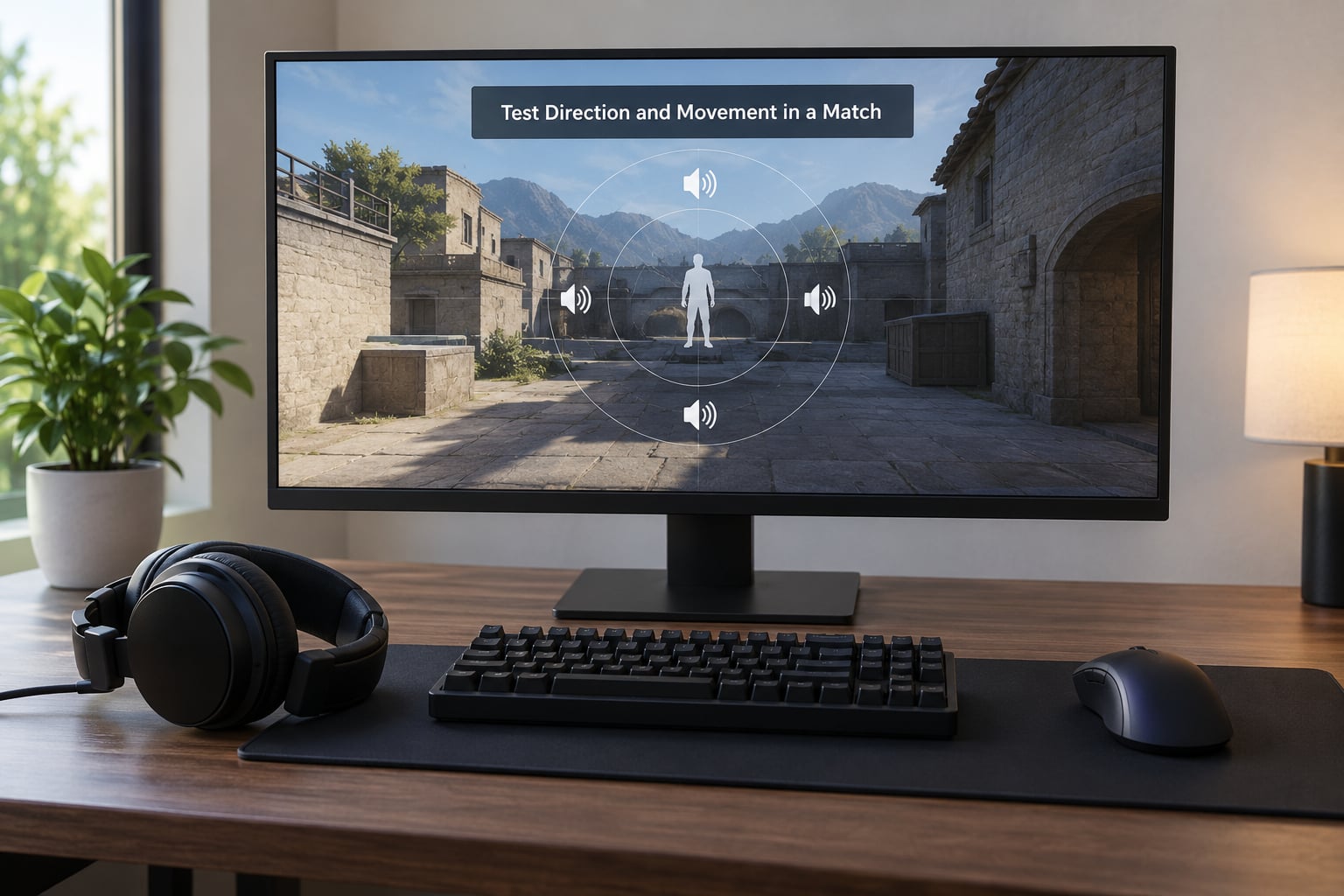
Most games ship with a test range or settings menu that moves a sound around you. Play something you know well and stand still in an empty area. Have the sound orbit from left to right, then behind you, and check whether your head turns the right way without you guessing.
Then test movement. Fire a shot from a known direction, or walk a corridor while the camera stays fixed. Repeat the same spot three or four times, because a renderer that only works on the first pass is usually still switching between two processors. If the direction is wrong rather than absent, swap your left and right output channels in the sound settings and retest; some cheap dongles output them reversed.
A useful comparison is to play the same spot with spatial audio on and off. If the game sounds more immersive but you are slower to locate the sound, that is your double-processing warning sign, and the fix is to turn one of the two layers off rather than to keep adjusting equalisation.
Ten minutes in a private range will tell you more than an hour of guessing in a live match. Write down which settings you used, because you will want them for the next game.
Common Mistakes
Two layers on is the big one, and it sits at the top of every troubleshooting thread about bad footstep detection. A console renderer and a headset DSP both reshaping the same signal is double-processing. The audio turns hollow or narrow and directional cues blur, and the instinct is usually to buy better headphones. Switching off the headset-side surround is a free fix that resolves it more often than not.
Bluetooth for competitive play is the second. The delay is small enough to ignore in a single-player game and obvious in a shooter, because you start reacting before the sound arrives.
The third is enabling the in-game surround toggle without touching the system layer, then wondering why nothing changed. On PC some titles only expose their surround option once the OS renderer is active.
Common Mistakes
Work through these in order. Each symptom below has one most likely cause, and it costs nothing to test.
| Symptom | Most likely cause | Fix |
|---|---|---|
| Spatial sound sounds worse than plain stereo | Two renderers running at once | Turn off the headset 7.1 or surround app, keep one engine on |
| Direction is correct only sometimes | Output switching between TV, speakers and headphones | Set one output device in sound settings and leave it |
| No in-game 3D headphone option appears | System spatial layer is off, or a third-party audio driver replaced the OS one | Turn the OS renderer on first; if options are missing, roll the output driver back to the generic Windows driver |
| Sound cuts out intermittently | 2.4GHz congestion around the dongle | Move the dongle away from USB 3 ports, or plug in wired |
| Hear left and right but no height | 3D audio profile never calibrated | Run the console or app profile calibration test |
| Footsteps hidden during firefights | Bass masking from equalisation or game mix | Cut the low shelf a few dB, lift 2 to 5 kHz slightly |
| Teammates echo or double up | Chat app also running its own surround or voice processing | Keep voice chat off the game’s surround chain, lower mic monitoring |
| Everything sounds thin and distant | Wired 3.5mm path bypassing the digital renderer on a TV | Use USB or the 2.4GHz dongle so the full audio path is used |
Two habits prevent most of these. Check the spatial option after every major driver, headset or console update, since a software change can silently reset it. And keep a note of which layer you switched on, because the setting lives in three different menus depending on where you are playing.
If you also play on a handheld console or a PC handheld, the same one-engine rule holds, with far fewer layers to choose from.
Frequently Asked Questions
Do I need surround-sound headphones for positional audio?
No. Positional audio is rendered in software before the signal reaches your drivers, so any ordinary stereo headphone can do it. What matters is that one spatial engine is active in your console or operating system settings, and that the headset’s own virtual 7.1 surround is switched off so the two do not process the same signal twice.
Is spatial audio the same as surround sound?
Not exactly. Virtual surround sound splits audio into fixed left and right channel groups and relies on extra channels a headphone does not have. Spatial audio renders each sound as an object in space and positions it using a model of your head, which is why it handles height and distance far better. Both are aimed at the same goal, but spatial audio does it more precisely.
How can I tell whether my headphones are using the correct audio mode?
Check three places in order: the output device in your system sound settings, the spatial audio engine in that same settings panel, and the game’s own audio menu. If the output is headphones rather than a TV, exactly one engine is enabled, and the game shows a surround or 3D headphone option, the chain is set up correctly. Then confirm with a channel test.
Does Bluetooth cause noticeable problems for positional gaming audio?
Usually yes, in competitive play. Bluetooth adds enough delay that you begin reacting before a footstep arrives, which matters when you pre-aim a corner on the sound. For single-player games and music the difference is easy to ignore. A 2.4GHz dongle or a wired connection gives you the same latency as a cable.
How should I test left and right audio channels and game direction cues?
Play a stereo test track and confirm you hear it clearly in one ear, then the other, with nothing centred or drifting between them. Then use a game’s sound test or a firing range to move a sound around you, stand still, and notice whether your head turns correctly. Repeat the same spot several times to catch inconsistent switching.
Can positional audio prevent hearing damage from long gaming sessions?
No, and it can make things worse. Spatial audio makes quiet environmental cues easier to notice, which tempts you to raise the volume to catch footsteps. Keep listening levels moderate, take a break every couple of hours, and remember that most headsets cannot protect against loud output at low frequencies. If anything feels uncomfortable, turn it down and stop for the day.
Conclusion
Start with the output device, then enable one spatial engine and switch off your headset’s own surround. Balance game and chat volume, run a channel test, and spend ten minutes in a firing range confirming you can place a sound behind you. Fixing those four things solves the problem for most players, and it costs nothing.