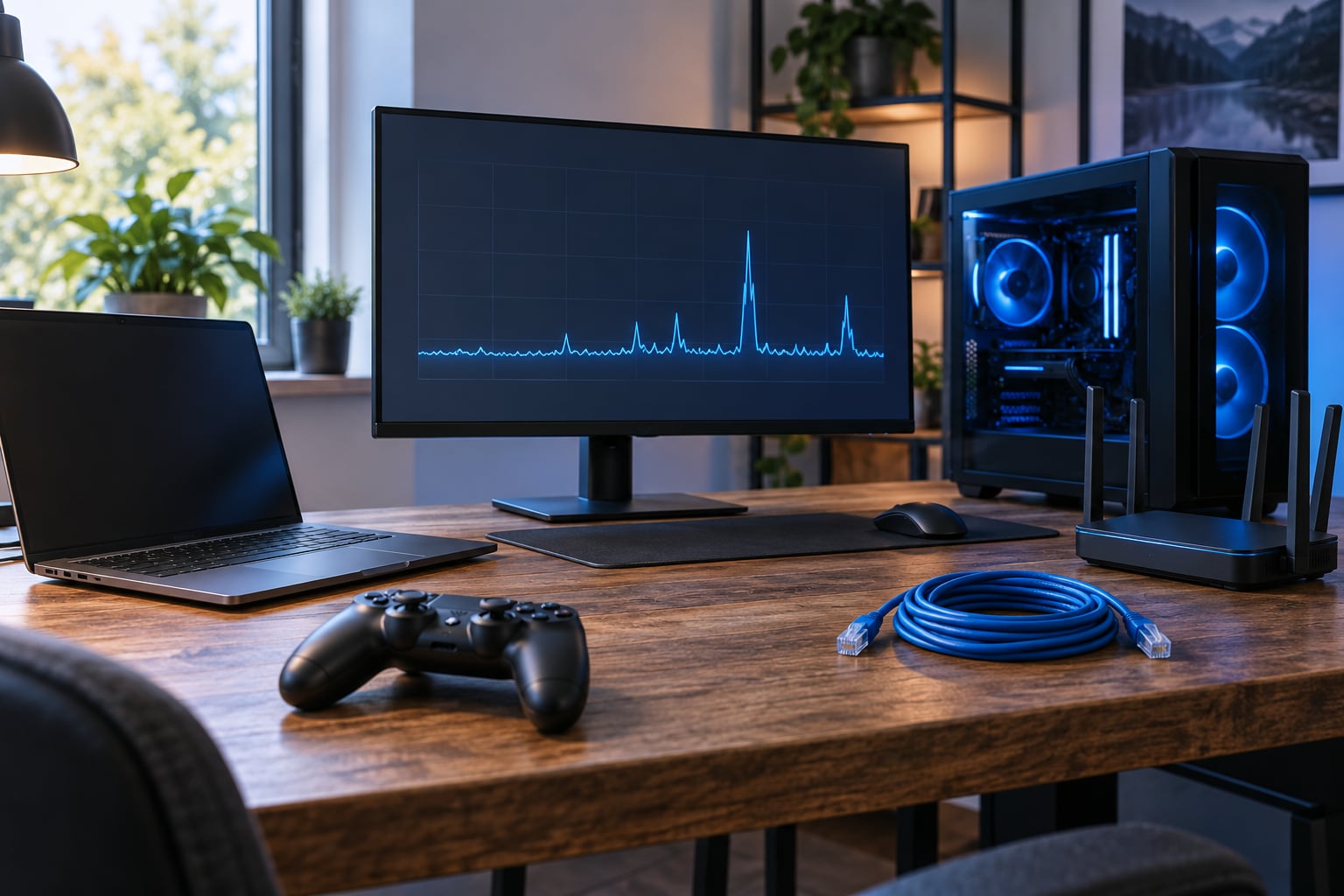
A lag spike mid-match is a queue forming somewhere between your input and the game server, and the fix depends on where that queue sits. If it happens once, let it pass. If it repeats every three to five minutes, you have a pattern, and it is almost always on your side of the cable rather than the server’s. Here is how to deal with lag spikes mid match without throwing a round or your temper. Most of the real fixes take under a minute once you know which one applies.
The order below matters. Diagnose first, because the three lag types have completely different fixes, and half the advice floating around online is aimed at the wrong one.
Table of Contents
- 1What You Need
- 2Step-by-Step
- 31. Confirm That the Lag Spike Is Real
- 42. Stop Competing Traffic and Downloads
- 53. Use Wired Ethernet or the Strongest Stable Connection
- 64. Reduce the Game’s Immediate Network Load
- 75. Protect Your Score Until the Connection Stabilizes
- 86. Reset the Match Without Resetting Everything
- 97. Test the Connection After the Match
- 10Common Mistakes
- 11Quick Tips for the Next Match
- 12Frequently Asked Questions
- 13Is a lag spike the same as high ping?
- 14Why does my game freeze only during multiplayer matches?
- 15Should I leave the match when my connection starts lagging?
- 16How can I tell whether lag comes from my internet or the game server?
- 17Does lowering graphics quality stop network lag?
- 18How long should I wait before restarting my router?
- 19What to Do First Next Time
What You Need
You need very little, and almost all of it is already on your desk.
- A second device on the same network. A phone running a continuous ping test is the fastest way to see whether the network hiccuped or the game server did.
- Access to your game’s ping display or overlay. Most competitive shooters show ping, and many have a hidden network graph you can toggle with one key.
- An Ethernet cable if one is within reach. This is the single biggest step between a stable 20ms and a jittery Wi-Fi night.
- Your router’s admin page. The address and default login are printed on a sticker on the bottom of the router.
- Your normal ping number. Write it down before anything goes wrong. “Was 24ms, now 190ms” tells you far more than a bad feeling.
That is the whole kit. No new hardware needed to fix most of this.
Step-by-Step
1. Confirm That the Lag Spike Is Real
Four things feel like lag and only one of them is. Watch which one you are seeing for a few seconds before you change anything.
- Network lag. Characters rubberband, shots land after the kill, and the ping number in the corner climbs. This is the real thing.
- Server lag. Everyone in the lobby stutters, your ping stays flat or even reads low, and nobody’s fault. Nothing on your side will fix this.
- Frame drops. The world hitches visually while your aim keeps responding. Watch the FPS counter instead of the ping counter.
- Input lag. The mouse or controller registers late while ping and FPS both look healthy.
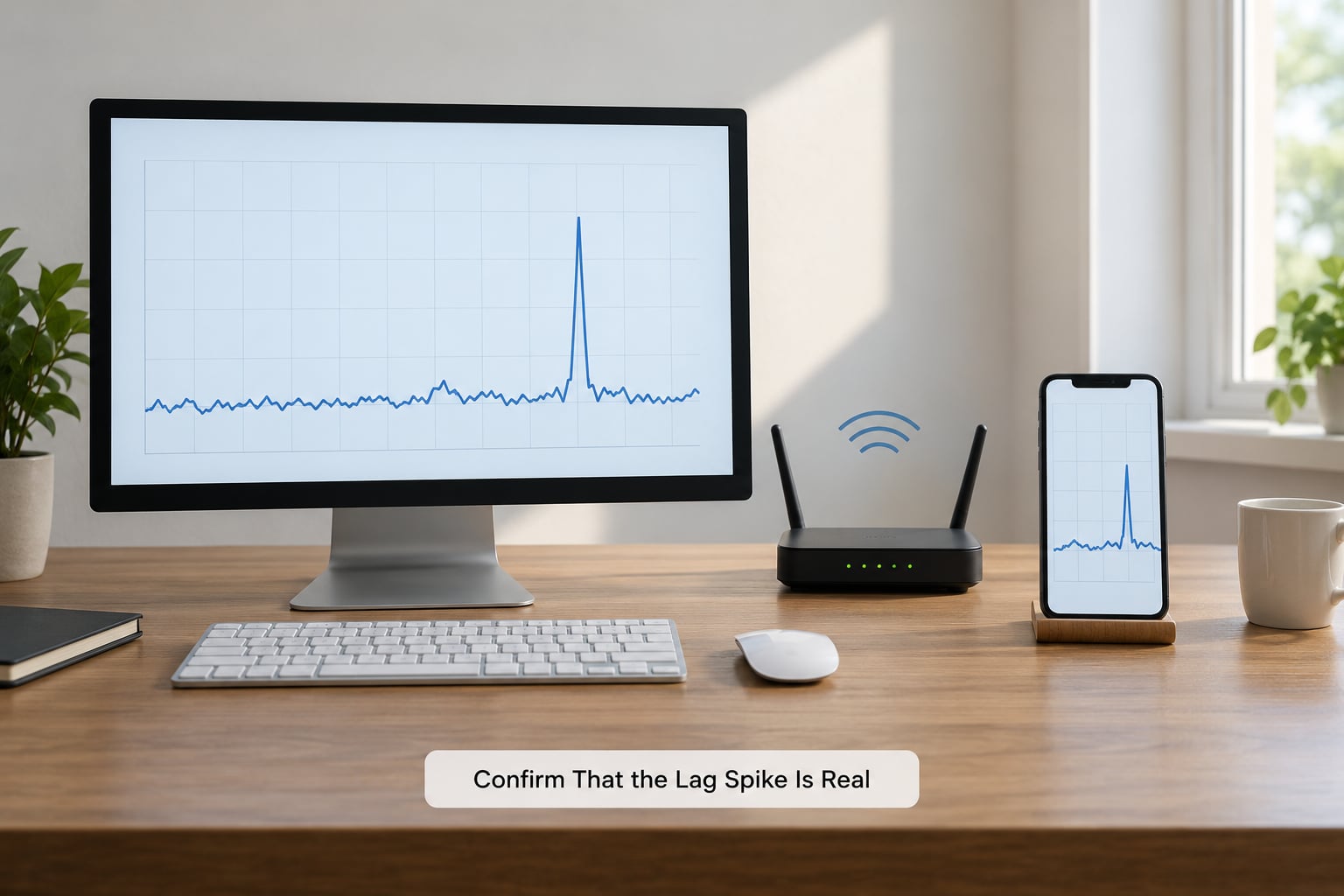
Then run the repeat test. Pick something repeatable, like turning in place or tapping fire on an empty wall, and watch whether your character responds on the same frame every time. A missed input that repeats exactly is frame drops. A missed input that lands a beat late on a random basis is network or input delay. From a second device on the same Wi-Fi, start a continuous ping to a public resolver like 8.8.8.8. If that graph spikes at the same moment your game stutters, the problem is your network path. If it stays flat while the game spikes, look closer at your PC or the server.
2. Stop Competing Traffic and Downloads
Pause everything on your connection that is not the game: cloud sync, OneDrive or Google Drive, Steam downloads, console system updates, a Discord upload, a video call, a 4K stream elsewhere in the house.
Uploads matter more than people expect. Your connection’s send queue is small, so a single cloud backup or game install can fill it and force the router to hold your gameplay packets until it drains. That delay is called bufferbloat, and it is the fingerprint behind the classic complaint of a steady 20ms ping that jumps to 150ms or more for a second, every few minutes. Players who fixed it usually got there by killing background uploads first, before touching anything else in the router.
If you live with other people, this step is a conversation, not just a toggle.
3. Use Wired Ethernet or the Strongest Stable Connection
Plug in with Ethernet wherever you can. It removes an entire layer of interference, retries, and shared airtime, and it is the change that most often turns a spiky connection into a boring flat one.
If you are stuck on Wi-Fi, do the boring things. Use the 5GHz band rather than 2.4GHz, pick a fixed channel instead of a clever auto one, and turn off band steering if your router offers it and your devices struggle to stay on one band. Move the router off the floor and away from microwaves, TVs, and baby monitors. Range extenders and powerline adapters often add more jitter than they remove, so test with them off before blaming anything else. And do not switch to a phone hotspot mid-match; the handover itself causes the exact spike you are trying to escape.
4. Reduce the Game’s Immediate Network Load
Close the browser tabs you are not reading, especially ones playing video. Turn off in-game overlays you do not use, since several of them poll the game folder or a service in the background.
Most games ship a network preset or a low-latency mode. Turning it on is free and it is usually the right call for anything competitive. If voice chat quality is set high, drop it one notch; in-game voice eats upload bandwidth that the game would rather have. On PC, enable the OS gaming mode equivalent, set the power plan to best performance, and make sure your monitor cable is plugged into the graphics card rather than the motherboard, which caps your refresh rate and your frame rate at the same time.
5. Protect Your Score Until the Connection Stabilizes
This is the part almost every guide skips, and it is the part that decides whether a spike ruins one round or the whole session.
- Pause if the game allows it. A disconnected timer beats a lost objective.
- Retreat to cover rather than pushing for the thing you were chasing.
- Slow down your inputs. Rapid repeated clicks during a spike queue up actions that land late and out of order.
- Do not take contested fights you would normally win. Your reactions are late, and your opponents’ are not.
- Say something short in chat or voice. One line about connection stops teammates from reading your death as a mistake.
- Avoid rage-quitting. Quitting while spiked feels better for thirty seconds and usually turns one bad match into a tilt.
Most spikes clear in one to two seconds. Surviving those two seconds is usually the entire fix.
6. Reset the Match Without Resetting Everything
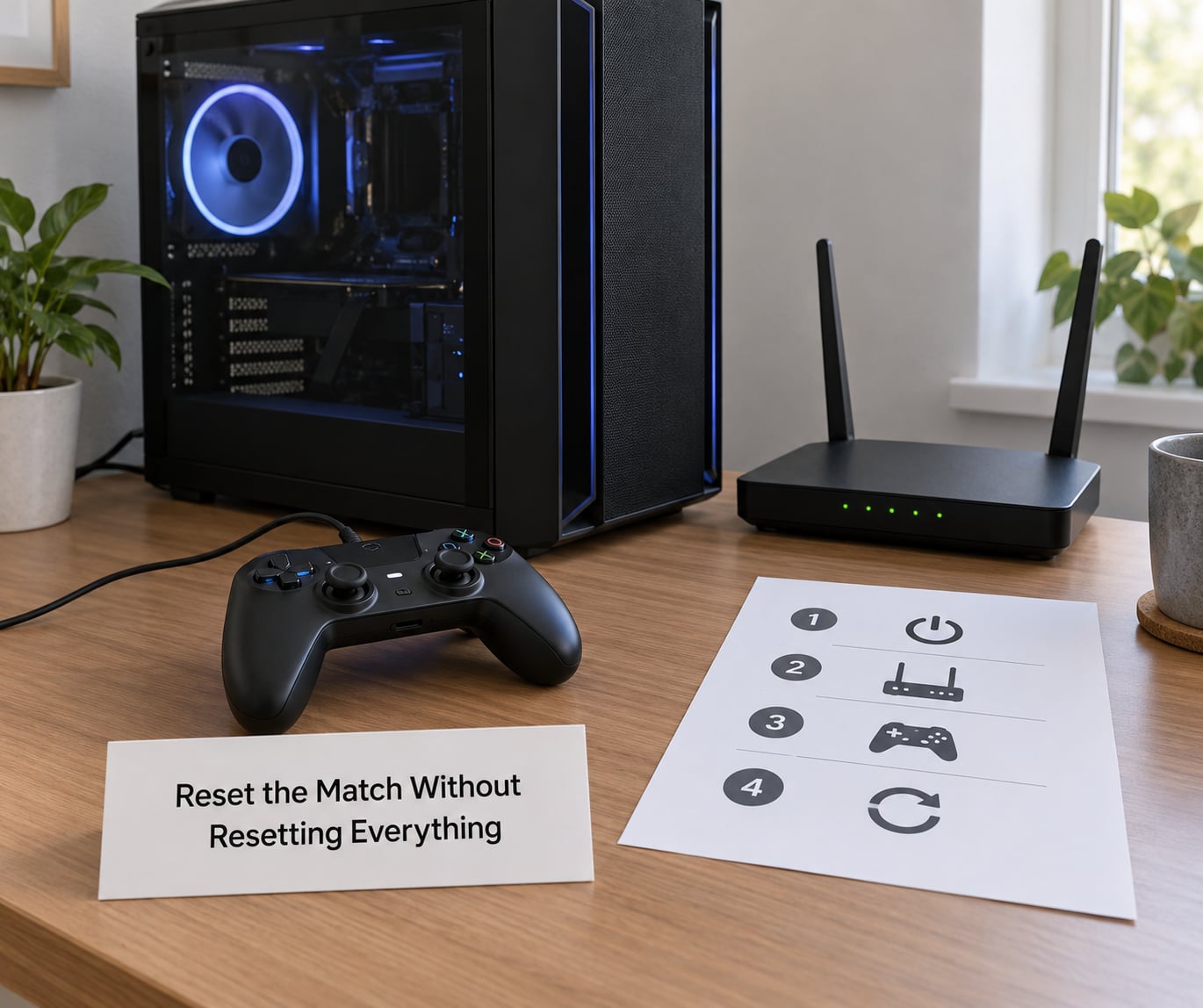
Escalate only as far as you need to. Each step costs more time and loses more state than the last.
- Leave and rejoin the match. Costs seconds, re-syncs your session, fixes the majority of short spikes.
- Restart the game client. Clears a stalled connection handle without touching your settings.
- Reboot the router. Worth it when the spike hits at similar times every evening, or when the router has been up for weeks.
- Restart the device. Last resort, and it matters most when the lag has been building for ten or fifteen minutes, which points at heat rather than networking.
One detail worth knowing: a router reboot that fixes the problem for twenty or thirty minutes and then lets it back in is not a fix. That pattern is almost always bufferbloat returning the moment the upload queue fills again.
7. Test the Connection After the Match
Now that the match is over, measure instead of guessing. Run a latency-under-load test and watch what your ping does while the line is busy. Roughly 20ms idle jumping past 200ms under load means your router is queueing your traffic and quality-of-service settings will help.
Check jitter and packet loss too. Steady 80ms with no loss is a bad route; 20ms with two percent loss is a worse one, because lost packets mean your aim skipped. Compare everything against the baseline you wrote down at the start, then record when the spikes happened, how long they lasted, and whether they only occur in one game.
That log is what turns a support ticket into a fix. If the pattern is every three to five minutes, at the same point in the round, with no change at your end, say exactly that. If it only happens in one title, the patch notes and the other players in that lobby are your next stop.
Common Mistakes
Most lost matches come from fixing the wrong problem or destroying the evidence.
- Buying a gaming router first. Players report they swapped routers and saw no change at all, then fixed it by turning on smart quality-of-service with the upload cap set a little below real speed. Tune what you have before spending anything.
- Changing ten settings at once. You will not know which one helped. Change one thing, play two matches, note the result.
- Lowering graphics to fix a network problem. Lowering settings helps frame drops, not ping. If your FPS counter is stable and the game still stutters, graphics settings are the wrong lever.
- Declaring it the servers with no evidence. Half of these are home-side. Ping a public resolver from a second device during the spike and you will know within a minute.
- Installing network optimizer or VPN tools. These often add background traffic and encryption overhead, which is the opposite of the goal.
- Unplugging everything before testing. You lose the pattern that tells you whether it is your router, your provider, or your machine.
- Playing on through a dead connection. If you can no longer respond reliably, forfeit or leave. A preserved score beats a ruined streak.
Quick Tips for the Next Match
A few habits kill most spikes before they start. Close downloads and cloud sync an hour ahead, not at match start. Run one ping test before you queue so you have a baseline. Keep your graphics driver current, and your network adapter driver with it. Select the nearest supported server region when the game exposes that choice. Have an Ethernet cable plugged in and ready, not somewhere in a drawer. And if the lag reliably builds ten minutes into a session, check CPU and GPU temperatures, because throttling looks exactly like lag and none of the network fixes will touch it.
Frequently Asked Questions
Is a lag spike the same as high ping?
No. High ping means consistently slow response, and you can see the number sitting there the whole match. A lag spike is a sudden jump from a normal value, often 20ms to 150ms or more, lasting a second or two before snapping back. Spikes are harder to spot than high ping because nothing on screen tells you they happened, which is exactly why the network graph or a second-device ping test matters.
Why does my game freeze only during multiplayer matches?
Single-player is usually local to your machine, while multiplayer adds a round trip to a server and constant bandwidth use. That round trip exposes Wi-Fi interference, router bufferbloat, upload saturation, and packet loss that a local game never touches. If the freeze also happens in the main menu or on the desktop, suspect your PC or its drivers instead of the connection.
Should I leave the match when my connection starts lagging?
Not on the first spike. Wait two or three seconds, drop to cover, slow your inputs, and skip any objective you would contest in normal conditions. Most spikes clear on their own. Leave only when you cannot reliably respond, when the game has disconnected you anyway, or when the spike repeats several times in the same round with no sign of improvement.
How can I tell whether lag comes from my internet or the game server?
Run a continuous ping to a public resolver such as 8.8.8.8 from a second device on the same network. If that ping spikes at the same time the game does, the problem is your network. If it stays flat while the game stutters, and the whole lobby stutters at once, it is server-side. A third check: compare against a second device on the same Wi-Fi, since both spiking together points at the router or provider.
Does lowering graphics quality stop network lag?
No, not even slightly. Graphics settings change how fast your machine draws frames, while network lag comes from the trip to the server. Lowering quality only helps when your real problem is frame drops or stuttering, which show up as hitchy visuals while your aim still responds. If your ping number jumps, only connection-side changes will help.
How long should I wait before restarting my router?
Restart it once you have already ruled out background uploads and tried a wired connection, not as a first move. A reboot clears a genuinely stuck router, so a spike that returns after twenty or thirty minutes was never a stuck router. It usually means queueing or congestion, and quality-of-service settings or an upload cap will fix it where a restart only hides it for a while.
What to Do First Next Time
When the next spike hits, run this order and stop as soon as it clears. Play safe first: pause if you can, otherwise fall back and stop taking fights you cannot win at two seconds behind. Then kill the uploads and downloads competing for your line, because that is the cheapest fix and the most common cause. If it keeps happening, switch to a wired connection or a clean 5GHz channel. After the match, ping 8.8.8.8 from a second device during the spike to prove whether it is your side or theirs, and only escalate to a router reboot, a quality-of-service setting, or a support ticket once you know which end of the cable is guilty.