How to transfer save files between devices comes down to three things: back up the save on the machine you are leaving, copy the save folder into the same location on the new machine, then launch the game and confirm your progress is actually there. Most games store progress in a local file rather than a server, so nothing moves on its own. A ten-minute backup before you start is the difference between a smooth move and wiping 200 hours.
On this site we treat PC, console, and handheld as the same problem, because they are. The file moves differently, the rules around it differ, and the point where people break something is almost always the same: they skip the backup. The steps below are ordered so the first thing you do is the thing that protects you.
Table of Contents
- 1What You Need Before You Start
- 2Step-by-Step: How to Transfer Save Files Between Devices
- 31. Back Up the Current Save Before Moving
- 42. Check the Game’s Official Sync or Account System
- 53. How to Transfer Save Files Between Devices Using Cloud Sync
- 64. Transfer Local Save Files Manually
- 75. Verify the Save and Resolve Any Conflict
- 8Common Mistakes and How to Fix Them
- 9Overwriting the source save
- 10Wrong account on the destination device
- 11Incomplete folder copy
- 12Folder name mismatch between versions or ports
- 13Game update invalidating a transferred save
- 14Cloud sync that silently did nothing
- 15Expecting console saves to move like PC files
- 16Frequently Asked Questions
- 17Do saves transfer between a Steam Deck and a gaming PC?
- 18Can I transfer save data to another Switch?
- 19Why is Steam Cloud unable to sync my game saves?
- 20Can I move a Steam save to a different Steam account?
- 21How do I transfer saves from PS4 to PS5?
- 22Will a transferred save still work after the game updates?
- 23Conclusion
What You Need Before You Start
Five things, and you can gather all of them in a couple of minutes:
- Your source device — the one holding the progress you want to keep, with the game installed and playable.
- Your destination device — the new PC, laptop, handheld, or console, with the same game installed at the same version if possible.
- Storage that can hold a copy — a USB flash drive, a microSD card, or an external drive. This is the backup, and it is not optional.
- Access to the right account — the same platform account on both devices. Saves often follow the account, not the machine.
- The save folder location for the game — the one thing people skip, and the one that makes or breaks the transfer.
Install the game on the destination device first, then let it run once so it creates its own empty save folder. Copying into a folder the game has already generated is far more reliable than creating one from scratch in Explorer.
Step-by-Step: How to Transfer Save Files Between Devices
The order matters. Back up, then check whether the developer already built a sync system, then move the file, then confirm it worked. Skipping straight to step four without a backup is the single most common way people lose progress permanently.
1. Back Up the Current Save Before Moving
Open the game and save manually, then quit it completely. Save files written while a game is still running in the background are the ones most likely to be truncated mid-transfer.
Now find the save. The locations are predictable:
- Windows — type
%AppData%into the File Explorer address bar, or browse toC:UsersYourNameAppDataRoaming. A surprising share of PC games write here. - macOS — open Finder, press
Cmd+Shift+G, and go to~/Library/Application Support. - Linux and SteamOS — most Steam titles sit under
~/.local/share/Steam/steamapps/compatdata/in a numbered folder, then a path that mirrors Windows likepfx/drive_c/users/steamuser/AppData/Roaming. - Non-Steam games on Windows —
DocumentsMy Games, or the game’s own install folder if it uses a save-anywhere model.
Copy the entire game folder, not a single loose file. Saves are often a folder with several files inside, and taking only the one with the game name in it can leave out a config or profile file that the game treats as part of the save. Paste the copy onto your USB drive or external folder and name it with the date.
For Steam specifically, there is a second layer of insurance: right-click the game in your library, choose Properties, go to Installed Files, and use the Back up game files option. That captures a restorable snapshot, and it is the step regulars recommend in Steam Community threads before any device change.
2. Check the Game’s Official Sync or Account System
Before copying anything, find out whether the game already syncs on its own. If it does, a manual file copy can be slower, less complete, or actively destructive.
On Steam, open the game’s Properties and check the General tab. Cloud Storage shows whether Steam Cloud covers that title and how many files it holds. A per-title quota of roughly 100 MB applies to the cloud space, and games above that limit often only sync part of the data. Plenty of games have no cloud support at all, which is the single most common reason progress does not follow you.
Consoles work differently. Nintendo Switch save data lives in internal storage only, and it follows the Nintendo account on the second console, not the hardware. PlayStation 4 saves can be backed up to a USB drive through the console’s own backup menu, but PlayStation 5 save backup to USB requires a PS Plus subscription, because the console will not hand you a straight copy without it. Xbox saves sync through your Microsoft account automatically.
The useful distinction: syncing progress and moving a local file are different things. Cloud sync uploads what the game reports; a local file copy moves the entire save. When a game supports both, let the cloud do the work and keep the manual copy as a safety net.
3. How to Transfer Save Files Between Devices Using Cloud Sync
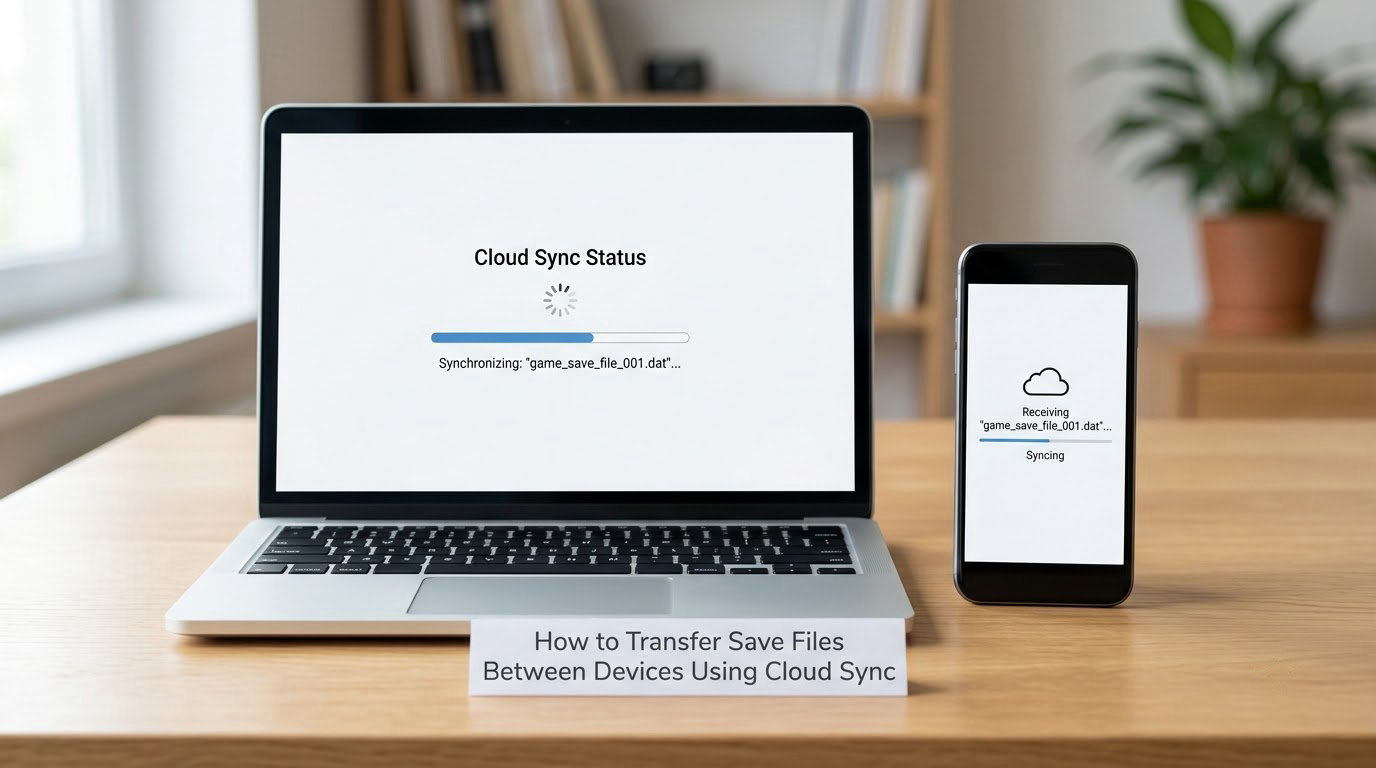
Cloud sync is the best option when both devices are online and you are moving one or two games. The mechanic is simple: point a cloud drive folder at the game’s save location on each machine, and the copy happens for you.
- Install Google Drive, Dropbox, or OneDrive on the source device and let it finish its initial sync. Do this first, the day before, if you can.
- Move or copy the game’s save folder into the cloud drive’s local sync folder. On Windows that is usually inside
C:UsersYourNameGoogle DriveorDropbox. - Wait until the cloud client reports the upload finished. Check the web version of the same account in your browser to confirm the folder is actually there, since the client sometimes queues work for later.
- On the destination device, install the same client, sign in to the same account, and wait for the sync to complete.
- Open the game once so it creates its own save folder, quit it, then copy the cloud copy over that folder and confirm the replacement.
On a Steam Deck, drop into Desktop Mode, open the Files app, and navigate to Home before doing any of this. Handhelds running Linux treat the sync folder like any other folder, but the path is unfamiliar enough that players often assume cloud sync is impossible on them. It is not.
Players in r/PokemonInfiniteFusion use exactly this trick for a game with no cloud support: they dropped the whole game folder into Google Drive’s desktop sync, which effectively creates a cloud save for a title that never shipped one. It works for any game whose save lives in a normal folder.
4. Transfer Local Save Files Manually
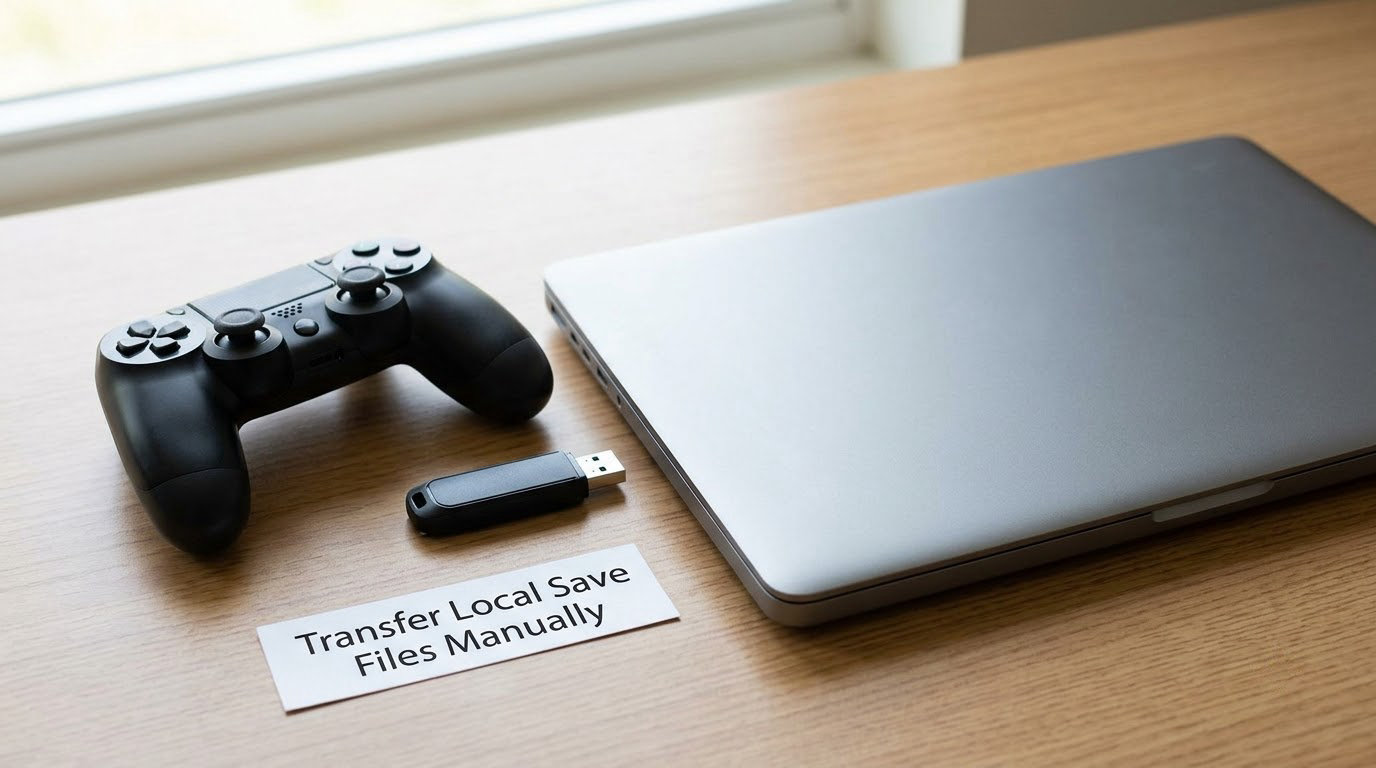
Manual transfer is still the most reliable method, and it is the only one that works offline. Copy the backed-up save folder from your external drive and paste it into the matching location on the new device, replacing the empty folder the game just created.
A USB drive is the simplest hardware. Format it as exFAT if both devices are different types, since that is the one format Windows, macOS, Linux, and most consoles read without fuss. Keep the folder structure identical on both sides. If the save sat four folders deep on the old machine, put it four folders deep on the new one, same names, same nesting.
For a local network transfer, a shared folder beats a flash drive once you start moving more than a couple of games. On Linux and SteamOS, a Samba share on the desktop machine, mounted in the Files app on the handheld, is quick and needs no cloud account. The same idea works in reverse on Windows through a plain shared folder.
If you move saves regularly rather than once, a dedicated sync tool like Syncthing does the copy in both directions over your local network with no cloud provider involved. Point it at the save folder on each device, and it keeps them matched. Replace the game’s original folder with a symbolic link to the synced location if you want it to happen without thinking: mklink /d on Windows, ln -s on Linux and SteamOS. The link approach is powerful and easy to get wrong, so test it on one game before you point your entire library at it.
Emulator saves are their own category. RetroArch and most standalone emulators use a single memory card file with a .srm extension, stored in the emulator’s save directory. Those copy cleanly between devices because there is one file, not a folder. Copy the file before launching the emulator on the new device, then match the core name.
5. Verify the Save and Resolve Any Conflict
The copy is not done until the game has read it. Launch the game on the new device, load the last save slot, and check something specific: a level, an inventory count, a currency balance, a completion percentage. A save that loads but starts a new game is the classic folder-name mismatch, and no error message will tell you.
If the game shows an older state than expected, the backup from step one is still on your drive. Restore it, quit the game fully, and try once more.
Two rules stop almost every conflict:
- Never run the same game on two synced devices at the same time. Whichever copy uploads last wins, and a save written while it is being copied can be corrupted outright.
- Apply the game update before you copy, not after. Patches sometimes change the save format or folder name, and a file copied from an old version can be silently discarded by a patched game.
Once you have confirmed your progress on the new device, keep that external backup for a week. Most of the horror stories in forums trace back to a confident deletion right after a successful restore.
Common Mistakes and How to Fix Them
Overwriting the source save
Copying the empty save folder from the new device back over your backed-up one. Do the copy in one direction only, and paste into the destination rather than dragging out from it. If the new machine created its save first, quit the game before you paste.
Wrong account on the destination device
The most common failure in the whole process, and it produces no warning. Sign out, sign the correct platform account back in, and reinstall or relaunch the game before you paste anything. Saves that follow an account will not appear under the wrong one.
Incomplete folder copy
Copying a single file when the save is a folder of several. Always copy the parent game folder as a unit. If the game writes to two directories, both need to come across.
Folder name mismatch between versions or ports
A save folder created by an older build or a different port can have a different name, and the game then ignores your freshly pasted files. Start a throwaway save on the destination device, quit, and compare folder names. The advice in r/SBCGaming for moving between handhelds is to start a new game, save, and rename the target file to match the source device’s file name.
Game update invalidating a transferred save
Update the game on both devices to the same version before you move anything. If a patch has already rewritten the save format, an older file may no longer load, and the only recovery is the backup.
Cloud sync that silently did nothing
Either the game has no Steam Cloud support, the file is too large for the per-title quota, or the client queued the upload and never sent it. Confirm in the browser rather than trusting the desktop icon, and check the Properties panel to see whether the game supports cloud at all.
Expecting console saves to move like PC files
Switch save data stays on internal storage, PS5 USB backups require PS Plus, and Xbox saves follow the account. There is no file you can copy off a console, so plan those moves as account operations, not file operations.
Frequently Asked Questions
Do saves transfer between a Steam Deck and a gaming PC?
Yes, as long as both devices are signed into the same Steam account and the title supports Steam Cloud. Cloud-covered games sync on their own. For anything else, copy the save folder manually. On the Deck, switch to Desktop Mode, open the Files app, and navigate to your home folder first, then copy the game save out to a USB drive or a shared network folder.
Can I transfer save data to another Switch?
Yes, and it happens through the account rather than through a file. Nintendo Switch save data is stored on the console’s internal memory and cannot be copied to a microSD card. Sign both consoles into the same Nintendo account, go to System Settings, then Users, and use Transfer User Save Data. Both consoles need to be online at the same time during the transfer.
Why is Steam Cloud unable to sync my game saves?
Three usual reasons. The game may have no Steam Cloud support at all, which you can see in the Properties panel under General. The save may exceed the per-title cloud quota, so only part of the data goes up. Or the game was still running when you changed devices, so the newest save was never written. Close the game fully and use Force Steam Cloud Sync to retry.
Can I move a Steam save to a different Steam account?
Cloud saves stay with the account they belong to, so moving one means copying files manually. Locate the save in the local Steam data folder on the old machine, copy it to a USB drive, then paste it into the matching path for the new account after that account has played the game once. Rename the existing folder to something like savefolder_old before pasting, so you can roll back if the new file misbehaves.
How do I transfer saves from PS4 to PS5?
There is no direct file copy between the two. Sign into the same PlayStation Network account on the PS5 and the PS4 save transfers over, since both consoles store saves in the cloud. A PS4 save can also be backed up to a USB drive through the console’s backup menu. PS5 saves, by contrast, need a PS Plus subscription before they can be backed up to USB at all.
Will a transferred save still work after the game updates?
Usually, but not always. If the patch changes the save format or the save folder name, an older file can be ignored or reset. Update the game to the same version on both devices before you move anything, keep the destination device offline until you have confirmed the save loads, and never delete your backup until a few days of play have gone by without problems.
Conclusion
Start with the backup, always, because it costs ten minutes and it is the only step that can save you. Then use the game’s own sync system when one exists and both devices are online, and fall back to a manual folder copy when it does not. Verify the restored progress by loading a save and checking a specific detail before you close anything down. Update both devices to the same game version first, and keep the backup around for a few days afterwards.