Two-factor authentication on gaming platforms is a second identity check on every sign-in: a rotating code from an authenticator app, a text or email code, a push approval, or a one-time backup code. Turning it on takes about five minutes per account, and it is the single most effective step you can take against account hijacking. Most hijacks start with a password that leaked from a breach or a phishing page, and a second factor blocks almost all of them at the front door.
That matters more in gaming than in most corners of the internet, because a game account is not just a login. It is a wallet. Inventory, tradeable skins, marketplace listings, competitive rankings, clan tags and linked payment details all sit behind that one account, and recovering them after a theft is slow at best. Players on gaming subreddits keep describing the same story: inventories worth hundreds of dollars traded away in a single afternoon because nobody had turned on a second factor.
This guide walks through the same setup sequence on Steam, Epic Games, PlayStation, Xbox and Nintendo, then covers what to do when things go wrong. Platform menus change often, so treat the paths below as the route rather than a pixel-perfect map.
Table of Contents
- 1What You Need
- 2Step-by-Step: How to Use Two Factor Authentication on Gaming Platforms
- 3Enable 2FA on Steam
- 4Enable 2FA on Epic Games Store
- 5Enable 2FA on PlayStation and Xbox Accounts
- 6Enable 2FA on Nintendo Accounts
- 7Choose an Authenticator App or Other Verification Method
- 8Save Recovery Codes and Set Account Alerts
- 9Test Your Two Factor Authentication
- 10Common Mistakes
- 11Frequently Asked Questions
- 12Will two factor authentication slow down my games?
- 13What should I do if I lose the phone used for two factor authentication?
- 14Is SMS verification safe enough for a gaming account?
- 15How do I move two factor authentication to a new phone?
- 16Can someone still steal my gaming account if I use 2FA?
- 17How do I recover a gaming account after being locked out?
- 18Conclusion
What You Need
You need four things before you start, and the first one catches most people out.
- Your current account password. Platforms ask for it again to confirm you are the owner before switching on a second factor.
- Access to the account email address. Almost every platform emails a confirmation link or code, and that inbox is also your recovery route later.
- An authenticator app on your phone. Any app that handles time-based one-time passwords works: Google Authenticator, Microsoft Authenticator, Authy, Aegis, or the one built into a password manager like Bitwarden. Steam is the exception, and its section explains why.
- Somewhere safe to write down backup codes. A password manager entry or a printed sheet in a drawer. Not a screenshot in your camera roll, and not a note in a shared document.
A phone is the usual device, but it is not the only one. A hardware security key such as a YubiKey works on PlayStation, Xbox and Nintendo, and passkeys are increasingly offered as a sign-in method that skips codes entirely. If you share a console with family or have a kid account, add that to your list too, because a second factor on a shared console means approving a prompt before anyone can reach your profile.
Step-by-Step: How to Use Two Factor Authentication on Gaming Platforms
Every platform does this differently on the surface, but the sequence underneath is the same six steps. You open the account security page, choose your second factor, confirm with your password and email, save recovery codes, turn the setting on, then confirm it is actually active by signing in again.
Do step six. A surprising number of people finish the setup assuming it took, and only find out the truth the next time they log in from a new machine.
Enable 2FA on Steam
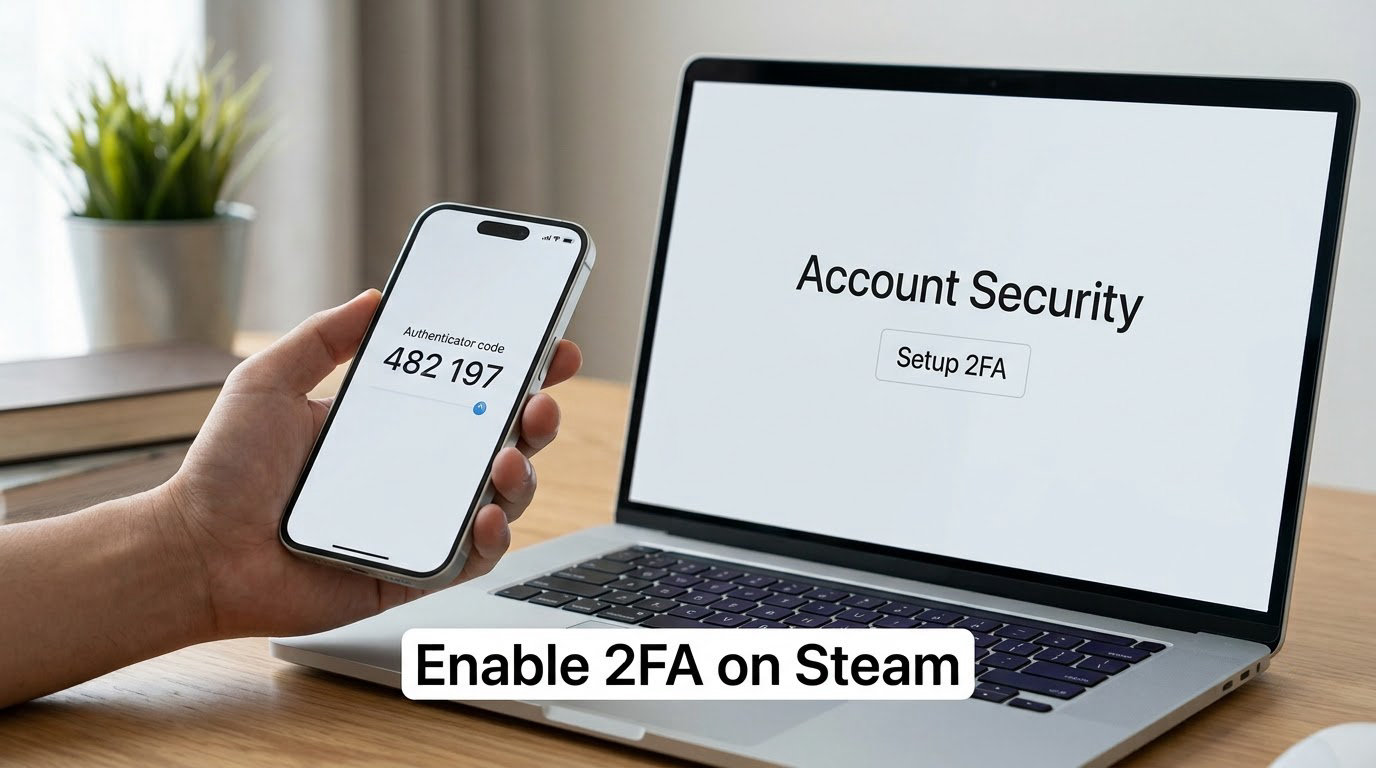
Steam Guard is Steam’s version of 2FA, and you turn it on from Account Details inside the Steam client or on the Steam website. Open your profile, choose Edit, then Account Details, and look for the Steam Guard section under Security.
- Choose Protect my Steam account with a mobile authenticator app to get a QR code you scan with your authenticator app, or pick email-based Steam Guard if you have no phone method available.
- Enter the code the app shows to confirm the link. The six digits rotate roughly every 30 seconds.
- Click Send SMS Steam Guard Code to your existing verified number so you keep a fallback, or add a second number you still control.
- Click Deactivate Steam Guard temporarily only when you are about to trade, and reactivate it the same session. Leaving it off during a trade is when inventory disappears.
- Save the Steam Guard recovery code shown in the same panel. It is a single long code, not a list.
- Check Manage Steam Guard and the authorized devices list under Account Details, and remove any phone or browser you no longer use.
One thing trips people up: Steam Guard uses its own email code and its own mobile authenticator flow rather than a standard third-party TOTP app, so you cannot point Google Authenticator at it. Label the entry clearly in your app and you will not lose the wrong account.
Enable 2FA on Epic Games Store
Epic puts it in the Password and Security tab, which covers Fortnite, Rocket League and every other Epic title, so one setup protects the whole account.
- Go to your Epic Games account page and open the Password and Security tab.
- Scroll to the Two-Factor Authentication section and choose Enable Two-Factor Authentication.
- Pick a method: an authenticator app, an email code, or an SMS code if you still have a verified number.
- Enter the code to confirm, then use Make my primary 2FA method to set the one you want to be asked for first. This matters if you enabled more than one.
- Click to generate backup codes and save every one of them somewhere you can reach without the account you are securing.
Epic also reminds you to check third-party services linked to the account, and that advice generalizes to any launcher-linked setup: a Ubisoft, EA or Rockstar login tied to the same email deserves the same second factor.
Enable 2FA on PlayStation and Xbox Accounts
On PlayStation, sign in to the PlayStation Network on the web, open Account Management, then Security, and set two-step verification. Sony offers a sign-in approval prompt on registered devices, an authenticator app code, and a security key option. Store codes and a backup phone number appear in the same panel.
On Xbox, the setting sits in the Microsoft account privacy hub. Sign in to account.microsoft.com, open Security, and add an app or a security key under Advanced security options. Passkeys are offered there too, and a passkey sign-in on a console you own is the least friction option of all.
Both platforms matter because a console account unlocks friends lists, messages, saved games and purchases. PlayStation also asks who can sign in as you on a family console, and that list is worth reviewing while you are in the same screen.
Enable 2FA on Nintendo Accounts
Nintendo calls it two-step authentication and keeps it on the account settings site rather than in console settings. Sign in to your Nintendo Account, open Account Settings, then Security, and switch two-step authentication on.
From there you register an authenticator method or an email-based code, and Nintendo shows a setup confirmation you should store offline before you leave the page. Nintendo warns about lockout clearly, and that warning is real: recovery runs through a support process with proof of ownership, not a self-service reset. Set it up during a calm afternoon, not the night before a tournament.
Choose an Authenticator App or Other Verification Method
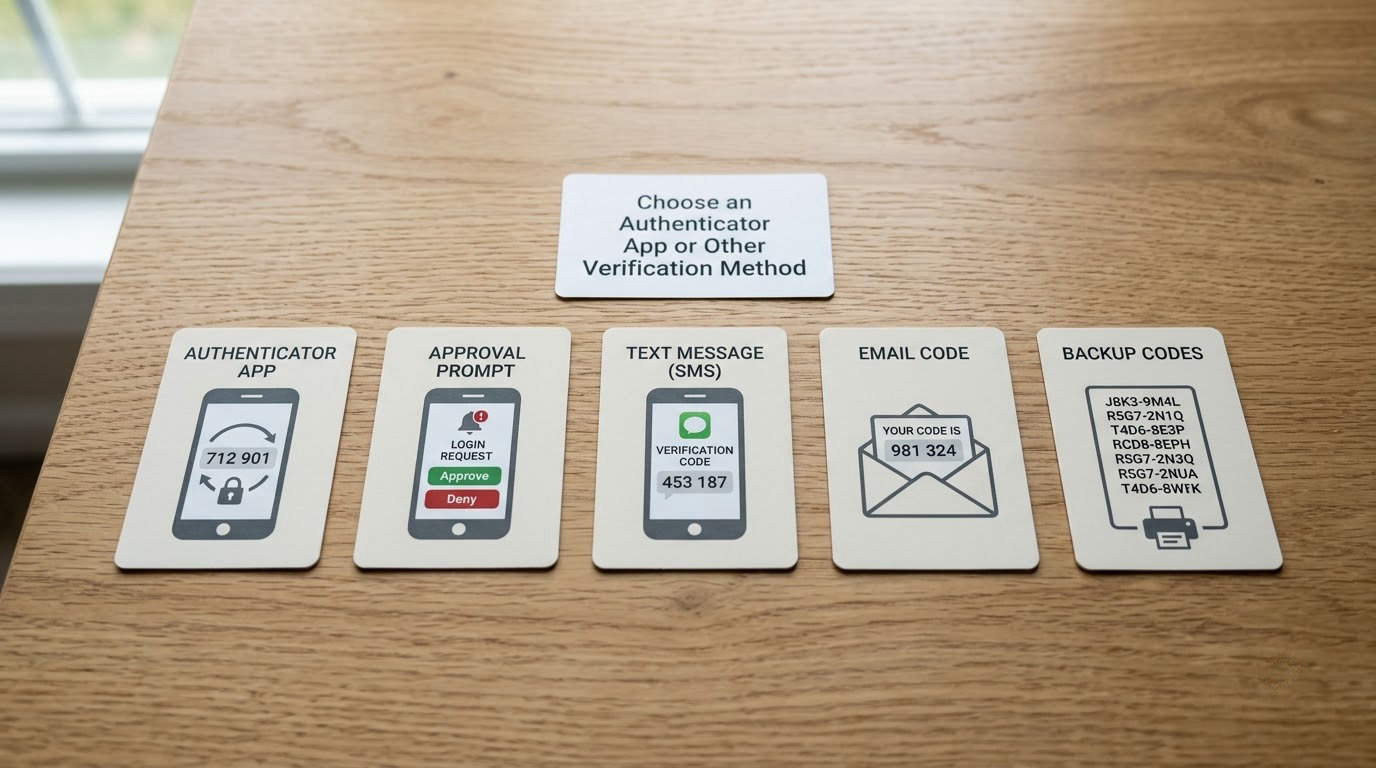
Authenticator apps and security keys beat text messages wherever a platform offers them. Text codes fail because phone numbers can be ported to a new SIM by someone who knows enough about you to convince a carrier, which is exactly the profile of an account thief targeting a marketplace inventory.
| Method | Security | Convenience | Best for |
|---|---|---|---|
| Authenticator app | High | High | Everyday accounts, works offline |
| Sign-in approval prompt | High | High | Consoles you own and sign into often |
| Security key | Highest | Medium | Accounts worth real money, kept in a drawer |
| Email code | Medium | High | Platforms with no app option |
| SMS text code | Low | High | Fallback only, never the primary method |
| Backup codes | High, single use | Low | Emergency access when a phone is gone |
One caveat worth knowing before you pick an app: some authenticator apps sync codes to a cloud account and some do not. A cloud-synced app is easier to restore after a lost phone, but it also means your second factor is only as strong as that account’s own login, so protect it with its own second factor. An offline app such as Aegis is more private and slightly more work to move.
Save Recovery Codes and Set Account Alerts
Backup codes are the one part of setup that feels like busywork and then saves your year. Generate them at the moment you enable 2FA, then store them offline. A password manager secure note is the strongest option; a printed copy in a physical drawer beats anything digital, because a compromised computer cannot read it.
Never keep backup codes in a plain photo, a notes app synced to the same cloud account, or a message thread with yourself. The whole point is that the code should exist somewhere the attacker who took your account cannot reach.
Then add a secondary recovery email that is not your primary inbox, and turn on login alerts if the platform offers them. Alerts are how you find out about a sign-in you did not make, which is much earlier than finding out when a skin is gone.
Test Your Two Factor Authentication
Test it the same way an attacker would: from a clean session. Open a private browser window, go to the platform sign-in page, and confirm that you are asked for a second factor and that your method produces a working code.
On a console, check that the approval prompt arrives on the device you registered and only that device. Then open the account security page and read the list of active sessions, signed-in devices and authorized apps. Anything you do not recognise, sign out of it right then rather than investigating later.
You are finished when a fresh sign-in in a private window demands a code, the recovery codes are stored, and the device list looks familiar.
Common Mistakes
Codes that are rejected. Almost always clock drift. Authenticator codes are derived from your phone’s time, and a phone that drifted by a few minutes produces valid-looking codes that fail. Turn on automatic date and time in your phone settings and try again.
Steam Guard codes arriving late or not at all. Check that you are requesting the code from the platform you actually use, and that the mobile authenticator entry is labelled with the right account. Steam will fall back to email if you asked it to.
A lost phone with no backup codes. Sign in on a device where you are already authenticated, remove the lost phone from the account’s device list, add the new phone, and re-enable the authenticator. If you are not signed in anywhere, you are going to support, and they will want proof of ownership, so have the purchase email address, the original payment method and the Steam or platform ID ready.
Recovery email you cannot reach. If the address on file is an old one, change it while you still hold another sign-in method. Skipping this is the single most common reason a lockout becomes permanent.
Approval prompts that never arrive. The account is probably trying to sign in from a device you deleted, or the prompt is waiting on a console that is in rest mode. Approve from a browser instead, then re-check the device list.
Lockout loops. Repeatedly retrying a failing method can trip rate limits. Stop for fifteen minutes, use a backup code, and check the time on your phone before trying again.
Switching methods without saving new recovery information. Whenever you change your second factor, regenerate backup codes in the same sitting. Old codes are usually invalidated the moment the method changes.
Two habits prevent almost everything above: change the second factor before you change phones, never share a backup code with anyone, and turn 2FA off for the shortest possible window around a trade. A security key stored in a drawer alongside a printed code sheet is the strongest setup a player can build, and it takes an afternoon to finish.
Frequently Asked Questions
Will two factor authentication slow down my games?
No. Two-factor authentication only runs when you sign in to an account or a website, not while you play. Once you are logged in, the platform does not keep asking for codes during a match. The only recurring cost is the approval prompt on a second device you own, which takes a tap.
What should I do if I lose the phone used for two factor authentication?
Use a backup code from an already-signed-in device first. If that fails, remove the lost phone from the account’s device list, add the new one, and set up the authenticator again. If you are not signed in anywhere, contact platform support with proof of ownership: the original purchase email, the payment method used, and your account ID. Expect a slower process, not a refusal.
Is SMS verification safe enough for a gaming account?
It is better than nothing, but it is the weakest option. Phone numbers can be ported to a new SIM by someone who knows enough about you to pass a carrier check, and text codes can be intercepted. If a platform offers an authenticator app or a security key, use one of those and keep SMS as a backup only.
How do I move two factor authentication to a new phone?
Transfer before you wipe the old phone. Most authenticator apps have a transfer or export function, and the platform usually has a change-device option in the same security panel. If the app syncs to a cloud account, sign in on the new phone and the codes follow. If it does not, export the accounts or re-scan each QR code while you still have the old device.
Can someone still steal my gaming account if I use 2FA?
Yes, though it becomes far harder. Attackers who already hold your session cookies, or who phish your second factor on a fake sign-in page, can still get in. That is why you should still use a unique password in a password manager, check your session list every few months, and treat any unsolicited sign-in approval as a reason to change your password immediately.
How do I recover a gaming account after being locked out?
Start with the platform’s own account recovery flow and complete it fully: the account email, the original payment method, and any prior purchase records. For an inventory loss, open a support ticket that lists the specific items and the dates, since platforms can restore tradeable items when the case is documented. Ask support to reset two-factor authentication in the same ticket so the two problems are solved together.
Conclusion
Start with the platform that holds your purchases, your tradeable inventory and your competitive rankings, since that is the account worth taking. Turn on 2FA there with an authenticator app, store the backup codes offline, add a secondary recovery email, then sign in from a private window to confirm the second factor actually fires. Repeat the same five minutes for every other account holding something you would be annoyed to lose.