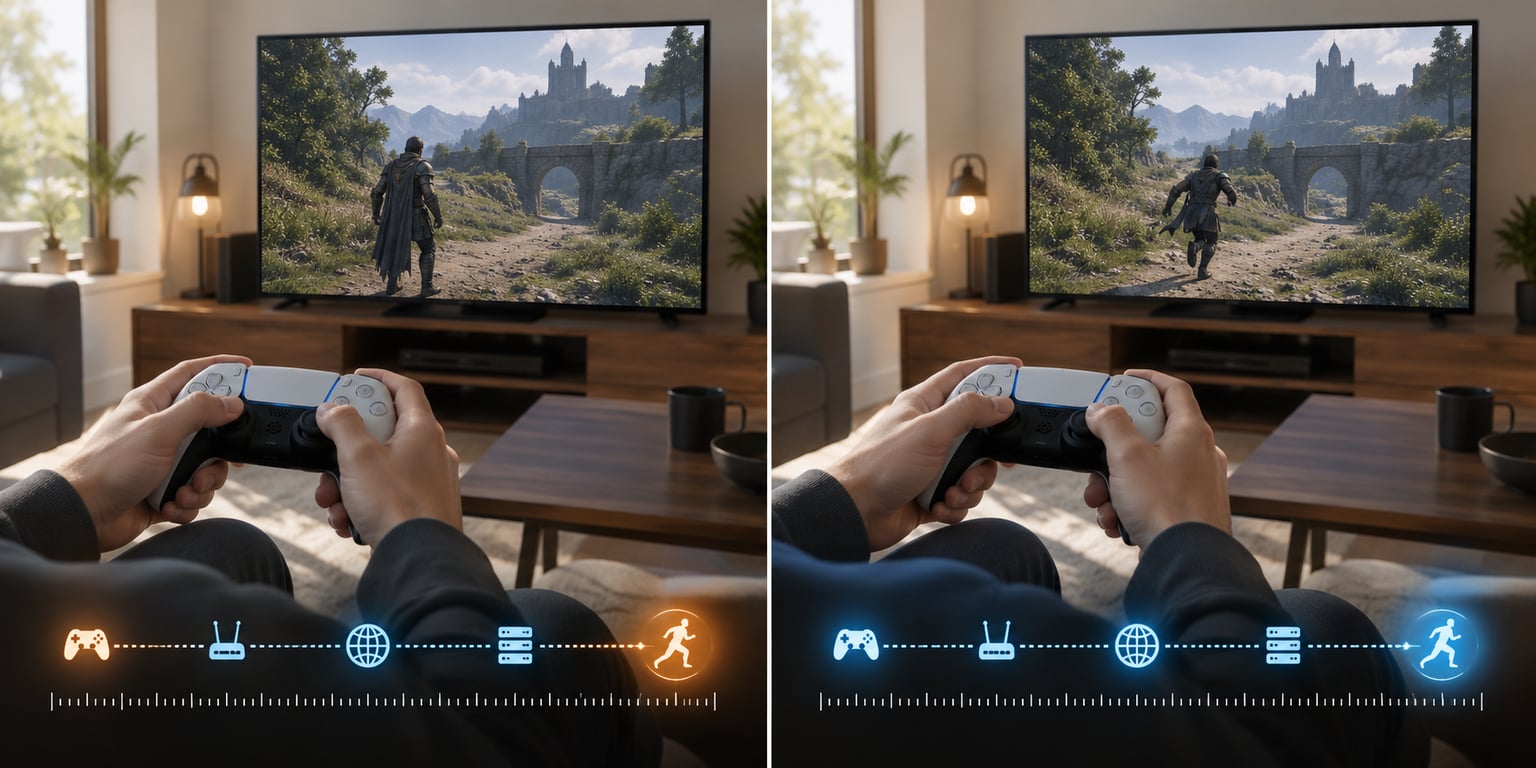
Multiplayer games feel laggy because input lag is never one delay. It is a chain: your controller or mouse gets polled, the game runs a frame, the action travels to a server, the server simulates it on its own tick, and the result travels back and gets smoothed before you see it. Every link in that chain adds milliseconds, and in online play you also inherit delays you cannot touch at all.
The useful part is knowing which link is the slow one, because the fix is completely different for each. A wired cable solves one. A better server solves another. A display with a slower pixel response time solves none of them, and no amount of upgrading will help at all.
Table of Contents
- The Short Version
- What Input Lag Means in Multiplayer Games
- Why Do Multiplayer Games Have So Much Input Lag?</
- Input Lag vs. Network Lag vs. Low FPS
- How to Diagnose the Lag in 10 Minutes
- Why Browser, PC, and Console Multiplayer Games Behave Differently
- How to Reduce Multiplayer Input Lag
- When Lag Is Not Something Players Can Fix
- Frequently Asked Questions
- What to Check First
The Short Version
- Online play adds a round trip to the server that single-player never has, so the same machine and the same game feel different online.
- Input lag is the whole chain from button press to pixel. Ping is only the network round trip, which is one piece of it.
- Constant delay on every action usually means round-trip time or frame rate, not packet loss.
- Rubberbanding and teleporting usually mean prediction error, which grows with your ping.
- Frame drops and stutter are a client-side problem. Wired Ethernet does nothing for them.
- Server outages, bad routing and host-authoritative games are the developer’s side, and no local setting fixes those.
What Input Lag Means in Multiplayer Games
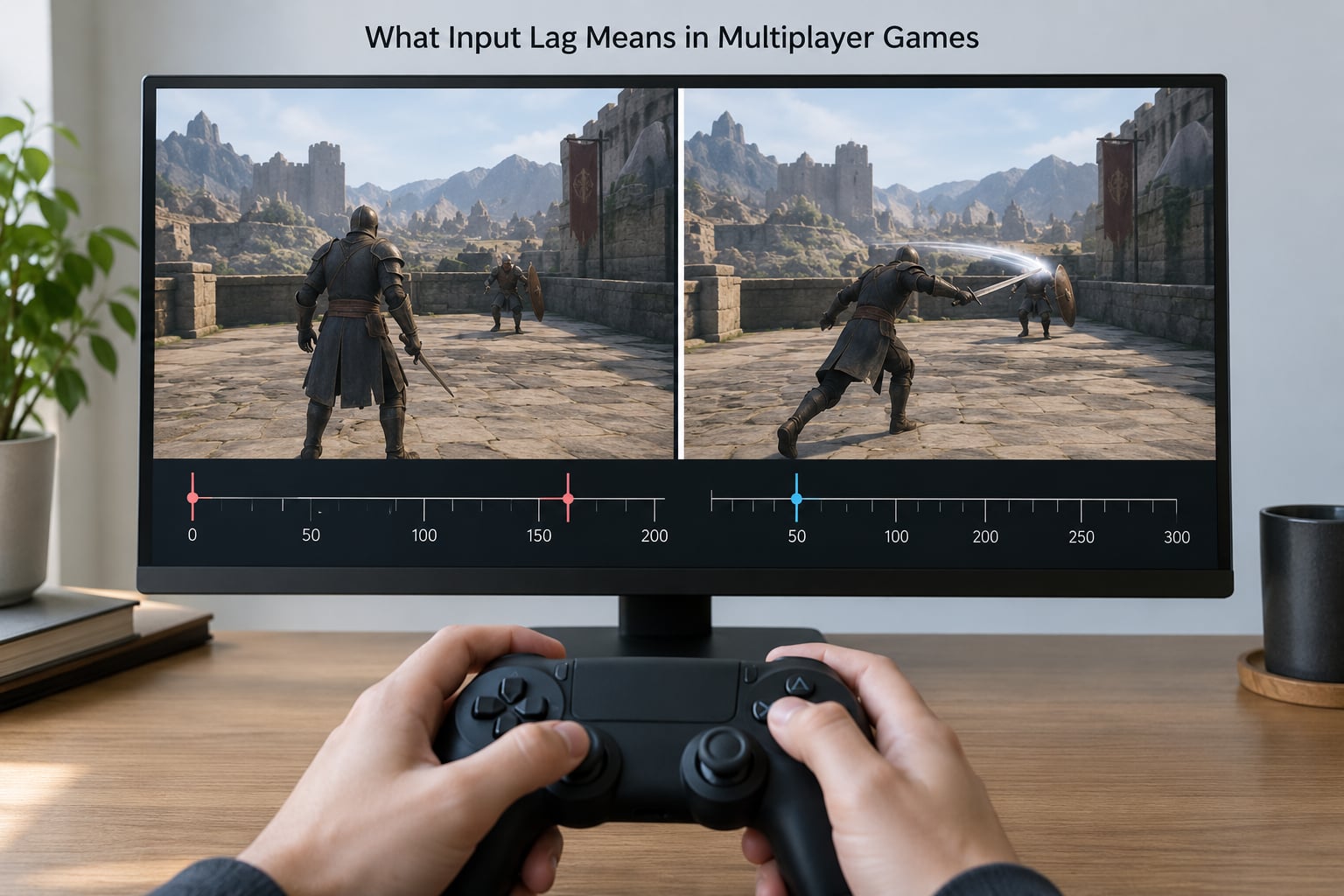
Input lag is the gap between the moment you decide to do something and the moment the game shows you doing it. In a single-player game that gap is your hardware and the render pipeline. In multiplayer it also includes your connection, the game server and the amount of smoothing the developer added to make other players look fluid.
Because the total is a sum, describing all of it as “lag” hides the part you can actually change. Here is what the four terms people mix up actually mean.
| Term | What it measures | Typical range | What it feels like |
|---|---|---|---|
| Input lag | Total delay from button press to pixel change | 60-200 ms on console, lower on a tuned PC | Everything feels slightly detached from you |
| Ping (RTT) | Round trip to the game server and back | 15-80 ms for most players | A flat, even delay on every action |
| Frame time | How long the game takes to produce one frame | 8.3 ms at 120 FPS, 16.7 ms at 60 FPS | Stutter, choppiness, dropped frames |
| Packet loss | Percentage of data that never arrives | Under 0.5% is healthy | Rubberbanding, teleports, stalled models |
| Jitter | How much ping varies from moment to moment | Under 10 ms variation is smooth | Rough, inconsistent delay |
| Desync | Two machines disagreeing about the game state | Should always be zero | Wrong outcomes, broken match, rollback |
How much of the delay is yours and how much is the game’s?
On a PC at 60 FPS, one frame is 16.7 ms. So every extra millisecond your hardware or display adds is roughly six percent of a frame budget, and three of them is about a fifth of a frame you never get back. That is why pixel response time and frame pacing get argued about so fiercely in fighting games.
Here is a rough end-to-end budget for a console player on a 60 Hz television, which is a good baseline because console input chains are fixed and well documented by players:
| Stage | Typical cost | Can you change it? |
|---|---|---|
| Controller reports the press to the console | 4-8 ms | No, it is hardware polling rate |
| Console game engine samples and applies input | 8-16 ms (1-2 frames) | Rarely, sometimes a mode setting |
| Trip to the game server and back | 15-80 ms | Partly, via connection and region |
| Server tick and validation wait | 8-50 ms (tick rate dependent) | No, that is the developer’s choice |
| Entity interpolation delay for other players | 50-100 ms (deliberate) | No, the developer hides jitter this way |
| TV picture processing and panel response | 20-60 ms | Partly, in the TV’s game mode settings |
Add those up and a perfectly healthy console session still sits north of 150 ms before you touch anything. Nobody broke it. That is just what the chain costs. Players who switch a fighting game from console to PC often report the single biggest drop they have ever felt, and the same observation turns up again and again in the r/SparkingZero community.
Why Do Multiplayer Games Have So Much Input Lag?</
Here are the causes that account for nearly all of it, paired with the symptom each one usually produces so you can match your own experience to a cause.
| Cause | Symptom it usually produces |
|---|---|
| Round-trip time to a distant server | A flat, consistent delay on every action; enemies seem to act before you do |
| Wi-Fi interference or congestion | Delay that spikes during voice calls, streaming or when neighbours are online |
| Packet loss on a busy connection | Teleporting characters, rubberbanding, models that freeze mid-stride |
| Jitter from a loaded or misrouted line | Delay that is fine for ten seconds then suddenly awful |
| Low frame rate on your machine | Everything feels heavy and slow, including menus; single-player is equally bad |
| Frame drops and stutter | Runs smoothly for a while then hitches, often alongside other apps open |
| Background downloads or updates | Sudden stutter that starts when the console or PC starts updating |
| Overloaded game servers | Everyone in the match feels it at the same moment, at peak hours |
| Host-authoritative co-op games | The guest lags and the host does not, always, without exception |
| TV picture processing and game mode off | Console feels unresponsive on the TV but fine on a monitor |
Overloaded servers are worth separating out, because no amount of local tinkering helps. If your ping number jumps and everyone in the lobby reports the same thing at the same time, the bottleneck is a machine you do not control. Peak evening hours are when this shows up most, because player counts cluster.
Input Lag vs. Network Lag vs. Low FPS
These three get treated as one problem, and the tests are quick enough that there is no reason to guess. Here is how to tell them apart in about a minute.
Test one: open a menu or a single-player scene
If the game feels sluggish in the main menu, in a settings screen or in single-player mode, your problem is local. Menus have no network component at all, so any delay there comes from frame rate, frame pacing, storage stalls, or the display. No router change will touch it.
Test two: compare the same game across networks
Play the same mode on Wi-Fi and then on Ethernet. If the delay shrinks noticeably, the network was a real contributor. If both feel identical, the delay is somewhere on your machine or on the server.
Test three: watch the two numbers separately
If ping is stable at, say, 30 ms but the game stutters, that is a frame-time problem wearing a network costume. If ping swings between 20 ms and 200 ms, that is jitter or congestion. Stable ping plus consistent small delay plus smooth frames means the game simply has a long chain and there is nothing broken.
One more trick: hold a controller button and watch the character repeat an animation. Slow repetition means frame rate. Fast repetition with the wrong timing relative to other players means the network.
How to Diagnose the Lag in 10 Minutes
Work through this in order and stop when the lag changes. Each step rules out a whole layer.
- Read the in-game network display. Most competitive titles show ping, jitter or packet loss somewhere in the HUD or a net settings screen. Write down the numbers during a normal match, not in the lobby.
- Run a ping test to your router first, then to the game server. A ping to your own router should be under 1 ms. Anything higher means your PC or console has a local network problem before the traffic even leaves the building.
- Check packet loss continuously. On Windows, run
ping -n 100against a stable address and read the loss percentage at the end. A healthy line reports zero loss across 100 packets. - Turn on a frame-time overlay. Steam has one built in, and most games have a stats option that shows FPS and frame time. Watch both, because 60 FPS with 40 ms frame times means uneven pacing, which feels worse than a flat 45.
- Switch to Ethernet for one match. Same game, same server, same time of night. This is the cleanest single comparison you can make.
- Compare two different servers or regions. If one region is smooth and another is rough at the same moment, the problem is routing or that server, not your connection.
- Test a second device on the same network. If a phone or another PC on the same Wi-Fi is also rough, it is the network. If only your gaming machine is rough, it is the machine.
Why Do Multiplayer Games Lag on Wi-Fi?
Wi-Fi shares one radio channel with everything else in your home, and every device on it competes. A neighbour’s network on the same channel, a microwave, a Bluetooth headset or a security camera can all force retransmissions, and each retransmission costs milliseconds.
Plenty of people confuse bandwidth with latency here. A gigabit fibre line can still have terrible ping if the router is overloaded, the route to the game server is bad, or something is saturating the connection. Downloading at full speed while gaming is the clearest example: throughput looks perfect and latency is unusable at the same time.
- Use Ethernet for the machine that plays. This is the single highest-impact change most players can make.
- Move the router off the floor and away from TVs and microwaves. Height and open space matter more than the model.
- Use the 5 GHz or 6 GHz band rather than 2.4 GHz when the device supports it. Higher bands carry more interference but much more headroom.
- Limit the channel width to 80 MHz if neighbours are dense, rather than using 160 MHz for speed you do not need.
- Pause downloads and cloud syncing while a match is running.
- Keep the router firmware current and remember that many ISP-supplied routers process small packets slowly, which hurts latency more than raw speed.
Why Browser, PC, and Console Multiplayer Games Behave Differently
Same action, same network, very different delay, and the reason is usually outside the game.
Browsers are throttling you on purpose. A background tab gets its timers cut down hard, and even a visible tab can be deprioritised when the machine is busy. Video calls and cloud tools also compete for the same uplink, and browsers manage bandwidth with algorithms that do not care about your ping. Browser games feel inconsistent because the browser is making decisions about your connection that you never see.
PC gives you the most control and the most ways to get it wrong. A controller connected over Bluetooth adds several milliseconds of its own, as does a wireless mouse on a busy 2.4 GHz band. Vsync adds up to a full frame of waiting by design, and some players disable it purely for responsiveness, trading a clean image for a faster response, which is exactly the trade described repeatedly in the r/Terraria community. Overlays from streaming software, launchers and recording tools add frame-time spikes that read to players as lag.
Consoles add a fixed, unremovable chain. The TV’s picture processing can add more delay than your entire round trip, and it does that to video games, menus included, unless the right game mode is switched on. That single setting is why a console can feel unresponsive on a television and perfectly fine on a monitor using the same console and the same controller.
How to Reduce Multiplayer Input Lag
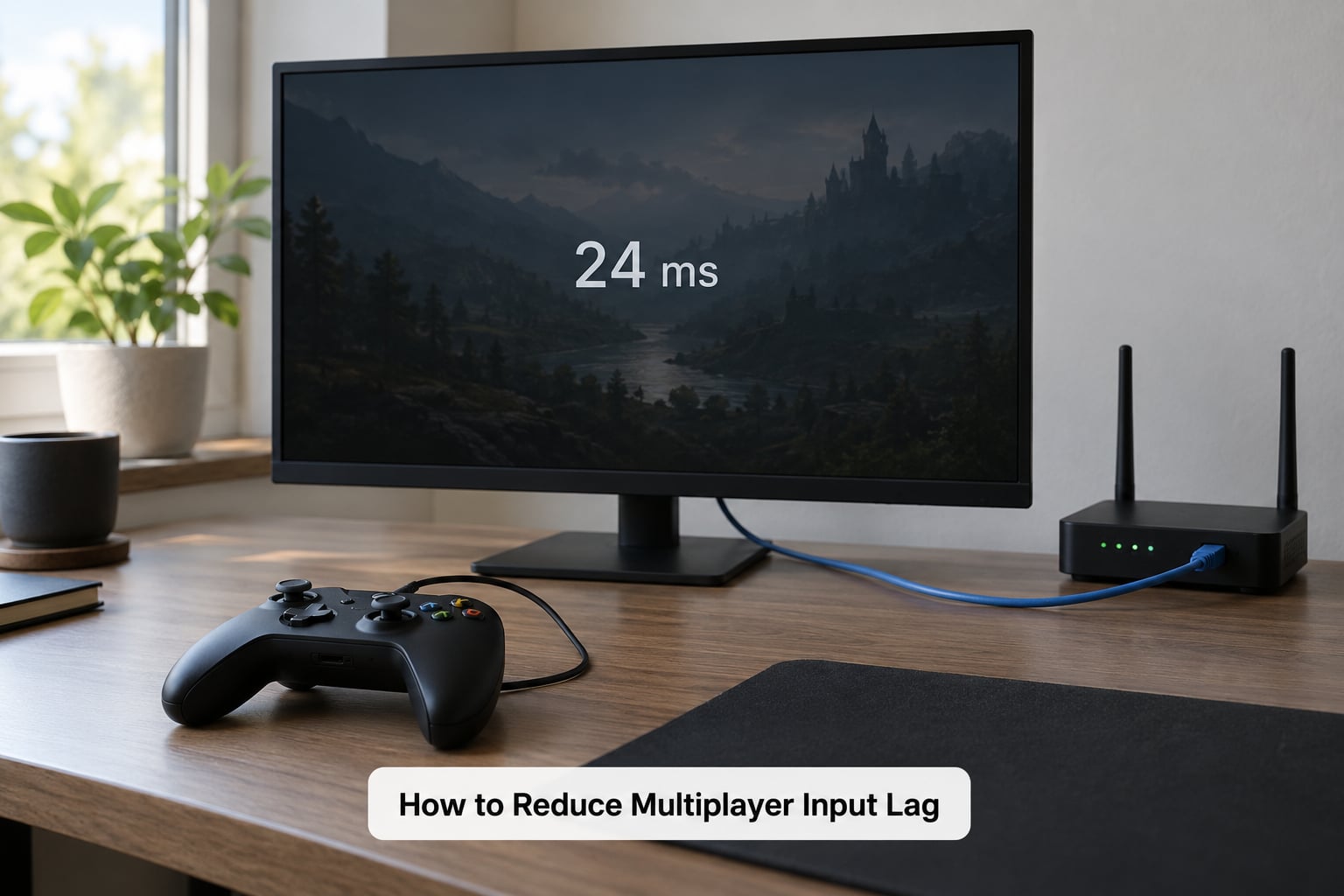
These are ordered by how much they usually buy you for the effort, and each one maps to a cause from the table earlier.
- Go wired for the gaming device. Ethernet removes Wi-Fi interference, contention and retransmission. Biggest single win for anyone on Wi-Fi.
- Close everything that uses bandwidth. Streaming video, cloud backup, other consoles downloading updates, and large file syncs all fight for the same pipe.
- Pause in-game and console downloads. A background download competing with a game is one of the most common causes of sudden stutter in the middle of a match.
- Turn off overlays you do not need. Streaming, voice chat and launchers each hook into the render loop.
- Pick the nearest server region and stay there. If matchmaking offers a region choice, the closer one wins on ping every time. Autoselection sometimes picks on load rather than distance.
- Choose a quieter match when you need responsiveness. Peak-hour servers are the most crowded and the least predictable. Late evening is usually calmer.
- Update drivers and game patches. Network code, prediction and input handling get fixed in patches more often than players expect.
- On a console, switch the TV into game mode. This disables picture processing and usually removes more delay than anything else in this list.
- Cap your frame rate at a stable value. An uncapped frame rate with a mid-range GPU often produces worse frame times than a cap, and consistency beats peak numbers.
- Match your refresh rate to your frame rate. A 144 Hz display showing a 60 FPS game at an uncapped rate adds judder rather than removing delay.
- Use a wired controller connection on PC. Bluetooth on a controller is a few milliseconds for no benefit.
When Lag Is Not Something Players Can Fix
Some causes sit entirely on the developer’s side or on the physical network between you and them, and it is worth recognising them early so you stop spending an evening on settings that will not help.
Server outages and maintenance
If you cannot connect at all, or every player in the match reports the same problem at the same moment, that is an outage or a patch deploying. Check the game’s official status channel before touching your own setup.
Regional routing problems
Sometimes a route between your ISP and a game provider degrades for a whole region. Your ping is fine to your router and fine to most sites, but bad to one provider. Waiting is the only real fix; there is no setting that routes around it.
Host-authoritative co-op games
In peer-hosted games the host’s machine simulates the world for everyone. If the host has a slow CPU, a spinning disk drive or is streaming at the same time, every guest inherits that delay while the host stays smooth. This is why co-op forums consistently turn up the same pattern: the host reports nothing wrong at all. Moving the session to a machine with a fast CPU and a solid connection, or hosting from a datacenter rather than a home connection, is the answer.
Desync
Desync is not lag. Lag means the game is slow, desync means two machines disagree about what is true. In strategy and lockstep titles a desync usually halts the session entirely, because the game cannot continue safely once the states diverge.
Engine and netcode limits
Some games add a fixed amount of deliberate delay so remote players look smooth, and some simply run a low server tick rate. Raising the tick rate does not remove your input lag and can make rubberbanding worse on lossy connections, because each correction arrives more often. That is an architecture decision made before your game ever launched.
What evidence to collect before asking for help
Screenshot the in-game network readout during the problem, note the time and the server region, run a packet loss test, and record a frame-time graph. Support can act on that; they cannot act on “it feels laggy”.
Frequently Asked Questions
Is input lag the same as low FPS?
No. Input lag is the total delay between your action and the screen changing. Low frame rate means the game is producing fewer images per second, which adds delay but is a different problem. A game running at a steady 60 FPS can still have 150 ms of input lag from the display and the network. If menus and single-player feel equally sluggish, suspect frame rate. If only online play is delayed, suspect the network chain.
How can I tell if my multiplayer lag is from my internet?
Three quick checks. Play a single-player scene or a menu: any sluggishness there is your machine, not your internet. Ping your own router, which should be under 1 ms on a healthy setup, then ping the game server. Then play one match on Ethernet and compare. If delay drops when you switch, the network was contributing. If it does not, look at frame rate, background processes and the display.
Does using Wi-Fi cause input lag in multiplayer games?
Often, yes, though not always. Wi-Fi shares one channel with every other device nearby, so interference, congestion and retransmissions add variable delay that Ethernet simply does not have. A fast fibre connection does not fix this, because the problem is radio contention rather than throughput. A stable Wi-Fi setup on a quiet channel can be perfectly playable. Wired Ethernet removes the whole category of problems, which is why it is the usual first recommendation.
Why does input lag make aiming and shooting feel worse?
Because your aim and your target are moving on different clocks. Your crosshair updates locally almost immediately, but the shot has to reach the server and come back before the game knows what it hit. On a delayed connection the server evaluates your shot against where other players were when your input arrived, not where they are now. That is why players report getting shot after reaching cover, and why higher ping genuinely costs accuracy in competitive shooters.
When is upgrading my internet or gaming hardware worth it?
Upgrade the connection if your own tests show real problems: high packet loss, ping far above what the distance justifies, or latency spikes that track with other traffic. Upgrade the machine if menus and single-player stutter, if your frame times swing wildly, or if a cap raises your average frame rate. If a wired connection with background apps closed still feels identical, faster internet will not help you, and hardware that already holds a steady frame rate has nothing left to give.
What to Check First
Start by separating the layers rather than changing everything at once. Open a menu: sluggish there means frame rate or the display, not your connection. If menus are fine, compare ping and packet loss during a real match, then run one match on Ethernet to see what the network is actually contributing.
After that, close anything downloading, turn off unused overlays, and check that your console TV is in game mode. If two servers differ sharply at the same moment, or the whole lobby is rough at peak time, it is the server. Collect screenshots of the network readout with timestamps and the region name before contacting support, because that is what they can actually act on.